
Which three features must all XSLT files contain to be considered valid?
A. A root element, namespace, and at least one transformation
B. A root element, namespace, and at least one template
C. A header, a footer, and a namespace
D. A template, a prefix, and a header
Explanation:
This question tests the fundamental structural requirements for a valid XSLT stylesheet used in Workday integrations (and per XSLT standards). Every XSLT file must be a well-formed XML document that the processor can recognize and execute as a transformation.
✅ Correct Option:
B. A root element, namespace, and at least one template
A valid XSLT file requires a single root element (typically
❌ Incorrect options:
A. A root element, namespace, and at least one transformation
“Transformation” is not a specific required element. The stylesheet itself performs the transformation; the required construct is one or more templates that contain the rules.
C. A header, a footer, and a namespace
Headers and footers are optional output-formatting constructs (often implemented inside templates), not mandatory structural features of an XSLT file.
D. A template, a prefix, and a header
A prefix is only part of a namespace declaration and is not independently required. A header is optional and not a core validity requirement.
🔧 Reference:
→ W3C XSLT 3.0 Specification – Stylesheet Structure & XSLT Namespace
Confirms that a stylesheet must be a well-formed XML document using the XSLT namespace and containing template rules.
Refer to the following XML to answer the question below.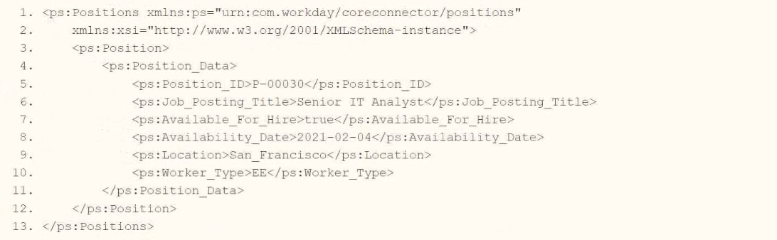
You need the integration file to format the ps:PositionJD field to 10 characters and report any truncated values as an error.
How will you start your template match on ps:Position to use Document Transformation (DT) to do the transformation using ETV with your truncation validation?
A. 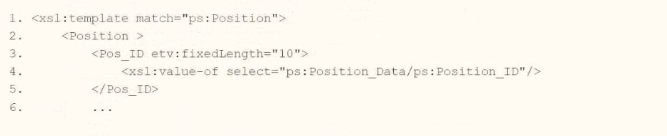
B. 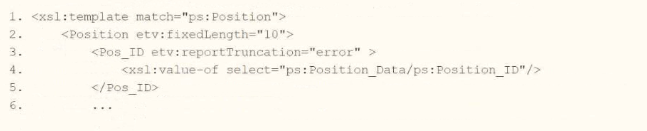
C. 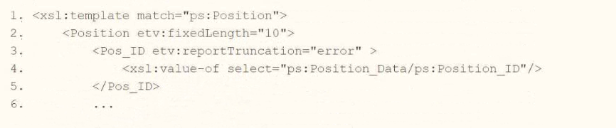
D. 
Explanation:
This question tests your ability to use Workday's Element Transformation and Validation (ETV) attributes within an XSLT Document Transformation (DT). The requirement is to format the ps:Position_ID field to a fixed length of 10 characters and report truncation as an error. ETV attributes must be applied directly to the specific element being formatted (Pos_ID), not to parent elements or the template itself. The correct approach places both etv:fixedLength="10" and etv:reportTruncation="error" on the Pos_ID element while correctly extracting the value using the XPath ps:Position_Data/ps:Position_ID.
✔️ Correct Option: D
This option correctly applies both ETV attributes (etv:reportTruncation="error" and etv:fixedLength="10") directly to the Pos_ID element that requires formatting and validation. It also correctly extracts the ps:Position_ID value using the proper XPath. ETV attributes must be placed on the specific data element, not the template or parent element.
❌ Incorrect Option: A
❌ Incorrect Option: B
❌ Incorrect Option: C
This option also misplaces etv:fixedLength="10" on the template element itself. XTT/ETV attributes cannot be applied to
🔧 Reference:
→ Workday Pro Integrations Study Guide: Document Transformation (DT) and ETV — Confirms that ETV attributes like fixedLength and reportTruncation must be applied directly to the specific field element being formatted, not to parent elements or the template.
→ Workday Core Connector and EIB Guide: XML Transformations — Details how to use ETV attributes for fixed-length formatting and truncation validation when transforming position data with XSLT templates.
What is the purpose of the
A. Determine the output file type.
B. Grant access to the XSLT language.
C. Provide rules to apply to a specified node.
D. Generate an output file name.
Explanation:
This question tests the role of the
🟢 Correct Option:
C. Provide rules to apply to a specified node.
The
🔴 Incorrect options:
A. Determine the output file type.
This option is incorrect because
B. Grant access to the XSLT language.
This option is incorrect because access to XSLT functionality is established through the XSLT namespace declaration on the stylesheet. The
D. Generate an output file name.
This option is incorrect because
🔧 Reference:
→ W3C XSLT Specification — xsl:template — Defines templates as rules for processing source nodes that match specified patterns.
What option for an outbound EIB uses a Workday-delivered transformation to output a format other than Workday XML?
A. Alternate Output Format
B. XSLT Attachment Transformation
C. Custom Transformation
D. Custom Report Transformation
Explanation:
This question tests your knowledge of outbound Enterprise Interface Builder (EIB) configuration options in Workday. It evaluates whether you can distinguish between native Workday-delivered file formatting options and user-defined custom transformations.
✅ Correct Option:
Option A:
Option A is correct because Alternate Output Format is a Workday-delivered feature configured during the Get Data step when using a custom report. It automatically converts report data into formats like CSV or Excel without requiring custom XSLT code.
❌ Incorrect options:
Option B:
Option B is incorrect because XSLT Attachment Transformation requires a user-created XSL stylesheet uploaded to the EIB, making it a custom-developed transformation rather than a Workday-delivered one.
Option C:
Option C is incorrect because Custom Transformation requires user-defined transformation logic (typically custom XSLT code) to process the data, so it is not pre-built by Workday.
Option D:
Option D is incorrect because Custom Report Transformation is a custom transformation type where the user defines custom delimited or fixed-width rules using XSL or placeholders, rather than relying on a simple built-in report output setting.
🔧 Reference:
→ Workday Community Documentation confirms that selecting an Alternate Output Format allows an outbound EIB to generate CSV or Excel files directly from report output.
What is the task used to upload a new XSLT file for a pre-existing document transformation integration system?
A. Edit Integration Attachment
B. Edit Integration Attachment Service
C. Edit XSLT Attachment Transformation
D. Edit Integration Service Attachment
Explanation:
This question tests your knowledge of the specific Workday task required to update the XSLT file for an existing Document Transformation integration system. When you need to replace or update the transformation logic without recreating the entire integration, you must use a task designed specifically for managing XSLT attachments within the context of document transformation .
✔️ Correct Option: C
Edit XSLT Attachment Transformation — This task allows users to upload a revised XSLT file directly to an existing Document Transformation integration system . It specifically targets the transformation logic (XSLT) rather than general attachments, ensuring the updated file replaces the previous version while maintaining the integration configuration .
❌ Incorrect Option: A
Edit Integration Attachment — This task manages general attachments like input files or supplementary documents associated with an integration, but it does not specifically handle XSLT transformation files . It lacks the precision required for updating transformation logic.
❌ Incorrect Option: B
Edit Integration Attachment Service — This is not a recognized task within Workday's integration framework. The terminology appears to be a mix of different task names and does not align with documented processes for managing XSLT files .
❌ Incorrect Option: D
Edit Integration Service Attachment — While this option might sound plausible, it is not the correct task for handling XSLT files in a Document Transformation context. Workday documentation consistently specifies "Edit XSLT Attachment Transformation" for this purpose .
🔧 Reference:
→ Workday Pro Integrations Study Guide: Configure Integration Systems - Transformations — Confirms that "Edit XSLT Attachment Transformation" is the task used to upload a new XSLT file for an existing document transformation integration system .
→ Workday Community Documentation: Enterprise Interface Builder (EIB) and Document Transformation Connector — Details the process for updating XSLT files, including the use of the "Edit XSLT Attachment Transformation" task .
Refer to the following XML to answer the question below.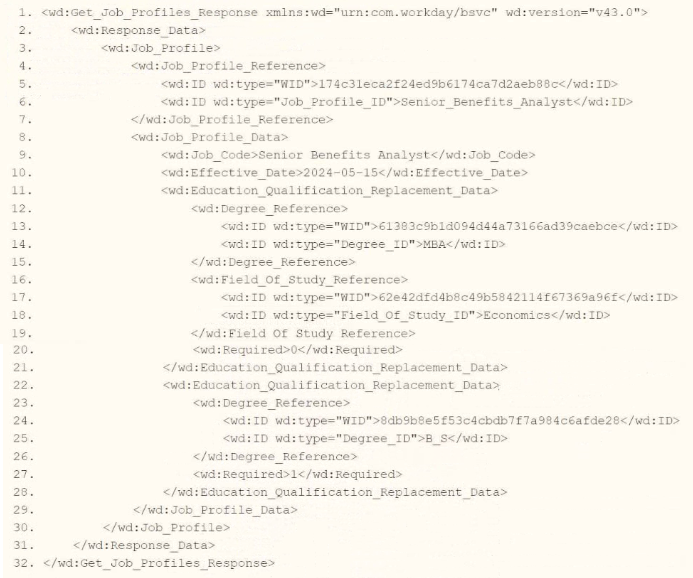
You are an integration developer and need to write XSLT to transform the output of an EIB
which is using a web service enabled report to output worker data along with their
dependents. You currently have a template which matches on wd:Report_Data/wd:Report_Entry for creating a record from each report entry.
Within the template which matches on wd:Report_Entry you would like to conditionally process the wd:Dependents_Group elements by using an
What XPath syntax would be used as the select for the apply templates so as to iterate over only the wd:Dependents_Group elements where the dependent relationship is Child?
A. wd:Dependents_Group[@wd:Relationship='Child']
B. wd:Dependents_Group[wd:Relationship='Child']
C. wd:Dependents_Group/wd:Relationship='Child'
D. wd:Dependents_Group/@wd:Relationship='Child'
Explanation:
This question tests the correct use of XPath predicates inside an
✅ Correct Option:
B. wd:Dependents_Group[wd:Relationship='Child']
The square-bracket predicate [wd:Relationship='Child'] filters the wd:Dependents_Group elements to those that contain a child element named wd:Relationship whose string value is “Child”. This is the standard XPath syntax used in Workday XSLT when Relationship appears as an element (common in report output).
❌ Incorrect options:
A. wd:Dependents_Group[@wd:Relationship='Child']
The @ symbol tests for an attribute. If wd:Relationship is an element rather than an attribute, this expression returns no nodes.
C. wd:Dependents_Group/wd:Relationship='Child'
This is not a valid filter expression for a select attribute; it attempts a path comparison rather than a predicate and will not select the desired nodes.
D. wd:Dependents_Group/@wd:Relationship='Child'
This syntax is invalid for selecting elements; it mixes a path with an equality test and does not use a proper predicate.
🔧 Reference:
→ Workday Pro Integrations exam discussion and XPath guidance for RaaS output
Confirms that the predicate form element[child-element='value'] is the correct syntax when Relationship is modeled as an element inside wd:Dependents_Group.
Refer to the following XML to answer the question below.
Refer to the following XML to answer the question below.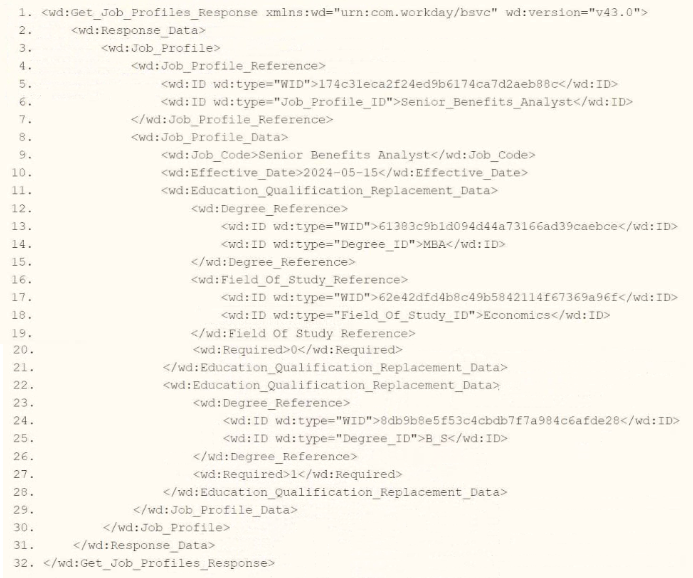
You are an integration developer and need to write XSLT to transform the output of an EIB
which is making a request to the Get Job Profiles web service operation. The root template of your XSLT matches on the
A. format-date('[D01]-[M01]-[Y0001]’, wd:Job_Profile_Data/wd:Effective_Date)
B. format-date (wd:Job_Profile_Data/wd:Effective_Date, '[D01]-[M01]-[Y0001]')
C. format-date (wd:Job_Profile_Data/wd:Effective_Date, '[M01]-[D01]-[Y0001]')
D. format-date('[M01]-[D01]-[Y0001]’, wd:Job_Profile_Data/wd:Effective_Date)
Explanation:
This question tests your knowledge of XPath functions used in XSLT transformations within Workday. It evaluates whether you can apply the correct syntax and parameter ordering for the format-date function to convert date formats.
✅ Correct Option:
Option B:
Option B is correct because the format-date function expects the date value as its first argument (wd:Job_Profile_Data/wd:Effective_Date) and the picture string specifying the format pattern ('[D01]-[M01]-[Y0001]') as its second argument.
❌ Incorrect options:
Option A:
Option A is incorrect because it reverses the required parameter order, incorrectly supplying the picture formatting string as the first argument instead of the target date value.
Option C:
Option C is incorrect because the picture string '[M01]-[D01]-[Y0001]' formats the date in month-day-year order rather than the requested day-month-year format.
Option D:
Option D is incorrect because it both reverses the parameter order and uses a month-first picture string instead of the requested day-month-year pattern.
🔧 Reference:
→ W3C XPath Functions and Operators Specification confirms that the format-date function defines the target date value as the first argument and the formatting picture string as the second argument.
A calculated field used as a field override in a Connector is not appearing in the output. Assuming the field has a value, what could cause this to occur?
A. Access not provided to calculated field data source.
B. Access not provided to all fields in the calculated field.
C. Access not provided to Connector calculated field web service.
D. Access not provided to all instances of calculated field.
Explanation:
This question tests your understanding of Workday's security model for calculated fields in integrations. Specifically, it addresses why a calculated field configured as a field override might not appear in connector output despite having valid data.
✔️ Option B: Access not provided to all fields in the calculated field
In Workday, calculated field security is inherited from the underlying secured fields used in the calculation. If the Integration System User (ISU) lacks "Get" or "View" permission to any referenced field in the calculated field's expression, the entire calculated field will be suppressed from the output. This occurs even when the calculated field itself is properly configured and contains values. doc.workday.com: Securing Connectors confirms that underlying secured fields determine security access to a calculated field definition.
❌ Option A: Access not provided to calculated field data source
This option is incorrect because calculated fields do not have independent "data sources" with separate security policies. Security is controlled at the domain level for the underlying fields referenced in the calculation, not at a calculated-field-specific data source level.
❌ Option C: Access not provided to Connector calculated field web service
This option is incorrect because there is no dedicated "Connector calculated field web service" in Workday's architecture. Field overrides use the same web service operation as the connector (e.g., GetPositions), and security is governed by domain policies for the fields, not a separate calculated field service.
❌ Option D: Access not provided to all instances of calculated field
This option is incorrect because calculated field security is not instance-based. Access is determined by domain permissions for the underlying secured fields across all instances. If the ISU has proper domain access, the calculated field will appear for all eligible instances.
🔧 Reference:
→ Securing Connectors – doc.workday.com — Confirms that users with access to underlying secured fields can access calculated field values, and domain security determines access.
→ Enhance Integrations with Calculated Fields
– doc.workday.com — Explains how calculated fields work in integrations and their dependency on underlying field security.
What attribute(s) can go into the xsl:stylesheet element?
A. XSLT Version & Namespaces
B. XSLT Version & Encoding
C. XML Version & Namespaces
D. Namespaces & Encoding
Explanation:
This question tests knowledge of the required and common attributes on the root element of an XSLT stylesheet. The
✅ Correct Option:
A. XSLT Version & Namespaces
The version attribute (e.g., version="1.0", version="2.0", or version="3.0") is required on the
❌ Incorrect options:
B. XSLT Version & Encoding
Encoding is specified in the XML declaration () at the very top of the file, not as an attribute of
C. XML Version & Namespaces
The XML version belongs to the XML prolog/declaration, not to the stylesheet element.
D. Namespaces & Encoding
Encoding is not an attribute of
🔧 Reference:
→ W3C XSLT Specification – Stylesheet Element
Confirms that the version attribute is required on xsl:stylesheet and that namespace declarations (including the XSLT namespace) are placed on this element.
Refer to the following XML to answer the question below.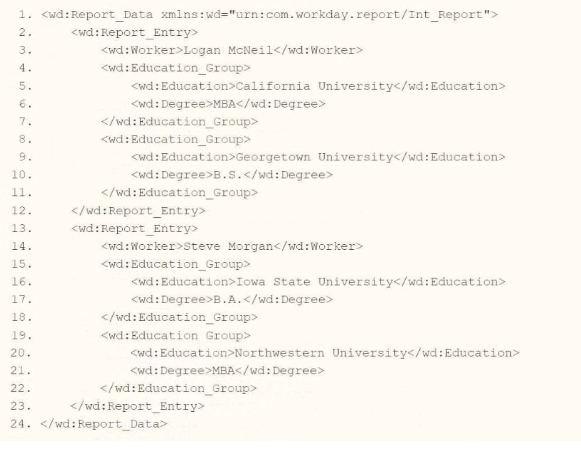
Within the template which matches on wd:Report_Entry, you would like to conditionally
process the wd:Education_Group elements by using an
A. wd:Education_Group[wd:Degree='MBA']
B. wd:Education_Group/wd:Degree='MBA'
C. wd:Report_Entry/wd:Education_Group/wd:Degree='MBA' 1:Degree='MBA'
D. wd:Report_Entry/wd:Education_Group[wd:Degree='MBA' 1:Degree='MBA']
Explanation:
This question tests your ability to write an XPath expression within an
✔️ Correct Option: A
wd:Education_Group[wd:Degree='MBA'] — This is the correct XPath syntax. It selects all wd:Education_Group elements that are children of the current context node (the wd:Report_Entry) and have a child element named wd:Degree with the exact string value "MBA". This effectively filters the nodeset to only the relevant education groups.
❌ Incorrect Option: B
wd:Education_Group/wd:Degree='MBA' — This is syntactically invalid for a predicate inside the select expression. It would be interpreted as a path that returns a boolean or a node-set to compare, not as a filter condition. A valid filter requires brackets [] to apply the condition.
❌ Incorrect Option: C
wd:Report_Entry/wd:Education_Group/wd:Degree='MBA' — This option contains multiple issues. First, it redundantly specifies wd:Report_Entry even though the current context is already the wd:Report_Entry node. Second, it incorrectly places the comparison ='MBA' outside of predicate brackets [], making the XPath invalid for filtering in this context.
❌ Incorrect Option: D
wd:Report_Entry/wd:Education_Group[wd:Degree='MBA' 1:Degree='MBA'] — This option contains a nonsensical syntax error with 1:Degree='MBA', which is not valid XPath. Additionally, it redundantly specifies wd:Report_Entry when the current context is already within that node. The extra comparison makes the expression invalid and unprocessable.
🔧 Reference:
→ W3C XML Path Language (XPath) 2.0 Specification - Predicates — Confirms the correct syntax for using predicates with child elements, e.g., para[title="Introduction"] to filter based on child element content.
→ Workday Pro Integrations Study Guide: XSLT Transformations for Workday Integrations — Details how to use XPath predicates in XSLT to filter education groups based on element values like wd:Degree.
You have successfully configured an ISU and an ISSG with the correct security policies and have assigned them to an EIB.
What task do you need to run before you can launch the EIB?
A. Activate Pending Security Policy Changes
B. View Security for Securable Item
C. Assign the ISSG to only one security policy
D. Maintain Integration Security Policies
Explanation:
This question tests the security activation step required after configuring an Integration System User (ISU), Integration System Security Group (ISSG), and their related security policies. Even when the correct security is configured and assigned to an EIB, pending security policy changes must be activated before the integration can run successfully.
🟢 Correct Option:
A. Activate Pending Security Policy Changes
After configuring security policies for the ISU and ISSG, Workday keeps those changes in a pending state until they are activated. Running Activate Pending Security Policy Changes applies the updated permissions to the tenant. This activation is required before launching the EIB so that the integration runs with the newly configured security settings and access permissions.
🔴 Incorrect options:
B. View Security for Securable Item
This task is used to review security information associated with a securable item. It helps administrators understand which security groups or policies have access, but it does not activate pending security changes. Therefore, viewing security alone will not make the EIB ready to launch.
C. Assign the ISSG to only one security policy
An ISSG may be associated with the security policies required for its integration access. There is no general requirement that an ISSG be assigned to only one security policy before launching an EIB. The critical step is activating the pending security policy changes.
D. Maintain Integration Security Policies
This task is used to configure or maintain integration security policies. However, configuring the policies does not automatically apply pending changes. Once the required policies have been configured, the pending changes must be activated before the EIB can use the updated security configuration.
🔧 Reference:
→ Workday Integration Security Documentation — Official Workday Community documentation covering integration security configuration and activation of security policy changes.
Refer to the following scenario to answer the question below. Your integration has the
following runs in the integration events report (Date format of MM/DD/YYYY):
Run #1
• Core Connector: Worker Integration System was launched on May 15, 2024 at 3:00:00
AM.
• As of Entry Moment: 05/15/2024 3:00:00 AM
• Effective Date: 05/15/2024
• Last Successful As of Entry Moment: 05/01/2024 3:00:00 AM
• Last Successful Effective Date: 05/01/2024
Run #2
• Core Connector: Worker Integration System was launched on May 31, 2024 at 3:00:00
AM.
• As of Entry Moment: 05/31/2024 3:00:00 AM
• Effective Date: 05/31/2024
• Last Successful As of Entry Moment: 05/15/2024 3:00:00 AM
• Last Successful Effective Date: 05/15/2024 On May 13, 2024 Brian Hill receives a salary increase. The new salary amount is set to $90,000.00 with an effective date of April 30,2024. Which of these runs will include Brian Hill's compensation change?
A. Brian Hill will be included in both integration runs.
B. Brian Hill will only be included in the second integration run.
C. Brian Hill will only be included in the first integration run.
D. Brian Hill will be excluded from both integration runs.
Explanation:
This question tests your knowledge of change detection parameters in Workday Core Connectors. It evaluates whether you understand how "As of Entry Moment" and "Effective Date" work together to extract transaction updates.
✅ Correct Option:
Option C:
Option C is correct because the change was entered on May 13, 2024, with an effective date of April 30, 2024. In Run #1, the entry window (May 1 to May 15) and effective date window (April 30 to May 15) capture this update.
❌ Incorrect options:
Option A:
Option A is incorrect because Core Connectors utilize delta tracking, meaning once a transaction is successfully processed in Run #1, it will not be re-extracted in Run #2.
Option B:
Option B is incorrect because the entry moment (May 13) falls before the last successful entry moment of Run #2 (May 15), so Run #2 misses the change.
Option D:
Option D is incorrect because the transaction falls within the parameter windows of Run #1, ensuring that the compensation change is captured rather than completely excluded.
🔧 Reference:
→ Workday Community Core Connectors Guide confirms that change detection filters transactions using entry moment and effective date ranges to avoid duplicate processing.
| Page 1 out of 10 Pages |
| 123 |
Real-World Scenario Mastery: Our Workday-Pro-Integrations practice exam don't just test definitions. They present you with the same complex, scenario-based problems you'll encounter on the actual exam.
Strategic Weakness Identification: Each practice session reveals exactly where you stand. Discover which domains need more attention, before Workday Pro Integrations Certification Exam exam day arrives.
Confidence Through Familiarity: There's no substitute for knowing what to expect. When you've worked through our comprehensive Workday-Pro-Integrations practice exam questions pool covering all topics, the real exam feels like just another practice session.
Copyright © All Rights Reserved