
What is the limitation when assigning ISUs to integration systems?
A. An ISU can be assigned to five integration systems.
B. An ISU can be assigned to an unlimited number of integration systems.
C. An ISU can be assigned to only one integration system.
D. An ISU can only be assigned to an ISSG and not an integration system.
Explanation:
This question tests the relationship between an Integration System User (ISU) and Integration Systems in Workday. An ISU is a security identity used to run integrations, and the same ISU can be associated with multiple integration systems when the security design requires it.
🟢 Correct Option:
B. An ISU can be assigned to an unlimited number of integration systems.
An Integration System User (ISU) is not restricted to a single integration system. The same ISU can be assigned to multiple integration systems, allowing organizations to reuse an established integration security identity. However, using one ISU broadly should be carefully controlled because its permissions determine what each associated integration can access and perform within Workday.
🔴 Incorrect options:
A. An ISU can be assigned to five integration systems.
Workday does not impose a five-integration-system limit on an ISU. An ISU can be associated with multiple integration systems, so this fixed numerical restriction is incorrect.
C. An ISU can be assigned to only one integration system.
An ISU is not limited to a one-to-one relationship with an integration system. The same ISU can support multiple integration systems, provided the required security permissions and configuration are appropriate.
D. An ISU can only be assigned to an ISSG and not an integration system.
This is incorrect because an ISU can be associated directly with integration systems. An Integration System Security Group (ISSG) is used to organize security permissions; it does not replace the ISU-to-integration-system relationship.
🔧 Reference:
→ Workday Integration Security — Official Workday Community resources covering ISUs, integration systems, and integration security configuration.
Refer to the following scenario to answer the question below.
You need to configure a Core Connector: Candidate Outbound integration for your vendor.
The connector requires the data initialization service (DIS).
The vendor needs a value on the output file which contains the average number of jobs a candidate applied to. This value is not delivered by Workday so you have identified that you will need to build a calculated field to generate this value.
What steps do you follow to output the calculated field?
A. Configure a custom field override service to output the calculation.
B. Configure integration attributes to output the calculation.
C. Configure integration field attributes to output the calculation.
D. Configure integration field overrides to output the calculation.
Explanation:
This question tests your knowledge of extending Workday Core Connectors beyond delivered fields. It evaluates how to incorporate custom business logic into standard connector outputs when required data points are not provided out of the box by Workday services.
✅ D. Configure integration field overrides to output the calculation.:
When a Core Connector template lacks a delivered data point, Workday utilizes Integration Field Overrides service. This configuration allows integration developers to map custom calculated fields directly to template placeholder fields, ensuring custom metrics—such as the calculated average number of candidate job applications—are injected into the final output.
❌ Incorrect options:
❌ A. Configure a custom field override service to output the calculation.:
Workday terminology does not refer to this component as a "custom field override service." The actual integration service is called "Integration Field Overrides," making this option technically inaccurate within Workday configuration navigation.
❌ B. Configure integration attributes to output the calculation.:
Integration attributes are used to specify static runtime parameters and environmental settings, such as endpoints or dates. They cannot dynamically map custom calculated fields into transaction payload fields.
❌ C. Configure integration field attributes to output the calculation.:
Integration field attributes define behavior or default values for existing delivered fields within a connector. They are not designed to map user-created calculated fields to replace or inject missing data elements.
🔧 Reference:
→ Workday Integration Field Overrides Documentation confirms how custom calculated fields are mapped to override standard core connector output data.
What is the purpose of granting an ISU modify access to the Integration Event domain via an ISSG?
A. To have the ISU own the integration schedule.
B. To let the ISU configure integration attributes and maps.
C. To log into the user interface as the ISU and launch the integration.
D. To build the integration system as the ISU.
Explanation:
This question tests your understanding of Workday security configuration for integration system users (ISU), specifically the purpose of granting modify access to the Integration Event domain through an Integration System Security Group (ISSG). This access controls what administrative actions the ISU can perform on integrations.
✔️ Correct Option:
B. To let the ISU configure integration attributes and maps.
Granting an ISU modify access to the Integration Event domain via an ISSG enables the integration system user to configure and maintain integration-specific settings. This includes modifying integration attributes, adjusting field mappings, configuring transformation rules, and updating integration parameters without requiring full administrative privileges. This access is essential for ongoing integration maintenance and troubleshooting.
❌ Incorrect Options:
A. To have the ISU own the integration schedule.
This option is incorrect because integration schedule ownership is not controlled through Integration Event domain access. Schedule ownership and management typically require different security domains related to scheduled processes or integration scheduling, not the Integration Event domain specifically.
C. To log into the user interface as the ISU and launch the integration.
This option is incorrect because launching integrations manually through the UI requires execute or run permissions on the integration, not modify access to the Integration Event domain. Modify access focuses on configuration changes, not execution capabilities.
D. To build the integration system as the ISU.
This option is incorrect because building or creating new integration systems requires higher-level administrative privileges and access to integration creation domains. Modify access to Integration Event domain is for maintaining existing integrations, not creating new integration system definitions.
🔧 Reference:
→ Workday Integration System Security Groups — Confirms that ISSG modify access to Integration Event domain allows configuration of integration attributes, mappings, and transformation rules for existing integrations.
→ Workday Security Domain Documentation — Explains the specific permissions granted by different security domains and how Integration Event domain access enables integration maintenance tasks.
Refer to the following scenario to answer the question below.
You need to configure a Core Connector: Candidate Outbound integration for your vendor. The connector requires the data initialization service (DIS).
The vendor needs the file to only include candidates that undergo a candidate assessment event in Workday.
How do you accomplish this?
A. Configure the integration services to only include candidates with assessments.
B. Set the integration transaction log to subscribe to specific transaction types.
C. Make the Candidate Assessment field required in integration field attributes.
D. Create an integration map to output values for candidates with assessments.
Explanation:
The requirement is to send candidates only when a Candidate Assessment event occurs. Because the Core Connector uses the Data Initialization Service (DIS), the transaction log can be configured to identify specific business events and trigger the integration based on those transactions.
🟢 Correct Option:
B. Set the integration transaction log to subscribe to specific transaction types.
The Integration Transaction Log allows a Core Connector to monitor selected Workday business transactions and identify workers or candidates affected by those events. By subscribing to the appropriate Candidate Assessment transaction type, the integration can process candidates when an assessment event occurs rather than sending the entire candidate population. This is the appropriate approach for event-driven incremental processing with DIS.
🔴 Incorrect options:
A. Configure the integration services to only include candidates with assessments.
Integration Services control how the connector processes and retrieves data, but they are not the mechanism for identifying a specific candidate assessment transaction as the trigger for outbound processing.
C. Make the Candidate Assessment field required in integration field attributes.
Making a field required controls whether a value is expected in the output. It does not filter candidates based on whether a Candidate Assessment business event occurred.
D. Create an integration map to output values for candidates with assessments.
Integration Maps translate internal Workday values into external values. They do not determine which candidates are selected based on a specific business transaction or event.
🔧 Reference:
→ Workday Core Connectors — Official Workday resources covering Core Connector transaction processing and integration configuration.
→ Workday Integration Transaction Log — Official Workday resources covering transaction types and event-based integration processing.
Refer to the following scenario to answer the question below.
You have been asked to build an integration using the Core Connector: Worker template and should leverage the Data Initialization Service (DIS). The integration will be used to export a full file (no change detection) for employees only and will include personal data.
The vendor receiving the file requires marital status values to be sent using a list of codes that they have provided instead of the text values that Workday uses internally and if a text value in Workday does not align with the vendors list of codes the integration should report
"OTHER".
What configuration is required to output the list of codes required from by the vendor instead of Workday's values in this integration?
A. Configure Integration Maps with a blank Default
B. Configure Integration Attributes with a blank Default
C. Configure Integration Maps with "OTHER" as a Default
D. Configure Integration Attributes with "OTHER" as a Default
Explanation:
This question tests your understanding of field-level value transformation in a Core Connector integration. The vendor requires marital status text values (e.g., "Married") to be converted to specific codes (e.g., "M"). For any Workday value not in the vendor's list, the integration must output "OTHER." This is a classic field mapping and transformation requirement .
✔️ Correct Option: C. Configure Integration Maps with "OTHER" as a Default
Integration Maps are the primary tool for transforming field values in Core Connectors. You create a map defining source values (Workday's marital status text) and target values (vendor's codes). The "Default" setting specifies what value to output when a source value is not explicitly mapped. Setting it to "OTHER" ensures any unmapped Workday marital status value outputs "OTHER," fully meeting the requirement .
❌ Incorrect Option: A. Configure Integration Maps with a blank Default
With a blank default, unmapped Workday marital status values would either output an empty value or pass through the original Workday text. Neither behavior meets the requirement to output "OTHER" for unmapped values .
❌ Incorrect Option: B. Configure Integration Attributes with a blank Default
Integration Attributes define integration-level settings such as file name, delivery method, or version selection, not field-level value transformations . They do not support mapping or defaults for specific data fields like marital status.
❌ Incorrect Option: D. Configure Integration Attributes with "OTHER" as a Default
Integration Attributes do not handle field-level transformations or defaults for data values. While setting a default value of "OTHER" on an Attribute would not be possible or effective for this purpose, Attributes control integration metadata, not the mapping of field values .
🔧 Reference:
→ Workday Pro Integrations Certification Exam Q&A – Explicitly confirms that Integration Maps are used for field value transformations and the Default setting handles unmapped source values with "OTHER" as the correct configuration for this scenario .
You need the integration file to generate the date format in the form of "31/07/2025" format
• The first segment is day of the month represented by two characters.
• The second segment is month of the year represented by two characters.
• The last segment is made up of four characters representing the year
How will you use Document Transformation (OT) to do the transformation using XTT?
A. 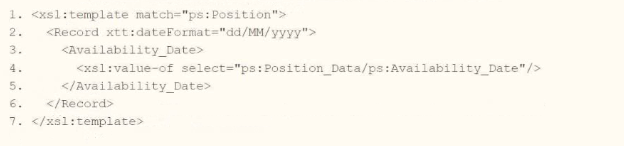
B. 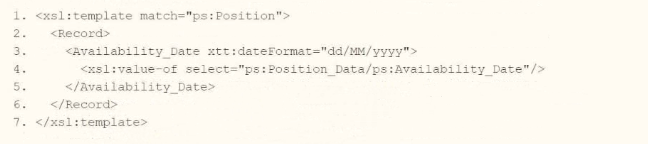
C. 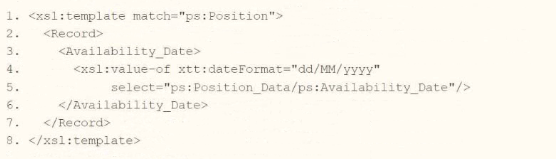
D. 
Explanation:
This question tests your understanding of using Workday's XTT (XML Transformation Toolkit) date formatting attributes. The requirement is to transform a date from its raw format (e.g., 2025-07-31) into the dd/MM/yyyy format (e.g., 31/07/2025). XTT provides the xxt:dateFormat attribute to format dates without complex string manipulation .
✔️ Correct Option: A.
Placing xxt:dateFormat="dd/MM/yyyy" on the
❌ Incorrect Option: B.
While placing the attribute directly on the
❌ Incorrect Option: C.
Placing xxt:dateFormat directly on the
❌ Incorrect Option: D.
Applying the xxt:dateFormat attribute to the
🔧 Reference:
→ Workday Pro Integrations Exam Q&A on XTT Date Formatting – Provides detailed analysis of each XSLT option and confirms Option A with xxt:dateFormat on the < Record > element as the correct solution.
→ Workday Pro Integrations Review Q&A – Reinforces that XTT attributes like xxt:dateFormat simplify date transformations and that Option A is the correct choice
Refer to the following scenario to answer the question below.
You have configured a Core Connector: Worker integration, which utilizes the following basic configuration:
• Integration field attributes are configured to output the Position Title and Business Title fields from the Position Data section.
• Integration Population Eligibility uses the field Is Manager which returns true if the worker holds a manager role.
• Transaction Log service has been configured to Subscribe to specific Transaction Types: Position Edit Event.
You launch your integration with the following date launch parameters (Date format of MM/DD/YYYY):
• As of Entry Moment: 05/25/2024 12:00:00 AM • Effective Date: 05/25/2024
• Last Successful As of Entry Moment: 05/23/2024 12:00:00 AM
• Last Successful Effective Date: 05/23/2024
To test your integration, you made a change to a worker named Jared Ellis who is assigned to the manager role for the IT Help Desk department. You use the Change Business Title related action on Jared and update the Business Title of the position to a new value. Jared Ellis' worker history shows the Title Change Event as being successfully completed with an effective date of 05/24/2024 and an Entry Moment of 05/24/2024 07:58:53 AM however Jared Ellis does not show up in your output. What configuration element would have to be modified for the integration to include Jared Ellis in the output?
A. Transaction log subscription
B. Date launch parameters
C. Integration Field Attributes
D. Integration Population Eligibility
Explanation:
The issue is caused by a mismatch between the transaction event being monitored and the event that actually occurred. The integration subscribes only to Position Edit Event, while Jared's Business Title change generated a Title Change Event. Therefore, the transaction log does not identify Jared as an eligible change for this run.
🟢 Correct Option:
A. Transaction log subscription
The Transaction Log service is subscribed only to Position Edit Event, but Jared's Business Title update generated a Title Change Event. Because the integration is using transaction-based change detection, the Title Change Event must also be included in the transaction log subscription. Once subscribed, the integration can detect Jared's change and include him in the output, assuming the other configuration remains unchanged.
🔴 Incorrect options:
B. Date launch parameters
The launch dates already cover Jared's transaction. His Entry Moment of 05/24/2024 07:58:53 AM and Effective Date of 05/24/2024 fall after the last successful values of 05/23/2024 and before the current launch dates.
C. Integration Field Attributes
The Business Title field is already configured in the Integration Field Attributes. The problem is not that the field is missing from the output; it is that the transaction log is not subscribed to the event generated by Jared's change.
D. Integration Population Eligibility
Jared is assigned to a manager role, so the Is Manager eligibility condition evaluates to true. Population eligibility therefore does not prevent Jared from being included. The missing Title Change Event subscription is the actual issue.
🔧 Reference:
→ Workday Core Connector: Worker — Official Workday resources covering transaction log subscriptions and change detection for Core Connector integrations.
You need to filter a custom report to only show workers that have been terminated after a user-prompted date.
How do you combine conditions in the filter to meet this requirement?
A. Worker Status is equal to the value "Terminated" OR Termination Date is greater than a value retrieved from a prompt
B. Worker Status is equal to the value retrieved from a prompt AND Termination Date is less than a value retrieved from a prompt.
C. Worker Status is equal to the value retrieved from a prompt OR Termination Date is equal to a value retrieved from a prompt.
D. Worker Status is equal to the value "Terminated" AND Termination Date is greater than a value retrieved from a prompt.
Explanation:
This question tests your knowledge of filtering logic within Workday Custom Reports. It evaluates how to combine static criteria with dynamic user prompts using boolean operators (AND/OR) to return a refined dataset meeting specific business logic.
✅ D. Worker Status is equal to the value "Terminated" AND Termination Date is greater than a value retrieved from a prompt.:
To return only workers meeting both criteria simultaneously, the AND operator must be used. Setting Worker Status to "Terminated" filters the overall population to separated employees, while evaluating Termination Date as greater than (>) a runtime prompt date ensures only workers terminated after that specific date are displayed.
❌ Incorrect options:
❌ A. Worker Status is equal to the value "Terminated" OR Termination Date is greater than a value retrieved from a prompt:
Using the OR operator would include all active workers if their termination date condition evaluates broadly, or all past terminated workers regardless of date, failing to enforce both required restrictions together.
❌ B. Worker Status is equal to the value retrieved from a prompt AND Termination Date is less than a value retrieved from a prompt.:
This option prompts for worker status unnecessarily instead of explicitly setting it to "Terminated." Additionally, using "less than" returns workers terminated before the prompt date rather than after it.
❌ C. Worker Status is equal to the value retrieved from a prompt OR Termination Date is equal to a value retrieved from a prompt.:
This combination uses OR logic, which returns candidates meeting either condition independently. It also checks for exact date equality (=) rather than retrieving workers terminated after the specified date.
🔧 Reference:
→ Workday Community Report Writer Filtering Rules confirms how to apply logical operators and runtime prompt conditions within Workday Custom Reports.
Refer to the following XML to answer the question below.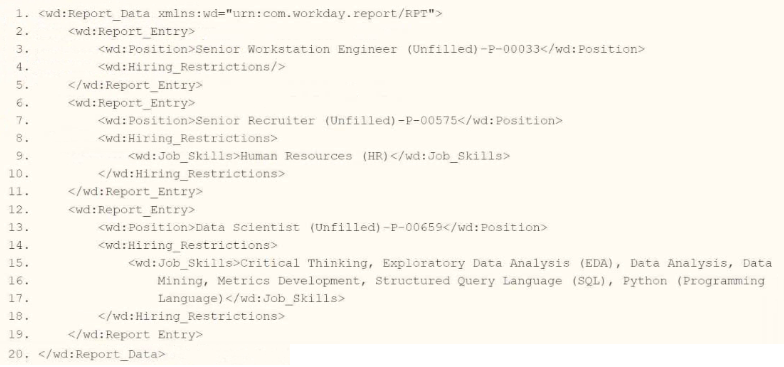
You are an integration developer and need to write X8LT to transform the output of an ElB
which is using a web service enabled report to output position data along with hiring restrictions around skills. You currently have a template which matches on wd:Report Data/wd: Report .Entry for creating a record from each report entry.
Within the template which matches on wd:Report_Entry you would like to conditionally process the wd:Job_Skills element by using a series of
Assuming all jobs will have the wd:Job_Skills element, what XSLT syntax would be used to output the text HR Skills if the value of wd:Job_Skills contains the text HR and output NONHR Skills if the value of wd:Job_Skills does not contain the text HR?
A. 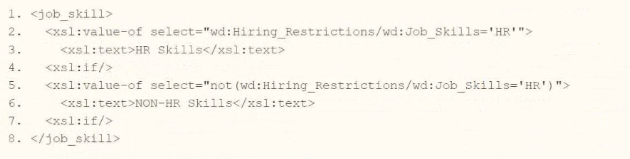
B. 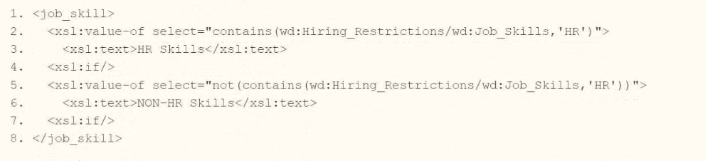
C. 
D. 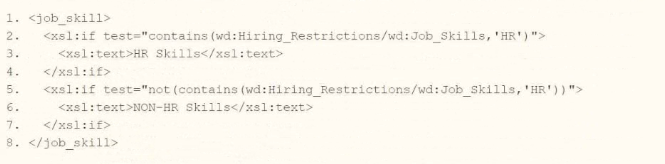
Explanation:
This question tests your understanding of conditional processing in XSLT. The requirement is to output "HR Skills" if the Job_Skills text contains "HR" (anywhere in the string), and "NON-HR Skills" if it does not. The contains() function is used for substring matching, and not(contains()) handles the negation.
✔️ Correct Option: D.
Option D correctly uses the contains() function within the test attribute of
❌ Incorrect Option: A.
This option uses xsl:value-of with a comparison expression ='HR', which returns a Boolean (true/false) value. It does not output text conditionally and would display "true" or "false" instead of "HR Skills" or "NON-HR Skills". Additionally, the < xsl:if /> elements are incorrectly placed as self-closing tags without content.
❌ Incorrect Option: B.
Similar to Option A, this uses xsl:value-of with contains() to output a Boolean value ("true" or "false") rather than conditional text. The < xsl:if/ > elements are also incorrectly placed and self-closed, making the syntax invalid for conditional processing.
❌ Incorrect Option: C.
This option uses an equality check ='HR' instead of contains(). This would only match if the entire Job_Skills value is exactly "HR". For values like "Human Resources (HR)" or multi-skill lists containing "HR", this condition would return false, failing to output "HR Skills" for valid entries that contain "HR" as a substring.
🔧 Reference:
→ Workday Pro Integrations Certification Study Guide (Page 48) – Confirms the use of contains() function in XSLT to locate substrings in string values and the proper application of not() function for negation.
This is the XML file generated from a Core Connector; Positions integration.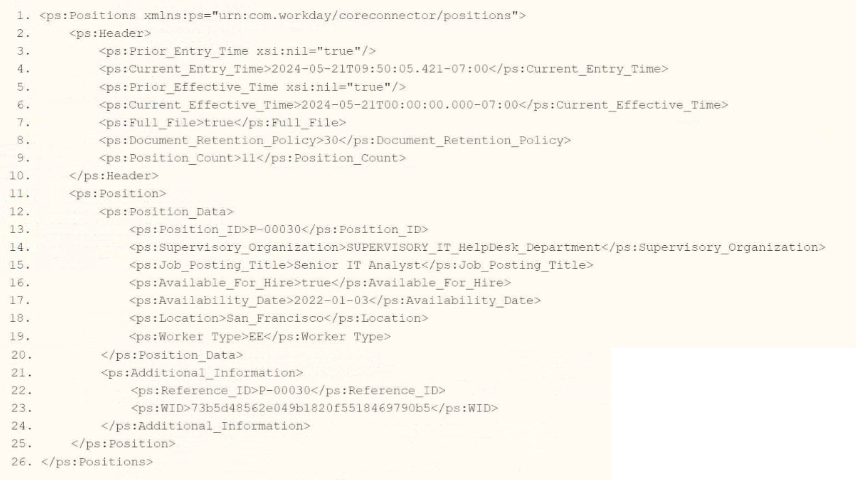
When performing an XSLT Transformation on the Core Connector: Positions XML output
file, you want to show a hyperlink of positions that are not available for hiring as an entry in
the Message tab.
What are all the needed ETV items to meet the above requirements?
A. 
B. 
C. 
D. 
Explanation:
This question evaluates your understanding of Workday Document Transformation (DT) and Element Transformation and Validation (ETV). It tests how to intentionally trigger integration messages and generate clickable Workday object hyperlinks using specific XTT/ETV attributes during an XSLT transformation.
✅ D.
By combining etv:required="true" with a conditionally empty XML output element, you intentionally force a validation error for positions that are not available for hire, ensuring the event logs in the Message tab. The etv:targetWID attribute then maps the provided Workday ID (ps:WID), automatically converting that specific log entry into a clickable hyperlink routed directly to the position object in Workday.
❌ Incorrect options:
❌ A.
Using etv:minLength="0" indicates that an empty string is perfectly valid. Because no validation rule is broken, the Document Transformation process will not trigger an error or warning, failing to generate the required entry in the Message tab.
❌ B.
Similar to Option A, defining a minimum length of zero (etv:minLength="0") prevents a validation failure from occurring. Without a triggered error or warning, the integration log will not display the position, rendering the hyperlink configuration useless.
❌ C.
This option uses etv:target, which is an invalid ETV attribute for generating Workday system links. The framework specifically requires etv:targetWID to recognize the alphanumeric ID and correctly resolve it into a clickable Workday URL within the Message tab.
🔧 Reference:
→ Workday Document Transformation ETV Extension Attributes confirms that etv:targetWID is the required attribute for linking error messages to Workday objects, and validation failures (like etv:required) are necessary to generate those messages.
Refer to the following XML and example transformed output to answer the question below.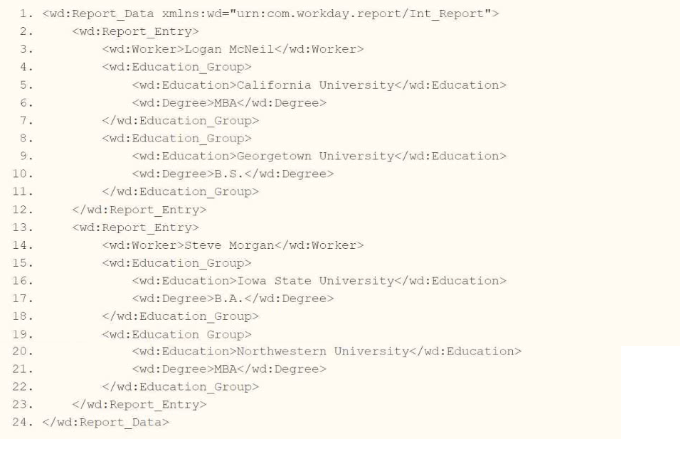
Example transformed wd:Report_Entry output;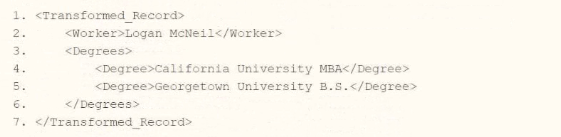
What is the XSLT syntax tor a template that matches onwd: Educationj3roup to produce the degree data in the above Transformed_Record example?
A. 
B. 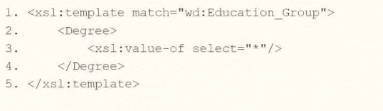
C. 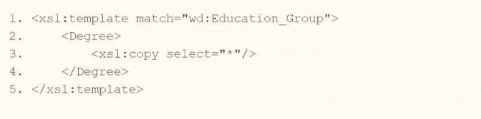
D. 
Explanation:
This question tests your understanding of XSLT syntax for extracting and combining text from child elements. The requirement is to produce a single
✔️ Correct Option: B. < xsl:value-of select="*" />
The xsl:value-of instruction with select="*" selects all child elements of the current node (wd:Education_Group) and returns their concatenated text values. This produces the desired output like "California University MBA" because it extracts the text from both
❌ Incorrect Option: A. < xsl:copy>
While xsl:value-of select="*" works correctly, wrapping it inside
❌ Incorrect Option: C. < xsl:copy select="*" />
The
❌ Incorrect Option: D. < xsl:copy-of select="*" />
The xsl:copy-of instruction copies the selected nodes (all child elements of wd:Education_Group) including their full element structure and attributes. This would output the
🔧 Reference:
→ Workday Pro Integrations Certification Study Guide (Page 33) – Explains xsl:value-of and xsl:copy-of differences, confirming that xsl:value-of select="*" returns concatenated text of child elements for simple text extraction.
Refer to the following scenario to answer the question below.
You have been asked to build an integration using the Core Connector: Worker template and should leverage the Data Initialization Service (DIS). The integration will be used to export a full file (no change detection) for employees only and will include personal data.
What configuration is required to output the value of a calculated field which you created for
inclusion in this integration?
A. Configure Integration Field Attributes
B. Configure Integration Field Overrides
C. Configure Integration Attributes.
D. Configure Integration Maps.
Explanation
This question tests knowledge of Core Connector configuration steps and which one is used to bring a custom calculated field into the integration's output, separate from steps used for population filtering or value re-mapping.
✅ B. Configure Integration Field Overrides
Integration Field Overrides is the step used to add or replace output values with a calculated field, since it lets you substitute a delivered field's output with your own custom logic. To surface a calculated field you built in the tenant, you select it here so its returned value is written into the integration's output file for each worker record.
❌ A. Configure Integration Field Attributes
This step controls which delivered Workday fields and subfolders (e.g., Address Data, Personal Data) are enabled and included in the output. It manages standard, pre-built fields, not custom calculated field values, so it cannot be used to output your own calculated field.
❌ C. Configure Integration Attributes
Integration Attributes manage connector-level settings such as document retention, delivery options, and general integration behavior. It has no mechanism for selecting or outputting individual calculated fields, so it does not meet this requirement.
❌ D. Configure Integration Maps
Integration Maps translate or re-code existing output values (e.g., converting "United States of America" to "USA"), not introduce new calculated data. Since the calculated field doesn't yet exist in the output, there is nothing for a map to translate, making this the wrong tool.
Reference
🔧 Core Connector: Worker Configuration – Workday Documentation
→ confirms Integration Field Overrides is the task used to insert calculated field values into Core Connector output files.
| Page 3 out of 10 Pages |
| 234 |
| Workday-Pro-Integrations Practice Test Home |
Real-World Scenario Mastery: Our Workday-Pro-Integrations practice exam don't just test definitions. They present you with the same complex, scenario-based problems you'll encounter on the actual exam.
Strategic Weakness Identification: Each practice session reveals exactly where you stand. Discover which domains need more attention, before Workday Pro Integrations Certification Exam exam day arrives.
Confidence Through Familiarity: There's no substitute for knowing what to expect. When you've worked through our comprehensive Workday-Pro-Integrations practice exam questions pool covering all topics, the real exam feels like just another practice session.
Copyright © All Rights Reserved