
Refer to the following scenario to answer the question below. You have configured a Core
Connector: Worker integration, which utilizes the following basic configuration:
• Integration field attributes are configured to output the Position Title and Business Title fields from the Position Data section.
• Integration Population Eligibility uses the field Is Manager which returns true if the worker holds a manager role.
• Transaction Log service has been configured to Subscribe to specific Transaction Types:
Position Edit Event. You launch your integration with the following date launch parameters (Date format of MM/DD/YYYY):
• As of Entry Moment: 05/25/2024 12:00:00 AM
• Effective Date: 05/25/2024
• Last Successful As of Entry Moment: 05/23/2024 12:00:00 AM
• Last Successful Effective Date: 05/23/2024
To test yourintegration,you made a change to a worker named Jared Ellis who is assigned to the manager role for the IT Help Desk department. You perform an Edit Position on Jared and update their business title to a new value. Jared Ellis' worker history shows the Edit Position Event as being successfully completed with an effective date of 05/27/2024 and an Entry Moment of 05/24/2024 07:58:53 AM however Jared Ellis does not show up in your output. What configuration element would have to be modified for the integration to include Jared Ellis in the output?
A. Integration Population Eligibility
B. Date launch parameters
C. Integration Field Attributes
D. Transaction log subscription
Explanation:
This question tests your understanding of Workday Core Connector: Worker change detection logic, specifically how date launch parameters (As of Entry Moment and Effective Date) determine which transactions are included in the integration output.
✔️ Option B: Date launch parameters
The integration is configured to capture changes where the Entry Moment falls between 05/23/2024 12:00:00 AM and 05/25/2024 12:00:00 AM, AND the Effective Date falls between 05/23/2024 and 05/25/2024. Jared Ellis's Edit Position event has an Entry Moment of 05/24/2024 07:58:53 AM (within range) but an Effective Date of 05/27/2024, which exceeds the Effective Date parameter of 05/25/2024.
doc.workday.com: Change Detection
confirms that the Effective Date parameter defines the end of the date range the integration considers, excluding changes with effective dates beyond this value.
❌ Option A: Integration Population Eligibility
This option is incorrect because Jared Ellis is assigned as a manager for the IT Help Desk department, satisfying the "Is Manager = true" eligibility criterion. The integration population eligibility is correctly configured and not the cause of exclusion.
❌ Option C: Integration Field Attributes
This option is incorrect because the Integration Field Attributes are configured to output Position Title and Business Title fields, which are present in the Position Data section. The field configuration is correct, and the issue lies in date filtering, not field selection.
❌ Option D: Transaction log subscription
This option is incorrect because the Transaction Log is subscribed to "Position Edit Event," which matches the Edit Position transaction performed on Jared Ellis. The subscription is correctly configured, and the event type is being captured.
🔧 Reference:
→
Change Detection – doc.workday.com
— Confirms that the Effective Date parameter defines the end of the date range, and changes with effective dates beyond this value are excluded from output.
— Explains the four-step change detection process, including how launch date conditions filter newly entered or newly effective data.
Refer to the following scenario to answer the question below.
You have configured a Core Connector: Worker integration, which utilizes the following basic configuration:
• Integration field attributes are configured to output the Position Title and Business Title fields from the Position Data section.
• Integration Population Eligibility uses the field Is Manager which returns true if the worker holds a manager role.
• Transaction Log service has been configured to Subscribe to specific Transaction Types:
Position Edit Event. You launch your integration with the following date launch parameters (Date format of MM/DD/YYYY):
• As of Entry Moment: 05/25/2024 12:00:00 AM
• Effective Date: 05/25/2024
• Last Successful As of Entry Moment: 05/23/2024 12:00:00 AM
• Last Successful Effective Date: 05/23/2024
To test your integration you made a change to a worker named Jared Ellis who is assigned to the manager role for the IT Help Desk department. You perform an Edit Position on Jared and update the Job Profile of the position to a new value. Jared Ellis' worker history shows the Edit Position Event as being successfully completed with an effective date of 05/24/2024 and an Entry Moment of 05/24/2024 07:58:53 AM however Jared Ellis does not show up in your output.
What configuration element would have to be modified for the integration to include Jared
Ellis in the output?
A. Integration Population Eligibility
B. Integration Field Attributes
C. Date launch parameters
D. Transaction log subscription
Explanation:
This question tests how Core Connector: Worker uses effective dates and entry moments to determine which transactions are included. Jared's Position Edit has an effective date of 05/24/2024, but the integration's Effective Date is 05/25/2024, so the transaction is excluded from the output.
🟢 Correct Option:
C. Date launch parameters
The Date launch parameters must be modified because Jared's Position Edit has an effective date of 05/24/2024, while the integration is configured with an Effective Date of 05/25/2024. Although his Entry Moment of 05/24/2024 07:58:53 AM falls after the last successful Entry Moment, the effective-date setting prevents the transaction from being selected for processing.
🔴 Incorrect options:
A. Integration Population Eligibility
This is incorrect because Jared satisfies the configured Is Manager eligibility condition. He holds a manager role, so the population criteria already include him. Changing the eligibility configuration would not resolve the issue because his transaction is being excluded based on the integration's date parameters.
B. Integration Field Attributes
This is incorrect because the field attributes only determine which worker information is returned in the output. Position Title and Business Title are already configured. The problem occurs when the transaction is selected for processing, before these output fields become relevant.
D. Transaction log subscription
This is incorrect because the integration is already subscribed to the Position Edit Event, which is exactly the transaction generated by Jared's Edit Position. Therefore, the transaction type is correctly configured. Changing the subscription would not address the effective-date mismatch.
🔧 Reference:
→ Workday Community — Integration Documentation — Official Workday documentation covering Core Connector configuration, transaction processing, and integration date parameters.
You are configuring integration security for a Core Connector integration system. How do you find the web service operation used by the connector template?
A. It is displayed when selecting a Core Connector Template to build an integration system
B. Run the integration system and view the web service request in the messages audit
C. View the SOAP API Reference on Workday Community
D. Run the Integration Template Catalog report in the tenant
Explanation:
This question tests your knowledge of how to inspect integration templates and determine their underlying web service operations in Workday. It evaluates whether you know how to identify specific security requirements for Core Connector templates.
✅ Correct Option:
Option D:
Option D is correct because the "Integration Template Catalog" report in Workday details all delivered integration templates along with their associated web service operations, endpoints, and security requirements needed to configure Integration System Users (ISUs).
❌ Incorrect options:
Option A:
Option A is incorrect because the integration creation wizard displays template names and descriptions, but does not explicitly show the detailed list of underlying web service operations.
Option B:
Option B is incorrect because running an integration that lacks proper security permissions will result in failure rather than generating the required web service request details in the message audit.
Option C:
Option C is incorrect because while Workday Community lists SOAP API references generally, it does not show the precise mapping of web service operations embedded inside a specific tenant's Core Connector template.
🔧 Reference:
→ Workday Community Documentation confirms that the Integration Template Catalog report provides complete administrative details and web service dependencies for delivered integration templates.
You have been asked to refine a report which outputs one row per worker and is being used in an integration that sends worker data to one of your third-party systems. The integration should only send workers who have been hired in the last 30 days. Where in the custom report definition can you specify a condition that would include only workers who have been hired in the last 30 days?
A. Subfilter
B. Output
C. Columns
D. Filter
Explanation:
This question tests your understanding of Workday custom report structure and where to apply conditions that filter the primary business object (Worker). The scenario requires limiting output to workers hired within the last 30 days, which is a condition on the Worker's Hire Date field.
✔️ Option D: Filter
The Filter tab in a custom report definition is used to add conditions that restrict data from the primary business object (PBO). Since the report outputs one row per worker and the Hire Date field belongs to the Worker business object (the PBO), the condition "Hire Date within the last 30 days" must be specified in the Filter tab.
doc.workday.com: Building Custom Reports
confirms that filters add conditions to filter the primary business object, and you can filter on any field from the PBO or Global business object.
❌ Option A: Subfilter
This option is incorrect because Subfilters are used to add conditions that filter related business objects (RBOs), not the primary business object. Since Hire Date is a field on the Worker (PBO), not a related object, a subfilter would not be the appropriate location for this condition.
❌ Option B: Output
This option is incorrect because the Output tab controls which fields are displayed in the report results, not which rows are included. The Output tab determines column selection and field visibility, not row-level filtering logic.
❌ Option C: Columns
This option is incorrect because the Columns tab defines the structure and selection of fields to display as columns in the report output. It does not provide filtering capabilities to restrict which worker instances appear in the results.
🔧 Reference:
→
Building Custom Reports – doc.workday.com
— Confirms that the Filter tab adds conditions to filter the primary business object, and filters can be applied to any PBO or global field.
→
Report Writer and Custom Reports
– doc.workday.com
— Explains that filters apply to the primary business object, while subfilters apply to related business objects.
Refer to the following XML data source to answer the question below.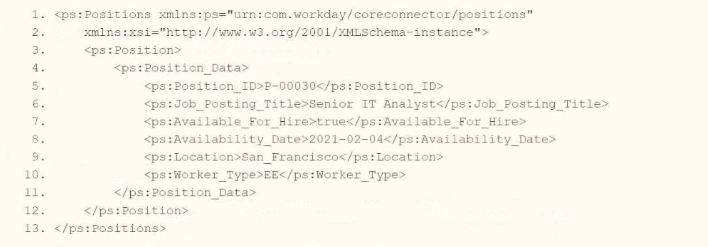
You need the integration file to format the ps:Position_ID field to 10 characters, truncate the value if it exceeds, and align everything to the left.
How will you start your template match on ps:Position to use Document Transformation (DT) to do the transformation using XTT?
A. 
B. 
C. 
D. 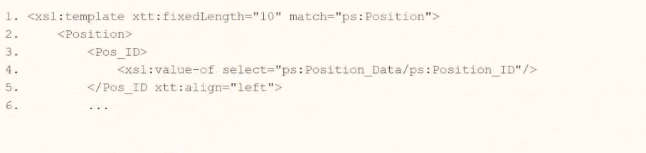
Explanation:
This question tests the correct placement of Workday XTT (XML-to-Text) attributes when performing fixed-length formatting in a Document Transformation. The requirement is to force the Position_ID value to exactly 10 characters (truncating if longer) and left-align the content.
✅ Correct Option:
A.
The template matches on ps:Position, places xtt:align="left" on the
❌ Incorrect options:
B.
Places xtt:align on the
C.
Places xtt:fixedLength on the parent
D.
Places xtt:fixedLength on the template and has invalid syntax on the closing tag. Attributes cannot be applied this way and the markup is not well-formed.
🔧 Reference:
→ Workday Document Transformation / XTT attribute documentation and Core Connectors training materials
Confirms that xtt:fixedLength and xtt:align are applied as attributes on the result elements that produce the fixed-length text fields.
Refer to the following scenario to answer the question below.
You have been asked to build an integration using the Core Connector: Worker template and should leverage the Data Initialization Service (DIS). The integration will be used to export a full file (no change detection) for employees only and will include personal data.
What configuration is required to ensure that when outputting phone number only the home phone number is included in the output?
A. Configure an integration map to map the phone type.
B. Include the phone type integration field attribute.
C. Configure the phone type integration attribute.
D. Configure an integration field override to include phone type.
Explanation:
This question tests your understanding of configuring Core Connector: Worker integrations to filter multi-instance fields like Phone Data. Since workers can have multiple phone numbers (Home, Work, Mobile, etc.), you must specify which instance to include. For Core Connectors, this is achieved using Integration Field Attributes, which allow you to configure field-level settings to filter multi-instance data . The "phone type" attribute controls which phone number instances are output.
✔️ Correct Option: B
Include the phone type integration field attribute. In a Core Connector: Worker integration, integration field attributes are used to filter multi-instance fields like Phone Data . For the Phone Number field, you can configure the "Phone Type" attribute set to "Home". This ensures only the home phone number instance is included in the output without needing custom overrides or complex mappings . This is the standard configuration method for controlling multi-instance fields in Core Connectors.
❌ Incorrect Option: A
Configure an integration map to map the phone type. Integration maps are used to transform or convert field values (e.g., mapping "United States" to "USA"), not to filter multi-instance data by a specific type. They do not select which instance of a repeating field is output .
❌ Incorrect Option: C
Configure the phone type integration attribute. This phrasing is incorrect because "Integration Attributes" refer to integration-level settings like file format, not field-specific filters. The correct terminology for field-level filtering is "Integration Field Attributes" .
❌ Incorrect Option: D
Configure an integration field override to include phone type. Field overrides are used to replace a field's value with a calculated field or custom value . They are not designed for filtering multi-instance data by type—that is the purpose of Integration Field Attributes .
🔧 Reference:
→ Workday Community: Core Connector Worker Integration Field Attributes - Confirms that Integration Field Attributes are used to filter multi-instance fields like Phone Number by specifying criteria such as phone type .
An external system needs a file containing data for recent compensation changes. They would like to receive a file routinely at 5 PM eastern standard time, excluding weekends.
The file should show compensation changes since the last integration run.
What is the recurrence type of the integration schedule?
A. Recurs every 12 hours
B. Recurs every weekday
C. Dependent recurrence
D. Recurs every 1 day(s)
Explanation:
This question tests your understanding of Workday integration schedule recurrence types. The requirements specify a file must be sent routinely at 5 PM EST, excluding weekends, meaning the schedule must run on weekdays only. Recurrence type defines the frequency pattern for scheduled integrations.
✔️ Correct Option: B. Recurs every weekday
This recurrence runs Monday through Friday at the specified time, automatically excluding weekends. This matches the requirement of delivering the file at 5 PM EST on business days only, ensuring the integration executes consistently during the workweek.
❌ Incorrect Option: A. Recurs every 12 hours
This schedule would deliver files twice daily (e.g., 5 AM and 5 PM EST), resulting in extra, unwanted file deliveries. The requirement specifies a single daily delivery at 5 PM EST, making this option unsuitable.
❌ Incorrect Option: C. Dependent recurrence
A dependent schedule runs only after another Prism scheduled process completes at a specified status. This is event-driven, not time-based, and cannot guarantee a fixed 5 PM EST delivery schedule on weekdays.
❌ Incorrect Option: D. Recurs every 1 day(s)
This recurrence runs daily at the specified time, including Saturdays and Sundays. Since the requirement explicitly excludes weekends, this option fails to meet the business need for weekday-only file delivery.
🔧 Reference:
→ Workday Prism Analytics: Dataset Integration Schedules – Defines recurring schedules as running at specified intervals like daily, weekly, or monthly.
→ Workday Prism Analytics: Dataset Publish Schedules – Explains recurring vs. dependent schedule types.
Refer to the following XML to answer the question below.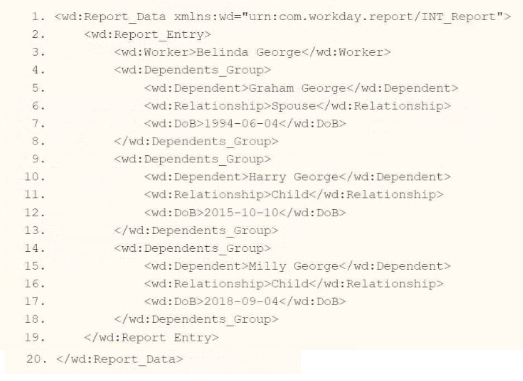
You are an integration developer and need to write XSLT to transform the output of an EIB
which is using a web service enabled report to output worker data along with their dependents. You currentlyhave a template which matches on wd:Dependents_Group to iterate over each dependent. Within the template which matches on wd:Dependents_Group you would like to output a relationship code by using an
What XSLT syntax would be used to output SP when the dependent relationship is spouse, output CH when the dependent relationship is child, otherwise output OTHER?
A. 
B. 
C. 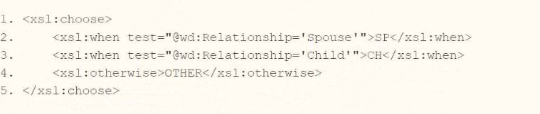
D. 
Explanation:
This question tests your ability to write correct XSLT conditional logic using
✅ A. (wd:Relationship='Spouse'):
Option A uses the correct XSLT syntax with relative path expressions (wd:Relationship='Spouse'). Since the context is already matching wd:Dependents_Group, direct element evaluation correctly inspects the child node value.
❌ Incorrect options:
❌ B. ({wd:Relationship='Spouse'}):
Option B incorrectly wraps the XPath expression inside attribute value templates (curly braces {}). In XSLT, the test attribute of
❌ C. (@wd:Relationship='Spouse'):
Option C places an @ symbol before the node name (@wd:Relationship). In XPath, @ is used exclusively to select XML attributes, but wd:Relationship in the source document is an XML element. This syntax causes the expression to fail to match.
❌ D. (/wd:Relationship='Spouse'):
Option D uses an absolute path starting with a forward slash (/wd:Relationship). This breaks execution because it looks for wd:Relationship at the root of the XML document rather than evaluating the current wd:Dependents_Group context, returning no matches.
🔧 Reference:
→ W3C XSL Transformations (XSLT) Conditional Processing confirms standard syntax rules for
What is the purpose of a namespace in the context of a stylesheet?
A. Provides elements you can use in your code.
B. Indicates the start and end tag names to output.
C. Restricts the data the processor can access.
D. Controls the filename of the transformed result.
Explanation:
The question tests the purpose of a namespace in an XSLT stylesheet. Namespaces identify and distinguish XML vocabulary elements and attributes, allowing the stylesheet to use elements from a specific XML namespace without naming conflicts.
🟢 Correct Option:
A. Provides elements you can use in your code.
A namespace identifies the vocabulary or set of elements and attributes available to the stylesheet. In XSLT, declarations such as the XSLT namespace allow the processor to recognize instructions like xsl:template, xsl:value-of, and xsl:for-each. Namespaces also prevent conflicts when different XML vocabularies use identical element names, ensuring each element is interpreted according to its intended namespace.
🔴 Incorrect options:
B. Indicates the start and end tag names to output.
Namespaces do not define which opening and closing tags appear in the transformed output. Output element names are determined by the stylesheet instructions that construct the resulting XML, HTML, or other output format.
C. Restricts the data the processor can access.
A namespace does not control access to source data. It identifies XML elements and attributes so the processor can distinguish between vocabularies. Data selection and access are controlled through XPath expressions and XSLT processing instructions.
D. Controls the filename of the transformed result.
A namespace has no role in determining the output filename. File naming and output destination are controlled by the integration or transformation configuration rather than by XML namespace declarations.
🔧 Reference:
→ W3C XML Namespaces — Defines XML namespaces and how they identify and distinguish element and attribute names.
→W3C XSLT
— Defines the XSLT namespace used to identify XSLT instructions.
Refer to the following scenario to answer the question below. Your integration has the
following runs in the integration events report (Date format of MM/DD/YYYY):
Run #1
• Core Connector: Worker Integration System was launched on May 15, 2024 at 3:00:00 AM
• As of Entry Moment: 05/15/2024 3:00:00 AM
• Effective Date: 05/15/2024
• Last Successful As of Entry Moment: 05/01/2024 3:00:00 AM
• Last Successful Effective Date: 05/01/2024
Run #2
• Core Connector: Worker Integration System was launched on May 31, 2024 at 3:00:00 AM
• As of Entry Moment: 05/31/2024 3:00:00 AM
• Effective Date: 05/31/2024
• Last Successful As of Entry Moment: 05/15/2024 3:00:00 AM
• Last Successful Effective Date: 05/15/2024
On May 13, 2024 Brian Hill receives a salary increase. The new salary amount is set to $90,000.00 with an effective date of May 22, 2024. Which of these runs will include Brian Hill's compensation change?
A. Brian Hill will only be included in the first integration run.
B. Brian Hill will be included in both integration runs.
C. Brian Hill will only be included the second integration run.
D. Brian Hill will be excluded from both integration runs.
Explanation:
This question tests your understanding of Workday integration delta detection logic, specifically how the "As of Entry Moment" and "Last Successful As of Entry Moment" determine which records are included in each integration run based on transaction entry timestamps.
✔️ Correct Option:
C. Brian Hill will only be included the second integration run.
Brian Hill's salary change was entered on May 13, 2024, with an effective date of May 22, 2024. Run #1 has a Last Successful As of Entry Moment of 05/01/2024, so it captures changes entered between 05/01/2024 and 05/15/2024. Since May 13 falls within this window, the change should appear in Run #1. However, Run #2's Last Successful As of Entry Moment is 05/15/2024, capturing changes entered after that date. The transaction entry date (May 13) is before 05/15/2024, so it won't appear in Run #2.
❌ Incorrect Options:
A. Brian Hill will only be included in the first integration run.
This option is incorrect because it reverses the actual outcome. The transaction entry date of May 13, 2024 falls between Run #1's Last Successful As of Entry Moment (05/01/2024) and its current As of Entry Moment (05/15/2024), meaning it would be captured in Run #1, not excluded from it.
B. Brian Hill will be included in both integration runs.
This option is incorrect because Workday integrations use delta detection to avoid duplicate records. Once a transaction is captured in Run #1 (between 05/01/2024 and 05/15/2024), Run #2 only captures new changes entered after 05/15/2024, excluding previously processed transactions.
D. Brian Hill will be excluded from both integration runs.
This option is incorrect because the transaction entry date of May 13, 2024 clearly falls within the delta window of Run #1 (05/01/2024 to 05/15/2024). The effective date of May 22 does not affect inclusion; only the entry moment determines delta capture.
🔧 Reference:
→ Workday Integration System - As of Entry Moment — Confirms that integration delta detection uses the "As of Entry Moment" timestamp to determine which transactions are included in each run based on when they were entered into Workday.
→ Workday Core Connector Documentation — Explains how Last Successful As of Entry Moment establishes the baseline for capturing only new or modified records since the previous successful integration run.
You are creating a connector based integration where all fields are provided by the template. However, the vendor would also like the following configurations as well:
• A file name output to have the current date and integration run number
• Have internal values for a particular field transferred to their external values
What workflow would you follow to create this integration?
A. • Enable Needed Integration Services
• Configure Integration Field Attributes
• Configure Integration Maps
• Configure Sequence Generator
B. • Enable Needed Integration Attributes
• Configure Integration Maps
• Configure Integration Services
• Configure Sequence Generator
C. • Enable Needed Integration Maps
• Configure Integration Services
• Configure Integration Field Attributes
• Configure Sequence Generator
D. • Enable Needed Integration Services
• Configure Integration Attributes
• Configure Integration Maps
• Configure Sequence Generator
Explanation:
This question tests the standard configuration sequence for a Core Connector (or similar template-based connector) when the delivered fields meet most needs but two customizations are required: a dynamic output filename (current date + run/sequence number) and value translation from Workday internal values to vendor external values.
✅ Correct Option:
A. Enable Needed Integration Services → Configure Integration Field Attributes → Configure Integration Maps → Configure Sequence Generator
First enable the required services (including the Sequence Generator service). Next use Integration Field Attributes to confirm/select the delivered template fields that will appear in the output. Then configure Integration Maps to translate internal Workday values to the vendor’s external codes. Finally configure the Sequence Generator (which becomes available only after the service is enabled) to produce a unique filename containing the current date and an incrementing run number.
❌ Incorrect options:
B. Enable Needed Integration Attributes → Configure Integration Maps → Configure Integration Services → Configure Sequence Generator
Integration Attributes are configured after services are enabled; services must be enabled first. The order of Maps and Services is also reversed.
C. Enable Needed Integration Maps → Configure Integration Services → Configure Integration Field Attributes → Configure Sequence Generator
Maps cannot be enabled as a first step; they are configured after services. Sequence Generator configuration also depends on the service already being enabled.
D. Enable Needed Integration Services → Configure Integration Attributes → Configure Integration Maps → Configure Sequence Generator
Integration Attributes handle static settings (e.g., a fixed filename). The dynamic filename requirement is met by the Sequence Generator, not Integration Attributes; Field Attributes are the correct step for selecting template fields.
🔧 Reference:
→ Workday Education – Configuring Connectors
(Sequence Generators for Connectors)
Confirms that the Sequence Generator service must be enabled before it can be configured, and that it produces unique filenames with dates and sequence numbers (overriding any static Output Filename attribute). Integration Maps are the standard mechanism for internal-to-external value translation.
Refer to the following XML to answer the question below.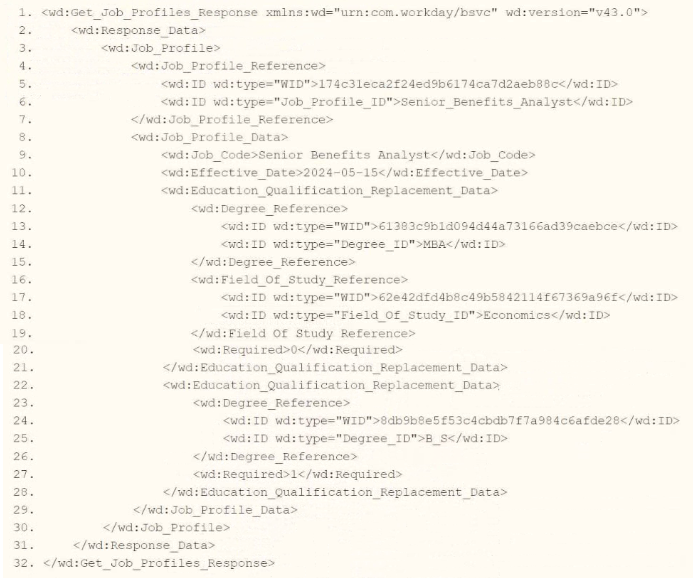
You are an integration developer and need to write XSLT to transform the output of an EIB
which is making a request to the Get Job Profiles web service operation. The root template of your XSLT matches on the
What XPath syntax would be used to select the value of the wd:Job_Code element when the
A. wd:Job_Profile/wd:Job_Profile_Data/wd:Job_Code
B. wd:Job_Profile_Data[@wd:Job_Code]
C. wd:Job_Profile_Data/wd:Job_Code
D. wd:Job_Profile_Reference/wd:ID[@wd:type='Job_Profile_ID']
Explanation:
This question tests your understanding of XPath syntax within XSLT templates. The root template matches on the < wd:Get_Job_Profiles_Response > element, and then applies a template against < wd:Job_Profile >. Within that context, you need to select the < wd:Job_Code > element value, which is a child of < wd:Job_Profile_Data >.
✔️ Correct Option: C. wd:Job_Profile_Data/wd:Job_Code
When the template matches on < wd:Job_Profile >, the current context node is that < wd:Job_Profile > element. The < wd:Job_Code> element is a direct child of < wd:Job_Profile_Data >, which is itself a direct child of < wd:Job_Profile >. Therefore, the relative path wd:Job_Profile_Data/wd:Job_Code correctly navigates from the current context to the desired element.
❌ Incorrect Option: A. wd:Job_Profile/wd:Job_Profile_Data/wd:Job_Code
This path includes wd:Job_Profile as a step, but the current context is already the < wd:Job_Profile > element. Including it again would attempt to find a child < wd:Job_Profile > element, which does not exist, resulting in no selection.
❌ Incorrect Option: B. wd:Job_Profile_Data[@wd:Job_Code]
This syntax incorrectly attempts to use a predicate on < wd:Job_Profile_Data > to select an attribute @wd:Job_Code. However, < wd:Job_Code > is a child element, not an attribute of < wd:Job_Profile_Data >. This XPath would not select any value.
❌ Incorrect Option: D. wd:Job_Profile_Reference/wd:ID[@wd:type='Job_Profile_ID']
This path navigates to the < wd:Job_Profile_Reference > element and selects the < wd:ID > element with type Job_Profile_ID. While this XPath is syntactically correct, it selects the Job Profile ID (e.g., "Senior_Benefits_Analyst"), not the Job Code value which is the requirement.
🔧 Reference:
→ Workday Pro Integrations Certification: XSLT and XPath for XML Requests – Explains the context node concept, relative vs. absolute XPath, and how to navigate parent-child hierarchies in Workday XSLT transformations.
→ Workday Community: XSLT Transformations with Get_Job_Profiles – Confirms the structure of the Get_Job_Profiles response and the proper XPath syntax for selecting child elements when the context is set to the parent < wd:Job_Profile > element.
| Page 2 out of 10 Pages |
| 123 |
| Workday-Pro-Integrations Practice Test Home |
Real-World Scenario Mastery: Our Workday-Pro-Integrations practice exam don't just test definitions. They present you with the same complex, scenario-based problems you'll encounter on the actual exam.
Strategic Weakness Identification: Each practice session reveals exactly where you stand. Discover which domains need more attention, before Workday Pro Integrations Certification Exam exam day arrives.
Confidence Through Familiarity: There's no substitute for knowing what to expect. When you've worked through our comprehensive Workday-Pro-Integrations practice exam questions pool covering all topics, the real exam feels like just another practice session.
Copyright © All Rights Reserved