
Topic 5: Misc, Questions
You have an org wide team named Team1.
The members of Team1 report that they receive an excessive amount of notifications from channel messages.
You need to reduce the amount of notifications by implementing the following changes: Allow only global administrators to create new posts in the General channel.
Prevent @members for the org-wide team members.
Which two actions should you perform from the Microsoft Teams client? Each correct answer presents part of the solution.
NOTE: Each correct selection is worth one point.
A. From the Team1 settings, clear Give members the option to edit their messages.
B. From the General Channel settings of Team1, set the channel moderation preference to Anyone can post; show alert that postings will notify everyone (recommended for large teams).
C. From the General Channel settings of Team1, set the channel moderation preference to Only owners can post messages.
D. From the Team1 settings, disable all the Fun stuff settings.
E. From the Team1 settings, set Show members the option to @team or @[team name] to Off.
Explanation:
The goal is to reduce notifications in an org-wide team by limiting who can post in the General channel and preventing the use of @team and @[team name] mentions. These mentions generate notifications for every member, which is the primary cause of "excessive notifications." The solution requires two administrative actions within the Teams client settings for the specific team and channel.
Correct Option:
C. From the General Channel settings of Team1, set the channel moderation preference to Only owners can post messages.
This action directly implements the requirement to "allow only global administrators to create new posts." In an org-wide team, the owners are typically the global administrators. By setting channel moderation to "Only owners can post," you restrict posting permissions, preventing regular members from generating message notifications in the General channel.
E. From the Team1 settings, set Show members the option to @team or @[team name] to Off.
This action directly addresses the requirement to "Prevent @members." Disabling this setting removes the ability for members to use the @team or @[team name] mentions in any channel within Team1. Since these mentions notify all members (potentially thousands in an org-wide team), turning this off is crucial to drastically reduce notification spam.
Incorrect Option:
A. From the Team1 settings, clear Give members the option to edit their messages.
This setting controls whether members can edit their own sent messages. It has no impact on who can create new posts or on the use of @mentions, therefore it does not help reduce notification volume.
B. From the General Channel settings of Team1, set the channel moderation preference to Anyone can post; show alert...
This setting would have the opposite effect. "Anyone can post" allows all members to post, which would increase, not reduce, the number of messages and notifications in the General channel. The alert is merely a warning, not a restriction.
D. From the Team1 settings, disable all the Fun stuff settings.
"Fun stuff" includes settings for GIFs, stickers, and memes. While disabling these might change the type of content, it does not restrict who can post messages or prevent the @team mention, which are the core sources of excessive notifications.
Reference:
Manage channel moderation in Microsoft Teams: This official documentation covers how to set posting permissions (like "Only owners can post") for a channel.
Your company has a Microsoft 365 subscription that contains a Microsoft Teams auto attendant.
Calls to the auto attendant will be redirected to a shared voicemail. You need to create a group for the shared voicemail.
Which type of group should you create?
A. mail-enabled security
B. distribution
C. security
D. Microsoft 365
Explanation:
For a Teams auto attendant to redirect calls to a shared voicemail box, you must specify a resource mailbox configured for voicemail. This requires a Microsoft 365 group that has an associated group mailbox. A standard distribution list or security group cannot host voicemail. The system uses the group's associated mailbox to store and manage the shared voicemail messages.
Correct Option:
D. Microsoft 365
A Microsoft 365 group is the correct choice because it is the only group type that is provisioned with a dedicated, cloud-based mailbox. This mailbox can be enabled to act as a shared voicemail destination. When you select a Microsoft 365 group as the call target for an auto attendant's voicemail setting, calls are forwarded to the group's mailbox where voicemails are stored and accessible to group members.
Incorrect Option:
A. mail-enabled security
A mail-enabled security group can receive email but does not have a full mailbox capable of storing and managing voicemail. It is used for granting access permissions and email distribution, not as a call answering endpoint.
B. distribution
A distribution group is solely for email distribution. It lacks a mailbox and cannot be configured to receive or store voicemail messages. It is not a valid target for call routing in Teams Voice scenarios.
C. security
A security group (not mail-enabled) is used only for managing user and computer access to resources. It has no email or voicemail capabilities whatsoever and cannot be selected as a voicemail target in Teams.
Reference:
Microsoft Docs - Set up a Cloud auto attendant: The configuration steps specify that when setting up call forwarding to voicemail for an auto attendant, you must select a Microsoft 365 Group. The documentation explicitly states that voicemail is deposited into the mailbox associated with that group.
You have a Microsoft 365 E5 subscription that is linked to an Azure Active Directory (Azure AD) tenant. The tenant contains the groups shown in the following table.
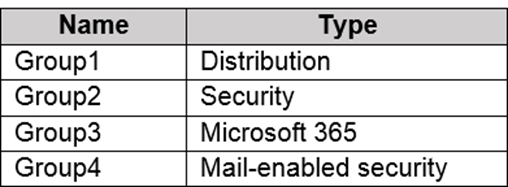
You need to create a new team by using the Microsoft Teams client. Which group can you use to create the new team?
A. Group4
B. Group1
C. Group2
D. Group3
Explanation:
When creating a new team in Microsoft Teams, you can base it on an existing Microsoft 365 group. This is the only group type that natively integrates with the full suite of Microsoft 365 resources (Mailbox, SharePoint site, Planner, etc.) that form the backbone of a team. You cannot create a team directly from a distribution list or a security group (mail-enabled or not).
Correct Option:
D. Group3
Group3 is a Microsoft 365 group. This is the only group type from the list that can be used to create a new team. The "Create team from..." wizard in the Teams client will only recognize and allow you to select existing Microsoft 365 groups. Creating a team from this group automatically connects it to the group's existing membership, mailbox, and SharePoint site.
Incorrect Option:
A. Group4 (Mail-enabled security):
While this group can receive email, it is primarily for permissions management. The Teams client cannot create a new team directly from a mail-enabled security group. You would need to convert it to a Microsoft 365 group first.
B. Group1 (Distribution):
A distribution group is for email only and lacks the underlying resources (SharePoint, Planner) required for a team. You cannot create a team from a distribution list in the Teams client.
C. Group2 (Security):
A security group is used solely for access control. It has no collaboration resources attached and is not an option when creating a new team through the Teams interface.
Reference:
Microsoft Docs - Create a team from an existing group: The documentation explicitly states, "You can create a team from... Microsoft 365 Groups." It clarifies that you cannot create a team from distribution lists or security groups without first converting them.
You have a Microsoft 365 subscription that contains several Microsoft SharePoint Online sites.
You need to ensure that the content stored m a SharePoint modern team site named Sales is available from Microsoft Teams. The solution must ensure that when a new channel is added to a team, a folder for the channel is created in the Sales site.
Solution: From the Microsoft Teams client you create a new team and select From a group or team.
Does this meet the goal?
A. Yes
B. No
Explanation:
The goal has two parts: 1) Making the content from the existing "Sales" SharePoint site available in Teams, and 2) Automatically creating a channel folder in that site when a new channel is added. The proposed solution is to create a new team and select "From a group or team." This option duplicates an existing team/group's structure; it does not link to or incorporate the content from a pre-existing, standalone SharePoint site. The Sales site's content would remain separate.
Correct Option:
B. No
The solution does not meet the goal. Creating a team "From a group or team" creates a copy of an existing team's structure (channels, tabs, apps) for a new group of people. It is designed for team template replication, not for connecting a new team to a specific, pre-existing SharePoint site. The new team would receive its own, brand-new SharePoint site, not the existing "Sales" site.
Reference:
Microsoft Docs - Create a team from an existing team: This process is for cloning a team template. It states that when you create a team this way, it creates a new Microsoft 365 group with its own connected resources, including a new SharePoint site. It cannot be pointed to an arbitrary, existing SharePoint site. To surface an existing site in Teams, you must add it as a SharePoint tab to a channel.
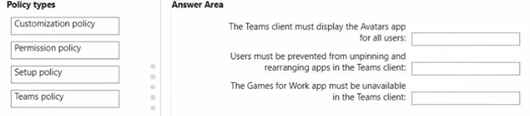
Your company uses Teams.
You need to configure Teams to meet the following requirements:
•The Teams client must display the Avatars app for all users.
•The Games for Work app must be unavailable in the Teams client
•Users must be prevented from unpinning and rearranging apps in the Teams client
Which type of policy should you configure for each requirement? To answer, drag the appropriate policy types to the correct requirements. Each policy type may be used once, more than once, or not at all. You may need to drag the split bar between panes or scroll to view content.
NOTE: Each correct selection is worth one point.
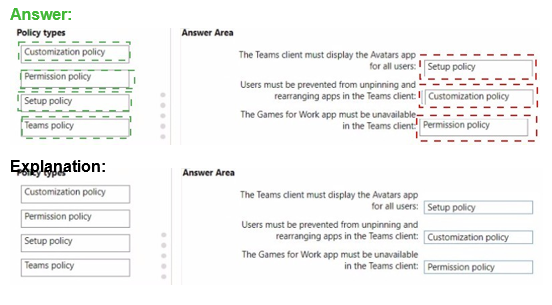
Explanation:
This question tests knowledge of the specific administrative policies in Microsoft Teams used to control the user experience and app availability. The key is to identify which policy type governs pinned apps and the app bar layout (Setup Policy) versus which policy controls the availability of specific apps (Permission Policy).
Correct Option:
The Teams client must display the Avatars app for all users: Setup policy
A Teams Setup Policy (specifically, the global policy or a custom one) is used to pin apps to the app bar for users. To ensure the Avatars app is displayed, an admin must pin it via this policy. It controls the default layout and pinned applications.
Users must be prevented from unpinning and rearranging apps in the Teams client: Setup policy
This is also controlled within the Teams Setup Policy. The policy has a setting named "Allow user pinning" which can be set to Off. This prevents users from modifying the pinned app order or unpinning apps configured by the admin.
The Games for Work app must be unavailable in the Teams client: Permission policy
A Teams App Permission Policy is used to allow or block specific apps for users. To make the "Games for Work" app unavailable, an admin would create a custom permission policy that blocks this specific app and then assign that policy to users.
Incorrect Option / Policy Type Not Used:
Customization policy:
This policy type is used to customize the Teams logo, background, and other organizational branding in the client. It does not control app pinning or availability.
Teams policy:
This is a broad, generic category name and not one of the four distinct, configurable policy types listed. In the Teams admin center, you configure "Teams policies" for settings like messaging, meetings, and live events, but not for app pinning or app permission granularity as required here.
Reference:
Microsoft Docs - Manage app setup policies in Teams: Details how to use a setup policy to pin apps and control user pinning.
You have a Microsoft 365 E3 subscription that uses Teams. The subscription contains an administrator named Admin1 that is assigned the Teams Administrator role.
Admin1 reports that he can assign default policy packages to users but cannot create and assign custom policy packages.
You need to ensure that Admin1 can create and assign custom policy packages in Teams. What should you do?
A. For Admin1, run the Grant-CsUserPolicyPackage PowerShell cmdlet.
B. Assign a Teams Premium license to Admin1.
C. For Admin1. run the Grant-CsGroupPolicyPackageAssigment PowerShell cmdlet.
D. Assign a Microsoft 365 E5 license to Admin1.
Explanation:
This scenario highlights a specific limitation: creating and assigning custom policy packages is a feature exclusive to Teams Premium licenses. The Teams Administrator role grants broad permissions to manage existing policies, but the ability to create and manage custom policy packages (which are predefined bundles of multiple policies) is a Premium feature. Admin1 already has the correct administrative role but lacks the required license to unlock this specific capability.
Correct Option:
B. Assign a Teams Premium license to Admin1.
Creating and assigning custom policy packages is a Teams Premium feature. Even users with the Teams Administrator role require a Premium license to access this functionality in the Teams admin center. Assigning this license will immediately enable the option for Admin1 to create and manage custom policy packages without changing their role.
Incorrect Option:
A. For Admin1, run the Grant-CsUserPolicyPackage PowerShell cmdlet.
This cmdlet is used to assign an existing policy package to a user. It does not grant the administrative permission to create new custom policy packages, which is the core of the problem.
C. For Admin1, run the Grant-CsGroupPolicyPackageAssignment PowerShell cmdlet.
Similar to option A, this cmdlet assigns a policy package to a group, not to an administrator. It does not resolve the licensing requirement for the creation of custom packages.
D. Assign a Microsoft 365 E5 license to Admin1.
While an E5 license includes many advanced features, the ability to create custom policy packages is specifically a Teams Premium add-on feature, not a standard component of the E5 suite. An E5 license alone would not enable this capability.
Reference:
Microsoft Docs - Use policy packages in Teams: The "Prerequisites" section explicitly states, "Teams Premium is required to create and assign custom policy packages." This licensing requirement is separate from administrator role permissions.
Note: This question is part of a series of questions that present the same scenario. Each question in the series contains a unique solution that might meet the stated goals. Some question sets might have more than one correct solution, while others might not have a correct solution.
After you answer a question in this section, you will NOT be able to return to it. As a result, these questions will not appear in the review screen.
Your company has a Microsoft 365 subscription.
You need to prevent a user named User1 from permanently deleting private chats in Microsoft Teams.
Solution: You create an In-Place Hold for the Microsoft OneDrive for Business site of User1.
Does this meet the goal?
A. Yes
B. No
Explanation:
The goal is to prevent a user from permanently deleting private chats in Microsoft Teams. Private chats (1:1 or group chats) are considered conversations and their compliance records are stored in the user's Exchange Online mailbox, specifically in a hidden folder. The solution suggests placing an In-Place Hold on User1's OneDrive for Business site. This is incorrect because OneDrive stores files, not Teams chat messages. The hold must be placed on the correct data location.
Correct Option:
B. No
The solution does not meet the goal. An In-Place Hold (or its modern equivalent, a Litigation Hold) must be placed on the user's Exchange Online mailbox to retain Teams chat messages. A hold on the user's OneDrive site will only retain files stored there; it has no effect on the preservation of Teams conversation data stored in Exchange.
Reference:
Microsoft Docs - How Teams uses Exchange Online for chat data: Official documentation states that private chat messages are stored in a hidden folder within the user's Exchange Online mailbox. Therefore, retention or hold policies for this data must target Exchange Online mailboxes, not OneDrive.
Note: This question is part of a series of questions that present the same scenario. Each question in the series contains a unique solution that might meet the stated goals. Some question sets might have more than one correct solution, while others might not have a correct solution.
After you answer a question in this section, you will NOT be able to return to it. As a result, these questions will not appear in the review screen.
Your company has a Microsoft 365 subscription.
You plan to configure the environment to allow external users to collaborate in Microsoft Teams by using guest access.
The company implements a new security policy that has the following requirements:
Only guest users from specific domains must be allowed to connect to collaborate by using Microsoft Teams.
Guest users must be prevented from inviting other guests.
You need to recommend a solution to meet the security policy requirements.
Solution: From PowerShell, you run the New-AzureADPolicy and Set-AzureADPolicy cmdlets.
Does this meet the goal?
A. Yes
B. No
Explanation:
The goal has two specific requirements: 1) Allow guests only from specific domains, and 2) Prevent guests from inviting other guests. The solution proposes using the New-AzureADPolicy and Set-AzureADPolicy cmdlets. While these PowerShell cmdlets can be used to manage Azure AD tenant-wide settings related to B2B collaboration, they are not the complete or precise solution for both requirements. Specifically, they can set the AllowInvitationsFrom property to control who can invite guests, but they do not directly handle the "allow list" of domains or the separate setting to block guest users from inviting others.
Correct Option:
B. No
While PowerShell (New-AzureADPolicy) can configure some B2B collaboration settings, it is not the recommended or sole solution for these two requirements. The domain allow list is configured via Azure AD External Identities > Cross-tenant access settings. Preventing guests from inviting others is controlled by a separate Teams Guest Access setting in the Teams admin center or via the AllowToAddGuests property in directory settings. The proposed solution is too vague and does not directly map to both specific tasks.
Reference:
Microsoft Docs - Allow or block invitations to B2B users: The official method to allow guest users only from specific domains is to configure an allow list in the Cross-tenant access settings (or legacy "whitelist") in the Azure AD portal or via Microsoft Graph API, not solely via the generic New-AzureADPolicy cmdlet.
Microsoft Docs - Configure guest access: The setting "Guest users have the same or lower access to features than company users" includes controls for guest invite permissions, which is configured separately in Teams admin settings.
Your company uses Teams.
You successfully port and assign an audio conferencing toll-free number to Microsoft. You test the toll-free number and ensure that meetings are successful.
The next day, you receive reports that the toll-free number is no longer working, but local toll numbers still work.
You need to ensure that the toll-free number works. What should you do?
A. Add the toll-free number to an Audio Conferencing policy.
B. Set Anonymous users and dial-in callers can start a meeting to On
C. Add Communication Credits.
D. Set the toll-free number as the default conference bridge.
Explanation:
The scenario describes a toll-free number that worked initially but then stopped, while local toll numbers continue to function. This is a classic symptom of exhausted Communication Credits. Toll-free numbers are billed per minute and require a pre-paid balance of Communication Credits in the tenant. When this balance reaches zero, the toll-free service is automatically suspended, but toll (paid) numbers remain active. The solution is to add funds to restore the service.
Correct Option:
C. Add Communication Credits.
Communication Credits are a mandatory pre-paid balance required to enable and sustain toll-free dial-in numbers for Audio Conferencing. When the credit balance is depleted, Microsoft automatically disables toll-free service. Adding funds (via purchasing or adding more credits) will reactivate the toll-free number, typically within a few hours. This directly resolves the root cause.
Incorrect Option:
A. Add the toll-free number to an Audio Conferencing policy.
Audio Conferencing policies control settings like meeting entry/exit announcements and PIN length. They do not govern the funding or activation status of a phone number. The number is already assigned to the service, so this would not resolve a service suspension due to lack of funds.
B. Set Anonymous users and dial-in callers can start a meeting to On.
This setting controls whether dial-in users can start a meeting if no authenticated user is present. It is unrelated to the operational status of a specific dial-in number. Changing it would not restore a suspended toll-free number.
D. Set the toll-free number as the default conference bridge.
The default bridge number is the one presented in meeting invites. The toll-free number is already assigned and likely was working as the default. This action would just change the primary number displayed, not resolve the underlying billing/suspension issue.
Reference:
Microsoft Docs - Communications Credits: Documentation explicitly states that Communication Credits are required for toll-free numbers. It further explains that if the Communications Credits balance reaches zero, "toll-free numbers will be unavailable for 30 days...until you add more Communications Credits."
Your company has the users shown in the following table.
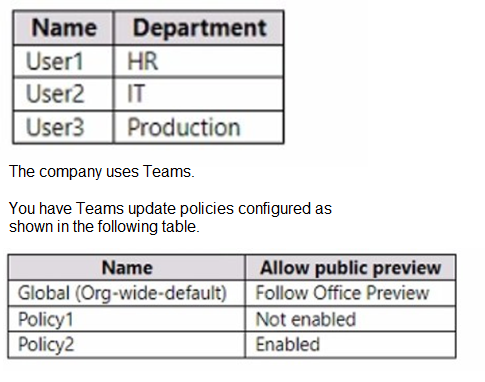
The Teams update policies are assigned to departments as shown in the following table.
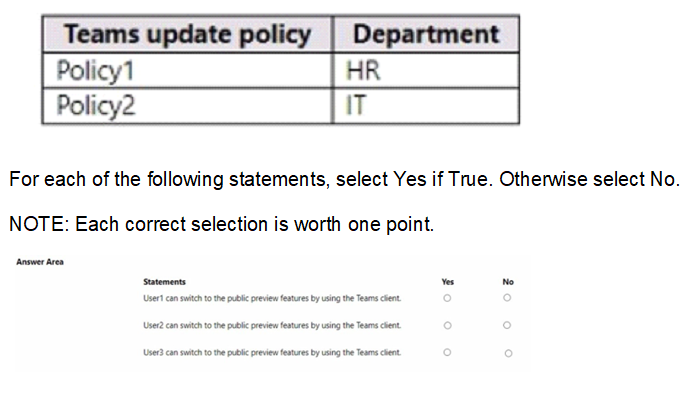
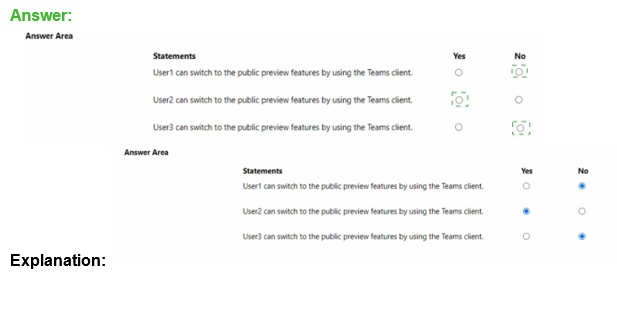
Explanation of Each Statement:
User1 can switch to the public preview features...?
Correct Selection: No
Explanation:
User1 (HR) is assigned Policy1, which explicitly sets "Allow public preview" to Not enabled. This administrative setting completely removes the user's ability to opt into preview builds via the Teams client's "About" section. The option will not be available to them.
User2 can switch to the public preview features...?
Correct Selection: Yes
Explanation:
User2 (IT) is assigned Policy2, which explicitly sets "Allow public preview" to Enabled. This policy grants users the permission to toggle public preview on or off directly within the Teams client (via Settings > About > Public preview). The control is in their hands.
User3 can switch to the public preview features...?
Correct Selection: Yes
Explanation:
User3 (Production) is not assigned a specific policy, so they inherit the Global (Org-wide default) policy. This policy is set to Follow Office Preview. This setting means the ability to switch to preview is dependent on the update channel of their Office installation. If their Office is on a preview channel (like Current Channel), the option to enable Teams preview will be available in the client. Therefore, User3 can switch to preview if their Office configuration allows it.
Reference:
Microsoft Docs - Manage Teams preview features: This documentation details the three settings for the "Allow public preview" policy: "Not enabled," "Enabled," and "Follow Office Preview." It explains that "Follow Office Preview" ties the Teams preview availability to the user's Office update channel.
Your company has a Microsoft 365 subscription.
You need to prevent guest users from creating or updating channels.
How should you complete the PowerShell script? To answer, drag the appropriate options to the correct targets. Each option may be used once, more than once, or not at all. You may need to drag the split bar between panes or scroll to view content.
NOTE: Each correct selection is worth one point.
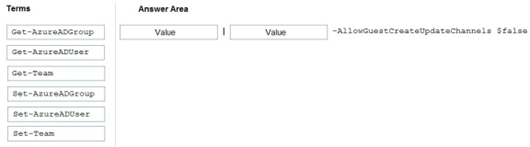
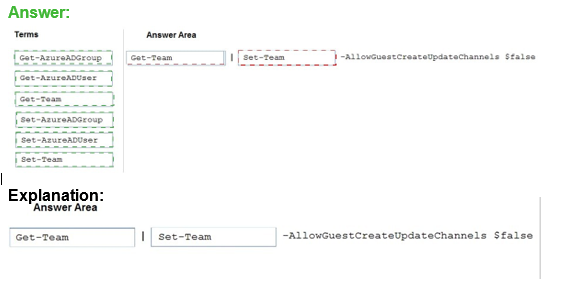
Explanation:
This configuration is a team-specific setting that controls guest permissions for channel management. It cannot be applied globally via Azure AD user or group settings. The Set-Team PowerShell cmdlet is the administrative tool used to modify the properties of an existing Microsoft Team. The -AllowGuestCreateUpdateChannels parameter, when set to $false, explicitly revokes the permission for guest users in that specific team to create new channels or modify existing ones.
Why Other Options Are Incorrect:
Get-AzureADGroup / Get-AzureADUser / Get-Team:
These are Get-* cmdlets used for retrieving information, not for changing configuration settings. They are read-only.
Set-AzureADGroup / Set-AzureADUser:
These cmdlets modify properties of Azure AD objects (like group details or user profiles) but do not contain parameters for managing Teams-specific collaboration settings like guest channel permissions.
Set-Team:
This is the correct cmdlet. It is the only one listed that can modify team settings, including guest permissions related to channels.
Reference:
Microsoft Docs - Set-Team: The official documentation for the Set-Team cmdlet lists the -AllowGuestCreateUpdateChannels parameter, specifying that it controls whether guests can create and update channels in the team.
You have a Microsoft 365 subscription that uses Microsoft Teams.
You need to configure Microsoft Teams to meet the following requirements:
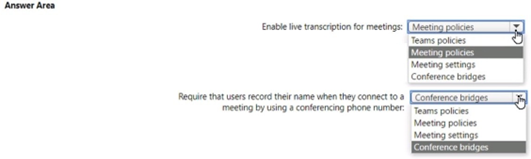
• Enable live transcription for meetings.
• Require that users record their name when they connect to a meeting by using a conferencing phone number.
What should you configure for each requirement? To answer, select the appropriate options in the answer area. NOTE: Each correct selection is worth one point.
Explanation for Each Requirement:
Requirement 1: Enable live transcription for meetings.
Correct Configuration: Meeting policies
Live transcription is a feature controlled at the per-user or per-group level via Teams meeting policies. An administrator creates or modifies a meeting policy (e.g., the global policy) and turns the "Transcription" setting to On. This policy is then assigned to users, granting them the ability to start transcription in their meetings.
Requirement 2: Require that users record their name when they connect to a meeting by using a conferencing phone number.
Correct Configuration: Meeting settings
This is a global, organization-wide setting for the audio conferencing (dial-in) experience. It is found under Meetings > Meeting settings in the Teams admin center. The setting is named "Entry/exit announcement type" or related "Name recording" for dial-in users. Configuring this here applies the requirement to all meetings using the organization's conference bridge.
Why Other Options Are Incorrect for These Requirements:
Teams policies:
This is a broad category. In the admin center, "Teams policies" typically refer to settings governing teams creation, messaging, and fun stuff, not meeting-specific features like transcription or dial-in behavior.
Conference bridges:
This section in the admin center is for managing phone numbers (toll and toll-free) assigned to your organization for audio conferencing. It is not where you configure behavior rules like name recording for participants; that is done in Meeting settings.
Reference:
Microsoft Docs - Meeting policies for transcription: Confirms that the "Transcription" toggle is located within a Teams meeting policy.
Microsoft Docs - Change settings for audio conferencing: Details that dial-in participant settings, including entry/exit announcements and name recording, are managed in the Meeting settings page of the Teams admin center.
| Page 1 out of 28 Pages |