
Topic 5: Misc, Questions
Your company has a Microsoft 365 subscription that contains several teams.
The company’s security policy states that an administrator must be notified when a new team is created by using the Build a team from scratch option.
You need to configure the environment to meet the security policy requirement. What should you do?
A. From the Security & Compliance admin center, create a supervision policy.
B. From the Security & Compliance admin center, create an alert policy.
C. From the Azure Active Directory admin center, create a protection notification.
D. From the Microsoft Teams admin center, modify the global teams policy.
Explanation:
The requirement is for an administrator to be notified when a specific event (creating a team from scratch) occurs. This is an auditing and alerting scenario, not a prevention or supervision of content. The correct tool for creating automated notifications based on specific user activities or events in Microsoft 365 is an Alert Policy in the Microsoft Purview compliance portal (Security & Compliance admin center).
Correct Option:
B. From the Security & Compliance admin center, create an alert policy.
An Alert Policy in the Security & Compliance admin center can be configured to trigger an email notification to administrators when a specific activity occurs. You can create a custom alert policy that monitors the "Created team" activity (or similar audit event) and filters for the specific creation method if detailed logging is available. This directly fulfills the requirement for proactive notification.
Incorrect Option:
A. From the Security & Compliance admin center, create a supervision policy.
Supervision policies are for reviewing employee communications for compliance (e.g., scanning emails/Teams chats for sensitive info). They are not designed to send notifications for administrative events like team creation.
C. From the Azure Active Directory admin center, create a protection notification.
While Azure AD can send alerts for risky sign-ins or user risk, it does not have a native, configurable notification system for Teams creation events. This is not the correct service for this specific workload alert.
D. From the Microsoft Teams admin center, modify the global teams policy.
Teams policies control settings like who can create teams, create private channels, or use apps. They are used to set permissions and rules, not to generate notifications when an action is taken. You cannot configure email alerts from a Teams policy.
Reference:
Microsoft Docs - Alert policies in the compliance portal: This documentation outlines how to create custom alert policies to track specific activities across Microsoft 365 services, including Teams events. The "Created team" activity is an auditable event that can be monitored by an alert policy.
You work as a Microsoft 365 Administrator for your company. All users have Microsoft 365 licenses.
Users frequently collaborate by using private chats in Microsoft Teams.
You need to ensure that a single user is unable to permanently delete private chats. Which of the following should you configure?
A. The user's Microsoft 365 license options in the Microsoft 365 Admin Center.
B. A meeting policy in Microsoft Teams.
C. A litigation hold on the user's mailbox.
D. A Sensitivity Label in the Security & Compliance Admin Center.
Explanation:
Private chats in Microsoft Teams (1:1 and group chats) are stored as conversation items in the Exchange Online mailboxes of the participants. To prevent permanent deletion of this data, you must place a legal hold on the mailbox. A litigation hold (or the newer Purview retention hold) preserves all mailbox content, including Teams chats, by preventing users and automated processes from permanently deleting items, even if they are removed from the "Deleted Items" folder.
Correct Option:
C. A litigation hold on the user's mailbox.
Placing a litigation hold (or an equivalent Purview retention hold) on a user's Exchange Online mailbox prevents the permanent deletion of all mailbox content, including Teams private chat messages stored in a hidden folder. This ensures compliance data is preserved regardless of user actions, meeting the requirement that a single user cannot permanently delete these chats.
Incorrect Option:
A. The user's Microsoft 365 license options in the Microsoft 365 Admin Center.
License options control feature availability (like enabling/disabling Teams or Exchange Online) but do not provide data retention or preservation capabilities. They cannot prevent deletion of chat content.
B. A meeting policy in Microsoft Teams.
Meeting policies govern settings for meetings, such as who can present, recording permissions, and lobby settings. They have no control over the retention or deletion of private chat messages.
D. A Sensitivity Label in the Security & Compliance Admin Center.
Sensitivity labels are used to classify and protect documents and emails with encryption or watermarking. They do not apply to Teams chat conversations for the purpose of preventing deletion.
Reference:
Microsoft Docs - How Teams uses Exchange Online: Confirms that private chat messages are stored in a hidden folder within the user's Exchange Online mailbox.
Microsoft Docs - Litigation Hold: Explains that placing a mailbox on Litigation Hold preserves all mailbox items (including Teams chat data) by preventing permanent deletion and retaining modified or deleted items for a specified duration.
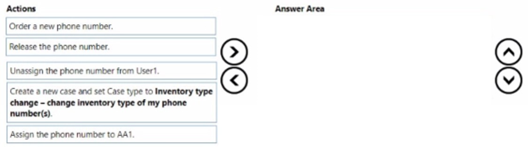
Your company uses Microsoft Teams and has an auto attendant named AA1. A user named User1 has a phone number of 613-555-1234.
You need to assign the phone number to AA1.
Which three actions should you perform in sequence in the Microsoft Teams admin center?
To answer, move the appropriate actions from the list of actions to the answer area and arrange them in the correct order.
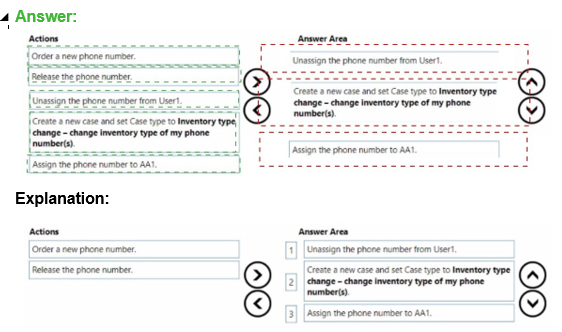
Explanation of the Correct Sequence:
Step 1: Unassign the phone number from User1.
First, you must disassociate the number from its current owner. In the Teams admin center, navigate to Voice > Phone numbers, locate the number (613-555-1234), and change its assignment from "User1" to Unassigned. This frees the number from the user but keeps it in your tenant's inventory.
Step 2: Release the phone number.
After unassigning, the number will be in an Unassigned state. Before it can be assigned to a resource like an auto attendant, it must be placed in the Available inventory pool. The "Release" action performs this step, moving the number from the "Unassigned" tab to the general available inventory.
Step 3: Assign the phone number to AA1.
Finally, with the number now available in your inventory, you can assign it to the target resource. In the Voice > Phone numbers section, select the available number and assign it to the auto attendant AA1.
Why the Other Actions Are Incorrect or Not Needed:
Order a new phone number: This is unnecessary. The company already owns the number (613-555-1234); you are simply reassigning it.
Create a new case and set Case type to Inventory type change...:
This is a porting or carrier action used to change a number's underlying service type (e.g., from Microsoft to a direct carrier). It is not required for a simple internal reassignment of an already Microsoft-managed number between resources in the same tenant.
Your company has a Microsoft 365 subscription.
The company’s only messaging policy is a global messaging policy configured as shown in
the following exhibit.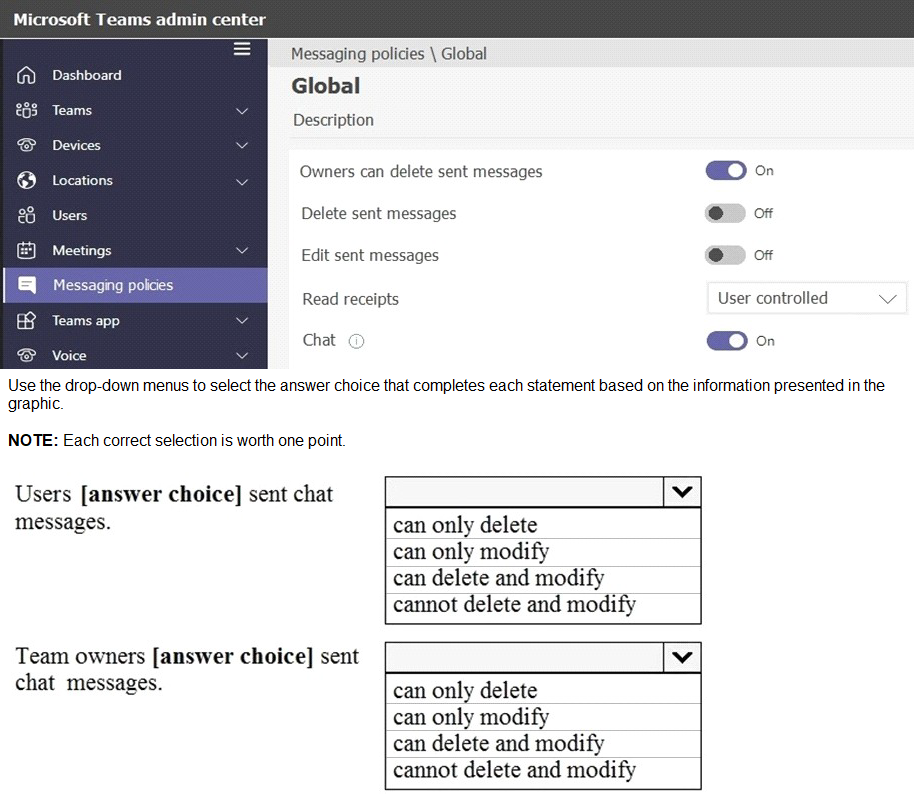
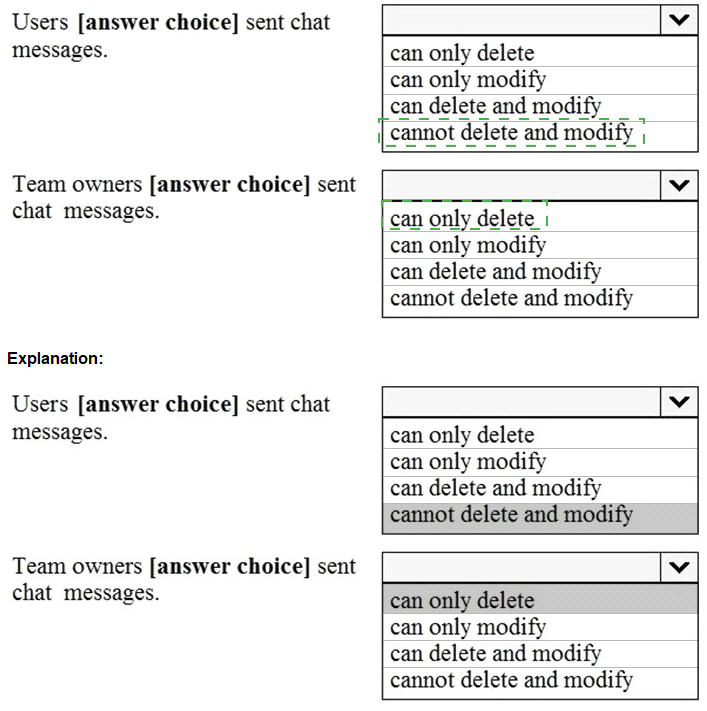
Explanation for Each Statement:
Statement 1: Users [ ] sent chat messages.
Correct Selection: cannot delete and modify
Explanation:
The global policy explicitly sets both "Delete sent messages" and "Edit sent messages" to Off for all users. Therefore, regular users have neither the delete nor the edit permission for messages they have already sent in chats.
Statement 2: Team owners [ ] sent chat messages.
Correct Selection: can only delete
Explanation:
The global policy has a special privilege: "Owners can delete sent messages" is set to On. This grants team owners the ability to delete messages. However, the separate "Edit sent messages" setting remains Off, and there is no owner-specific override for editing. Consequently, team owners can delete but cannot edit sent messages.
Reference:
Microsoft Docs - Messaging policy settings for chat: The documentation details these three key settings:
Owners can delete sent messages: Controls if team owners have delete permission.
Delete sent messages: Controls if users can delete their own messages.
Edit sent messages: Controls if users can edit their own messages.
These settings work together, with the owner setting acting as a specific override for delete permission only.
Your company is upgrading from Microsoft Skype for Business Online to Microsoft Teams.
The company's Microsoft Teams upgrade policy is set to Islands coexistence mode. The
company plans to maintain the coexistence mode for several months.
Several users report that they receive email messages about missed chat conversations.
You need to recommend a solution to ensure that all the users receive chat messages.
Which two actions should you recommend? Each correct answer presents part of the
solution.
NOTE: Each correct selection is worth one point.
A. Install the Microsoft Teams clients on all the computers that run the Skype for Business client. Instruct the users to sign in to both client applications.
B. Instruct the users to modify the permissions in the Microsoft Teams client.
C. Modify the global app setup policy
D. Modify the global app permission policy.
E. Install the Skype for Business client on all the computers that run the Microsoft Teams client. Instruct the users to sign in to both client applications.
Explanation:
In Islands coexistence mode, users have both Skype for Business and Teams clients installed, but their chat and calling experience is split based on the client used by the sender. A user in Teams can only chat with another user in Teams, and a user in Skype can only chat with another user in Skype. If a user is signed into only one client, they will miss messages sent from the other client, resulting in email notifications about missed conversations. The solution is to have all users signed into both clients simultaneously to bridge the gap until a full upgrade to Teams-Only mode.
Correct Option:
A. Install the Microsoft Teams clients on all the computers that run the Skype for Business client. Instruct the users to sign in to both client applications.
This ensures that users currently only using Skype for Business have the Teams client installed and running. Being signed into both clients allows them to receive messages sent from either platform, eliminating missed chats.
E. Install the Skype for Business client on all the computers that run the Microsoft Teams client. Instruct the users to sign in to both client applications.
This is the complementary action to option A. It ensures that users who are already on Teams also have the Skype for Business client installed and running. This allows them to receive messages from colleagues still using Skype, closing the communication gap from both sides.
Incorrect Option:
B. Instruct the users to modify the permissions in the Microsoft Teams client.
User-level permissions in the Teams client do not control interoperability or routing between Skype for Business and Teams. This is a coexistence mode configuration issue, not a permissions problem.
C. Modify the global app setup policy.
App setup policies control which apps are pinned for users in Teams. They do not affect the underlying routing of chat messages between the two different communication platforms (Skype for Business and Teams).
D. Modify the global app permission policy.
App permission policies control which third-party apps and custom apps are allowed in Teams. They are unrelated to the core chat routing between Skype for Business and Teams during coexistence.
Reference:
Microsoft Docs - Understand Microsoft Teams and Skype for Business coexistence and interoperability: The documentation for Islands mode explicitly states that in this mode, "Users can communicate with others only by using the same client app." To ensure no messages are missed, the recommended user experience is to "run both clients side by side." This confirms the need for both clients to be installed and active for all users.
Your on-premises network contains a main site and a branch site.
You have a Microsoft 365 subscription that uses Teams.
You need to use Network planner to identify the networking requirements between the
sites.
From Network planner, you create a new network plan.
What should you do next?
A. Configure the Network settings
B. Start a report
C. Add a network site
D. Add personas
Explanation:
Network Planner in Teams is a tool used to calculate network bandwidth requirements for deploying Teams across an organization. The process follows a specific sequence: first, you create a Network Plan to define the overall scenario. Next, you must define the Network Sites, which represent the physical locations (like your main site and branch site) where users are based. Only after defining the sites can you add the users (personas) to those sites and generate reports.
Correct Option:
C. Add a network site
After creating the overall network plan, the next logical step is to define your organization's physical locations. You would add at least two network sites: one for the Main site and another for the Branch site. Each site requires information like its name, network IP addresses, and available bandwidth, which is essential for subsequent calculations.
Incorrect Option:
A. Configure the Network settings:
While important, "Network settings" typically refer to broader tenant-level configurations for network discovery or enabling locations. This step is often done before or independent of creating a specific plan within Network Planner. It is not the immediate next step after creating a plan.
B. Start a report:
You cannot generate a report immediately after creating a plan. A report requires data to analyze. You must first define your network sites and then add personas (users with defined usage profiles) to those sites before the planner has the necessary information to calculate bandwidth and "Start a report."
D. Add personas:
Personas represent user groups with defined activity profiles (e.g., heavy video users). This step comes after defining network sites, because you need to specify which site each persona (group of users) is located in to calculate the bandwidth requirements for that site accurately.
Reference:
Microsoft Docs - Use Network Planner for Teams: The documented workflow is: 1. Create a network plan > 2. Add network sites > 3. Add personas and assign them to sites > 4. Generate a report. This confirms that "Add a network site" is the direct next step after plan creation.
You have a Microsoft Office 365 subscription.
You need to prevent guest users from deleting channels from a Microsoft Teams team.
What should you use?
A. the Microsoft 365 admin center
B. the Azure portal
C. the Microsoft Teams client
D. the Security & Compliance admin center
Explanation:
Preventing guest users from deleting channels is a team-level permission setting managed in Microsoft Teams. However, the question asks, "What should you use?" implying the tool or interface. The Microsoft Teams admin center is the primary management portal for configuring team-level settings, including guest permissions. It is accessible via the Microsoft 365 admin center (often as an app within it) and is the correct administrative tool for this task. The Azure portal or Security & Compliance admin center do not manage these granular team collaboration settings.
Correct Option:
A. the Microsoft 365 admin center
While the setting itself is a Teams configuration, the administrative path to configure it is through the Microsoft 365 admin center. You navigate to the Microsoft 365 admin center > Show all > Teams to access the Teams admin center. Within the Teams admin center, you can manage team settings or policies that control guest permissions, such as the ability to delete channels. This is the correct administrative interface for the task.
Incorrect Option:
B. the Azure portal:
The Azure portal is used for managing Azure AD identities, conditional access, and enterprise applications. While guest user accounts exist in Azure AD, the permissions for what a guest can do within a specific Teams team (like deleting channels) are managed within the Teams service, not in Azure AD settings.
C. the Microsoft Teams client:
This is the end-user application. An administrator cannot configure organization-wide or team-level guest permissions from within the user client. These settings require administrative access via an admin portal (Teams admin center).
D. the Security & Compliance admin center:
This center is for configuring data retention, eDiscovery, audit logs, and sensitivity labels. It is not used for managing real-time collaboration permissions like channel deletion within Teams.
Reference:
Microsoft Docs - Guest permissions in Teams: The documentation states that guest permissions for channels (like creating, updating, or deleting) are controlled via team settings. These settings are configured by an administrator in the Teams admin center, which is accessed through the Microsoft 365 admin center.
You have a Microsoft 365 E5 subscription that uses Microsoft Teams.
You need to ensure that the users in your organization can communicate with external
users who use Teams for personal use.
How should you complete the PowerShell cmdlets? To answer, drag the appropriate values
to the correct targets. Each value may be used once, more than once, or not at all. You
may need to drag the split bar between panes or scroll to view content.
NOTE: Each correct selection is worth one point.
Explanation:
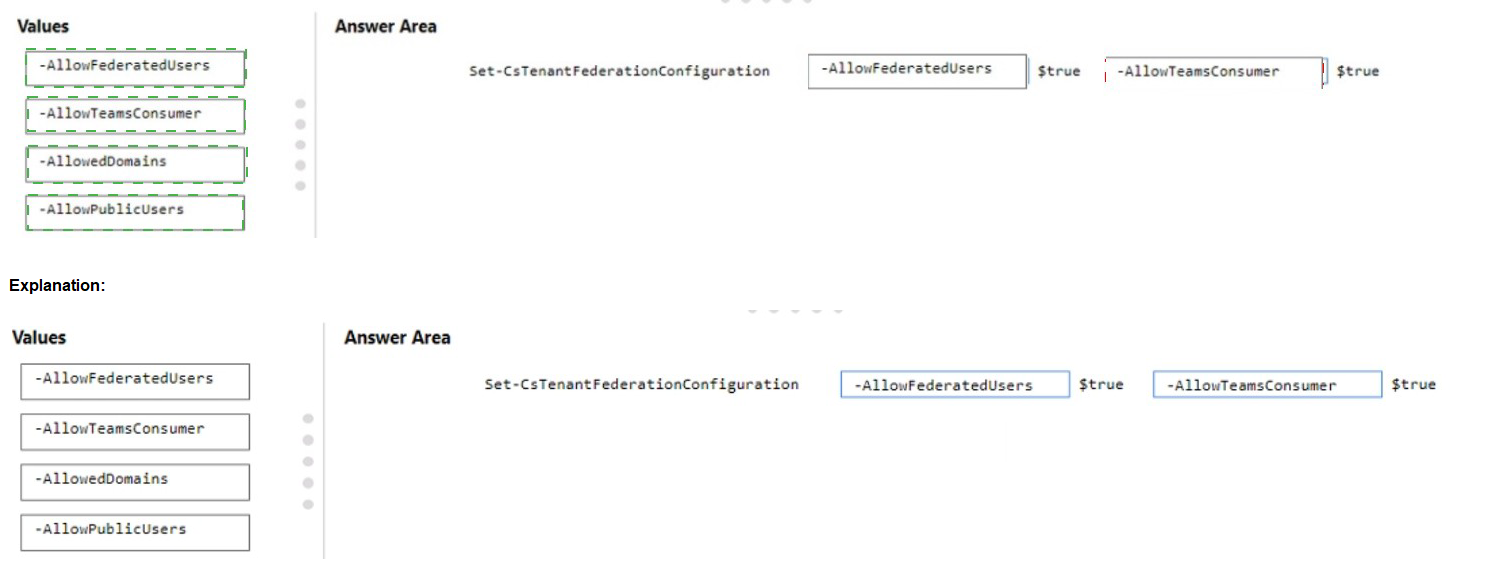
To enable federation with external users using Teams for personal (consumer) accounts, you must configure the tenant's federation settings using PowerShell. The Set-CsTenantFederationConfiguration cmdlet with the -AllowTeamsConsumer parameter set to $true is the precise command. This opens communication channels between your organization's managed users and external, unmanaged Teams consumer accounts.
Why the Other Values Are Incorrect or Not Used:
-AllowFederatedUsers:
This parameter controls federation with users from other organizations' managed (business/school) Teams or Skype for Business tenants. It is for B2B federation, not for consumer (B2C) access.
-AllowedDomains:
This parameter is used to specify a list of specific domains that are allowed or blocked for federation with managed external organizations. It is not the parameter used to enable the blanket capability to communicate with consumer users.
-AllowPublicUsers:
This parameter does not exist in the Set-CsTenantFederationConfiguration cmdlet. The correct parameter for allowing public (consumer) users is -AllowTeamsConsumer.
Reference:
Microsoft Docs - Set-CsTenantFederationConfiguration: The official cmdlet reference lists the -AllowTeamsConsumer parameter and describes it as enabling "communication with Skype Consumer users." This setting applies to Teams consumer users as well.
You have a Microsoft 365 E3 subscription that contains 500 users. All the users have
computers that run Windows 10 and are joined to Azure AD.
Vou need to generate a report that identifies which documents the users copied from
Microsoft Teams to USB devices.
What should you do first?
A. Onboard the Windows 10 computers to Endpoint data loss prevention (Endpoint DLP).
B. Assign the Microsoft 365 ES compliance add-on to each user.
C. Create a custom data loss prevention (DLP) policy.
D. Assign the Enterprise Mobility + Security ES add-on to each user.
Explanation:
Generating a report on documents copied from Microsoft Teams to USB devices requires Data Loss Prevention (DLP) monitoring for endpoints. This specific capability—monitoring file activities on Windows 10 devices, including USB transfers—is a feature of Endpoint DLP. However, Endpoint DLP is not included in the Microsoft 365 E3 subscription. It requires an upgrade to Microsoft 365 E5 Compliance add-on licenses or an E5 suite. Therefore, you must first assign the necessary licenses before you can enable and configure the required DLP features.
Correct Option:
B. Assign the Microsoft 365 E5 compliance add-on to each user.
The Microsoft 365 E5 Compliance add-on license provides the advanced DLP capabilities required for Endpoint DLP, which includes monitoring and reporting on file activities such as copying to USB devices. This is a prerequisite step. Without this license, the Endpoint DLP features (including the necessary reporting) will not be available to configure or use, regardless of any subsequent policy creation or device onboarding.
Incorrect Option:
A. Onboard the Windows 10 computers to Endpoint data loss prevention (Endpoint DLP).
This is a critical step, but it is not the first step. You cannot onboard devices to Endpoint DLP until the tenant has the necessary licenses (E5 Compliance) and Endpoint DLP is enabled in the compliance portal. Licensing must come first.
C. Create a custom data loss prevention (DLP) policy.
Creating a DLP policy is an important configuration step after licensing and onboarding. However, a DLP policy for monitoring USB transfers on endpoints cannot be created or applied unless the Endpoint DLP feature (enabled by the E5 Compliance license) is available.
D. Assign the Enterprise Mobility + Security E5 add-on to each user.
The Enterprise Mobility + Security (EMS) E5 suite includes advanced security features like Microsoft Defender for Endpoint and advanced identity protection, but it does not include the advanced compliance and DLP features required for Endpoint DLP reporting. The correct licensing add-on for this specific requirement is the Microsoft 365 E5 Compliance add-on.
Reference:
Microsoft Docs - Get started with Endpoint data loss prevention: The "Prerequisites" section explicitly lists the licensing requirements: Microsoft 365 E5 or Microsoft 365 E5 Compliance subscription is required for Endpoint DLP. This confirms that assigning the correct license is the foundational first step.
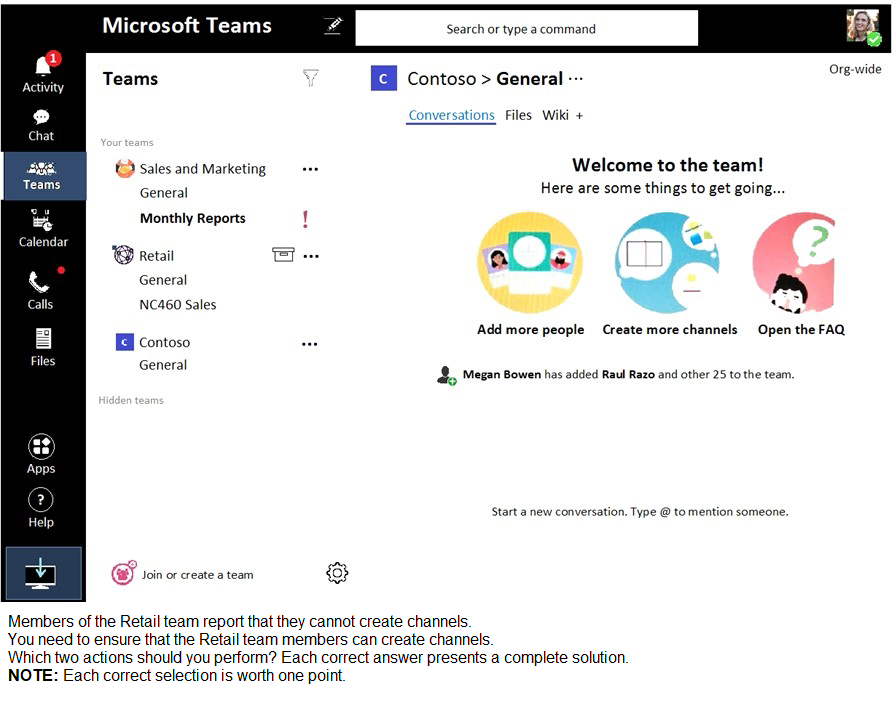
Your company has a Microsoft 365 subscription. From the Microsoft Teams client, you review the teams shown in the exhibit. (Click the Exhibit tab.)
A. From the Azure Active Directory admin center, change the membership type of the Office 365 group for the Retail team to Assigned.
B. From the Microsoft Teams client, promote all the Retail team members to an owner role.
C. From the Microsoft Teams admin center, unarchive the Retail team.
D. Instruct the Retail team owner to restore the team by using the Microsoft Teams client.
E. From PowerShell, modify the information barrier policy.
Correct Option:
C. From the Microsoft Teams admin center, unarchive the Retail team.
This is the primary administrative action. In the Teams admin center, an administrator can search for the Retail team, select it, and choose the "Unarchive" action. This restores the team to active status, re-enabling all member capabilities, including the ability to create channels.
D. Instruct the Retail team owner to restore the team by using the Microsoft Teams client.
This is the alternative user-driven action. A team owner can manage archiving/unarchiving for their own team. The owner can go to the ... (More options) menu next to the hidden/archived Retail team and select "Restore team". This also unarchives the team and solves the problem.
Incorrect Option:
A. From the Azure Active Directory admin center, change the membership type of the Office 365 group for the Retail team to Assigned.
The membership type (Assigned vs. Dynamic) controls how users are added to the group but has no impact on whether a team is archived or on the channel creation permissions within Teams.
B. From the Microsoft Teams client, promote all the Retail team members to an owner role.
While owners have more permissions than members, promoting all members is unnecessary and doesn't address the root cause. The limitation is because the team is archived/hidden, not because of their role. Even owners cannot create channels in an archived team.
E. From PowerShell, modify the information barrier policy.
Information barrier policies are used to restrict communication and collaboration between specific groups of users for compliance reasons (e.g., preventing HR from chatting with Finance). They have no relation to team archiving or the ability to create channels.
Reference:
Microsoft Docs - Restore an archived team: The documentation states that "When a team is archived, some actions are no longer available to team members," including the ability to "add or remove channels." To re-enable these features, you must restore (unarchive) the team. This can be done by an administrator in the admin center or by a team owner in the Teams client.
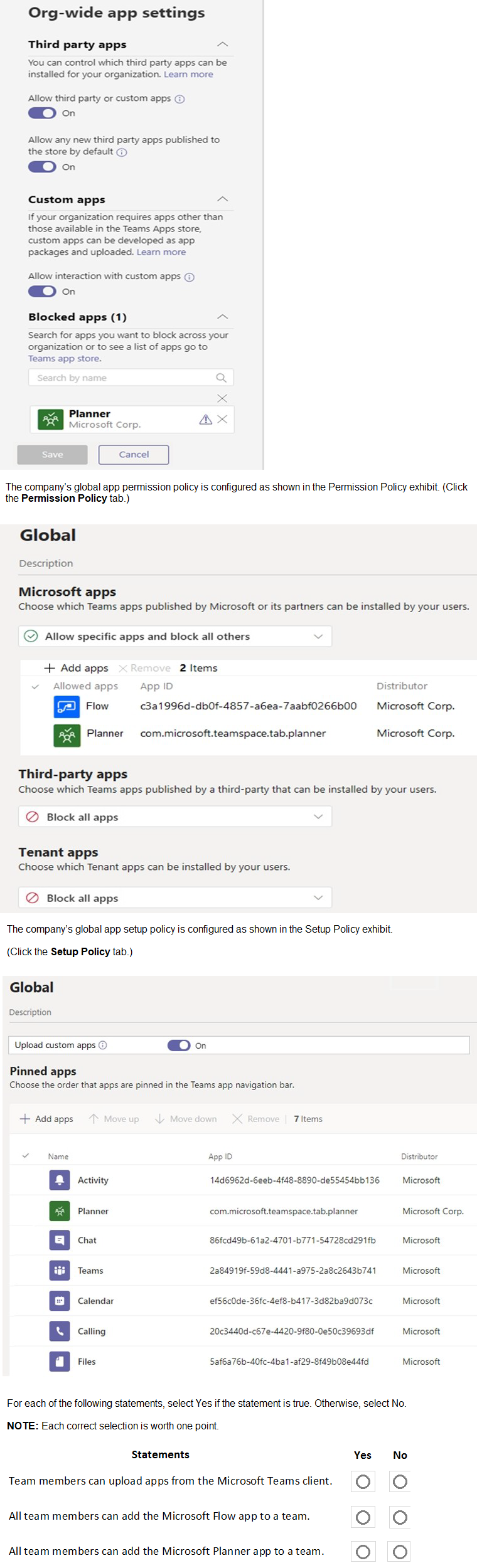
You are a Microsoft Teams administrator for your company. You have the Org-wide app settings shown in the App Settings exhibit. (Click the App Settings tab.)
Analysis of Settings:
Org-wide App Settings (Exhibit 1):
Third-party apps: Enabled (On). However, this is overridden by the more restrictive permission policy.
Custom apps (upload): Enabled (On). This allows uploading custom apps at the tenant level.
Global App Permission Policy (Exhibit 2): This policy is the primary gatekeeper for what apps users can install/use.
Microsoft apps: "Allow specific apps and block all others" is selected. The only explicitly allowed Microsoft apps are Flow and Planner.
Third-party apps: "Block all apps" is selected.
Tenant apps (custom apps): "Block all apps" is selected.
Global App Setup Policy (Exhibit 3): This policy controls which apps are pinned to the app bar for users (it does not control permission to install or add apps). Planner is pinned here, but this doesn't grant permission if it's blocked elsewhere.
Now, evaluate each statement:
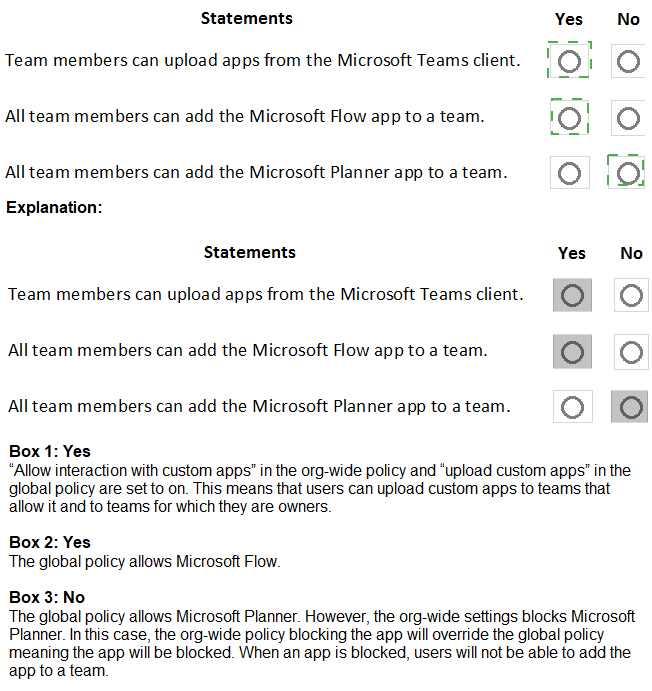
Statement 1: Team members can upload apps from the Microsoft Teams client.
Correct Selection: No
Explanation:
The ability to upload custom apps requires the Org-wide setting to be On (which it is) AND the user's App Permission Policy must allow "Tenant apps." The Global App Permission Policy explicitly sets "Tenant apps" to "Block all apps." This blocks users from uploading custom apps via the Teams client, regardless of the org-wide setting.
Statement 2: All team members can add the Microsoft Flow app to a team.
Correct Selection: Yes
Explanation:
The Global App Permission Policy for Microsoft apps is set to "Allow specific apps and block all others." Flow is one of the two explicitly allowed apps in this list (its App ID is shown). Therefore, users assigned this global policy have permission to add the Microsoft Flow app to a team.
Statement 3: All team members can add the Microsoft Planner app to a team.
Correct Selection: Yes
Explanation:
The Global App Permission Policy for Microsoft apps is set to "Allow specific apps and block all others." Planner is the other explicitly allowed app in this list. Therefore, users assigned this global policy have permission to add the Microsoft Planner app to a team. (Note: It being pinned in the Setup Policy is a separate, reinforcing action, but the permission is granted by the Permission Policy.)
Your company has five offices. Each office has a unique phone number.
You plan to deploy Phone System to all the offices.
You need to ensure that each office has a unique greeting message for the weekdays and
a unique greeting message for the weekends. The solution must minimize administrative effort.
D18912E1457D5D1DDCBD40AB3BF70D5D
What should you create?
A. one auto attendant that contains all five phone numbers
B. one call queue that contains all five phone numbers
C. five auto attendants that each contains one phone number
D. five call queues that each contains one phone number
Explanation:
Auto attendants are designed to provide custom call routing and greetings based on a schedule (e.g., business hours, after hours, weekends). They can play specific recorded messages and direct callers to different resources. Since you need unique greetings per office and separate messages for weekdays vs. weekends, each office requires its own set of greeting logic. Creating one auto attendant per office (each with its assigned unique phone number) allows you to independently configure the greeting schedule and messages for that specific location, minimizing complexity compared to trying to manage five different schedules and greetings within a single auto attendant.
Correct Option:
C. five auto attendants that each contains one phone number
An auto attendant is the correct feature to provide customized call greetings and routing based on a schedule. By creating one auto attendant per office, you assign each office's unique phone number to its own auto attendant. You can then configure each auto attendant with a call flow that uses separate greeting messages for weekdays and weekends. This is administratively clean, as each location's settings are managed independently in its own auto attendant object.
Incorrect Option:
A. one auto attendant that contains all five phone numbers:
A single auto attendant can only have one primary greeting schedule and message set. It cannot play a unique greeting based on which of the five office numbers was dialed. All calls would hear the same message, failing the requirement for office-specific greetings.
B. one call queue that contains all five phone numbers:
Call queues are designed to distribute incoming calls among a group of agents or users, not to play informational greetings or provide complex menu routing based on schedule. They are not the tool for customized office greetings.
D. five call queues that each contains one phone number:
While this would assign a unique number per office, call queues lack the sophisticated greeting and schedule management features needed. They are for routing to people, not for playing different recorded messages on weekdays vs. weekends.
Reference:
Microsoft Docs - What is a Cloud Auto Attendant?: Auto attendants are described as services that "answer incoming calls" and "play greetings" and can use different call flows for business hours vs. after hours. Creating multiple auto attendants is the standard method to handle geographically distinct locations with unique greetings.
| Page 2 out of 28 Pages |
| Previous |