
Topic 5: Misc. Questions
A company uses Dynamics 365 Business Central.
A vendor needs to use a default warehouse location and invoice a different vendor for a
purchase order.
You need to configure the system to meet the requirements.
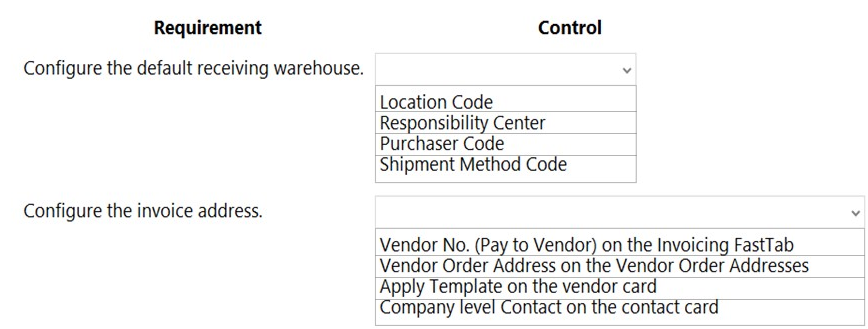
Which controls should you use? To answer, select the appropriate options in the answer
area.
NOTE: Each correct selection is worth one point.
Explanation:
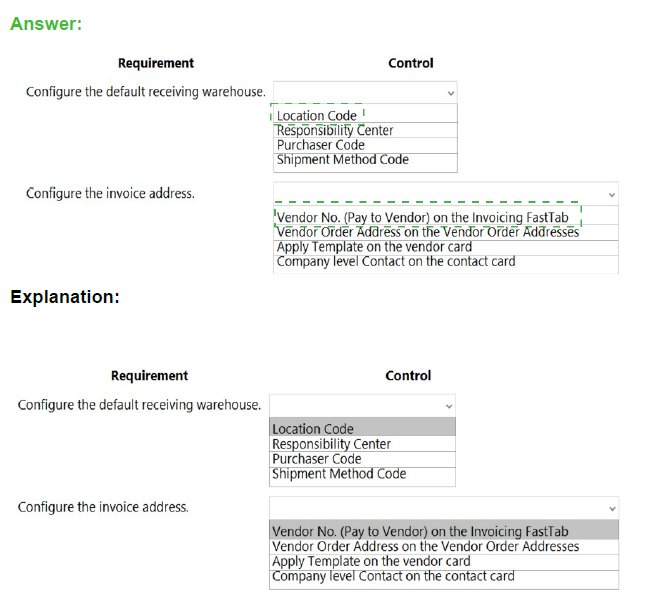
To set the default location where goods from a specific vendor are received, you must define this on the vendor's card. The Location Code field is used to specify the default warehouse for posting receipts from this vendor. The other listed controls are unrelated to warehouse determination for purchases.
Correct Option:
Location Code:
This field on the vendor card's Purchasing FastTab defines the default warehouse (location) where items received from this vendor will be posted. Setting it here ensures all purchase documents for this vendor default to this receiving location.
Incorrect Options:
Responsibility Center: Used to route documents to a specific department or office, not to define a physical receiving warehouse.
Purchaser Code: Identifies the responsible buyer/agent for the vendor relationship, not a storage location.
Shipment Method Code: Defines how goods are shipped (e.g., air freight), not where they are received.
Reference: Dynamics 365 Business Central help topic on setting up vendors.
Requirement: Configure the invoice address.
Explanation:
To have a purchase order invoice sent to and paid to a different vendor entity (e.g., a parent company or corporate billing center), you must specify the paying vendor on the purchase order. The Vendor No. (Pay to Vendor) field is used for this specific intercompany billing scenario.
Correct Option:
Vendor No. (Pay to Vendor) on the Invoicing FastTab:
On a purchase order, this field allows you to specify a different vendor number from the "Order Address" vendor to whom the invoice will be sent and payment made. This directly satisfies the requirement to "invoice a different vendor."
Incorrect Options:
Vendor Order Address on the Vendor Order Addresses:
This is used to define different shipping addresses (Order Addresses) for the same vendor, not to invoice a completely different vendor entity.
Apply Template on the vendor card:
This is for applying a setup template when creating a new vendor, not for configuring invoice routing on transactions.
Company level Contact on the contact card:
This links a contact to a company for relationship tracking in the Contact Management system, not for defining payment routing in Purchase Payables.
Reference:
Business Central documentation on creating purchase orders and the "Pay-to Vendor" field.
A manufacturer uses Dynamics 365 Business Central. The company has the following item
types:
• Raw Materials
• Work-in-progress (WIP)
• Finished Goods
Different prefixes are used for item numbers to identify these item types.
The company requires the following system setup:
• Use a unique number series for each item type.
• No. Series must be selectable when creating manual items.
• Implement automatic number assignment
You need to configure the system.
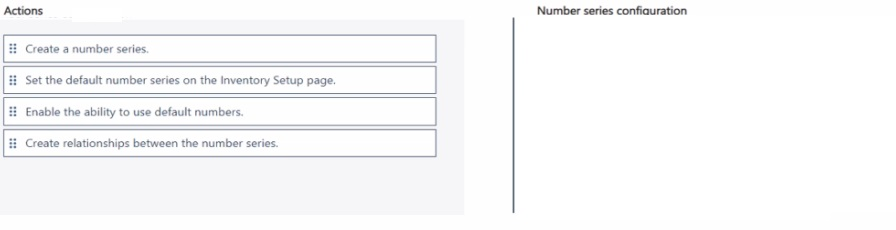
In which order should you perform the actions? To answer, move all actions from the list of
actions to the answer area and arrange them in the correct order.
NOTE: More than one order of answer choices is correct. You will receive credit for any of
the correct orders you select.
Explanation:
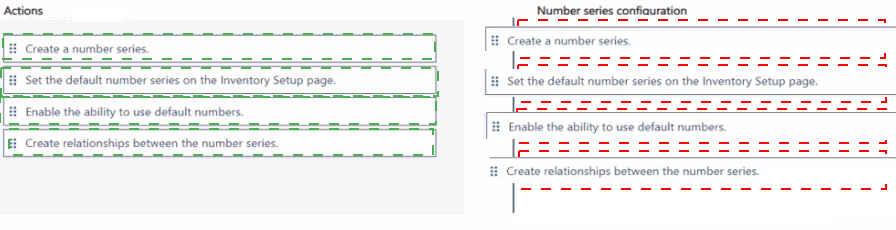
To configure automatic numbering for items with distinct prefixes per type (Raw, WIP, Finished), you must first create the required number series. Then, you must enable the automatic numbering feature in the Inventory Setup and assign the default series there. Relationships between series (e.g., manual vs. automatic) are defined during their creation.
Correct Option:
The logical order for a standard setup is:
Create a number series. (You must create the series "RAW-", "WIP-", "FIN-" before they can be assigned.)
Enable the ability to use default numbers. (In Inventory Setup, turn on the "Automatic Cost Posting" or similar auto-numbering toggle.)
Set the default number series on the Inventory Setup page. (Assign your created series, like "FIN-", as the default Item Nos. series.)
Create relationships between the number series. (This is typically part of step 1 when defining the series' starting number and next number logic.)
Alternative Correct Order:
An alternative valid order is 1, 4, 2, 3. You can create all series and define their relationships first, then enable the feature and set the default.
Incorrect Options:
Any sequence that attempts to Set the default number series or Enable default numbers before the number series are Created is incorrect. You cannot assign what does not exist.
Create relationships is intrinsically part of the "Create a number series" step via the Series Relationships page and cannot logically come before the series exist.
Reference:
Business Central setup documentation for Number Series and Inventory Setup. The core concept is that objects (series) must be created before they can be enabled and assigned as defaults in the setup.
You have a sales order with a quantity of 100 items.
You need to post a shipment with a quantity of 50 items from the sales order.
Which four actions should you perform in sequence? To answer, move the appropriate
actions from the list of actions to the answer area and arrange them in the correct order.
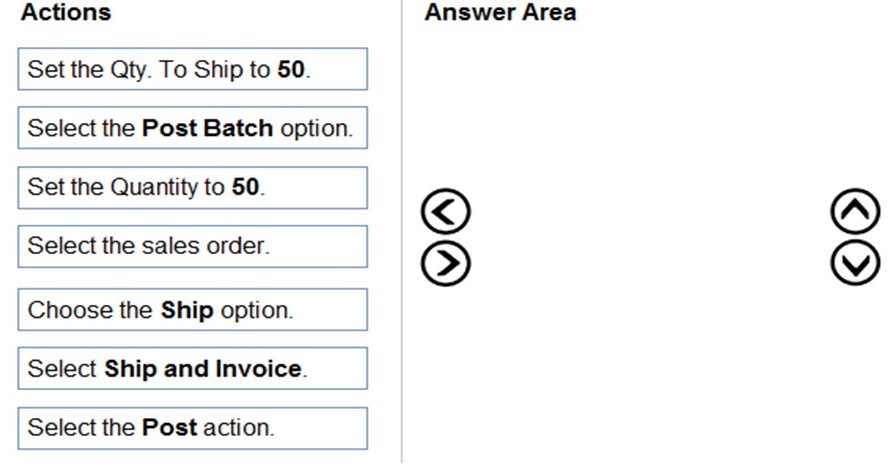
Explanation:
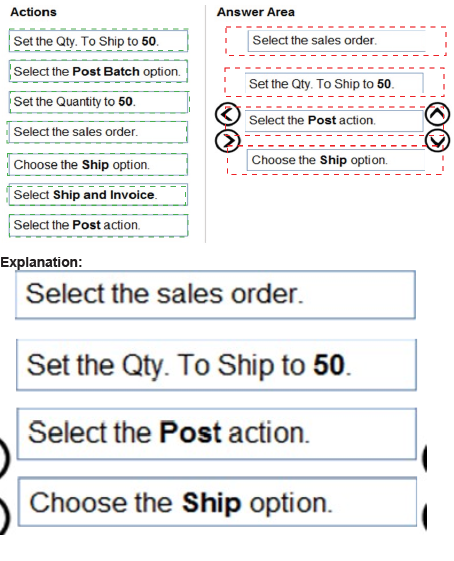
To partially ship a sales order, you must initiate a posting action and specify the quantity to be shipped. You work from the specific order and override the default quantity using the posting dialog box, not by editing the order line itself, before finalizing the post.
Correct Option Sequence:
The correct order to post a partial shipment of 50 out of 100 is:
Select the sales order. (Navigate to and open the specific sales order in question.)
Select the Post action. (This opens the posting dialog box where you can define the posting specifics.)
Set the Quantity to 50. (In the posting dialog, change the Quantity field from "100" (the default "To Ship") to "50" for the partial shipment.)
Select the Ship option. (In the same dialog, ensure the Ship checkbox is selected, then choose OK or Post to execute. Note: "Ship and Invoice" would also create an invoice, which is not required by the scenario.)
Incorrect Options:
Set the Qty. To Ship to 50: This directly modifies the Qty. to Ship field on the sales order line. While it works, the exam's standard procedure is to use the posting dialog, not to edit the document line first.
Select the Post Batch option: This is used for batch-posting multiple documents, not a single, specific partial shipment.
Select Ship and Invoice: This action would post both a shipment and an invoice, which exceeds the requirement of posting "a shipment" only.
Choose the Ship option: This is vague and is part of Step 4 within the posting dialog, not a standalone first step.
Reference:
Microsoft documentation on "Post Sales Shipments and Sales Invoices." The process emphasizes using the Post action from the document to access the posting dialog where quantities and posting options are set.
You are setting up approval workflows in Dynamics 365 Business Central.
You need to configure approval limits.
Which approver limit types should you use? To answer, drag the appropriate approver limit
types to the correct requirements. Each approver limit type may be used once, or not at all.
You may need to drag the split bar between panes or scroll to view content.
NOTE: Each correct selection is worth one point.
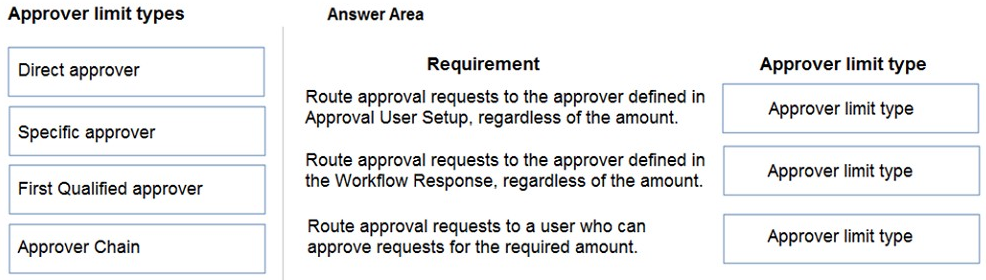
Explanation:
This question tests knowledge of how approval limits define the routing logic for approval requests in Business Central workflows. Each limit type dictates a different method for selecting the user who must approve the request.
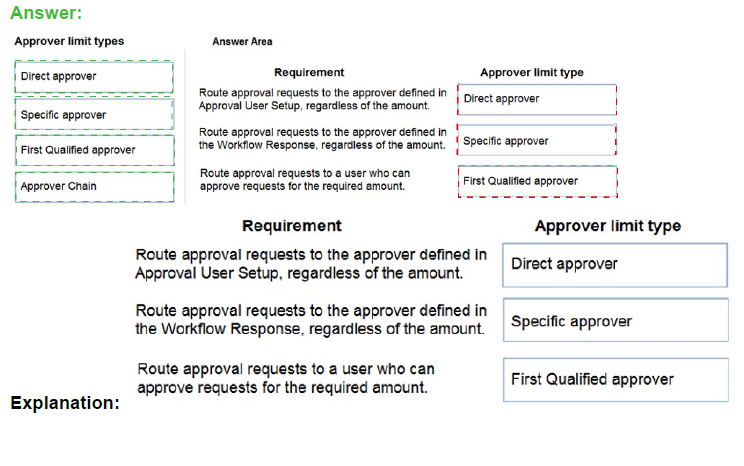
Correct Option Mapping:
Requirement:
Route approval requests to the approver defined in Approval User Setup, regardless of the amount.
Correct Approver Limit Type: Specific approver
Explanation:
The Specific Approver type bypasses amount-based limits. It sends the request directly to the single, designated user specified in the Approval User Setup for the requester, ignoring any approval amount limits defined for users.
Requirement:
Route approval requests to the approver defined in the Workflow Response, regardless of the amount.
Correct Approver Limit Type: Direct approver
Explanation:
The Direct Approver type is used when the workflow response step itself explicitly names the approver (e.g., in a User ID event condition). The request is sent directly to that person named in the workflow, without checking amount limits.
Requirement:
Route approval requests to a user who can approve requests for the required amount.
Correct Approver Limit Type: First Qualified approver
Explanation:
The First Qualified Approver type checks the Approval Amount Limits set up for potential approvers. It routes the request to the first user in the chain whose specified maximum approval amount is equal to or greater than the amount on the document requiring approval.
Incorrect Option:
Approver Chain:
This is a related but distinct concept. An Approver Chain is the list of users (like a hierarchy) that a request can be routed through. It is not a Limit Type. The limit types (Specific, Direct, First Qualified) define how a user is selected from that chain or other sources.
Reference:
Microsoft Learn documentation for "Set Up Approval Users" and "How to: Set Up Approval Workflows." The key distinction is between fixed routing (Specific/Direct) and amount-based routing (First Qualified).
You manage several companies within one Dynamics 365 Business Central database.
Most users work in only one of these companies, where they have a specific role.
You need to set up security according to company requirements.
Which setup should you use? To answer, drag the appropriate setups to the correct
requirements. Each setup may be used once, more than once, or not at all. You may need
to drag the split bar between panes or scroll to view content.
NOTE: Each correct selection is worth one point.
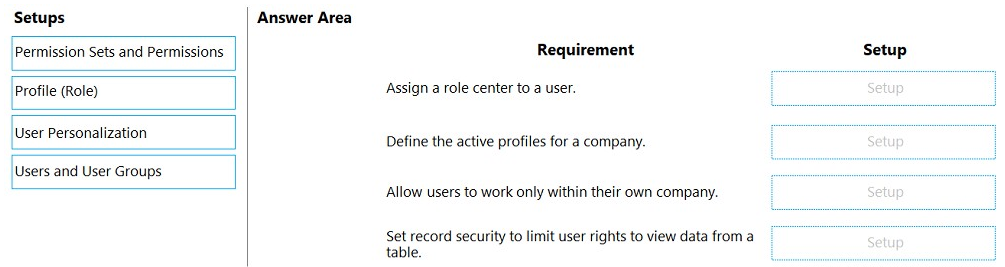
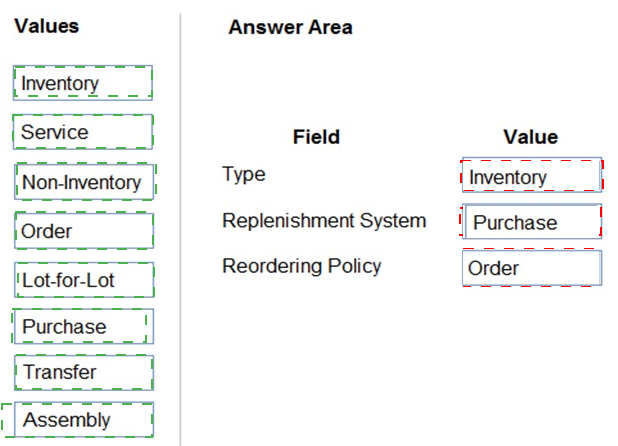
Explanation:
This question tests the distinction between different security and personalization setup tools in Business Central. Each tool serves a specific purpose: profiles define the UI/role center, permission sets control object access, and user groups manage company and data-level restrictions.
Correct Option Mapping:
Requirement: Assign a role center to a user.
Correct Setup: Profile (Role)
Explanation:
A Profile (formerly called a Role) defines the Role Center (home page) and the overall user interface layout. Assigning a profile to a user is how you define their starting Role Center.
Requirement: Define the active profiles for a company.
Correct Setup: Profile (Role)
Explanation:
The Profile setup page is where you create and manage profiles. Making a profile Active for a specific company (using the Scope field) is what makes it available for assignment to users within that company.
Requirement: Allow users to work only within their own company.
Correct Setup: Users and User Groups
Explanation:
To restrict a user to a single company, you assign them to a User Group that has permissions scoped to that specific company. You then assign the user to that group, effectively limiting their access via group membership and permissions.
Requirement: Set record security to limit user rights to view data from a table.
Correct Setup: Permission Sets and Permissions
Explanation:
Record-level security is enforced through Permissions. You configure this by creating a Permission Set with specific table permissions (like R - Read Indirect for indirect data or setting Security Filter fields) and then assign that permission set to users or user groups.
Incorrect Options:
User Personalization:
This setup allows individual users to customize their own workspace (e.g., move tiles, add parts) after a profile is assigned. It is not used to initially assign a role center or to enforce security restrictions.
Reference:
Microsoft Learn documentation on "Managing Users and Permissions," "Profiles and Role Centers," and "Security Filters." Key concepts are: Profiles control the UI, Permissions control data access, and User Groups are used to manage these assignments efficiently, especially in multi-company environments.
A company has been using Dynamics 365 Business Central for many years.
A new accounting manager for the company reviews the chart of accounts. The manager
wants to remove some general ledger accounts.
The Check G/L Account Usage field is selected in the General Ledger Setup.
You need to assist with the account deletions.
What is one requirement that enables deletion of a general ledger account?
A. The account cannot be used in any posting groups or posting setup
B. The fiscal year needs to be closed
C. The general ledger account must be of the type Balance Sheet
D. The general ledger account is configured to allow for deletion
Explanation:
The Check G/L Account Usage system check prevents the deletion of G/L accounts that are actively used in the system to maintain data integrity. To delete an account, you must ensure it is not referenced in any critical configuration or transactional data.
Correct Option:
A. The account cannot be used in any posting groups or posting setup:
This is the primary requirement. If the G/L account is used in G/L Account fields within Posting Groups (e.g., Inventory, Vendor, Customer Posting Groups), VAT Posting Setup, or General Posting Setup, the system will block deletion. You must first remove or change these references.
Incorrect Options:
B. The fiscal year needs to be closed:
While closing a year finalizes its balances, it does not enable account deletion. An account with a balance of zero in a closed fiscal year can still be locked from deletion if it's used in posting setup configurations.
C. The general ledger account must be of the type Balance Sheet:
The account type (Income Statement, Balance Sheet) does not determine deletability. Both types are subject to the same usage checks.
D. The general ledger account is configured to allow for deletion:
There is no such configuration field on a G/L account card. Deletion is permitted or blocked automatically by the system based on usage, governed by the Check G/L Account Usage toggle.
Reference:
Microsoft Learn documentation on "Deleting General Ledger Accounts." The guidance states that an account cannot be deleted if it is used anywhere in posting groups, setup tables, budgets, or if it has transactions. Option A directly reflects the most common configuration-level blockage.
You are implementing Dynamics 365 Business Central for a customer.
You need to explain the primary functions of the Adjust Cost – Item Entries batch job.
What are three primary purposes of the Adjust Cost – Item Entries batch job? Each correct
answer presents part of the complete solution.
NOTE: Each correct selection is worth one point.
A. Establish the earliest possible posting date for the Post Inventory to G/L process.
B. Adjust the item quantity.
C. Calculate the correct cost of the sale of an item, according to an item's costing method.
D. Update the cost of goods sold (COGS) for historic sales entries.
E. Adjust the item tracking.
Explanation:
The Adjust Cost – Item Entries batch job is a core periodic accounting process in inventory management. It does not adjust physical quantities but ensures financial accuracy by reconciling item costs, updating related G/L entries, and preparing data for posting to the general ledger.
Correct Options:
A. Establish the earliest possible posting date for the Post Inventory to G/L process:
The batch job performs cost adjustments and locks the period up to the last adjustment date. This established "Last Cost Adjustment Date" becomes the starting point for the Post Inventory to G/L job, preventing the re-posting of already adjusted entries.
C. Calculate the correct cost of the sale of an item, according to an item's costing method:
This is its main purpose. It applies the item's costing method (FIFO, LIFO, Average, Standard, Specific) retroactively to value inventory reductions (sales, consumption) by assigning the appropriate unit cost from the associated inventory increase (purchase, output).
D. Update the cost of goods sold (COGS) for historic sales entries:
As a result of applying the costing method, it recalculates and updates the COGS amount for past item ledger entries, ensuring the Profit & Loss statement reflects the accurate cost of past sales.
Incorrect Options:
B. Adjust the item quantity:
The batch job adjusts costs and values only. It does not change physical quantities, which are managed through inventory journals, orders, and physical counting.
E. Adjust the item tracking:
The batch job does not modify serial/lot numbers or expiration dates on item tracking entries. Item tracking information is adjusted separately through Reclassification Journals or Item Tracking Lines.
Reference:
Microsoft Learn documentation "Adjust Item Costs" and "Design Details: Cost Adjustment." The primary functions are clearly defined as ensuring correct inventory valuation according to costing method, updating related value entries (including COGS), and preparing for inventory posting to the G/L.
Two cash receipts were applied to a posted sales transaction. The first receipt was applied
in error.
You need to remove the first cash receipt from the posted sales transaction.
Which set of steps should you perform?
A. 1. Navigate to Unapply Entries from the relevant customer ledger entry.
2. Unapply the second payment.
3. Unapply the first payment.
4. Apply the second payment to the customer ledger entry.
B. 1. Navigate to Reverse Transaction from the relevant detailed customer ledger entry.
2. Reverse the second payment.
3. Reverse the first payment.
4. Apply the second payment to the customer ledger entry.
C. 1. Navigate to Reverse Transaction from the relevant customer ledger entry.
2. Reverse the second payment.
3. Reverse the first payment.
4. Apply the second payment to the customer ledger entry.
D. 1. Post a reversing Cash Receipt and select the customer and relevant payment entry.
2. Navigate to Unapply Entries from the relevant customer ledger entry.
3. Unapply the payment.
Explanation:
To correct a misapplied cash receipt while preserving the correctly applied second payment, you must carefully unapply entries. The process involves isolating and removing the incorrect application link without deleting the actual cash receipt entry, then reapplying the correct one.
Correct Option:
A. 1. Navigate to Unapply Entries from the relevant customer ledger entry. 2. Unapply the second payment. 3. Unapply the first payment. 4. Apply the second payment to the customer ledger entry.
Explanation:
This is the precise method. You start from the Customer Ledger Entry for the posted sales invoice. Opening Unapply Entries shows all applied payments. You must first unapply the correct second payment to "free" it, then unapply the erroneous first payment. Finally, you re-apply the correct second payment to the invoice.
Incorrect Options:
B. 1. Navigate to Reverse Transaction from the relevant detailed customer ledger entry...:
Reverse Transaction is used to create reversing G/L entries for posted financial transactions (like a posted journal line). It is not the correct tool for simply removing an application link between a payment and an invoice; it would create unnecessary reversing entries.
C. 1. Navigate to Reverse Transaction from the relevant customer ledger entry...:
This repeats the error in option B. You do not reverse the payment transactions themselves; you only need to change how they are linked (applied) to the invoice.
D. 1. Post a reversing Cash Receipt...:
This overcomplicates the solution. Posting a reversing receipt would create a new ledger entry to offset the first payment, but it does not directly or cleanly remove the original erroneous application link. The Unapply Entries method is the direct and standard corrective action.
Reference:
Microsoft Learn documentation on "Unapply Customer Ledger Entries" and "How to: Correct or Cancel Unpaid Sales Invoices." The standard procedure for fixing misapplications is to use the Unapply Entries function.
A furniture manufacturing company is creating new items in Dynamics 365 Business
Central. The company currently searches for the products by material, color, and size.
You must expand the search capabilities for the items. Not all the items will have the same
searchable characteristics. Some new search characteristics may need to be added.
You need to configure the system to automatically recommend additional search criteria for
items.
Which features should you use? To answer, select the appropriate options in the answer
area.
NOTE: Each correct selection is worth one point.
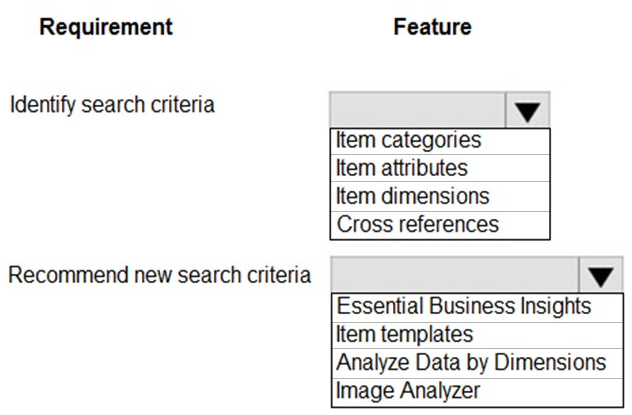
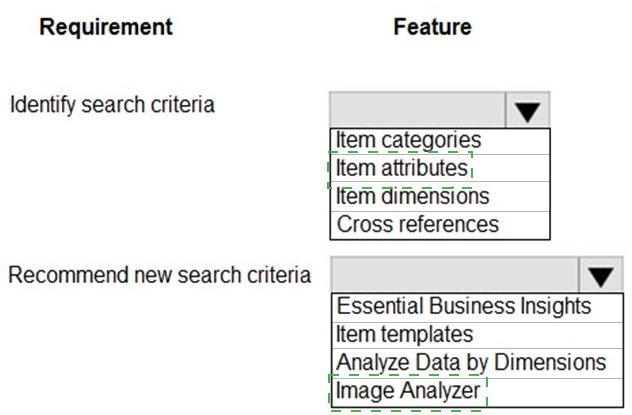
Explanation:
This scenario requires distinguishing between features that store searchable criteria (like attributes or dimensions) and features that automatically suggest or generate new criteria. The requirement for "recommending new search criteria" points to intelligent features that analyze existing data to propose relevant terms.
Correct Option Mapping:
Requirement: Identify search criteria
Correct Feature: Item attributes
Explanation:
Item Attributes (e.g., Material, Color, Size) are the primary feature for defining searchable, non-financial characteristics that vary per item. This directly matches the company's existing search by material, color, and size.
Requirement: Recommend new search criteria
Correct Feature: Image Analyzer
Explanation:
The Image Analyzer extension uses AI to analyze a picture of an item and automatically recommends relevant attribute values (like "wood," "red," or "large") that can be added as search criteria. This fulfills the need to "automatically recommend additional search criteria."
Incorrect Options for Identifying Criteria:
Item categories: Used for hierarchical grouping and default posting accounts, not for detailed, varied search characteristics like color.
Item dimensions: Primarily for analytical tracking (e.g., Department, Project) and cost allocation, not for product discovery searches.
Cross references: Used to link items to vendor or customer part numbers, not to define intrinsic searchable characteristics.
Incorrect Options for Recommending Criteria:
Essential Business Insights: Provides performance metrics and KPIs, does not recommend item search attributes.
Item templates: Used to pre-fill values when creating new items, not to analyze and suggest new attributes.
Analyze Data by Dimensions: A reporting tool for financial analysis based on dimensions, not for recommending product search terms.
Reference:
Microsoft Learn documentation on "Item Attributes" and "Set Up the Image Analyzer." Item Attributes are the core setup for search criteria, while the Image Analyzer's specific purpose is to use AI to suggest attribute values.
A client uses Dynamics 365 Business Central.
The client must create a manufacturing company and a sales company in Business
Central. Each company must be a separate legal entity.
The client must select a costing method to use.
You need to explain the effects of the different costing methods.
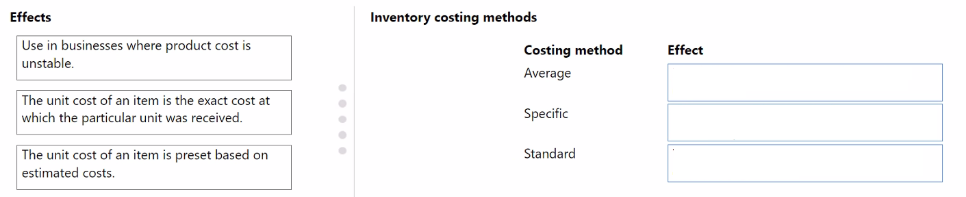
What should you describe for each costing method? To answer, move the appropriate
effect to the correct costing method. You may use each effect once, more than once, or not
at all. You may need to move the split bar between panes or scroll to view content.
NOTE: Each correct selection is worth one point.
Explanation:
This question tests understanding of the core principle behind three inventory costing methods in Business Central: Average uses a calculated mean cost, Specific uses the exact cost of a traced unit, and Standard uses a predetermined, fixed cost.
Correct Option Mapping:
Costing method: Average
Correct Effect: Use in businesses where product cost is unstable.
Explanation:
The Average costing method smooths out cost fluctuations by calculating a running average unit cost after each purchase. This is suitable for industries with volatile purchase prices (e.g., commodities) as it stabilizes COGS and inventory valuation.
Costing method: Specific
Correct Effect: The unit cost of an item is the exact cost at which the particular unit was received.
Explanation:
The Specific costing method requires tracking individual items (via serial/lot numbers). The cost of goods sold is the exact, original cost of the specific, tracked unit that was sold. This is essential for high-value or regulated items.
Costing method: Standard
Correct Effect: The unit cost of an item is preset based on estimated costs.
Explanation:
The Standard costing method uses a pre-defined, fixed cost set in the Standard Cost field on the item card. All inventory valuations and COGS calculations use this preset cost. Variances between standard and actual costs are recorded separately.
Incorrect Options:
Use in businesses where product cost is unstable: This applies only to the Average method, as it mitigates instability. Specific and Standard are not designed for this purpose.
The unit cost of an item is the exact cost at which the particular unit was received: This is the exclusive definition of the Specific method and does not apply to Average or Standard.
The unit cost of an item is preset based on estimated costs: This is the exclusive definition of the Standard method.
Reference:
Microsoft Learn documentation "Design Details: Costing Methods." Each method has a distinct valuation principle: Average = weighted average, Specific = actual cost per tracked unit, Standard = predetermined cost.
A company uses the average costing method and inventory periods. Automatic Cost
Posting is not enabled.
You close the inventory period for July 2020. You set the value of the Allow Posting From
field in General Ledger Setup to August 1, 2020.
You receive and post a purchase invoice for freight charges on August 8, 2020 against a
purchase invoice that was posted on July 15, 2020. You run the Adjust cost – Item entries
batch job for August.
You need to identify the adjustment entry related to July after running the batch job.
Which date is automatically selected for the value entry by batch job?
A. July 15, 2020
B. August 8, 2020
C. August 1, 2020
D. July 1, 2020
Explanation:
When an inventory period is closed, cost adjustments for that period are prevented. A freight charge posted in August against a July purchase is an additional direct cost that must be allocated to the original item cost. However, because the July period is closed, the system must post the adjustment to the earliest allowable date in the next open period.
Correct Option:
C. August 1, 2020
Explanation:
The Allow Posting From date in General Ledger Setup (Aug 1, 2020) defines the start of the next open period. The Adjust Cost – Item Entries batch job is aware of the closed July period and therefore backdates the resulting value entry to the last day of the previous closed period. Since July is closed and August is open, the adjustment is posted to the first day of the new open period, which is August 1, 2020.
Incorrect Options:
A. July 15, 2020:
This is the date of the original purchase, but the inventory period for July is closed. The system cannot post new entries to a closed period.
B. August 8, 2020:
This is the actual posting date of the freight charge invoice. However, cost adjustments that relate to items received in a closed period are automatically backdated to the boundary of the open period (August 1) to maintain period-based inventory valuation accuracy.
D. July 1, 2020:
This is the first day of the closed July period. No new postings are allowed on this date.
Reference:
Microsoft Learn documentation "Adjust Item Costs" and "Work with Inventory Periods." It states that when you run cost adjustment for a later period, and additional costs are assigned to items received in a closed period, the resulting value entry is dated the first day of the period for which you are adjusting costs (i.e., the start of the next open period, defined by "Allow Posting From").
A company uses Dynamics 365 Business Central.
The company plans to use multiple unit prices for the same items from different vendors.
You need to configure the purchase price of the items.
In which two locations can you configure the purchase price? Each correct answer
presents a complete solution.
NOTE: Each correct selection is worth one point.
A. Resource prices
B. Item card
C. Customer card
D. Purchase order
E. Vendor card
Explanation:
Purchase prices define the cost at which an item is bought from a vendor. In Business Central, these prices can be configured in two primary, vendor-specific locations to support different prices from different vendors for the same item. Prices are typically set on a per-item, per-vendor basis.
Correct Options:
B. Item card:
On the Item Card, you can set a Last Direct Cost, which acts as a default purchase price. More importantly, you can access Purchase Prices from the Related menu to define specific vendor price agreements for that item. This is a standard location for configuring vendor-specific prices.
E. Vendor card:
On the Vendor Card, you can also access the Purchase Prices page via the Related menu to define price agreements for items you buy from this specific vendor. This is the vendor-centric view of the same price list setup as on the item card.
Incorrect Options:
A. Resource prices:
This setup is used to define billing rates for resources (people or machines) in service management or job costing, not for purchasing inventory items from vendors.
C. Customer card:
This is for setting sales prices (what you sell items for to customers), not purchase prices (what you buy items for from vendors).
D. Purchase order:
While you can enter and manually override a purchase price on a purchase order line, this is not a configuration location. Configuration implies setting up the default or agreed prices that automatically flow to documents, which is done on the Item Card or Vendor Card via the Purchase Prices setup.
Reference:
Microsoft Learn documentation on "Record Purchase Prices, Discounts, and Payment Agreements." The Purchase Price functionality is accessed from either the Item Card or the Vendor Card to create agreements that automatically populate purchase documents.
| Page 1 out of 17 Pages |