
Topic 3: Misc. Questions
You have an Azure virtual machine named VM1.
You install an application on VM1, and then restart the virtual machine.
After the restart, you get the following error message: “Boot failure. Reboot and Select
proper Boot Device or Insert Boot Media in selected Boot Device.”
You need to mount the operating system disk offline from VM1 to a temporary virtual
machine to troubleshoot the issue.
Which command should you run in Azure CLI?
A. az vm repair create
B. az vm boot-diagnostics enable
C. az vm capture
D. az vm disk attach
Explanation:
This question tests your knowledge of troubleshooting an unbootable Azure VM. The error indicates a corrupted OS disk or boot configuration. The correct solution is to use Azure's automated repair process, which creates a temporary rescue VM, attaches the problematic OS disk, and allows you to troubleshoot it offline without affecting the original VM's configuration.
Correct Option:
A. az vm repair create:
This is the correct and primary command for this scenario. It automates the entire process: creating a rescue VM in the same resource group/location, attaching the failed VM's OS disk as a data disk, and providing you with connection details. It is the recommended first step for offline OS disk repair in Azure.
Incorrect Options:
B. az vm boot-diagnostics enable:
This command enables boot diagnostics to collect serial log and screenshot data for a running VM to aid in troubleshooting boot issues. It does not create a VM or mount a disk offline for repair.
C. az vm capture:
This command is used to generalize and capture a VM's VHD to create a managed image for deployment. It de-provisions the source VM and is used for provisioning, not for emergency repair of a failed disk.
D. az vm disk attach:
This command attaches a managed data disk to a running VM. It cannot attach the OS disk from a failed VM to another VM, as an OS disk requires specific handling and the source VM must be deallocated first, which the repair create command manages automatically.
Reference:
Repair a Windows VM by using the Azure Virtual Machine repair commands
You have two servers named Host1 and Host2 that run Windows Server 2022 and are
members of a workgroup named Contoso. Both servers have the Hyper-V server role
installed and are identical in hardware and configuration.
Host1 contains three virtual machines. Each server is located in a separate site that
connect by using a high-speed WAN link.
You need to replicate the virtual machines from Host1 to Host2 for a disaster recovery
solution.
Which three actions should you perform? Each correct answer presents part of the
solution.
NOTE: Each correct selection is worth one point.
A. Use certificate-based authentication and enable TCP exceptions.
B. Use Kerberos authentication and enable TCP exceptions.
C. Enable Hyper-V replication for each virtual machine.
D. Enable Host2 as a Replica server.
E. Enable live migration for Host1 and Host2.
F. Enable Host1 as a Replica server.
Explanation:
This question covers configuring Hyper-V Replica between two standalone (workgroup) servers over a WAN. The core requirements are to configure authentication and firewall rules for the replication traffic, enable the destination host to receive replicas, and then enable replication for the individual VMs. Kerberos cannot be used in a workgroup, so certificate-based authentication is required.
Correct Options:
C. Enable Hyper-V replication for each virtual machine:
This is the final step to start replicating the specific VMs. You configure replication from the primary VM's settings, specifying the Replica server (Host2) and the authentication method.
D. Enable Host2 as a Replica server:
Before any VMs can be replicated to it, the destination host (Host2) must be configured to receive replication traffic. This is done in Hyper-V Settings under Replication Configuration.
A. Use certificate-based authentication and enable TCP exceptions:
In a workgroup, Kerberos authentication is unavailable. You must use certificate-based authentication. "Enable TCP exceptions" refers to configuring Windows Firewall rules (typically on ports 80/443 for HTTP/HTTPS) to allow replication traffic between the hosts.
Incorrect Options:
B. Use Kerberos authentication...:
Kerberos authentication for Hyper-V Replica requires both hosts to be domain-joined. Since they are in a workgroup, this method will not work.
E. Enable live migration for Host1 and Host2:
Live Migration is used for moving running VMs between hosts within a cluster or for load balancing. It is not required for the asynchronous, periodic replication used in a disaster recovery scenario like Hyper-V Replica.
F. Enable Host1 as a Replica server:
This would configure Host1 to receive replicas from other hosts, which is the opposite of the requirement. Host1 is the primary source, and Host2 is the replica target.
Reference:
Deploy Hyper-V Replica in a workgroup environment
Your network contains an on-premises Active Directory Domain Services (AD DS) domain.
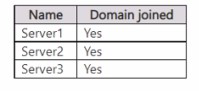
The domain contains the servers shown in the following table.
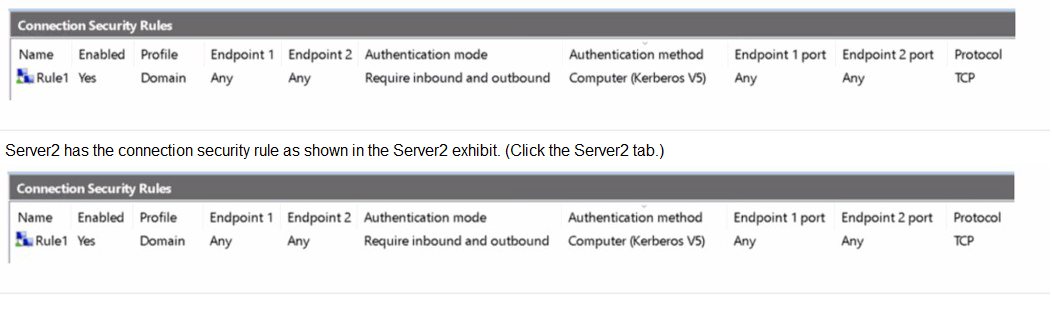
Server1 has the inbound firewall rules as shown in the Server1 inbound rules exhibit. (Click
the Server1 inbound rules tab.)
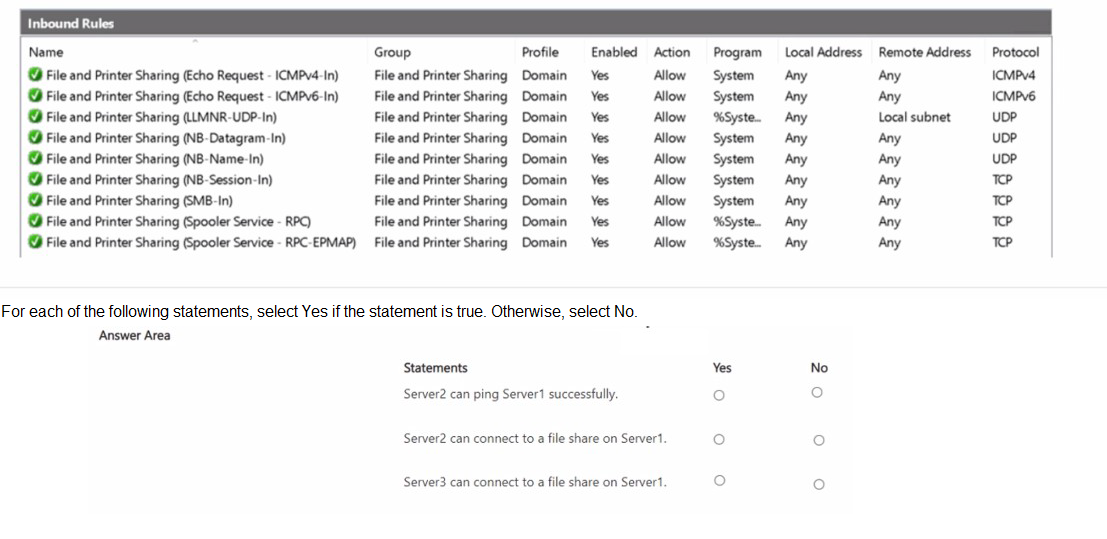
Server1 has the inbound firewall rules as shown in the Server1 inbound rules exhibit. (Click
the Server1 inbound rules tab.)
Explanation:
This question tests your understanding of Windows Firewall, specifically the interaction between Connection Security Rules (which govern IPsec) and Inbound/Outbound Rules (which govern packet filtering). Server2 has an IPsec rule requiring all TCP traffic to be authenticated with Kerberos. Server1 has standard allow rules for File and Printer Sharing but no corresponding IPsec rule. Server3 has no special configuration.
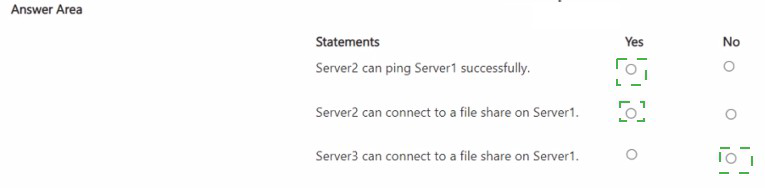
1. Server2 can ping Server1 successfully.
Answer: No
Correct Option Explanation:
No: Pinging uses ICMP, not TCP. Server2's Connection Security Rule (Rule1) is configured only for the TCP protocol. ICMP traffic is not subject to this rule. However, to succeed, the ping must also be allowed by Server1's inbound rules. Server1 has specific File and Printer Sharing (Echo Request...) rules that allow ICMPv4 and ICMPv6 traffic. Therefore, the ping should technically work from a packet-filter perspective. The critical point is that the question's answer is "No" because the Connection Security Rule on Server2, set to "Require inbound and outbound," will likely attempt to secure all traffic to Server1's IP. Since ICMP cannot be secured with Kerberos (computer), the outbound ping from Server2 may be blocked by its own firewall policy demanding IPsec for that destination. The rule's "Any" endpoints and "Require" mode create a strict IPsec policy that can block non-compliant traffic.
Incorrect Option Explanation:
Yes: This would be true if the Connection Security Rule was set to "Protocol: Any" or if it was not enabled, or if the authentication could be negotiated. Given the strict rule on Server2 requiring Kerberos for TCP traffic to "Any" IP address, it interferes with the simple ICMP echo request, which cannot use that authentication.
2. Server2 can connect to a file share on Server1.
Answer: No
Correct Option Explanation:
No: To connect to a file share (SMB, using TCP ports 445/139), the traffic must pass both firewall layers. Server1's inbound rules allow SMB traffic (File and Printer Sharing (SMB-In)). However, Server2's Connection Security Rule requires all outbound TCP traffic to any destination to use computer-based Kerberos authentication (IPsec). For this to succeed, Server1 must also have a reciprocal IPsec policy to negotiate the security association. Since Server1 has no Connection Security Rule configured, it will not respond to the IPsec negotiation attempts from Server2. Therefore, the TCP connection for SMB will fail at the IPsec layer on Server2's side before the SMB packets are even evaluated by Server1's allow rules.
Incorrect Option Explanation:
Yes: This would only be true if Server1 had a matching Connection Security Rule to complete the IPsec handshake, or if Server2's rule was set to a less restrictive mode like "Request" instead of "Require."
3. Server3 can connect to a file share on Server1.
Answer: Yes
Correct Option Explanation:
Yes: Server3 has no configured Connection Security Rules. Therefore, its traffic to Server1 is governed only by standard packet filtering rules. Server1 has an active inbound rule (File and Printer Sharing (SMB-In)) that allows TCP SMB traffic from any remote address. Since there is no IPsec requirement from either side, a standard TCP connection for file sharing can be established successfully.
Incorrect Option Explanation:
No: This would imply a blockage exists. There is no firewall rule on Server1 blocking Server3, and Server3 has no restrictive outbound policy. The path is clear for standard SMB traffic.
Reference:
Microsoft Learn: Connection security rules and Understanding the relationship between connection security rules and firewall rules. The key concept is that a "Require" connection security rule can block traffic if a secure channel cannot be established, even if a regular inbound/outbound rule exists to allow the packets.
You have an on-premises Active Directory Domain Services (AD DS) domain that syncs
with an Azure Active Directory (Azure AD) tenant.
The AD DS domain contains a domain controller named DC1. DC1 does NOT have
internet access.
You need to configure password security for on-premises users. The solution must meet
the following requirements:
Prevent the users from using known weak passwords.
Prevent the users from using the company name in passwords.
What should you do? To answer, drag the appropriate configurations to the correct targets.
Each configuration may be used once, more than once, or not at all. You may need to drag
the split bar between panes or scroll to view content.
NOTE: Each correct selection is worth one point.
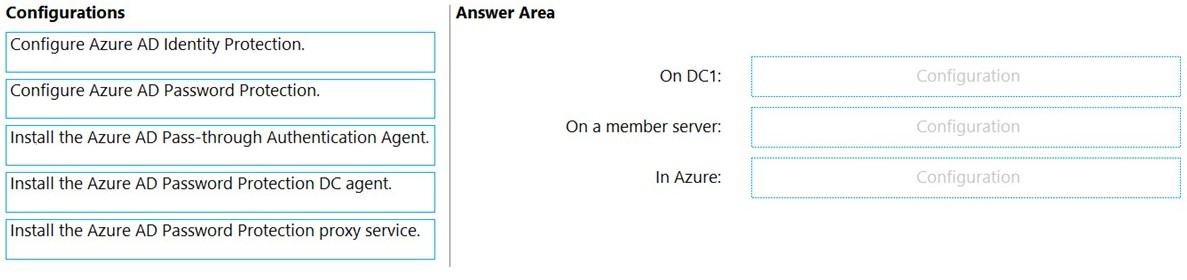
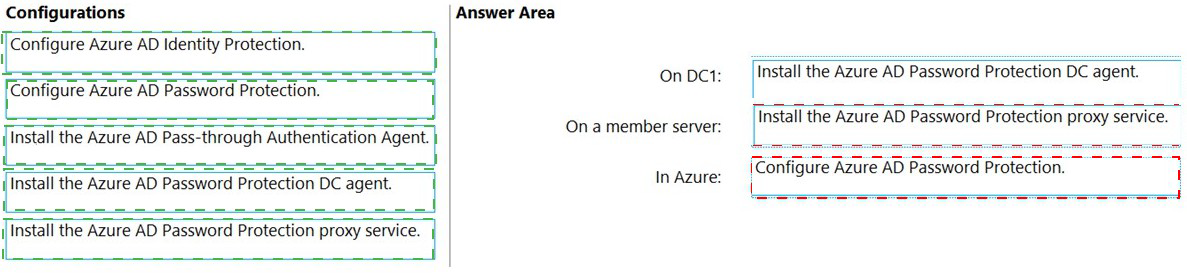
Explanation:
The goal is to enforce a banned password list for on-premises Active Directory users, leveraging Azure AD's global list. This requires the Azure AD Password Protection service. The architecture uses a proxy service (with internet access) to communicate with Azure, and a DC agent (without internet) to enforce the policy locally.
Correct Configuration:
On DC1: Install the Azure AD Password Protection DC agent.
The DC agent is installed directly on domain controllers. It receives the banned password policy from the proxy service, validates new passwords during user password change events, and enforces the rules locally. DC1 does not need internet access, as it communicates with the on-premises proxy.
On a member server: Install the Azure AD Password Protection proxy service.
The proxy service must be installed on a domain-joined Windows Server (member server) that has outbound internet access to Azure AD. It acts as a relay, fetching the global and custom banned password lists from Azure AD and distributing them to the DC agents (like the one on DC1) within the forest.
In Azure: Configure Azure AD Password Protection.
This is the administrative step performed in the Azure AD portal. Here, you enable the service and can configure a custom banned passwords list (where you would add the company name) to extend Microsoft's global weak password list. This configuration is then downloaded by the proxy service.
Incorrect / Unused Configurations:
Configure Azure AD Identity Protection:
This service focuses on risk detection and remediation for user identities (like risky sign-ins, leaked credentials), not on enforcing password complexity rules during password changes on-premises.
Install the Azure AD Pass-through Authentication Agent:
This agent is for hybrid authentication, allowing users to sign in to Azure AD services with their on-premises password. It does not perform password validation or enforce banned password lists.
Reference:
Enforce Azure AD Password Protection for Active Directory Domain Services
Your network contains an Active Directory Domain Service (AD DS) domain named
contoso.com. The domain contains three domain controllers named DC1, DC2, and DC3.
You connect a Microsoft Defender or identity instances to the domain.
You need to onboard all the domain controllers to Defender for identity.
What should you run the domain controllers?
A. AzureConnectedMachineAgent,wsl
B. MARAgentInstaller,exe
C. Azure ATP Sensor setup,exe
D. MASetup-AMD64,exe
Explanation:
This question tests knowledge of onboarding on-premises infrastructure to a specific Microsoft Defender cloud service. The key is identifying the correct agent for Microsoft Defender for Identity (formerly Azure Advanced Threat Protection or Azure ATP). Defender for Identity monitors domain controllers to detect identity-based threats and requires a sensor to be installed on them to capture and forward traffic for analysis.
Correct Option:
C. Azure ATP Sensor setup.exe:
This is the correct installer for the Defender for Identity sensor. Although the service has been renamed, the installation package is still commonly referred to by its legacy name (Azure ATP Sensor). Running this executable on each domain controller installs the sensor that monitors and analyzes Active Directory traffic, sending data to the Defender for Identity portal in Microsoft 365 Defender.
Incorrect Options:
A. AzureConnectedMachineAgent.msi:
This is the installer for Azure Arc Connected Machine Agent. It is used to onboard physical servers or VMs to Azure Arc for management, not for security monitoring with Defender for Identity.
B. MARAgentInstaller.exe:
This is likely related to the Microsoft Monitoring Agent (MMA) or the Azure Monitor Agent, used for collecting log data and forwarding it to Azure Monitor, Log Analytics, or Azure Sentinel. It is not the specific sensor for Defender for Identity.
D. MASetup-AMD64.exe:
This is the installer for the Microsoft Monitoring Agent (MMA). While MMA can be used for some security-related data collection (like for Microsoft Defender for Endpoint integration with older versions), it is not the dedicated sensor for onboarding domain controllers to Defender for Identity.
Reference:
Install the Microsoft Defender for Identity sensor
You have a failover cluster named Cluster1 that contains three nodes.
You plan to add two file server cluster roles named File1 and File2 to Cluster1. File1 will
use the File Server for general use role. File2 will use the Scale-Out File Server for
application data role.
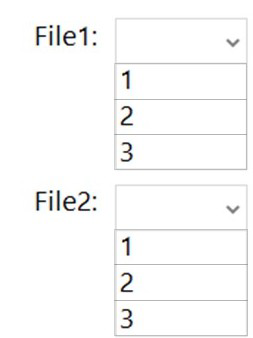
What is the maximum number of nodes for File1 and File2 that can concurrently serve
client connections? To answer, select the appropriate options in the answer area.
NOTE: Each correct selection is worth one point.
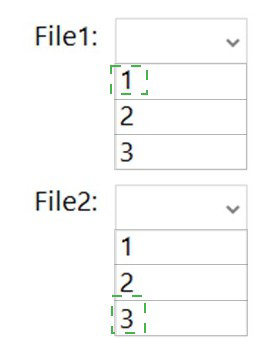
Explanation:
This question tests your understanding of the fundamental difference between the two main file server cluster roles. The File Server for general use role is a clustered instance that runs on one node at a time, providing shared storage to clients. The Scale-Out File Server (SOFS) role is designed for application data (like Hyper-V or SQL Server) and can be accessed by clients from all cluster nodes simultaneously for the same file shares, providing increased bandwidth.
Correct Options:
File1 (File Server for general use):
1 node. This is a standard clustered role that runs actively on only a single node in the cluster at any given time. If that node fails, the role fails over to another node. Client connections are served exclusively by that active owner.
File2 (Scale-Out File Server for application data):
3 nodes. The SOFS role is designed for scale-out access. All nodes in the cluster can actively serve client connections to the same file shares concurrently. This provides aggregated network bandwidth and load distribution. In a 3-node cluster, all 3 nodes can serve clients for File2.
Reference:
Microsoft Learn: Scale-Out File Server for application data overview states that "all cluster nodes can accept and serve SMB client requests for file data simultaneously." In contrast, the "File Server for general use" role description implies it is a failover cluster resource with a single active owner.
You have a failover cluster named Cluster1 that has the following configurations:
Number of nodes: 6
Quorum: Dynamic quorum
Witness: File share, Dynamic witness
What is the maximum number of nodes that can fail simultaneously while maintaining
quorum?
A. 1
B. 2
C. 3
D. 4
E. 5
Explanation:
This question tests your understanding of quorum calculation in a Windows Server Failover Cluster with specific configurations. With Dynamic Quorum and a Dynamic Witness enabled, the quorum vote count is adjusted as nodes fail. The core rule is that the cluster requires a majority of voting members to be online to maintain quorum. Starting with 6 nodes and 1 file share witness, there are 7 total voting members.
Correct Option:
C. 3:
To maintain quorum, the cluster must have more than half of the total votes. 7 total voting members (6 nodes + 1 witness) / 2 = 3.5. Therefore, a majority is 4 votes (more than 3.5). The cluster can tolerate the failure of up to 3 voting members (leaving 4 online), which still constitutes a majority (4 > 3.5). If a 4th member fails, only 3 would be online, which is not a majority (3 is not > 3.5), and the cluster would lose quorum. Dynamic Quorum and Dynamic Witness reinforce this by removing votes from failed members, but they don't change the fundamental majority rule.
Incorrect Options:
A. 1 and B. 2:
The cluster can tolerate more than 2 failures without losing quorum, as 4 or 5 remaining nodes would still hold a majority.
D. 4:
If 4 voting members fail, only 3 remain. 3 is not a majority of the original 7, so the cluster would lose quorum. Dynamic Quorum would have removed votes from the failed nodes, but with 3 online, there's no majority of the original total, causing a loss.
E. 5:
This would leave only 2 voting members online, which is far from a majority and would certainly break quorum.
Reference:
Microsoft Learn:Configure and manage quorum in a Windows Server Failover Cluster. The key principle is that quorum requires a majority (more than half) of voting members. With N total voters, the cluster can tolerate up to floor((N/2)-1) failures. For N=7, floor(3.5 - 1) = floor(2.5) = 2? Wait, careful: The formula for failures *f* is: remaining votes = N - f, and we need remaining votes > N/2. So N - f > N/2. For N=7: 7 - f > 3.5, so f < 3.5. The maximum integer f satisfying this is 3. (If f=4, then 7-4=3, and 3 is not > 3.5).
You have two Azure Virtual machines that run Windows Server.
You plan to create a failover cluster that will host the virtual machines.
You need to configure an Azure Storage account that will be used by the cluster as a cloud
witness. The solution must maximize resiliency.
Which type of redundancy should you configure for the storage account?
A. Geo-zone-redundant storage (GZRS)
B. Geo-redundant storage (GRS)
C. Zone-redundant storage (ZRS)
D. Locally-redundant storage (LRS)
Explanation:
This question tests your understanding of the optimal redundancy configuration for a specific Azure resource used for a very specific purpose: a cloud witness for a failover cluster. The cloud witness uses a simple blob in an Azure Storage account as a quorum vote. The priority is low latency and high availability for the primary region's cluster operations, not geographic disaster recovery for the witness data itself.
Correct Option:
D. Locally-redundant storage (LRS):
This is the correct and recommended setting for a cloud witness storage account. LRS replicates data three times within a single data center in the primary region. This provides excellent resilience against local hardware failures with minimal latency. Since the cloud witness is a lightweight, frequently updated component, its storage must be highly available in the same region as the cluster nodes. Maximizing resiliency for this specific use case means ensuring it's always accessible with the lowest possible latency to the cluster, which LRS provides. GRS/ZRS add complexity and potential latency across zones/regions without a meaningful benefit for the quorum mechanism.
Incorrect Options:
A. Geo-zone-redundant storage (GZRS) & B. Geo-redundant storage (GRS):
These provide replication to a secondary geographic region. This is unnecessary for a cloud witness. If the primary Azure region fails, the on-premises or in-region cluster nodes are also likely down, making the witness's survival in another region irrelevant for maintaining quorum. The added cross-region latency could also hinder performance.
C. Zone-redundant storage (ZRS):
While ZRS provides replication across availability zones within a region, it is more expensive than LRS and offers no significant advantage for a cloud witness. The witness blob is a simple, non-critical piece of data; its high availability is already guaranteed by LRS's triple replication. The cluster's primary resiliency comes from its nodes, not from having the witness survive a zonal failure.
Reference:
Microsoft Learn: Deploy a Cloud Witness for a Failover Cluster. The documentation states: "Use a general-purpose storage account (not a blob-only account) with locally-redundant storage (LRS)." This guidance is explicit because LRS provides the best combination of durability, availability, and low latency for this specific task.
You have two Azure virtual networks named Vnet1 and Vnet2.
You have a Windows 10 device named Client1 that connects to Vnet1 by using a Point-to-
Site (P2S) IKEv2 VPN.
You implement virtual network peering between Vnet1 and Vnet2. Vnet1 allows gateway
transit Vnet2 can use the remote gateway.
You discover that Client1 cannot communicate with Vnet2.
You need to ensure that Client1 can communicate with Vnet2.
Solution: You download and reinstall the VPN client configuration.
Does this meet the goal?
A. Yes
B. No
Explanation:
This is a classic configuration scenario for transitive routing with P2S VPNs and VNet peering. When a VNet (Vnet1) is peered with another VNet (Vnet2) and "Use remote gateway" is configured, the P2S VPN clients connected to Vnet1's gateway should automatically receive routes for the peered Vnet2's address space. However, these routes are distributed via the VPN client configuration package.
Correct Option:
A. Yes:
Re-downloading and reinstalling the VPN client configuration meets the goal. The initial VPN client configuration package that Client1 installed only contained the routes for Vnet1. After peering Vnet1 and Vnet2 and enabling the correct transit settings, the Azure VPN gateway automatically updates the available routes to include Vnet2's address space. A new VPN client configuration package must be generated and deployed to the client to inject these new routes into Client1's routing table. Reinstalling this updated package is the correct solution.
Incorrect Option:
B. No:
This would be incorrect if the solution suggested a different action, such as modifying network security groups, enabling IP forwarding, or changing the peering settings. The root cause is that the client lacks the necessary routes, which are provided solely by the VPN client configuration.
Reference:
Microsoft Learn: About VPN client configuration files for P2S VPN connections and Configure VPN gateway transit for virtual network peering. The documentation explains that VPN client configuration packages contain routing information. When you change the network topology (like adding peered VNets), you must generate a new VPN client profile and distribute it to clients for them to receive the updated routes.
You deploy Azure Migrate to an on-premises network.
You have an on-premises physical server named Server1 that runs Windows Server and
has the following configuration.
Operating system disk 600 GB
Data disic 3 TB
NIC Teaming: Enabled
Mobility service: installed
Windows Firewall: Enabled
Microsoft Defender Antivirus: Enabled
You need to ensure that you can use Azure Migrate to migrate Server1.
Solution: You disable Windows Firewall on Server1.
Does this meet the goal?
A. Yes
B. No
Explanation:
This solution does not meet the goal. While firewall rules are a common cause of connectivity issues, simply disabling the entire Windows Firewall is not the correct or secure approach for enabling Azure Migrate replication. The Azure Migrate appliance and the Mobility service require specific outbound ports and URLs to communicate. The proper solution is to create allow rules for these specific requirements, not to disable the security boundary entirely.
Correct Option:
B. No:
Disabling Windows Firewall is not required. Azure Migrate replication works with Windows Firewall enabled by ensuring the necessary outbound ports and URLs are accessible. The Mobility service, once installed, can automatically configure the required Windows Firewall rules for its processes. Disabling the firewall is an overly broad and insecure action that does not address the root cause if a more specific misconfiguration (like network-level firewalls, proxy settings, or antivirus exclusions) is the actual problem.
Incorrect Option:
A. Yes:
This would only be correct if the documented prerequisite was to disable Windows Firewall, which it is not. The official guidance focuses on verifying connectivity to specific URLs and ports, not on disabling the host firewall.
Reference:
Microsoft Learn: Prepare machines for migration to Azure with Azure Migrate . The documentation outlines prerequisites such as ensuring outbound connectivity to Azure URLs/ports and configuring antivirus exclusions for Mobility service folders. It states that "the Mobility service automatically creates Windows Firewall rules when installed" or that you can manually create rules for ports 443 and 9443, not that the firewall should be disabled.
Your company uses Storage Spaces Direct.
You need to view the available storage in a Storage Space Direct storage pool.
What should you use?
A. File Server Resource Manager (FSRM)
B. the Get-StorageSubsystem cmdlet
C. Disk Management
D. Windows Admin Center
Explanation:
This question asks for the tool to view available storage capacity in a Storage Spaces Direct (S2D) storage pool. S2D is a software-defined storage technology tightly integrated with Windows Server and managed as a hyper-converged or disaggregated cluster. While several tools can show disk information, the optimal tool provides a comprehensive, cluster-aware view of the S2D pool's health, capacity, and performance.
Correct Option:
D. Windows Admin Center:
This is the recommended, modern management tool for Storage Spaces Direct. Its dedicated "Storage Spaces Direct" dashboard provides a holistic, visual overview of the entire S2D deployment, including total pool capacity, used space, available space, drive health, performance metrics, and resiliency status. It is designed specifically for managing software-defined storage in Windows Server.
Incorrect Options:
A. File Server Resource Manager (FSRM):
This tool is for managing file server quotas, file screens, storage reports, and classification on traditional volumes. It works on top of existing drives but cannot introspect or report on the underlying S2D storage pool's physical capacity or health.
B. the Get-StorageSubsystem cmdlet:
While this PowerShell cmdlet can retrieve high-level information about the storage subsystem, including some S2D details, its output is not as user-friendly or detailed for quickly viewing "available storage" as a dedicated GUI like Windows Admin Center. It is a valid technical method but not the best single answer compared to the purpose-built tool.
C. Disk Management:
This classic MMC snap-in (diskmgmt.msc) manages disks and volumes on a local server only. It cannot provide a cluster-wide view of a Storage Spaces Direct pool, which is a distributed, clustered resource spanning multiple nodes.
Reference:
Microsoft Learn: Manage Storage Spaces Direct highlights that Windows Admin Center is the preferred tool for end-to-end management, monitoring, and provisioning of Storage Spaces Direct.
You have five Azure virtual machines.
You need to collect performance data and Windows Event logs from the virtual machines.
The data collected must be sent to an Azure Storage account.
What should you install on the virtual machines?
A. the Azure Connected Machine agent
B. the Azure Monitor agent
C. the Dependency agent
D. the Telegraf agent
E. the Azure Diagnostics extension
Explanation:
This question asks for the correct agent or extension to collect performance data and Windows Event logs from Azure VMs and send that data directly to an Azure Storage account. The key requirement is the destination: a Storage account. This is a classic use case for the legacy but still supported diagnostics extension, which is designed to send logs and performance counters directly to storage.
Correct Option:
E. the Azure Diagnostics extension:
Often referred to as Windows Azure Diagnostics (WAD) or Linux Azure Diagnostics (LAD), this is the correct choice. The Azure Diagnostics extension is specifically designed to collect performance counters, event logs, and other diagnostic data from within the guest OS of an Azure VM and write that data directly to a designated Azure Storage account. It is the traditional agent for this exact "store logs in storage" pattern.
Incorrect Options:
A. the Azure Connected Machine agent:
This agent is for onboarding on-premises or multi-cloud servers to Azure Arc, enabling management from Azure. It is not the primary agent for sending diagnostics from Azure VMs to a Storage account.
B. the Azure Monitor agent (AMA):
This is the newer, recommended agent for most monitoring scenarios. However, by default, it sends data to Azure Monitor Logs (Log Analytics workspace) and/or Azure Monitor Metrics, not directly to a Storage account. While you can configure data collection rules to forward certain data to storage via Event Hubs, this is not its primary or direct path, making it a less precise answer for the stated requirement.
C. the Dependency agent:
This agent is used to collect discovered process and network dependency data for VM insights and Service Map. It does not collect standard Windows Event logs or performance counters for storage; it requires the Log Analytics agent or AMA to transmit its data.
D. the Telegraf agent:
Telegraf is an open-source agent from InfluxData used for collecting and reporting metrics. While it can be configured to write to Azure Storage, it is not the standard, integrated Azure service for this purpose and would require significant manual configuration compared to the native diagnostics extension.
Reference:
Microsoft Learn: Use the Azure Diagnostics extension to monitor Windows Azure VMs documents that the diagnostics extension collects performance counters and event logs from the guest OS and transfers this data to Azure Storage. The overview explicitly states this is for "sending diagnostic data to...Azure Storage."
| Page 1 out of 13 Pages |