
Topic 3: Misc. Questions
You have a server that runs Windows Server.
You plan to back up the server to an Azure Recovery Services vault once per week starting
on the next Saturday.
You need to schedule the weekly backup and perform the initial backup as soon as
possible.
In which order should you perform the actions? To answer, move all actions from the list of
actions to the answer are and arrange them in the correct order.
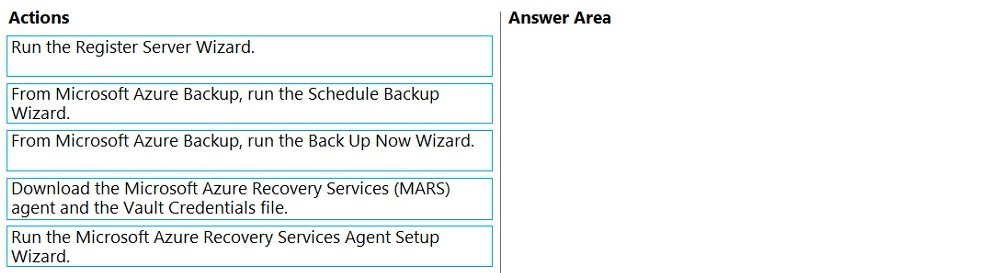
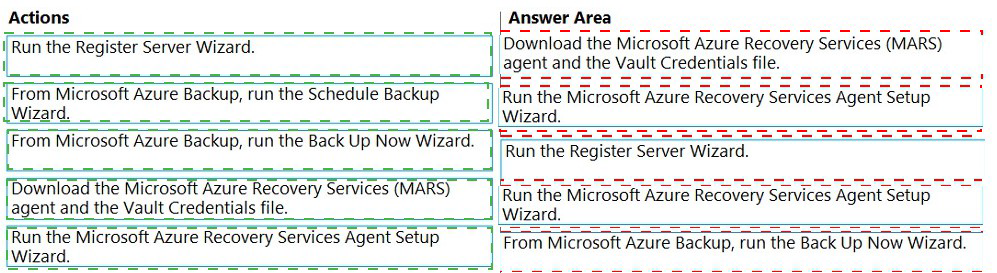
Explanation:
The goal is to configure a new scheduled weekly backup to Azure and perform an initial backup immediately. The process begins by obtaining the necessary software and security credentials from the Azure portal, installing the agent, registering the server with the vault, defining the backup policy (schedule and retention), and finally triggering the initial backup job.
Step-by-Step Reasoning:
Download the MARS agent and the Vault Credentials file:
This is the prerequisite. You download the agent installer and the unique vault credentials file from the Recovery Services vault in the Azure portal. This file authenticates the server to the vault.
Run the MARS Agent Setup Wizard:
You install the downloaded agent software on the Windows Server.
Run the Register Server Wizard:
This is a key step within the MARS agent console. You use the downloaded vault credentials file to register (pair) this specific server with your Azure Recovery Services vault, establishing the trust relationship.
Run the Schedule Backup Wizard:
After registration, you configure the backup policy. Here, you select the items to protect, specify the schedule (e.g., weekly on Saturday), and set the retention rules. This defines the recurring job but does not start it.
Run the Back Up Now Wizard:
With the schedule configured, you manually trigger the first backup job immediately to meet the "perform the initial backup as soon as possible" requirement. Subsequent backups will follow the scheduled plan.
Reference:
Microsoft Learn: Back up Windows Server or Windows Client using the MARS agent. The documented steps are: Download the MARS agent and vault credentials -> Install the agent -> In the MARS console, choose the Register Server action -> In the Actions pane, choose Schedule Backup -> After the schedule is set, you can choose Back Up Now.
Note: This question is part of a series of questions that present the same scenario. Each
question in the series contains a unique solution that might meet the stated goals. Some
question sets might have more than one correct solution, while others might not have a
correct solution.
After you answer a question in this section, you will NOT be able to return to it. As a result,
these questions will not appear in the review screen.
You have an on-premises server named Server1 that runs Windows Server.
You have a Microsoft Sentinel instance.
You add the Windows Firewall data connector in Microsoft Sentinel.
You need to ensure that Microsoft Sentinel can collect Windows Firewall logs from Server1.
Solution: You onboard Server1 to Microsoft Defender for Endpoint.
Does this meet the goal?
A. Yes
B. No
Explanation:
This solution does not meet the goal. Onboarding Server1 to Microsoft Defender for Endpoint (MDE) enables collection of endpoint security telemetry (processes, network connections, file events) into Microsoft Sentinel, but it is not the direct or correct method for collecting Windows Firewall logs. The Windows Firewall connector in Sentinel is designed to collect Windows Firewall events specifically via the Microsoft Monitoring Agent (MMA)/Log Analytics agent or its successor, the Azure Monitor Agent (AMA).
Correct Option:
B. No:
Onboarding to Defender for Endpoint is unrelated to the specified data connector. To collect Windows Firewall logs, you must deploy the appropriate log collection agent (AMA or MMA) to Server1, configure the agent to collect the correct Windows Event Log channels (specifically Microsoft-Windows-Windows Firewall With Advanced Security/Firewall), and connect it to the Log Analytics workspace used by your Sentinel instance.
Incorrect Option:
A. Yes:
This would only be correct if the data connector were "Microsoft Defender for Endpoint," which would then collect Defender-related alerts and data. The solution incorrectly applies a security agent for an endpoint protection platform to a task that requires a log collection agent for local firewall events.
Reference:
Microsoft Learn: Connect Windows Firewall data to Microsoft Sentinel explicitly states the prerequisites: "The Microsoft Monitoring Agent (MMA) or the Azure Monitor Agent (AMA) must be installed on the Windows machines from which you want to collect logs...The machines must be connected to the workspace you're using for Microsoft Sentinel." It does not mention Microsoft Defender for Endpoint.
You have an Azure subscription. The subscription contains a virtual machine named VM1
that runs Windows Server and uses Azure Disk Encryption.
You need to identify which Azure key vault stores the encryption keys for VM1. The
solution must minimize administrative effort.
Which PowerShell cmdlet should you run?
A. Get-AzKeyVaultKey
B. Get-AiKeyVault
C. Get-AzVMDiskEncryptionStatus
D. Get-AzDiskEncryptionSet
Explanation:
This question tests your knowledge of identifying the configuration of Azure Disk Encryption (ADE) on a VM. ADE uses an Azure Key Vault to store disk encryption secrets (BitLocker encryption keys). The goal is to find which specific Key Vault is linked to VM1 with minimal effort, meaning you should use a cmdlet that queries the VM's encryption extension directly for its configuration.
Correct Option:
C. Get-AzVMDiskEncryptionStatus:
This is the correct cmdlet. It is specifically designed to retrieve the encryption status and detailed configuration of Azure Disk Encryption for a VM. Its output includes the Key Vault URL (DiskEncryptionKeyVaultUrl) and the Secret URL (KeyEncryptionKeyUrl) used by the VM. This provides the direct, minimal-effort answer by querying the VM's extended properties.
Incorrect Options:
A. Get-AzKeyVaultKey:
This cmdlet lists keys within a specific, already-known Key Vault. To use it, you would first need to know which Key Vault to query, which is the information you are trying to discover.
B. Get-AzKeyVault:
This cmdlet lists all Key Vaults in your subscription or resource group. You would then need to manually inspect each vault's properties or access policies to deduce which one is associated with VM1, which is more administrative effort than the direct query provided by Get-AzVMDiskEncryptionStatus.
D. Get-AzDiskEncryptionSet:
This cmdlet is used with Server-Side Encryption (SSE) with customer-managed keys, which is a different encryption feature (encryption-at-rest managed by the Azure storage infrastructure). It is not used for Azure Disk Encryption (ADE), which is guest OS-level encryption managed by a Key Vault and a VM extension.
Reference:
Microsoft Learn: Get-AzVMDiskEncryptionStatus - The cmdlet's description states it "Shows the disk encryption status for a virtual machine." The example output clearly shows the DiskEncryptionKeyVaultUrl property, which is exactly what you need to identify.
You have an on-premises server that runs Windows Server and contains a folder named
Folder1. Folder1 contains 50 GB of files.
You have an Azure subscription that contains an Azure Files share named share1.
You need to migrate the data in Folder1 to share1.
What should you do? To answer, select the appropriate options in the answer area.
NOTE: Each correct selection is worth one point.
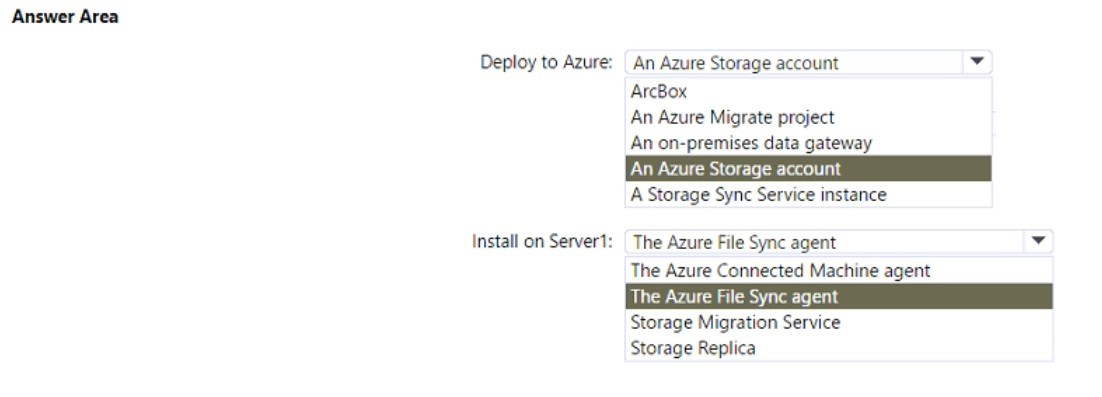
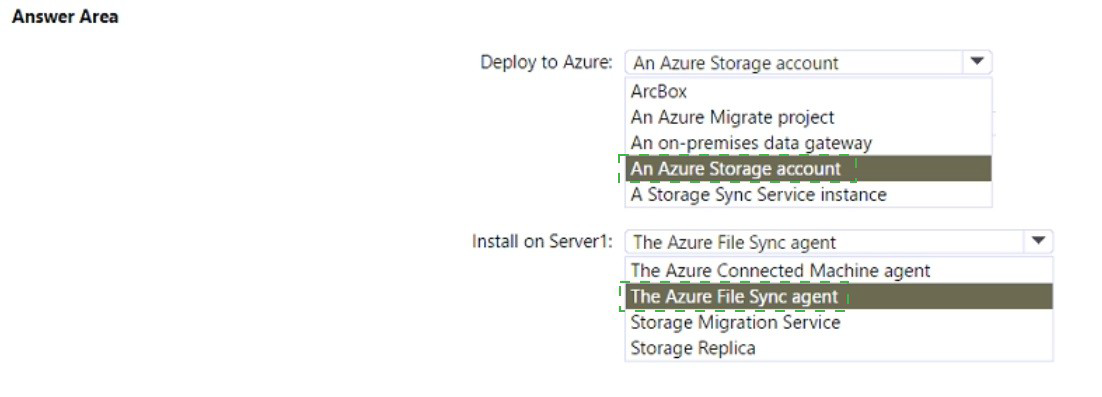
Explanation:
The requirement is a migration of data to an Azure Files share. Azure File Sync is the hybrid tool designed for this purpose. It syncs files between on-premises Windows Servers and Azure Files, effectively migrating the data to the cloud share and optionally keeping it in sync afterward.
Correct Configuration:
Deploy to Azure: A Storage Sync Service instance
This is the central management resource for Azure File Sync. You create this service in your Azure subscription. You then register your on-premises server (Server1) and your target Azure Files share (share1) with this service to establish the sync relationship. It orchestrates the initial data transfer and ongoing sync.
Install on Server1: The Azure File Sync agent
This agent software is installed on the on-premises Windows Server (Server1). It enables the server to communicate with the Storage Sync Service and perform the sync operations. Once installed, you configure it to join the Storage Sync Service and define which local folders (like Folder1) should sync to which Azure file share (share1).
Incorrect / Unused Options:
Deploy to Azure:
An Azure Storage account (for this specific option) – While an Azure Files share resides within a Storage Account, the deployable resource specific to the migration/sync task is the Storage Sync Service. The Storage Account (and the share1 within it) is a prerequisite that already exists.
Deploy to Azure:
ArcBox, An Azure Migrate project, An on-premises data gateway – These are unrelated. ArcBox is for Azure Arc labs, Azure Migrate is for server/workload migration, and a data gateway is for Power BI/Azure Logic Apps.
Install on Server1:
The Azure Connected Machine agent – This is for Azure Arc, enabling management of the server from Azure, not for file synchronization.
Install on Server1:
Storage Migration Service – This is a different tool for orchestrating storage volume migrations between servers or to Azure, not for syncing to an Azure Files share.
Install on Server1:
Storage Replica – This is a disaster recovery feature for synchronous or asynchronous block-level replication between servers or to Azure (for VMs), not for file-level sync to Azure Files.
Reference:
Microsoft Learn: Plan for an Azure File Sync deployment. The architecture diagram and description clearly show the requirement for a Storage Sync Service in Azure and the Azure File Sync agent installed on the Windows Server to sync files to an Azure file share.
You have an Azure virtual machine named VM1 that runs Windows Server.
You plan to deploy a new line-of-business (LOB) application to VM1.
You need to ensure that the application can create child processes.
What should you configure on VM1?
A. Microsoft Defender Credential Guard
B. Microsoft Defender Application Control
C. Microsoft Defender SmartScreen
D. Exploit protection
Explanation:
This question focuses on configuring Windows security features to allow an application's expected behavior without being overly restrictive. A line-of-business (LOB) application that needs to create child processes requires specific mitigations within the exploit protection suite. Other features would block this behavior entirely or are designed for different threats.
Correct Option:
D. Exploit protection:
This is the correct feature to configure. Exploit protection includes many individual mitigations, one of which is "Child processes" (a sub-setting of Attack Surface Reduction rules or Exploit Guard). By default, certain rules might block child process creation. You can customize Exploit protection to create a policy that allows your specific, trusted LOB application to create child processes while keeping other protections active for unknown software. This provides a balanced security approach.
Incorrect Options:
A. Microsoft Defender Credential Guard:
This feature uses virtualization-based security (VBS) to isolate and protect Windows credentials (like NTLM hashes and Kerberos tickets) from theft by malware. It has no relevance to controlling whether an application can spawn child processes.
B. Microsoft Defender Application Control (WDAC):
This is a deny-by-default or code integrity policy tool designed to restrict which executables, scripts, and DLLs can run. If not explicitly configured to allow it, WDAC would likely block the unknown LOB application and its child processes entirely, which is the opposite of the requirement.
C. Microsoft Defender SmartScreen:
This is a cloud-based anti-phishing and anti-malware filter built into Microsoft browsers (Edge/IE) and the Windows shell. It warns users about downloading or running unrecognized or potentially malicious files from the web. It does not control an already-installed application's ability to create child processes.
Reference:
Microsoft Learn: Customize Exploit protection and specifically Attack surface reduction rules. To allow a legitimate application, you would create an exploit protection XML configuration that sets the "Block child processes" rule to "Audit" or "Off" for your specific LOB application's executable path.
You have a Hyper-V failover cluster named Cluster1 at a main datacenter. Cluster1
contains two nodes that have the Hyper-V server role installed. Cluster1 hosts 10 highly
available virtual machines.
You have a cluster named Cluster2 in a disaster recovery site. Cluster2 contains two nodes
that have the Hyper-V server role installed.
You plan to use Hyper-V Replica to replicate the virtual machines from Cluster1 to
Cluster2.
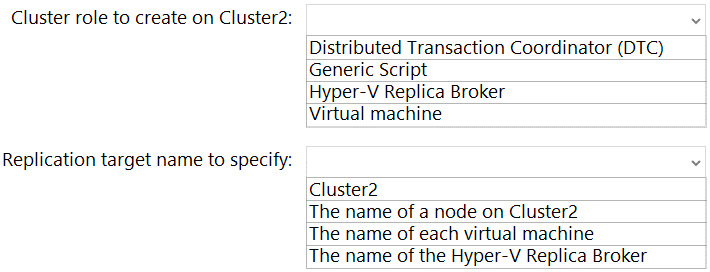
What should you do? To answer, select the appropriate options in the answer area.
NOTE: Each correct selection is worth one point.
Explanation:
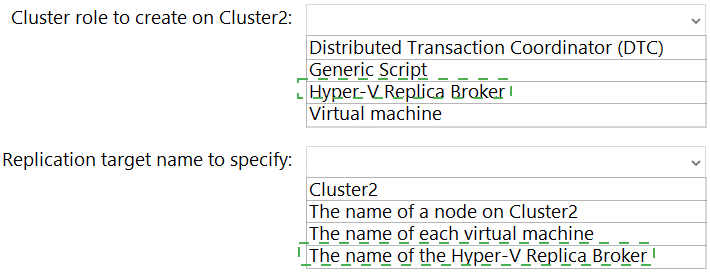
When replicating from one Hyper-V cluster to another, you must configure a Hyper-V Replica Broker role on the destination cluster. This broker role provides a single, consistent endpoint (a Client Access Point or CAP) for the source cluster to send replication traffic to, regardless of which node in the destination cluster currently owns the role. You then specify this broker's name as the target when configuring replication for each VM.
Correct Option Reasoning:
Hyper-V Replica Broker:
This is a dedicated, highly available cluster role that you must create on the replica (destination) cluster, which is Cluster2. Its purpose is to act as a single entry point and traffic distributor for incoming replication from the primary cluster (Cluster1). Without this broker, you cannot configure cluster-to-cluster replication.
The name of the Hyper-V Replica Broker:
When you run the Enable Replication wizard for a VM on Cluster1, you must specify the replication server (the target). For cluster-to-cluster replication, you enter the network name (Client Access Point) of the Hyper-V Replica Broker role you created on Cluster2. This ensures the replication connection persists even if the broker role fails over between nodes in Cluster2.
Incorrect Option Reasoning:
Distributed Transaction Coordinator (DTC), Generic Script, Virtual machine: These are other types of cluster roles but are not used for facilitating Hyper-V Replica between clusters.
Cluster2: You cannot specify the raw cluster name; you need the specific endpoint provided by the Replica Broker.
The name of a node on Cluster2: Using a node name would tie replication to a single server. If that node failed, replication would break, defeating the purpose of using a cluster for the target.
The name of each virtual machine: This is not a target server name; it's the identifier for the VM being protected.
Reference:
Microsoft Learn: Configure Hyper-V Replica Broker role for a failover cluster. The documentation states that for replication between two clusters, you must configure the Hyper-V Replica Broker role on the replica (secondary) cluster and use the broker's name as the target server when enabling replication.
You have an Azure virtual machine named VM1 that runs Windows Server.
When you attempt to install the Azure Performance Diagnostics extension on VM I, the
installation fails.
You need to identify the cause of the installation failure.
What are two possible ways to achieve the goal? Each correct answer presents a complete
solution.
NOTE: Each correct selection is worth one point.
A. Sign in to VM1 and verify the WaAppAgentlog file.
B. From the Azure portal, view the alerts for VM1.
C. From the Azure portal, view the activity log for VM1.
D. Sign into VM1 and verify the MonitoringAgentlog file.
Explanation:
This question asks for ways to diagnose a failure when installing a VM extension (Azure Performance Diagnostics) on an Azure VM. Extension installation failures can be logged by the underlying Azure infrastructure agent on the VM itself, and they can also generate alerts and events in the Azure portal that are tied to the VM's resource.
Correct Options:
A. Sign in to VM1 and verify the WaAppAgent.log file.
The Windows Azure Guest Agent (WaAppAgent) is responsible for provisioning and managing extensions on the VM. Its log file, located at C:\WindowsAzure\Logs\WaAppAgent.log, contains detailed, real-time records of extension installation attempts, including errors, status messages, and communication with the Azure fabric. This is a primary source for troubleshooting extension deployment failures directly on the VM.
B. From the Azure portal, view the alerts for VM1.
Azure can generate service health alerts and resource health alerts for a VM. If an extension deployment fails due to a platform issue (e.g., quota, availability), or if it triggers a health signal, an alert might be generated. Checking the Alerts blade for VM1 can reveal system-generated alerts related to the failed operation, providing a high-level cause from the Azure service perspective.
Incorrect Options:
C. From the Azure portal, view the activity log for VM1.
The Activity Log shows control plane operations (who deployed what, when) at the subscription/resource group level, such as "write Microsoft.Compute/virtualMachines/extensions." It will show that an attempt was made to install the extension, but it typically shows the operation as "Succeeded" as soon as the request is accepted by the Azure API, not whether the installation actually succeeded on the guest OS. It does not contain detailed error messages for extension runtime failures.
D. Sign in to VM1 and verify the MonitoringAgent.log file.
The MonitoringAgent.log is associated with the Log Analytics agent (MMA/OmsAgent) or Azure Monitor Agent, which are specific extensions for log collection. The failed extension in question is the Azure Performance Diagnostics extension, which is a different component managed by the Windows Azure Guest Agent. Its logs would not be in the Monitoring Agent's log file.
Reference:
Microsoft Learn: Troubleshoot Azure Windows VM extension failure - The documentation directs you to check the WaAppAgent.log and extension-specific logs on the VM for installation errors. It also mentions reviewing Azure Service Health and Resource Health, which is accessed via the Alerts interface.
You have three Azure virtual machines named VM1, VM2, and VM3 that host a multitier
application.
You plan to implement Azure Site Recovery.
You need to ensure that VM1, VM2, and VM3 fail over as a group.
What should you configure?
A. an availability zone
B. a recovery plan
C. an availability set
Explanation:
This question tests your understanding of managing application failover in Azure Site Recovery (ASR). When you have a multi-tier application (like web, app, and database servers), you need to control the order of failover and startup to maintain dependencies and ensure the application works correctly in the recovery site. Availability sets and zones are for high availability within a region, not for orchestrating disaster recovery failover.
Correct Option:
B. a recovery plan:
This is the correct ASR feature for this requirement. A recovery plan is a container that groups VMs for failover and recovery. You can add VM1, VM2, and VM3 to a single recovery plan. Within the plan, you can create groups and define the order in which groups are failed over and started (e.g., start database tier first, then app tier, then web tier). This ensures the entire application fails over as a coordinated unit.
Incorrect Options:
A. an availability zone:
This is a high-availability feature that protects VMs from datacenter-level failures within an Azure region by distributing them across physically separate zones. It does not provide disaster recovery to a secondary region and does not group VMs for coordinated failover.
C. an availability set:
This is a legacy high-availability feature that ensures VMs are distributed across different fault domains (racks) and update domains within a single Azure datacenter to protect from localized hardware failures and maintenance. Like availability zones, it is for intra-region resiliency, not for orchestrating cross-region disaster recovery failover grouping.
Reference:
Microsoft Learn: About recovery plans in Azure Site Recovery. The documentation states: "A recovery plan gathers machines into recovery groups for the purposes of failover...You can use a recovery plan to...Group machines together so that they fail over together."
You have 10 servers that run Windows Server in a workgroup.
You need to configure the servers to encrypt all the network traffic between the servers.
The solution must be as secure as possible.
Which authentication method should you configure in a connection security rule?
A. NTLMv2
B. pre-shared key
C. KerberosV5
D. computer certificate
Explanation:
This question tests your knowledge of IPsec authentication methods in a non-domain environment (workgroup). To encrypt all traffic between servers as securely as possible, you need an authentication method that is strong and does not rely on a centralized authority like Active Directory. Computer certificates provide the highest level of security and manageability for this scenario compared to the other options.
Correct Option:
D. computer certificate:
This is the most secure and recommended method for a workgroup. It uses X.509 certificates (issued from a public or private PKI) to authenticate computers. Certificate-based authentication provides strong cryptographic proof of identity, supports non-repudiation, and is scalable for multiple machines. It is more secure than a pre-shared key and is the only viable option here, as Kerberos is unavailable.
Incorrect Options:
A. NTLMv2:
This is a challenge-response authentication protocol primarily used for user authentication to network resources (like SMB). It is not an available authentication method for IPsec connection security rules in Windows Firewall with Advanced Security.
B. pre-shared key:
While this method works in a workgroup, it is not "as secure as possible." A pre-shared key is a single, shared secret string configured on all machines. It is vulnerable if compromised (any server leaking it breaks security for all) and lacks individual machine accountability. The question explicitly requires the most secure solution.
C. KerberosV5:
This is the default and preferred method for domain-joined computers. It relies on Active Directory Domain Services to issue tickets. Since the servers are in a workgroup, there is no Kerberos Key Distribution Center (KDC), making this method unusable.
Reference:
Microsoft Learn: Authentication methods for connection security rules. The documentation states that for computers that are not domain members, you can use certificates or a pre-shared key. It also notes that "Computer certificates using Kerberos (for domain members) or certificates (for non-domain members) are recommended over pre-shared keys" due to the stronger security of certificates.
Note: This question is part of a series of questions that present the same scenario. Each
question in the series contains a unique solution that might meet the stated goals. Some
question sets might have more than one correct solution, while others might not have a
correct solution.
After you answer a question in this section, you will NOT be able to return to it. As a result,
these questions will not appear in the review screen.
You have an on-premises server named Server1 that runs Windows Server.
You have a Microsoft Sentinel instance.
You add the Windows Firewall data connector in Microsoft Sentinel.
You need to ensure that Microsoft Sentinel can collect Windows Firewall logs from Server1.
Solution; You enable event subscription on Server1.
Does this meet the goal?
A. Yes
B. No
Explanation:
This solution does not meet the goal. While enabling event subscription on Server1 is a method for forwarding Windows Event Logs (including firewall events) to a collector, it does not, by itself, deliver those logs to Microsoft Sentinel. Microsoft Sentinel collects data via agents (Azure Monitor Agent or Log Analytics agent) installed on the source machine or via a syslog server for Linux. Enabling a Windows Event Collector subscription would send events to another on-premises Windows machine, not directly to the Azure-based Sentinel workspace.
Correct Option:
B. No:
Enabling event subscription is a step in building an on-premises Windows Event Forwarding (WEF) architecture. To get those forwarded events into Sentinel, you would then need to install a log collection agent on the central Windows Event Collector machine that receives the forwarded logs. The agent would then send them to the Log Analytics workspace. The solution as stated is incomplete for the stated goal of Sentinel collection.
Incorrect Option:
A. Yes:
This would only be correct if the solution said "install the Azure Monitor Agent or Log Analytics agent on Server1 and configure it to collect the Windows Firewall event logs." Event subscription alone does not connect to Azure services.
Reference:
Microsoft Learn: Connect Windows Firewall data to Microsoft Sentinel. The prerequisites state: "The Microsoft Monitoring Agent (MMA) or the Azure Monitor Agent (AMA) must be installed on the Windows machines from which you want to collect logs." For a centralized collector approach, you would install the agent on the collector, not just enable subscription on the source.
You have two servers named Server1 and Server2 that run Windows Server. Both servers
have the Hyper-V server role installed.
Server1 hosts three virtual machines named VM1, VM2, and VM3. The virtual machines
replicate to Server2.
Server1 experiences a hardware failure.
You need to bring VM1, VM2, and VM3 back online as soon as possible.
From the Hyper-V Manager console on Server2, what should you run for each virtual
machine?
A. Start
B. Move
C. Unplanned Failover
D. Planned Failover
Explanation:
This is a disaster recovery scenario using Hyper-V Replica. The primary host (Server1) has failed unexpectedly. The replica VMs on Server2 are in a "Replication" state and are turned off. To recover them, you must perform a specific failover operation that acknowledges the primary is down and promotes the replica to become the primary VM.
Correct Option:
C. Unplanned Failover:
This is the correct action for an unexpected outage of the primary host. Running an Unplanned Failover on the replica VM (on Server2) will start it using its latest replicated recovery point. This operation is designed for disaster recovery when the primary server is not available to coordinate a planned failover. It's the fastest way to bring the VMs back online in this scenario.
Incorrect Options:
A. Start:
You cannot simply start a replica VM. A VM that is configured as a replica is locked and cannot be started directly. You must first perform a failover operation (planned or unplanned) to change its role from a replica to a primary VM before it can be started.
B. Move:
The "Move" operation is for Live Migration, Quick Migration, or storage migration of a VM between hosts. It requires both hosts to be operational and communicating, which is not the case here due to Server1's hardware failure.
D. Planned Failover:
This operation requires the primary VM to be shut down gracefully and the primary host (Server1) to be available to coordinate the failover. It is used for planned maintenance, not for an unexpected disaster where the primary host is already down.
Reference:
Microsoft Learn: Fail over Hyper-V virtual machines. The documentation states: "Use planned failover when the primary site is available...Use unplanned failover in genuine disaster situations, when the primary site is not available." Since Server1 has experienced a hardware failure, unplanned failover is the required procedure.
Your network contains an Active Directory Domain Services (AD DS) forest. The forest
functional level is Windows Server 2012 R2. The forest contains the domains shown in the
following table.

You create a user named Admin1.
You need to ensure that Admin1 can add a new domain controller that runs Windows
Server 2022 to the east.contoso.com domain. The solution must follow the principle of least
privilege.
To which groups should you add Admin1?
A. EAST\Domain Admins only
B. CONTOSO\Enterprise Admins only
C. CONTOSO/Schema Admins and EAST\Domain Admins
D. CONTOSO\Enterprise Admins and CONTOSO/Schema Admins
Explanation:
This question tests your understanding of Active Directory permissions required to add a domain controller to a child domain. The principle of least privilege means granting only the permissions absolutely necessary for the task. Adding a domain controller to a specific domain requires administrative rights within that domain and the ability to write to the forest-wide Domain Controllers OU, but does not require forest-wide Enterprise or Schema Admin rights.
Correct Option:
A. EAST\Domain Admins only:
This is the correct and sufficient group. Members of the Domain Admins group in the target domain (east.contoso.com) have the necessary permissions to join a server to the domain as a domain controller. This includes the ability to create the computer account in the Domain Controllers OU and extend the domain's schema if needed (the Adprep /domainprep operations for Windows Server 2022 can be run by a Domain Admin). Forest-level privileges are not required for this operation within an existing child domain.
Incorrect Options:
B. CONTOSO\Enterprise Admins only:
Enterprise Admins have permissions across all domains in the forest, which exceeds the principle of least privilege for adding a DC to a single child domain. Furthermore, Enterprise Admins do not, by default, have the specific permissions within the east.contoso.com domain to create the DC computer account unless they are also a member of that domain's Domain Admins group or have delegated permissions.
C. CONTOSO\Schema Admins and EAST\Domain Admins:
Schema Admins membership is unnecessary. The forest schema has already been updated to support Windows Server 2022 domain controllers because the forest functional level is Windows Server 2012 R2, and a Windows Server 2019 DC already exists in the child domain. This indicates the forest schema is at least at version 88 (Windows Server 2016), which supports Windows Server 2022 DCs. No schema update is needed for this operation.
D. CONTOSO\Enterprise Admins and CONTOSO\Schema Admins:
This combination provides excessive, forest-wide privileges and is not required for the task, violating the principle of least privilege. As explained, neither group is necessary if the user is a Domain Admin in the target child domain.
Reference:
Microsoft Learn: Active Directory Functional Levels and permissions. A Windows Server 2022 domain controller can be added to a domain with a functional level of Windows Server 2016 or higher. The domain east.contoso.com has a functional level of Windows Server 2016, which meets the requirement. The Domain Admins group has the required permissions to perform the operation within its domain.
| Page 2 out of 13 Pages |
| Previous |