
You receive the following response to a prompt: "Sorry, it looks like I can't respond to this. Let's try a different topic." What is a possible cause of the response?
A. The prompt is too vague to elicit a response.
B. The prompt contains language that violates safety guidelines.
C. The prompt contains more than five requests.
D. The prompt is larger than the allowed context window.
Explanation:
This question tests understanding of Microsoft 365 Copilot’s Responsible AI protections and content filters. When a prompt triggers safety, policy, or harmful-content safeguards, Copilot refuses to generate a response and returns a fixed message directing the user to change the topic. The focus is on recognizing this specific refusal as a safety-related block rather than a technical limit or prompt-quality issue.
✅ Correct Option:
B. The prompt contains language that violates safety guidelines.
Microsoft 365 Copilot applies Responsible AI classifiers and content filters that block prompts involving prohibited topics such as harmful, illegal, discriminatory, or otherwise restricted content. When these safeguards are triggered, the system returns the exact refusal message “Sorry, it looks like I can’t respond to this. Let’s try a different topic.” instead of generating an answer.
❌ Incorrect options:
A. The prompt is too vague to elicit a response.
Vague prompts typically produce a partial answer, a request for clarification, or a best-effort interpretation. They do not trigger the specific safety-refusal wording shown in the question.
C. The prompt contains more than five requests.
There is no documented hard limit of five requests that produces this exact response. Multi-part prompts are normally processed or partially answered; the refusal message is reserved for policy or safety violations.
D. The prompt is larger than the allowed context window.
Exceeding the context window usually results in truncation, a different error about conversation length, or a request to start a new chat. It does not generate the safety-oriented “Let’s try a different topic” message.
🔧 Reference:
→ How harmful content protection works in Microsoft Copilot Chat and agents (Microsoft Support) — Confirms that harmful-content and Responsible AI filters block prohibited prompts and prevent responses on restricted topics.
You are creating a custom agent in the Microsoft 365 Copilot app for the marketing team at your company. The agent will be used to produce marketing collateral, including copy, logos, and artwork. What should you add to the agent? More than one answer choice may achieve the goal. Select the BEST answer.
A. a template
B. a suggested prompt
C. image generator
D. code interpreter
Explanation:
This question tests your ability to select the right capability when building a custom agent for a specific business scenario. The marketing team needs the agent to produce copy, logos, and artwork. While copy can be generated by the base Copilot model, logos and artwork require visual generation. The image generator capability is specifically designed to create images, graphics, and visual content from user prompts. This makes it the essential capability to add to the agent for this scenario.
✔️ Correct Option:
✔️ C. image generator
The image generator feature enables agents to generate images based on user prompts. It uses existing Designer functionality to create visually appealing and context-relevant graphics . This capability is essential for producing logos and artwork. With this feature, the agent generates four images per prompt, allows users to modify images, and provides options to download or share the generated visuals. This directly satisfies the marketing team's requirement to create visual marketing collateral.
❌ Incorrect options:
❌ A. a template
A template is a prebuilt starting point that supplies a description, instructions, and suggested prompts for a specific scenario . While templates can help you get started quickly, they are scaffolding for the agent's configuration, not a capability that generates marketing content. It does not enable the agent to produce logos or artwork.
❌ B. a suggested prompt
Suggested prompts are sample prompts displayed on the agent's welcome page to help users understand the range of capabilities the agent has and start interacting with it . They are a user experience feature for starting conversations, not a content-generation capability. They do not enable the agent to create logos or artwork.
❌ D. code interpreter
The code interpreter is an advanced tool designed to solve complex tasks through Python code. It is used for data analysis, creating charts and graphs, generating QR codes, and solving mathematical problems . It is not designed for generating artistic marketing content like logos or artwork. This capability addresses data and computation tasks, not creative visual generation.
🔧 Reference:
→ Learn Microsoft | Add the image generator capability to your agent — Confirms the image generator enables agents to generate images and graphics from user prompts, which is required for producing logos and artwork.
You are discussing Microsoft 365 Copilot with a colleague. The colleague asks which data Copilot uses to answer questions when using the Work scope. What should you tell your colleague?
A. Copilot provides responses based only on the general knowledge that Copilot was trained on.
B. Copilot provides responses based on all the data in your organization's Microsoft 365 environment and the general knowledge that Copilot was trained on.
C. Copilot provides responses based only on data that the user can access and the general knowledge that Copilot was trained on.
D. Copilot provides responses based only on data that the user can access.
Explanation:
The Work scope allows Microsoft 365 Copilot to use organizational information relevant to the user's work.
Copilot can ground responses in Microsoft 365 data that the user has permission to access.
It can also combine that work data with its underlying general knowledge to answer questions.
Copilot does not automatically access all information stored across the organization's Microsoft 365 environment.
This permission-based approach helps maintain existing Microsoft 365 access controls and data boundaries.
Therefore, option C correctly describes the data used within the Work scope.
🟢 Correct Option: C. Copilot provides responses based only on data that the user can access and the general knowledge that Copilot was trained on.
Microsoft 365 Copilot uses Microsoft Graph and other relevant work data to ground responses, but it respects the user's existing permissions. It does not retrieve organizational information that the user cannot access. Copilot can also use its underlying model knowledge when responding. Therefore, option C correctly combines both sources: accessible organizational data and general knowledge, while recognizing that Copilot remains bounded by the user's existing access permissions.
🔴 Incorrect Option: A. Copilot provides responses based only on the general knowledge that Copilot was trained on.
This excludes the work data available to Copilot. In the Work scope, Copilot can use relevant Microsoft 365 organizational content that the user has permission to access. Its responses are therefore not limited to the model's general training knowledge alone.
🔴 Incorrect Option: B. Copilot provides responses based on all the data in your organization's Microsoft 365 environment and the general knowledge that Copilot was trained on.
Copilot does not have unrestricted access to all organizational data. It respects Microsoft 365 permissions and only uses information the user is authorized to access. Therefore, saying that Copilot can use all data in the organization's environment incorrectly ignores the permission-based security model.
🔴 Incorrect Option: D. Copilot provides responses based only on data that the user can access.
This option correctly recognizes that Copilot respects the user's access permissions, but it incorrectly excludes the model's general knowledge. Copilot can combine accessible work data with its underlying knowledge when generating responses, so organizational data is not its only source of information.
Reference:
⇒ Microsoft Copilot architecture and how it works — Microsoft explains how Copilot grounds responses using Microsoft Graph data while respecting the user's existing permissions.
⇒ Data, Privacy, and Security for Microsoft Copilot — Microsoft confirms that Copilot only accesses organizational data that users have permission to access.
You are a marketing assistant preparing for a budget meeting with your manager. You need to evaluate key spending and performance trends from the last year to understand which marketing channels deliver the best return on investment (ROI). What should you use in Microsoft 365 Copilot to achieve the goal? More than one answer choice may achieve the goal. Select the BEST answer.
A. the Analyst agent
B. Chat
C. the Researcher agent
D. a notebook
Explanation:
This question tests your understanding of specialized built-in AI agents within Microsoft 365 Copilot designed for complex business tasks. Evaluating financial trends, channel performance, and ROI calculations from past years requires structured data processing, multi-step analytical reasoning, and data visualization capabilities. The Analyst agent in Microsoft 365 Copilot is specifically optimized to perform advanced data analysis, calculate financial metrics, evaluate historical performance across files (like Excel or CSV files), and identify patterns or trends to support business decision-making.
✅ Correct Option:
Option A: the Analyst agent
The Analyst agent is built explicitly for structured data processing, trend identification, and performance analysis. When preparing for a budget review, it can process raw historical spreadsheets, compare spending versus outcomes across various marketing channels, calculate exact return on investment (ROI) metrics, and generate clear summary insights to support management discussions.
❌ Incorrect options:
Option B: Chat
Standard Copilot Chat is suitable for general conversational assistance, drafting emails, or answering basic broad queries. However, it lacks the specialized advanced data modeling, code execution, and focused financial analysis capabilities required to thoroughly process complex spreadsheets and evaluate channel-specific ROI trends.
Option C: the Researcher agent
The Researcher agent is designed to gather, synthesize, and compile multi-source textual information from emails, chats, documents, and web sources into narrative reports or briefs. While useful for qualitative market research, it is not optimized for numerical data processing, spreadsheet modeling, or quantitative ROI calculations.
Option D: a notebook
Copilot Notebook provides a canvas interface for iterative text editing, drafting, and refining longer prompts or written documents. It is a workspace tool for text composition rather than an analytical engine designed to process numerical datasets, perform calculations, or model performance trends.
🔧 Reference:
⇒ Microsoft 365 Copilot Agents Documentation confirms that the Analyst agent is specialized for processing structured data, calculating metrics, and identifying performance trends.
You have a Microsoft 365 Copilot license.
You plan to run several prompts.
What should you use to ensure that Copilot generates the best response for each prompt?
More than one answer choice may achieve the goal. To answer, select the Best options in
the answer area.
NOTE: Each correct selection is worth one point.
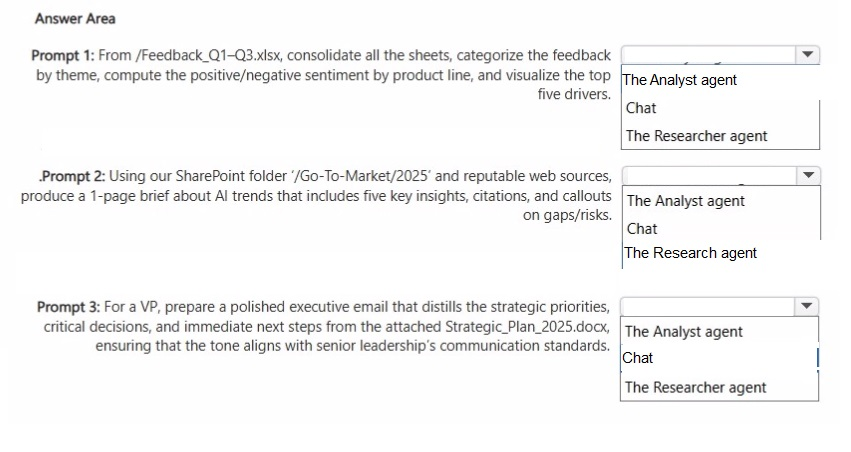
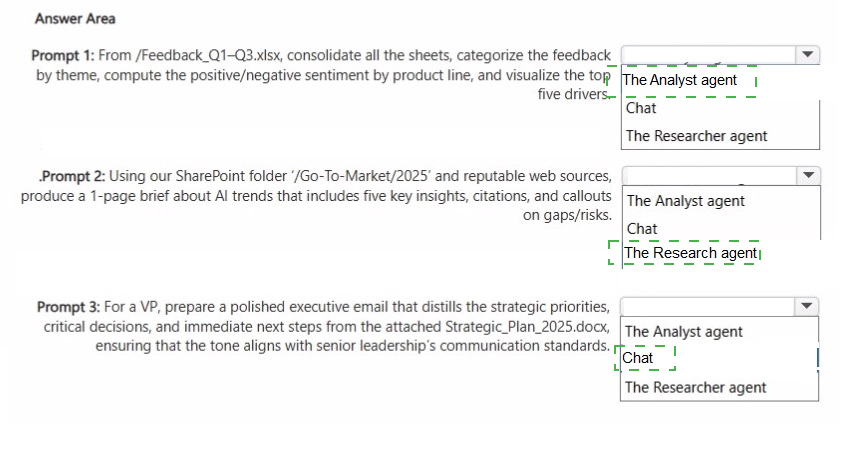 Explanation:
This matching question tests your ability to select the optimal Microsoft 365 Copilot capabilities based on task characteristics. Different business scenarios require specific features—ranging from mathematical data modeling and web research compilation to standard natural language drafting. Selecting the correct agent or workspace ensures prompts leverage the specialized processing capabilities necessary to produce accurate, high-quality results.
✅ Correct Option:
Prompt 1: The Analyst agent
Prompt 1 involves consolidating multiple sheets from an Excel file (/Feedback_Q1–Q3.xlsx), computing sentiment statistics across product lines, and generating visual charts. The Analyst agent is optimized for processing structured spreadsheet data, performing complex calculations, and visualizing data trends.
Prompt 2: The Researcher agent
Prompt 2 requires synthesizing information from an internal SharePoint folder (/Go-To-Market/2025) and external web sources into a single brief with citations and gap analysis. The Researcher agent specializes in multi-source intelligence gathering, web research, and comprehensive brief drafting.
Prompt 3: Chat
Prompt 3 requires drafting a short, polished executive email to a VP summarizing key points from an attached document (Strategic_Plan_2025.docx). Standard Chat is ideal for conversational text generation, summarization, and tone adaptation without requiring specialized data analysis or multi-source research agents.
❌ Incorrect options:
Using Chat for Prompt 1
Standard Chat lacks advanced code execution engines required to analyze complex multi-sheet Excel files and generate native data visualizations efficiently.
Using The Analyst agent for Prompt 2
The Analyst agent focuses on quantitative dataset analysis and numerical computation rather than synthesizing qualitative textual research from SharePoint documents and external web sites.
Using The Researcher agent for Prompt 3
The Researcher agent is designed for deep, multi-source research and report generation, making it unnecessarily complex for drafting a straightforward executive email summary.
🔧 Reference:
⇒ Microsoft 365 Copilot Capabilities Guidance confirms that specialized agents handle targeted tasks like data analysis or research synthesis, while Chat is suited for standard text composition.
You create and share a Microsoft 365 Copilot agent named Agent1 that contains three suggested prompts. A user named Ben Smith installs Agent1. You add a new suggested prompt to Agent1. You need to ensure that Ben Smith sees the new suggested prompt. What should you do?
A. Stop sharing Agent1 and then share the agent again.
B. Instruct Ben to reinstall Agent1.
C. Instruct Ben to issue any prompt to Agent1.
D. Instruct Ben to issue the following prompt to Agent1: -developer on.
Explanation:
The question tests how a user can refresh an installed Microsoft 365 Copilot agent after its suggested prompts are updated. Suggested prompts are displayed when a new conversation starts. Ben does not need to reinstall the agent or use a special developer command; starting interaction with the agent causes the updated configuration to be loaded.
✔️ Correct Option: C. Instruct Ben to issue any prompt to Agent1.
When Ben sends any prompt to Agent1, Microsoft 365 Copilot starts or refreshes the conversation with the current published version of the agent. The updated suggested prompt becomes available to Ben in the agent’s welcome or new-chat experience. This is the simplest supported action because suggested prompts are associated with the agent’s current configuration, not permanently fixed to the version installed by the user.
❌ Incorrect Option: A. Stop sharing Agent1 and then share the agent again.
Stopping and restarting sharing is unnecessary. Updating and publishing the agent configuration is sufficient for users to receive changes. Removing and sharing the agent again would be an administrative action that does not directly address the normal process for updating suggested prompts.
❌ Incorrect Option: B. Instruct Ben to reinstall Agent1.
Ben does not need to reinstall the agent when its suggested prompts are modified. The agent remains installed, and the updated configuration is delivered through the existing shared agent. Reinstallation could be considered only for an unusual caching or deployment problem, not as the standard solution.
❌ Incorrect Option: D. Instruct Ben to issue the following prompt to Agent1: -developer on.
The -developer on text is not a supported command for refreshing Microsoft 365 Copilot agent content. It does not control the display or synchronization of suggested prompts. Ben only needs to interact with the agent using a normal prompt to access the updated experience.
🔧 Reference:
→
Configure suggested prompts for Teams and Microsoft 365
— Confirms that suggested prompts appear on the agent’s welcome page and that users can start a new chat or conversation to see the current prompts.
→
Quickstart: Create and deploy an agent with the standard harness
— Confirms that suggested prompts are configured for Microsoft 365 Copilot and displayed before users begin a new chat.
You use Microsoft 365 Copilot. You need to delete all your conversations by using the least amount of effort. What is the best approach to achieve the goal? More than one answer choice may achieve the goal. Select the BEST answer.
A. the Microsoft 365 Copilot web app
B. the My Account portal in Microsoft 365
C. the Microsoft 365 Copilot desktop app
D. the Settings app in Windows 11
Explanation
This question tests where a user can delete their Microsoft 365 Copilot conversation history in a single step. Copilot activity history is stored across several Microsoft 365 apps, so the quickest approach is a central privacy control that clears it everywhere at once, rather than deleting chats app by app.
✅ B. the My Account portal in Microsoft 365
The My Account portal has a Copilot activity history section under Settings & Privacy. Selecting Delete history and choosing the Microsoft 365 Copilot checkbox sends one deletion request. It clears the prompts and responses from every Microsoft 365 app that stores them, including Copilot Chat, Word, Excel, and Teams. This is the least-effort way to remove all conversations.
❌ A. the Microsoft 365 Copilot web app
The web app lets you open and manage individual conversations in Copilot Chat, but it is not the central place to wipe your full history. Deleting chats one at a time takes more effort and does not clear the activity history stored by other Microsoft 365 apps.
❌ C. the Microsoft 365 Copilot desktop app
The desktop app offers the same chat experience as the web app. It does not provide a single control to delete all Copilot activity history across Microsoft 365 apps. Removing conversations here would still mean handling them individually, which is more work than a bulk deletion.
❌ D. the Settings app in Windows 11
Windows Settings manages device options such as apps, privacy permissions, and system preferences. Copilot activity history for a work or school account is stored in the Microsoft 365 service, not on the device. Windows Settings has no option to delete those conversations.
🔧 Reference
🔗 Delete your Microsoft Copilot activity history – Microsoft Support → confirms that you delete Copilot activity history from the My Account portal under Settings & Privacy, and that it clears history across all apps that store it.
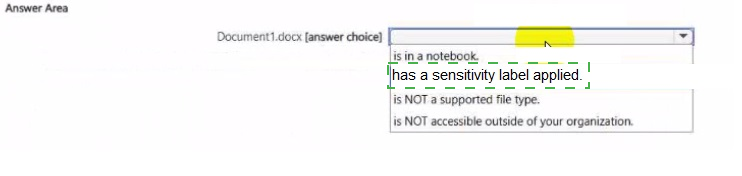
You have a Microsoft 365 Copilot conversation as shown in the following exhibit.
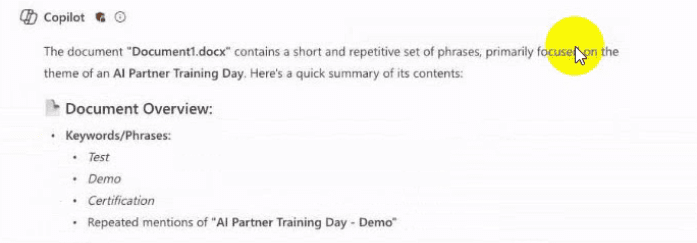
Use the dropdown menus to select the answer choice that completes the statement based
on the Information presented in the graphic.
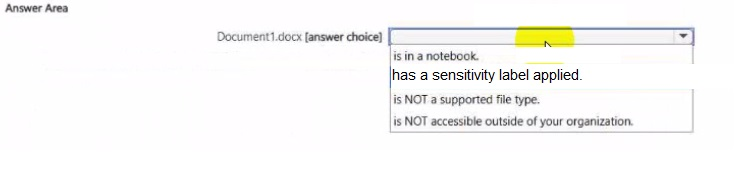
 Explanation
This question tests how Microsoft 365 Copilot shows protection information in a conversation. When Copilot answers from a file, the response carries an indicator next to the Copilot name. Here that icon sits beside the summary of Document1.docx. The question asks what that indicator tells you about the file.
✅ Correct Answer: Document1.docx has a sensitivity label applied.
The icon beside Copilot in the exhibit is the sensitivity label indicator. Copilot Chat shows the label of the content it used, and the response reflects the highest-priority label among the referenced sources. Because the icon appears on a response based on Document1.docx, the file has a sensitivity label applied. Selecting or hovering over the icon reveals the label name.
❌ is in a notebook.
Nothing in the exhibit refers to a Copilot Notebook. The response simply summarizes a document, and a notebook would appear as a separate workspace holding chats, files, and notes. The icon next to Copilot is not a notebook indicator, so this statement is not supported.
❌ is NOT a supported file type.
Copilot successfully read the .docx file and returned a summary of its contents, including keywords and repeated phrases. That shows Word documents are supported. An unsupported file would produce an error or a message that Copilot could not process it, not a normal summary.
❌ is NOT accessible outside of your organization.
The exhibit says nothing about external sharing or access limits. A label may restrict access in some configurations, but the icon only confirms a label exists, not what protection it applies. Claiming the file is inaccessible outside the organization goes beyond what the graphic shows.
🔧 Reference
🔗 Verify classification supports safe Microsoft Copilot grounding – Microsoft Learn → confirms that Copilot Chat displays and inherits the highest-priority sensitivity label from the sources it draws from.
🔗 Considerations to manage Microsoft 365 Copilot and Channel Agent in Teams for security and compliance – Microsoft Learn → confirms that Microsoft 365 Copilot Chat and agents work with labeled content in the tenant and explains how label inheritance behaves.
You are using Microsoft 365 Copilot to enhance your productivity in Microsoft Outlook. Which two tasks can you achieve by using Copilot in Outlook? Each correct answer presents a complete the solution. NOTE: Each correct selection is worth one point.
A. Insert a custom HTML signature that has specific formatting.
B. Generate a draft response to an email based on the context of the conversation.
C. Create a summary of unread emails in your inbox.
D. Customize the folder structure to organize your emails.
Explanation:
This question tests knowledge of the core productivity features of Microsoft 365 Copilot inside Outlook. Copilot is designed to help users handle email content quickly by generating replies that take conversation context into account and by producing summaries of threads or groups of messages (including unread items). Other Outlook tasks, such as signature management or manual folder organization, are handled by standard Outlook tools rather than Copilot.
✅ Correct Options:
B. Generate a draft response to an email based on the context of the conversation.
Copilot in Outlook can draft full email replies or new messages. It uses the content and context of the current thread (plus available organizational data) to produce a suggested response. Users can then adjust tone, length, or content before sending.
C. Create a summary of unread emails in your inbox.
Copilot can summarize individual email threads and, through Copilot Chat, produce summaries of multiple messages or unread items in the inbox. Users can ask for key points, action items, or prioritization of unread mail, allowing rapid triage without reading every message.
❌ Incorrect options:
A. Insert a custom HTML signature that has specific formatting.
Creating or inserting a custom HTML signature is a standard Outlook feature managed through signature settings. Copilot does not generate or insert custom HTML signatures.
D. Customize the folder structure to organize your emails.
Creating, renaming, or rearranging folders is performed with Outlook’s built-in folder management tools. While Copilot can help create rules that move messages, it does not directly customize the overall folder structure.
🔧 Reference:
→ Welcome to Copilot in Outlook (Microsoft Support) — Confirms draft generation and email-thread summarization capabilities.
→ Draft, analyze, and present with Microsoft Copilot (Microsoft Learn) — Details drafting replies from context and summarizing email content.
You use Microsoft 365 Copilot. Which two factors should you consider when creating an effective prompt? Each correct answer presents a complete solution. NOTE: Each correct selection is worth one point.
A. adding context to the prompt
B. using a broad range of instructions in the prompt
C. using acronyms in the prompt
D. providing a clear goal in the prompt
E. keeping the prompt generic
Explanation:
This question tests your understanding of the core elements that make a Microsoft 365 Copilot prompt effective. Microsoft's official training identifies four key ingredients for a successful prompt: context, goal, source, and expectations. Among the given choices, adding context and providing a clear goal directly align with these essential elements. These factors help Copilot understand the situation and desired outcome, resulting in more accurate and relevant responses.
✔️ Correct Option:
✔️ A. adding context to the prompt
Context explains why you need the information and who is involved, helping Copilot understand the situation behind your request. Microsoft's guidance states that unlike traditional search, Copilot responds best to detailed, descriptive prompts that provide background information. Without context, Copilot must guess at the surrounding circumstances, which often leads to generic or less useful responses.
✔️ D. providing a clear goal in the prompt
A clear goal specifies exactly what you want Copilot to produce, such as a summary, draft, action item list, or data visualization. Microsoft identifies goal as a foundational element of any effective prompt. When the goal is ambiguous, Copilot may deliver output that misses your actual intent, requiring additional rounds of refinement.
❌ Incorrect options:
❌ B. using a broad range of instructions in the prompt
Effective prompts benefit from focused, specific instructions rather than a broad range. Microsoft's prompting guidance recommends being clear and specific while avoiding vague or overly complex requests. Combining too many unrelated instructions in a single prompt can confuse Copilot and dilute the quality of each output.
❌ C. using acronyms in the prompt
Acronyms and internal jargon may not be understood by Copilot, leading to misinterpretation or irrelevant responses. Microsoft's best practices explicitly advise avoiding slang or jargon and using plain, conversational language. If acronyms must be used, they should be defined clearly within the prompt.
❌ E. keeping the prompt generic
Generic prompts produce generic results. Microsoft's guidance states that clear, concise, and specific instructions significantly improve the quality of Copilot's output. A generic prompt lacks the context, goal, and expectations needed to guide Copilot toward a useful response.
🔧 Reference:
→ Learn Microsoft | Write prompts that get results — Confirms the four key prompt elements: context, goal, source, and expectations.
→ Learn Microsoft | Write an effective prompt — Provides official guidance that effective prompts require clear goals and contextual details.
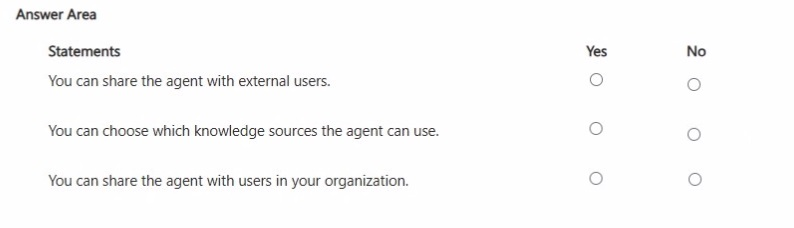
You create an agent in the Microsoft 365 Copilot app by using a template.
For each of the following statements, select Yes if the statement is true. Otherwise, select
No.
NOTE: Each correct selection is worth one point.
 Explanation:
This question evaluates knowledge of the capabilities and sharing limits of agents created in the Microsoft 365 Copilot app (Agent Builder) from a template. Templates provide a starting scaffold (name, description, instructions, and suggested prompts). After creation you can configure knowledge sources and share the agent, but sharing is restricted to internal organizational users.
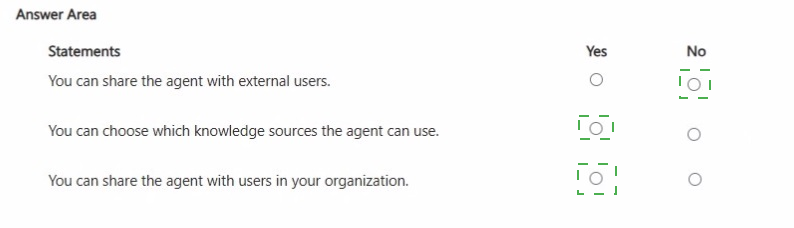
✅ Correct Options (Yes):
You can choose which knowledge sources the agent can use.
On the Configure tab you can add or remove knowledge sources such as SharePoint sites/files, OneDrive files, public websites, Teams chats/meetings, Outlook email, embedded files, and Copilot connectors. This selection grounds the agent’s responses.
You can share the agent with users in your organization.
After creation, the Share dialog lets you grant access to specific users or groups inside your tenant, or to anyone in the organization. Shared agents respect each user’s existing permissions to the underlying knowledge sources.
❌ Incorrect Option (No):
You can share the agent with external users.
Agents built with Agent Builder (including those started from a template) can be shared only with users inside your Microsoft 365 organization. External or guest users cannot be granted access through the standard Share dialog.
🔧 Reference:
→ Share and manage agents built in Agent Builder (Microsoft Learn) — Confirms internal-only sharing options and knowledge-source selection.
→ Agent Builder templates (Microsoft Learn) — Confirms that templates allow configuration of knowledge sources before and after creation.
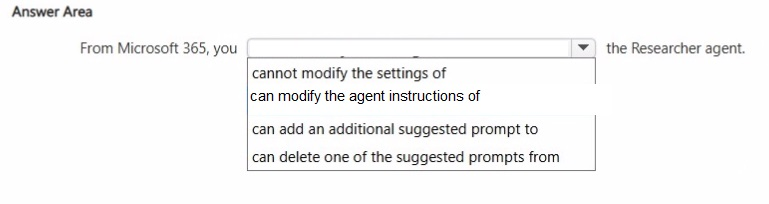
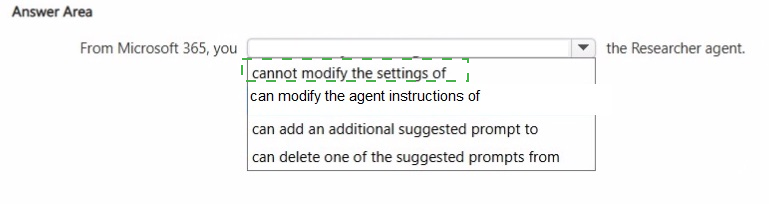
Select the answer that correctly completes the sentence.
Explanation:
This question tests your understanding of built-in Microsoft 365 Copilot system agents versus user-created custom agents. Built-in agents, such as the Researcher agent and Analyst agent, are pre-configured system features provided out-of-the-box by Microsoft. Because they are core system capabilities, individual users cannot modify their underlying instructions, customize their system settings, or add and delete their default suggested prompts.
✅ Correct Option:
cannot modify the settings of
The Researcher agent is a built-in standard agent provided directly within Microsoft 365 Copilot. End users do not have administrative or authoring permissions to customize built-in system agents. Therefore, users cannot modify settings, alter core instructions, or edit the default starter prompts associated with the Researcher agent.
❌ Incorrect options:
can modify the agent instructions of
Custom instructions and agent behaviors can only be edited on custom-built agents created via Copilot Studio or Copilot builder. System-provided agents like the Researcher agent have locked configurations that end users cannot modify.
can add an additional suggested prompt to
Users can only add or customize suggested prompts when creating or editing custom agents that they own or manage. Built-in agents maintain a fixed set of prompt starters managed directly by Microsoft.
can delete one of the suggested prompts from
Deleting suggested prompts requires authoring access to the agent configuration. Since the Researcher agent is a built-in Microsoft agent, individual users lack permission to remove or edit any of its default prompt options.
🔧 Reference:
⇒ Microsoft 365 Copilot Agents Guidance confirms that built-in system agents have pre-configured settings and prompts that cannot be edited by end users.
| Page 1 out of 8 Pages |
| 123 |
Real-World Scenario Mastery: Our AB-730 practice exam don't just test definitions. They present you with the same complex, scenario-based problems you'll encounter on the actual exam.
Strategic Weakness Identification: Each practice session reveals exactly where you stand. Discover which domains need more attention, before AI Business Professional exam day arrives.
Confidence Through Familiarity: There's no substitute for knowing what to expect. When you've worked through our comprehensive AB-730 practice exam questions pool covering all topics, the real exam feels like just another practice session.
Copyright © All Rights Reserved