
Open the link to Book1 found on the desktop. Open Disciplines worksheet.
Filter the table to show the Top 10 NOC based on the number of medals won.

Explanation:
✅ Goal:
Filter the table on the "Disciplines" worksheet to show the Top 10 NOCs based on the number of medals won.
🧭 Step-by-Step Instructions:
1. Open Tableau Workbook:
Locate and open Book1 from your desktop.
Navigate to the "Disciplines" worksheet.
2. Open the Filters Pane:
Find the NOC field in the Data pane (usually under Dimensions).
Drag "NOC" to the Filters shelf.
3. Set the Top N Filter:
In the Filter Field [NOC] dialog, switch to the Top tab.
Select "By Field".
Set it to: Top 10 by Sum of [Medals] (or [Number of Medals], if named differently).
Click OK.
4. Verify the View:
Your table should now display only the Top 10 NOCs with the highest total medals.
You can sort the results in descending order by clicking the header of the medals column.
🧩 Notes:
If “Medals” isn’t a single field, it may be split into Gold, Silver, and Bronze. In that case, you might need to create a calculated field:
[Gold] + [Silver] + [Bronze]
Name it Total Medals, and then use that for the Top N filter.
📘 Tableau Reference:
Tableau Docs – Filter Data from Your Views
Tableau – Create Top N Filters
Open the Link to Book1 found on the desktop. Open Map worksheet and use Superstore data source.
Create a filed map to show the distribution of total Sales by State across the United States.
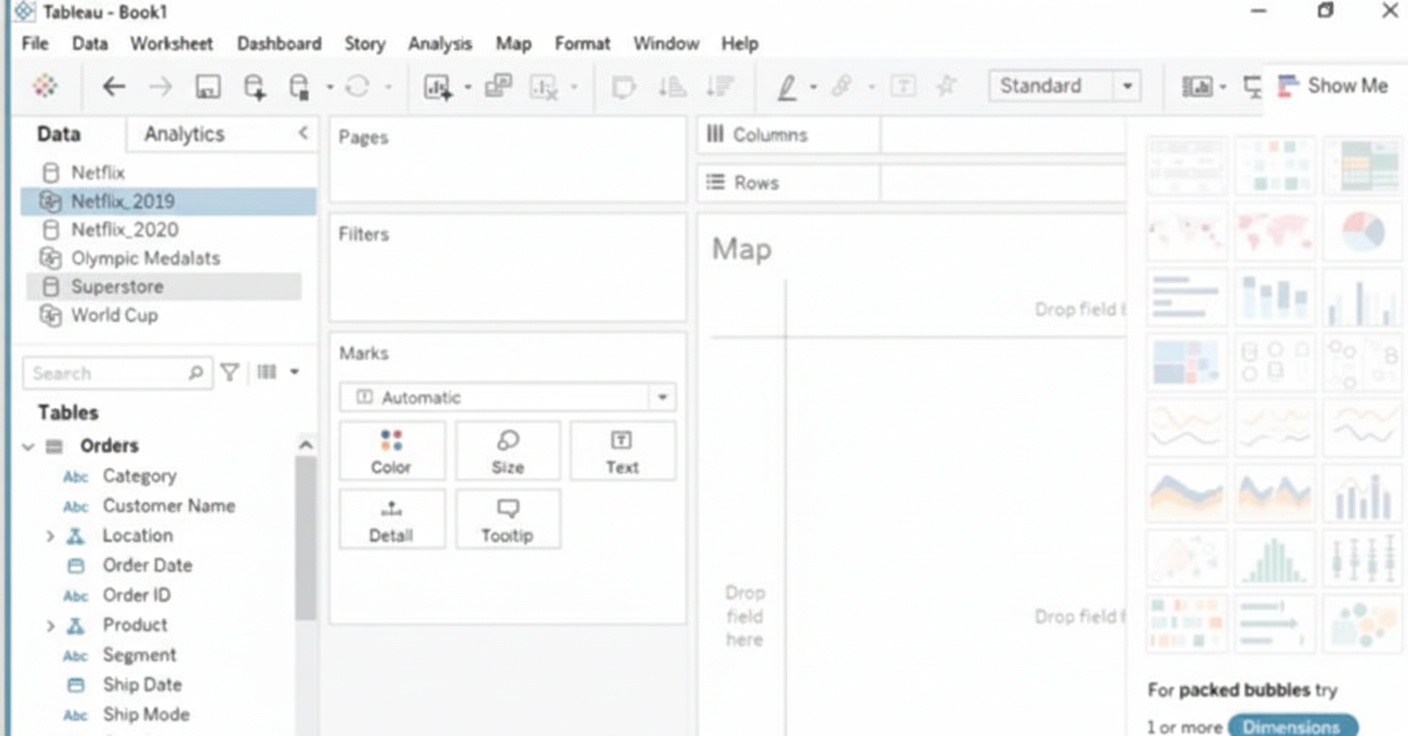
Explanation
To create a filled map showing total Sales by State using the Superstore data source in the Map worksheet, follow these steps:
➡️ Open Book1 → Go to the Map worksheet.
➡️ Ensure the data source is set to Superstore.
➡️ In the Data pane, drag State to Rows. Tableau automatically recognizes geographic data.
➡️ Drag Sales to Color on the Marks card.
➡️ Change the Marks type to Map (Filled Map).
➡️ Customize color intensity to better visualize sales distribution.
➡️ This creates a filled geographic distribution of sales across U.S. states.
📝 Summary
A filled map is created by using geographic fields like State, combined with a measure such as Sales placed on the color shelf. Tableau automatically renders U.S. states and fills them based on the total sales value, making it easy to compare states visually.
🔗 Reference
Official Tableau Documentation: Maps and Geographic Data Analysis in Tableau
Open the link to Book1 found on the desktop. Open the sales dashboard.
Add the Sales by State sheet in a Show/Hide button to the right side of the dashboard.
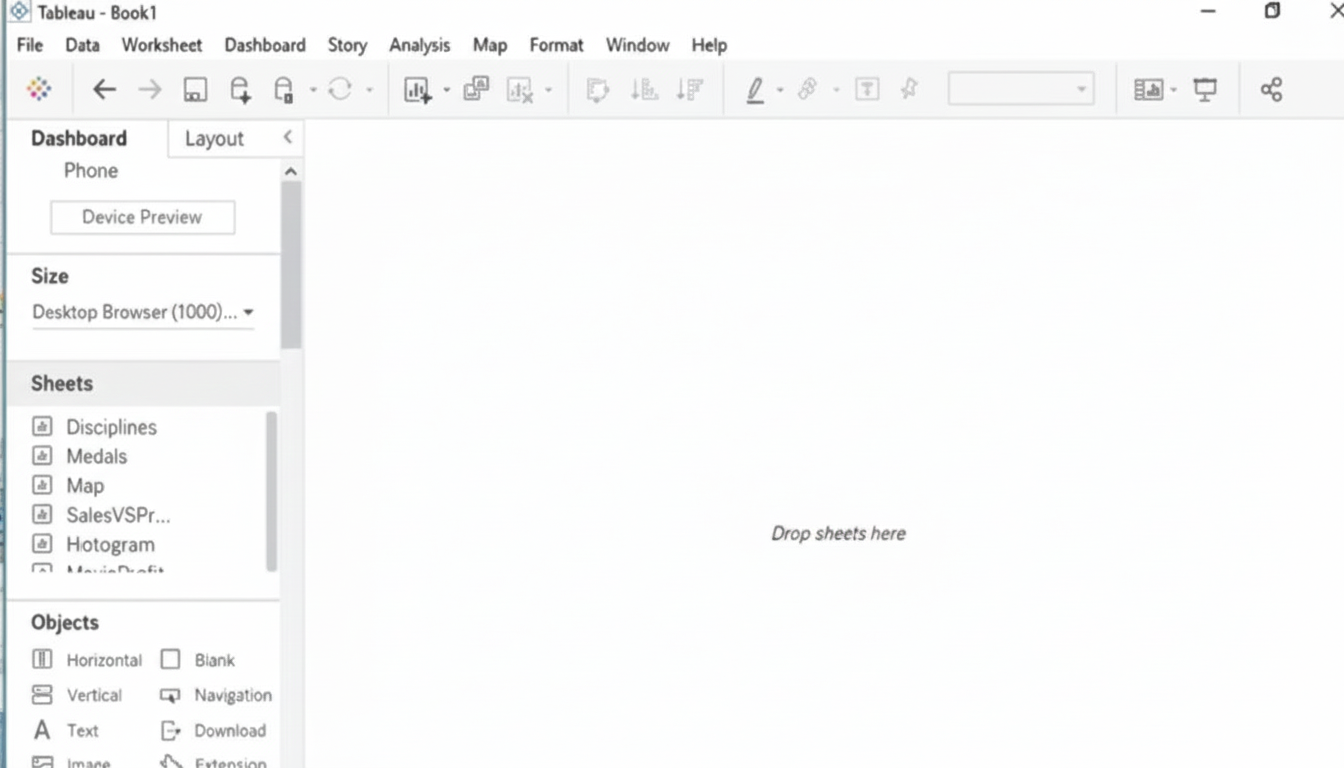
Explanation:
✅ Goal:
Embed the “Sales by State” worksheet into the Sales dashboard, and control its visibility using a Show/Hide button placed on the right.
🧭 Step-by-Step Instructions:
1. Open Book1 from the Desktop:
➜ Launch Tableau and open Book1.
➜ Navigate to the Sales dashboard.
2. Drag in a Floating Vertical Container (Optional, but helpful):
➜ From the Objects pane, drag a Vertical Container into the dashboard.
➜ Set it as Floating, and place it on the right side of the dashboard.
➜ This container will help control layout and make toggling smoother.
3. Add the “Sales by State” Worksheet:
➜ Drag the Sales by State sheet into the container (or directly into the dashboard) on the right side.
➜ Make sure it’s set to Floating, if not already.
➜ Size and position it so that it fits nicely along the right edge.
4. Add a Show/Hide Button:
➜ Select the Sales by State sheet (you should see a blue border around it).
➜ In the top-right of that container, click the small dropdown arrow (more options).
➜ Click “Add Show/Hide Button”.
➜ Tableau will add a toggle button—drag this button to a visible area, like near the right edge of the dashboard.
➜ You can customize the button (e.g., change icon or label) in the Item hierarchy under Layout pane.
5. Test the Button:
➜ Click the button. It should toggle the visibility of the Sales by State sheet.
➜ Click again to hide/show.
🧩 Tips:
➜ If needed, you can add text or an image instead of the default button using the "Edit Button" option.
➜ You may want to format the worksheet or container background to make it stand out or match your dashboard theme.
📘 Tableau Reference:
Show/Hide Button for Dashboard Objects
Open the link to Book1 found on the desktop. Open the Line worksheet.
Modify the chart to show only main and max values of both measures in each region.
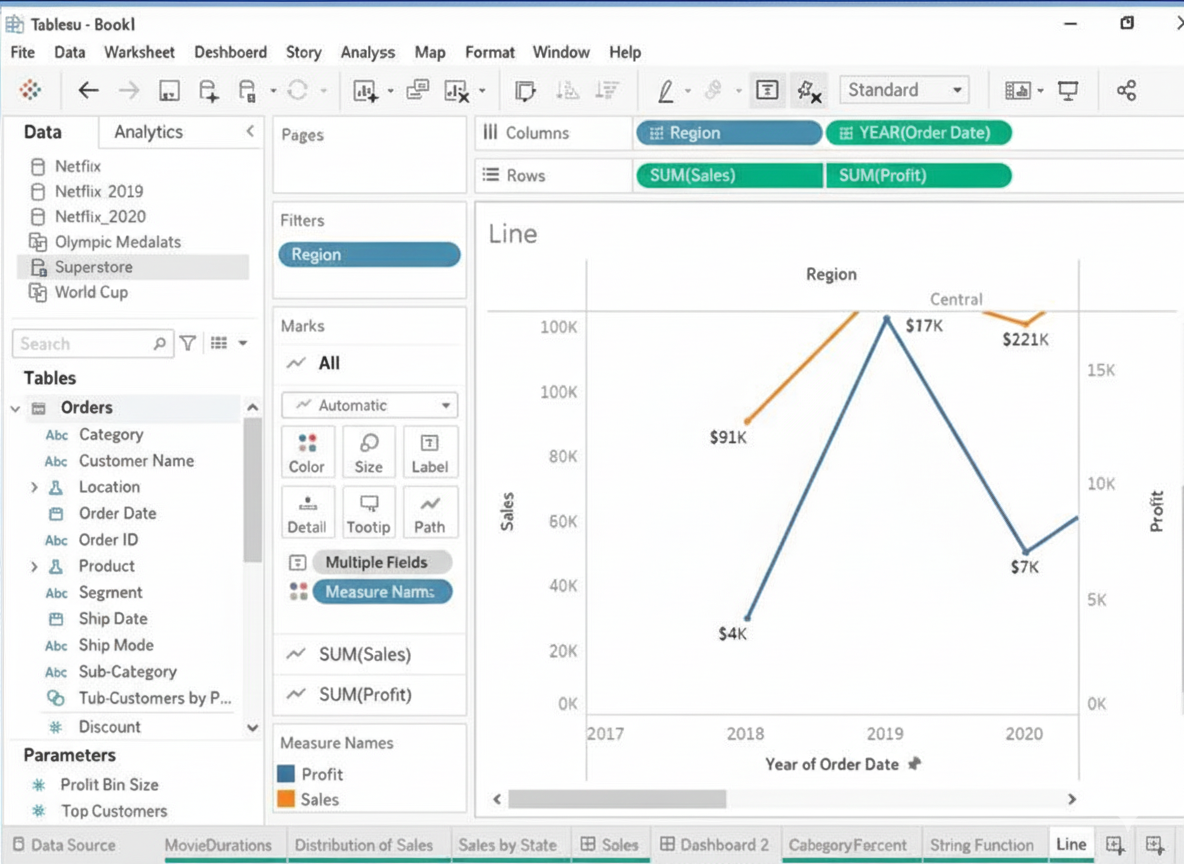
Explanation
To modify the Line worksheet so it shows only the minimum and maximum values for both measures in each region, follow these steps after opening Book1:
➡️ Open the Line worksheet.
➡️ In the Filters shelf, add the two measures (e.g., Sales and Profit or Quantity depending on worksheet setup).
➡️ For each measure, click the Filter icon and choose Use All → Special → Non-null values if needed.
➡️ Right-click each measure on the Marks Card → Add Table Calculation.
➡️ Choose Rank and set Compute Using: Region, Value: Min & Max Only.
➡️ Drag Region to Columns and keep the measure(s) on Rows.
➡️ Use Filter → Rank = 1 and Rank = Last to keep only minimum and maximum values.
This ensures the line chart displays only the highest and lowest values for each measure within every region.
Summary
By applying ranking on measures and filtering only Rank 1 and Rank Last, the chart eliminates intermediate points and keeps only minimum and maximum values for each region. The visualization becomes more focused on extremes, making trend comparisons easier.
🔗 Reference
Official Tableau Documentation (Table Calculations & Filtering):
Transform Values with Table Calculations
Open the link to Book1 found on the desktop. Open the Movie Durations worksheet.
Replace the existing data source with the Netflix_2019 data source.

Explanation:
✅ Goal:
Replace the current data source used in the Movie Durations worksheet with a new one called Netflix_2019, ensuring the worksheet continues to function with the new data.
Step-by-Step Instructions:
1. Open Book1 from the Desktop:
➜ Launch Tableau and open the file named Book1 located on your Desktop.
2. Go to the “Movie Durations” Worksheet:
➜ At the bottom of the Tableau window, click the Movie Durations worksheet tab to open it.
3. Connect to the New Data Source (Netflix_2019):
➜ If Netflix_2019 is not already added:
➥ Click Data > New Data Source.
➥ Select the file (e.g., Excel, CSV) named Netflix_2019 and open it.
➥ It will now appear in the Data pane.
4. Replace the Existing Data Source:
➜ In the top menu bar, click Data.
➜ Hover over the existing data source name (e.g., Old_Data_Source_Name).
➜ Select Replace Data Source…
➜ In the pop-up dialog:
➥ Choose current data source in the "Current" dropdown.
➥ Choose Netflix_2019 in the "Replacement" dropdown.
➜ Click OK.
5. Verify the Worksheet:
➜ Tableau will attempt to map fields from the old source to matching fields in Netflix_2019.
➜ If field names are the same or very similar, most charts will update automatically.
➜ If you see any broken fields (red pills), resolve them manually by dragging the correct field from Netflix_2019 onto the view.
📘 Tableau Reference:
Tableau Docs – Replace Data Source
A Data Analyst would like to receive the draft results of a colleague's Tableau Prep flow to start work on a dashboard before it has been published.
What should the analyst do to accomplish this?
A. On the Tableau Desktop Connect page, under To a File, choose "More ...", and browse for the colleague's .tf file on the local file system.
B. Have the colleague output the results of the flow to a .hyper file. Create a new workbook in Tableau Cloud, choose Files on the Connect to Data page, and upload the .hyper file from the computer.
C. Open Tableau Desktop and make a connection to Tableau Prep, then choose the colleague's flow that the analyst wants to connect to.
D. Have the colleague output the results of the flow to a .hyper file. On the Tableau Desktop Connect page, under To a File, choose "More ...", and browse for the .hyper file on the local file system.
Explanation
To access the results of a Tableau Prep flow before it's published or shared via Tableau Server/Cloud, the most direct and efficient method is for the colleague to output the data to a local file. Tableau Prep's standard output format is the .hyper file, which is optimized for Tableau Desktop connections. The analyst can then take this file, typically shared over a network or local drive, and connect to it directly as a data source within Tableau Desktop to begin building the dashboard.
Options Analysis
🟢 Correct Option: [D] Have the colleague output the results of the flow to a .hyper file. On the Tableau Desktop Connect page, under To a File, choose "More ...", and browse for the .hyper file on the local file system.
This is the standard and correct workflow for sharing unpublished Prep results. The colleague sets the flow's Output step to save the cleaned data as a .hyper file (a highly optimized file format for Tableau). The analyst then receives this file and uses the Connect to Data page in Tableau Desktop, selecting To a File and then choosing the .hyper file. This action creates a live connection to the prepared data, allowing dashboard development to start immediately.
❌ Incorrect Option: [A] On the Tableau Desktop Connect page, under To a File, choose "More ...", and browse for the colleague's .tf file on the local file system.
The .tfl or .tflx file extension is for the Tableau Prep Flow logic itself, not the data output. Tableau Desktop is designed to connect to data sources (like .hyper files, databases, or spreadsheets), not to the flow definition file. Connecting to a .tfl file would be incorrect and would not provide the analyst with the prepared data to build a dashboard.
❌ Incorrect Option: [B] Have the colleague output the results of the flow to a .hyper file. Create a new workbook in Tableau Cloud, choose Files on the Connect to Data page, and upload the .hyper file from the computer.
While this method will work, it's less direct than using Tableau Desktop for an analyst who wants to start work on a dashboard immediately on their local machine. More importantly, this process introduces an unnecessary step of uploading to Tableau Cloud. The question implies a local data exchange to "start work," making the local connection via Tableau Desktop (Option D) the most appropriate and common first step.
❌ Incorrect Option: [C] Open Tableau Desktop and make a connection to Tableau Prep, then choose the colleague's flow that the analyst wants to connect to.
There is no direct, native connector in Tableau Desktop labeled "Connect to Tableau Prep." Tableau Desktop connects to the output of a flow (a .hyper file or a published data source), not to the running flow application itself. The flow must be run first, and its output saved or published for Tableau Desktop to be able to access the results.
Reference 🔗
Tableau Help: Save and Share Your Work
You want to show the cumulative total of each year for every state.
Which quick table calculation should you use?
A. VTD Growth
B. Running Total
C. Year Over Year Growth
D. YTD Total
Explanation
A cumulative value adds up continuously across a dimension, such as months, quarters, or states in a year. In Tableau, the Running Total quick table calculation creates cumulative totals across the specified dimension. When you apply this to yearly data distributed by state, it will progressively add each state’s values to form a year-wise cumulative total. Other calculations focus on period changes or year-to-date ranges, not cumulative computation across all values.
Why 🟢 B. Running Total is Correct
Running Total continuously adds values across a chosen field (e.g., State, Month), generating cumulative totals in sequence. It works regardless of the sorting order and can be applied to measures such as sales, profits, or quantities. When used with year and state dimensions, it calculates cumulative totals per year and resets totals when the year changes. This makes it ideal for cumulative analysis.
❌ Why the Other Options Are Incorrect
🔴 A. VTD Growth
VTD Growth refers to Value-To-Date Growth, a type of cumulative growth specific to a period comparison in finance. Tableau does not provide this as a standard quick table calculation. Even conceptually, it represents growth percentages, not cumulative totals. It doesn’t apply to summing yearly state-wise values.
🔴 C. Year Over Year Growth
Year Over Year Growth compares a value of a measure with the same period from the previous year. Its purpose is to measure performance change over time, not accumulate totals. It produces percentage or difference growth calculations, not a cumulative number. Thus, it cannot be used for creating a running cumulative total across states.
🔴 D. YTD Total
YTD (Year-To-Date) Total calculates cumulative totals from the start of the year up to the selected date or period, then stops once it reaches year-end. It works only along a time-based axis and reflects partial yearly accumulation, not a full cumulative buildup across states or categories. It does not accumulate values for every state independently across the full year.
Summary
To display accumulated values for states across each year, Tableau requires a continuous summing method. The Running Total table calculation provides this by adding each value over the dimension. Other options measure growth, compare years, or restrict totals to current dates, which do not produce a complete cumulative state total.
🔗 Reference
How to use Running Total (Table Calculation)
You connect to a database server by using Tableau Prep. The database server has a data role named Role1. You have the following field in the data. You need to apply the Role1 data role to the Material field.
Which two actions should you perform? Choose two.
A. From the More actions menu of Materials, select Valid in the Show values section.
B. For the data type of the Material field, select Custom, and then select Role1.
C. From the More actions menu of Materials, select Group Values, and then select Spelling.
D. From the More actions menu of Materials, filter the selected values.
Explanation
Applying a data role in Tableau Prep involves two key steps: first assigning the predefined role to the field, and then cleaning any invalid values that don't conform to the role's standards. Data roles help maintain data quality by ensuring field values match expected patterns or predefined lists.
✅ Correct Options
B. For the data type of the Material field, select Custom, and then select Role1.
This action assigns the predefined Role1 from your database server to the Material field. Tableau Prep will then validate all field values against Role1's standards and flag any non-conforming values for cleanup.
C. From the More actions menu of Materials, select Group Values, and then select Spelling.
After applying Role1, this action cleans invalid values by using fuzzy matching to identify and group similar spellings. This automatically fixes common data entry errors and standardizes values to match Role1's requirements.
❌ Incorrect Options
A. From the More actions menu of Materials, select Valid in the Show values section. ❌
This action merely filters the view to display only values that currently pass Role1 validation, effectively hiding problematic entries from view.
While useful for temporary analysis, this approach doesn't actually clean or fix invalid values - it simply conceals them, leaving underlying data quality issues unresolved.
D. From the More actions menu of Materials, filter the selected values. ❌
Filtering permanently removes selected values from your dataset rather than correcting or standardizing them according to Role1 standards.
This approach results in data loss and doesn't leverage the intelligent cleaning capabilities of data roles, making it an inappropriate solution for applying and enforcing Role1 validation.
📝 Summary
The correct approach involves first assigning Role1 through the data type menu to activate validation, then using spelling-based grouping to intelligently clean invalid values. Filtering or hiding invalid values avoids rather than solves the underlying data quality issues.
📚 Reference
Tableau Help: Create and Use Data Roles - Official documentation on implementing predefined data roles for automated field validation and data standardization processes.
You have the following calculated fields in a worksheet.
[Calc1] = DATEADD ('year', -1, TODAY ())
[Calc2] = DATETRUNC ( 'month' , DATEADD ('year', -1, TODAY ())
You want to calculate the month to date value of the prior year.
How should you complete the formula? (Drag the appropriate Options to the Answer Area and drop into the correct locations.)
Explanation
This formula creates a dynamic date range that automatically updates. It compares the [Order Date] against two calculated boundaries:
The Start Date: The first day of the same month, but one year ago (DATETRUNC('month', DATEADD('year', -1, TODAY()))).
The End Date: The same calendar day in the previous year (DATEADD('year', -1, TODAY())).
If an [Order Date] falls between or on these two dates, it is included in the prior year MTD calculation.
Correct Option Analysis
DATETRUNC('month', DATEADD('year', -1, TODAY()))
This correctly finds the start of the MTD period.
DATEADD('year', -1, TODAY()) first calculates the same date one year ago.
Wrapping it in DATETRUNC('month', ...) truncates that result to the first day of its month, giving you the starting boundary.
<= [Order Date] AND [Order Date] <=
This is the logical structure needed to define a date range.
It checks that the [Order Date] is on or after the start of the month (<=) and on or before the relative end date (<=).
DATEADD('year', -1, TODAY())
This correctly finds the end of the MTD period.
It simply calculates the exact date from one year ago, which serves as the relative "today" for the prior year period, establishing the upper boundary.
Incorrect Option Analysis
Using TODAY() instead of DATEADD('year', -1, TODAY()) for the end date:
This would calculate the current year's MTD, completely ignoring the "prior year" requirement. The end date must be shifted back a year to be relevant.
Using YEAR() or MONTH() functions alone:
A formula like YEAR([Order Date]) = YEAR(TODAY())-1 would select the entire previous year, not the specific month-to-date range. It lacks the precision to isolate a partial month up to a specific day.
Omitting the DATETRUNC for the start date:
Without DATETRUNC, the start date would be the exact day one year ago, not the first day of that month. This would result in an incorrect, shortened period starting from a random day within the month.
Reference
Tableau Help: Date Functions - The logic and syntax for DATEADD, DATETRUNC, and TODAY() are defined in the official Tableau documentation.
A Data Analyst is using containers on a dashboard. How should the analyst make sure multiple objects within a container are always taking up the same width or height, even if the container is resized?
A. Use the Layout tab to set the size of each object
B. Float the objects and manually adjust the size
C. Adjust the size of each object individually
D. Use the distribute evenly option
Explanation
In Tableau dashboards, the only way to guarantee that multiple objects inside a container (horizontal or vertical) always maintain identical width or height — no matter how the container or browser window is resized — is by using the “Distribute Evenly” feature. This locks the objects to share the container’s space equally and automatically.
✅ Correct Option: D. Use the distribute evenly option
Select all objects inside the container → right-click (or use the toolbar) → Distribute Evenly (horizontally for equal width, vertically for equal height). Tableau then forces every object to occupy exactly the same proportion of the container at all times, even during resizing or on different devices.
❌ Incorrect Option: A. Use the Layout tab to set the size of each object
The Layout tab lets you enter fixed pixel values, but fixed sizes break responsiveness. When the container shrinks or grows, objects with fixed sizes will overlap, leave gaps, or get cut off instead of resizing together.
❌ Incorrect Option: B. Float the objects and manually adjust the size
Floating objects ignore containers completely. They sit on an absolute layer and do not react to container resizing at all — you would have to manually reposition and resize everything again every time the dashboard size changes.
❌ Incorrect Option: C. Adjust the size of each object individually
Manually dragging or typing sizes gives inconsistent results. As soon as the container is resized (browser zoom, mobile view, etc.), objects keep their individual sizes and stop aligning properly — no automatic equal distribution occurs.
Reference:
Size and Lay Out Your Dashboard
You have a dashboard that contains a parameter named Start Date.
You need to create an extract from a Microsoft Excel file. The extract must be filtered based on Start Date.
What should you do?
A. Create a data source based on the Excel worksheet and create a calculated field based on Start Date. Add the calculated field to the extract filter.
B. Create a custom SOL query to define the data source and create a calculated field based on Start Date. Add the calculated field to the extract filter.
C. Create a custom SOL query that references Stan Date in the WHERE clause.
D. Create a data source based on the Excel worksheet and create a calculated field based on Start Date. From the Data pane, add the calculated field to the data source filter
Explanation
A Tableau Data Extract (a .hyper file) is a static snapshot of data. To filter this extract using a dynamic value like a parameter, you must define the filter criteria using a calculated field. This calculated field creates a boolean condition (e.g., [Date] >= [Start Date]). Adding this calculation to the Extract Filter and setting it to True permanently locks the extract to the records that satisfy the condition based on the parameter's value at the time of extraction.
✅ Correct Option: A (Create a data source based on the Excel worksheet and create a calculated field based on Start Date. Add the calculated field to the extract filter.)
The first step is establishing the connection to the Excel file to create a data source.
A calculated field, such as [Order Date] >= [Start Date], is necessary to compare the data field against the parameter value.
This calculated field is then applied in the Extract Filter dialog box, selected to filter for the True condition, ensuring only the qualifying records are included in the extract file.
❌ Incorrect Option: B (Create a custom SQL query to define the data source and create a calculated field based on Start Date. Add the calculated field to the extract filter.)
Microsoft Excel files, which are flat files, do not typically support the use of Custom SQL queries to define the data source connection in Tableau.
Custom SQL is a feature generally reserved for connections to relational databases (e.g., SQL Server, PostgreSQL) where a query language is required to define the data input.
❌ Incorrect Option: C (Create a custom SQL query that references Start Date in the WHERE clause.)
This approach fails for two reasons: Custom SQL is not applicable to Excel data sources, and Tableau parameters cannot be directly referenced by name within the text of a Custom SQL query for filtering in this context.
This method is only valid for some database connections via a Data Source Filter, but not for an Excel extract.
❌ Incorrect Option: D (Create a data source based on the Excel worksheet and create a calculated field based on Start Date. From the Data pane, add the calculated field to the data source filter)
While using a Data Source Filter (as opposed to an Extract Filter) achieves the exact same result (the filter is applied before the extract is saved), the most precise control for defining the contents of the extract file is specifically through the Extract Filter configuration dialog, which is the mechanism referenced in Option A.
🔗 Reference
Extract Your Data - Tableau Help
A Data Analyst is subscribed to several views. The analyst needs to unsubscribe from the views.
What should the analyst use?
A. The Shared with Me page
B. The Notifications area of Tableau Prep
C. The Data Source page of Tableau Desktop
D. The My Content area of Tableau Server / Cloud
Explanation
To manage and remove subscriptions, a user signs in to Tableau Server or Tableau Cloud and goes to My Content → Subscriptions. From there they can select the subscription(s), open the Actions menu and choose Unsubscribe, or follow the “Manage my subscriptions” link found at the bottom of a subscription email. Subscription controls are on the server/cloud side; neither Desktop nor Shared-with-Me provide subscription management tools.
Why 🟢 D is correct
My Content is the user-level area that lists a user’s workbooks, views, and subscription entries. It exposes the Subscriptions tab and the Actions menu where users can change schedule, subject, empty-view behavior, or remove (Unsubscribe) entries. This is the officially documented, supported way for an analyst to stop receiving scheduled view emails.
❌ Why the other options are incorrect
🔴 A. Shared with Me
This area only surfaces content that other users have shared with you. It’s for locating shared workbooks and views, not for managing personal subscriptions. Even if a subscribed view appears here, subscription settings aren’t editable from Shared with Me—subscription controls live in My Content or the subscription email link.
🔴 B. Notifications area of Tableau Prep
Tableau Prep’s notifications relate to flow runs and Prep Conductor events (flow success/failure), not scheduled workbook/view subscriptions. While Prep flow subscriptions can be managed in server/cloud flow pages, the general workbook/view subscriptions you receive by email are controlled in Tableau Server/Cloud (My Content or the email link).
🔴 C. Data Source page of Tableau Desktop
Tableau Desktop’s Data Source page is for connecting, shaping, and publishing data sources—it's not a place to view or remove subscription emails for dashboards. Subscription management requires signing into the server/cloud environment (My Content) or using the “Manage my subscriptions” link in subscription emails.
Summary
Unsubscribing from dashboard/view emails is done in Tableau Server or Tableau Cloud — specifically under My Content → Subscriptions or via the Manage my subscriptions link included in subscription emails. Shared pages, Prep notifications, and Desktop data source pages do not provide the subscription controls needed to unsubscribe.
🔗 Reference
Manage or unsubscribe from a subscription (Tableau Server).
Update or unsubscribe from a subscription (Tableau Cloud / Online).
| Page 2 out of 9 Pages |
| Previous |