
Topic 5, Misc. Questions
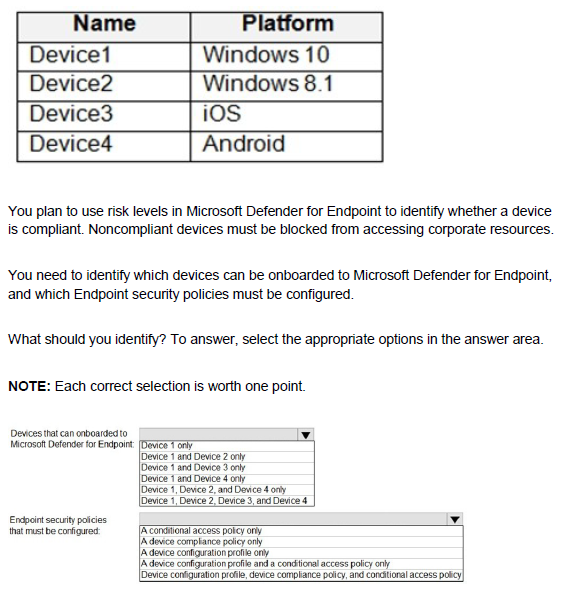
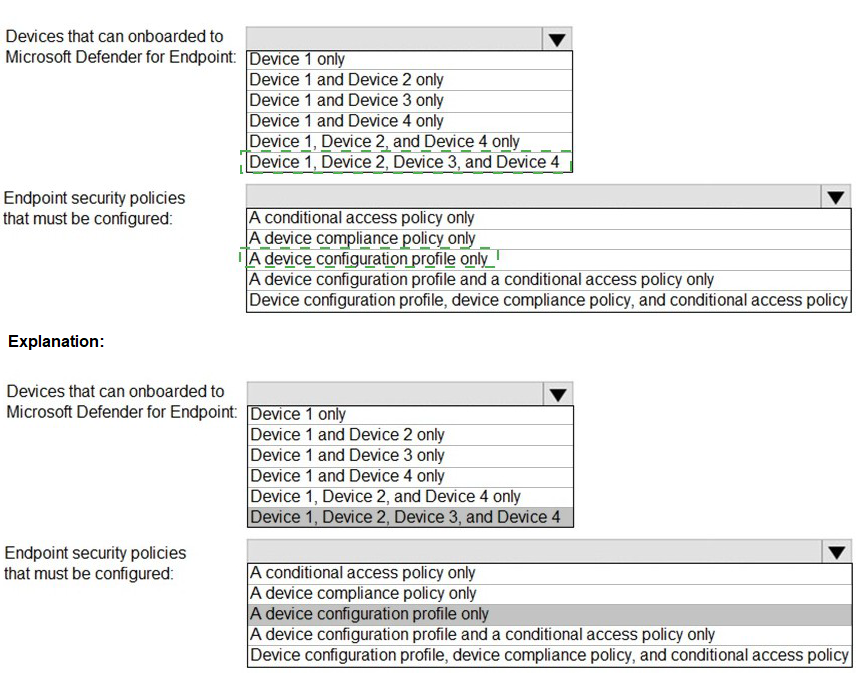
You have a Microsoft 365 E5 tenant that connects to Microsoft Defender for Endpoint. You have devices enrolled in Microsoft Intune as shown in the following table.
You have a Microsoft 365 E5 subscription.
You plan to implement records management and enable users to designate documents as regulatory records.
You need to ensure that the option to mark content as a regulatory record is visible when you create retention labels.
What should you do first?
A. Configure custom detection rules
B. Create an Exact Data Match (EDM) schema
C. Run the Sec-RegulacoryComplianceUI cmdlet
D. Run the Sec-LabelPolicy cmdlet
Explanation:
The option to classify content as a regulatory record is a special, highly restrictive retention label type that is hidden by default in the Microsoft 365 compliance center. It is designed for organizations that must comply with strict regulations where records cannot be altered or deleted after classification, even by administrators.
To make this option visible when creating new retention labels, you must first enable it by running the Set-RegulatoryComplianceUI PowerShell cmdlet.
Here’s the process:
Connect to the Security & Compliance Center PowerShell: You must use a PowerShell module specifically for the compliance center.
Run the Command: Execute the Set-RegulatoryComplianceUI -Enabled $true command.
Effect: After running this command, the "Regulatory record" option will appear in the retention label settings, allowing you to create labels that mark content as immutable regulatory records.
Why the other options are incorrect:
A. Configure custom detection rules: This is a feature in Microsoft Purview for creating custom alerts based on specific activities. It is unrelated to records management and retention labels.
B. Create an Exact Data Match (EDM) schema: This is a feature used for Data Loss Prevention (DLP) to create highly sensitive information types based on a database of exact values. It has no connection to enabling regulatory record labels.
D. Run the Set-LabelPolicy cmdlet: This cmdlet is used to publish existing sensitivity labels or retention labels to users. It cannot be used to enable the regulatory record feature in the UI; it only works with labels that have already been created.
Reference:
Microsoft Docs: Learn about retention policies and retention labels - Regulatory records
This documentation explicitly states: "To display the option to mark content as a regulatory record, you must first run the Set-RegulatoryComplianceUI PowerShell cmdlet... This setting enables the option in your organization for you to create retention labels that mark content as regulatory records."
Key Takeaway:
The ability to create regulatory record labels is a powerful feature with strict immutability guarantees. Because of its power and legal implications, Microsoft hides it by default and requires an administrator to intentionally enable it via PowerShell before it becomes visible in the compliance center UI.
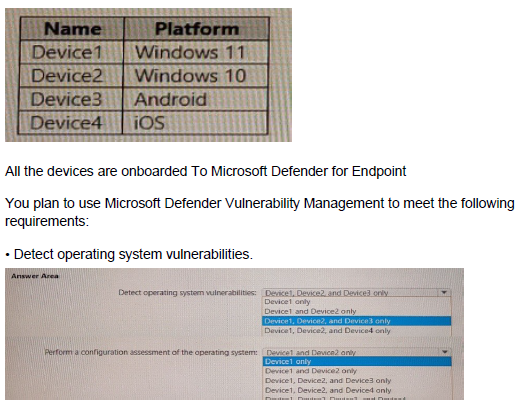
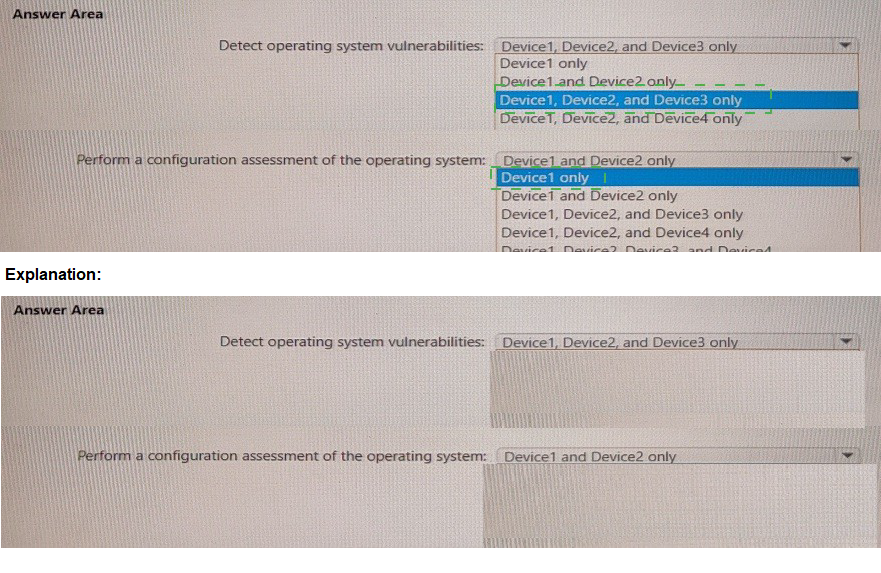
You have a Microsoft 365 E5 subscription that contains the devices shown in the following table.
You have a Microsoft 365 E5 tenant that contains 500 Windows 10 devices. The devices are enrolled in Microsoft intune.
You plan to use Endpoint analytics to identify hardware issues.
You need to enable Window health monitoring on the devices to support Endpoint analytics. What should you do?
A. Configure the Endpoint analytics baseline regression threshold.
B. Create a configuration profile.
C. Create a Windows 10 Security Baseline profile
D. Create a compliance policy.
Explanation:
Endpoint Analytics in Microsoft Intune (part of Microsoft 365 E5) provides insights into device performance, boot times, application reliability, and hardware-related issues.
For Endpoint Analytics to collect diagnostic and reliability data, Windows Health Monitoring (WHM) must be enabled on the Windows 10 or Windows 11 devices.
You enable Windows Health Monitoring through an Intune configuration profile — not through compliance, baseline, or analytics settings.
Why a Configuration Profile is Required
Windows Health Monitoring (WHM) is a Windows data-collection capability that sends diagnostic signals (e.g., boot performance, reliability data, and update health) to Intune and Endpoint Analytics.
To enable WHM, an Intune administrator must:
Go to Intune admin center → Devices → Configuration profiles → Create profile.
Choose:
Platform: Windows 10 and later
Profile type: Templates → Windows Health Monitoring
Configure the settings:
Enable Windows Health Monitoring: ✅
Scope (for data collection): Select Endpoint analytics (and optionally “Windows Updates”).
Reporting frequency: Choose daily, weekly, or custom interval.
Assign the profile to the targeted device groups (e.g., “All Windows 10 devices”).
Once this profile is applied, devices begin sending telemetry to Endpoint Analytics. Endpoint Analytics then provides insights such as:
Device boot and sign-in times
Hardware bottlenecks (CPU, disk, RAM)
Update-related reliability data
Without enabling WHM via a configuration profile, Endpoint Analytics cannot receive OS-level performance data.
❌ Why Other Options Are Incorrect
A. Configure the Endpoint analytics baseline regression threshold – Incorrect
This threshold determines when a device’s performance deviates from a baseline (used for performance comparison and anomaly detection).
It does not enable telemetry or data collection. Without WHM enabled through a configuration profile, Endpoint Analytics will have no data to compare.
Reference: Microsoft Learn – Endpoint analytics overview
C. Create a Windows 10 Security Baseline profile – Incorrect
Security Baselines apply predefined Windows security settings (e.g., password policies, firewall, Defender, BitLocker).
They do not manage data-collection or health-monitoring features.
Security Baselines harden endpoints but do not feed data into Endpoint Analytics or enable WHM.
D. Create a compliance policy – Incorrect
A compliance policy evaluates whether a device meets organizational standards (e.g., encryption enabled, OS version).
Compliance policies do not enable data-collection mechanisms or diagnostic reporting.
They can leverage Endpoint Analytics’ “Device Score” for compliance metrics but rely on WHM for the underlying data.
iew
Example:
Open Intune admin center → Devices → Configuration profiles → Create profile.
Platform: Windows 10 and later.
Profile type: Templates → Windows Health Monitoring.
Enable Windows Health Monitoring: Yes.
Scope: Select Endpoint analytics.
Reporting frequency: Choose 1 day (or appropriate interval).
Assign the profile to the Windows 10 device group.
Wait for the policy to apply; devices will begin reporting health data to Endpoint Analytics.
After 24–48 hours, the Endpoint Analytics dashboard under Reports → Endpoint Analytics will show device performance and reliability data.
Benefits of Enabling Windows Health Monitoring
Detects hardware bottlenecks (slow disk, low memory).
Identifies drivers and OS versions causing reliability issues.
Tracks login and boot-time performance trends.
Supports proactive device remediation.
Helps IT administrators prioritize hardware refreshes or OS upgrades.
References:
Microsoft Learn –
Enable Windows Health Monitoring in Intune
Microsoft Learn –
Endpoint analytics overview
Note: This question is part of a series of questions that present the same scenario.
Each question in the series contains a unique solution that might meet the stated goals. Some question sets might have more than one correct solution, while others
might not have a correct solution. After you answer a question in this section, you will NOT be able to return to it. As a result, these questions will not appear in the review screen.
Your network contains an on-premises Active Directory domain named contoso.com. The domain contains the users shown in the following table.
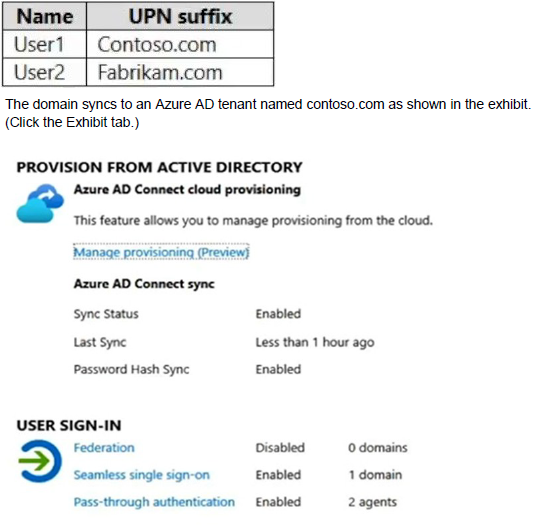
User2 fails to authenticate to Azure AD when signing in as user2@fabrikam.com.
You need to ensure that User2 can access the resources in Azure AD.
Solution: From the on-premises Active Directory domain, you set the UPN suffix for User2 to @contoso.com. You instruct User2 to sign in as user2@contoso.com.
Does this meet the goal?
A. Yes
B. No
Explanation:
The solution meets the goal. The core of the problem is that the Azure AD tenant is named contoso.com. Azure AD Connect is synchronizing the on-premises Active Directory domain contoso.com to this tenant.
A fundamental rule of Azure AD Connect synchronization is that only users whose User Principal Name (UPN) suffix matches a verified domain in the Azure AD tenant can be synchronized.
From the exhibit:
The Azure AD tenant has the verified domain contoso.com.
There is no indication that fabrikam.com is a verified domain in the Azure AD tenant.
Therefore, User2 with UPN user2@fabrikam.com is failing to synchronize to Azure AD, which is why they cannot authenticate.
The solution corrects this by:
Changing User2's on-premises UPN suffix from @fabrikam.com to @contoso.com.
After the next synchronization cycle, Azure AD Connect will successfully synchronize User2 to Azure AD with the new UPN user2@contoso.com.
User2 can then successfully authenticate to Azure AD using user2@contoso.com.
This is a standard and effective method for resolving synchronization and authentication issues for users with UPNs that do not match a verified domain in the target Azure AD tenant.
Reference:
Microsoft Docs: Azure AD Connect: Prerequisites
Key Takeaway:
For a user to be synchronized from on-premises AD to Azure AD, their UPN suffix must be a domain that is added and verified in the Azure AD tenant. If it is not, changing the UPN suffix to a verified domain is the correct resolution.
You have a Microsoft 365 E5 tenant that contains the users shown in the following table.

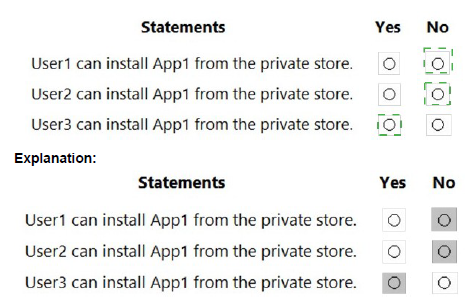
Your company has a Microsoft 365 E5 tenant.
Users at the company use the following versions of Microsoft Office:
• Microsoft 365 Apps for enterprise
• Office for the web
• Office 2016
• Office 2019
The company currently uses the following Office file types:
• .docx
• .xlsx
• .doc
• xls
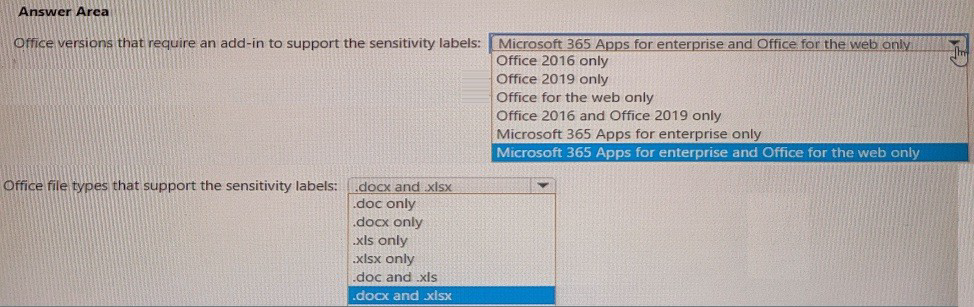
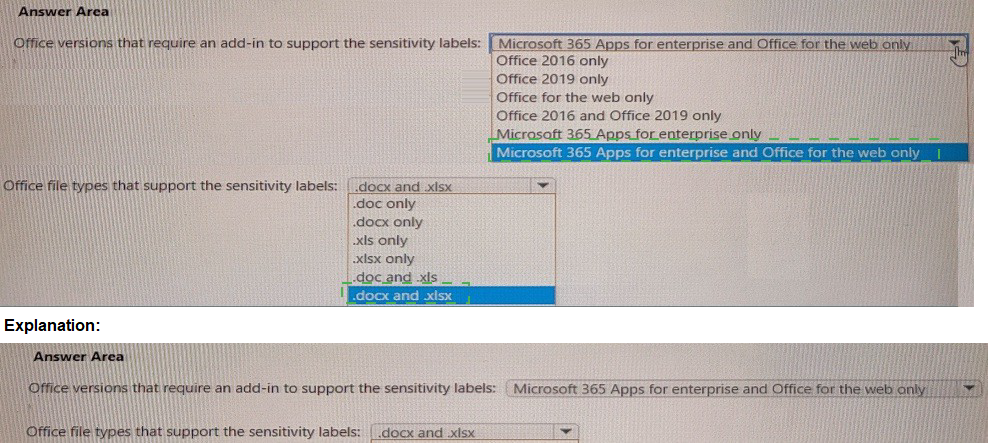
You plan to use sensitivity labels. You need to identify the following:
• Which versions of Office require an add-in to support the sensitivity labels.
• Which file types support the sensitivity labels.
What should you identify? To answer, select the appropriate options in the answer area,
NOTE: Each correct selection is worth one point.
You have a Microsoft 365 E5 tenant
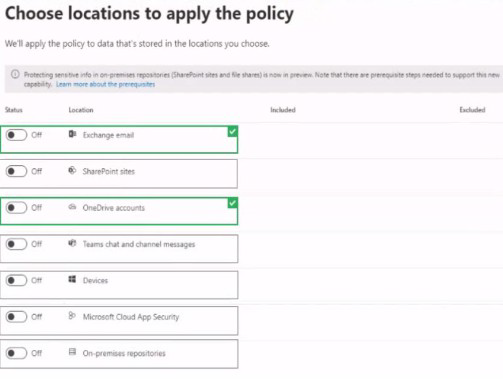
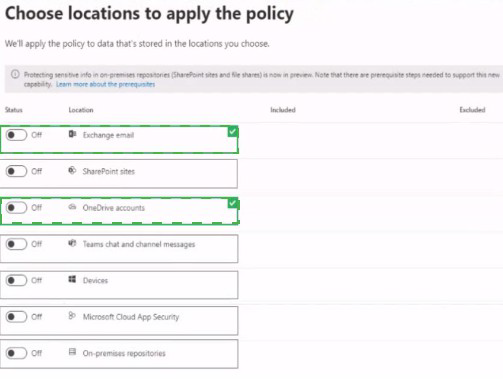
You create a data toss prevention (DLP) policy to prevent users from using Microsoft Teams to share internal documents with external users.
To which two locations should you apply the policy? To answer, select the appropriate locations in the answer area.
NOTE: Each correct selection is worth one point.
Your company has a Microsoft 365 E5 tenant.
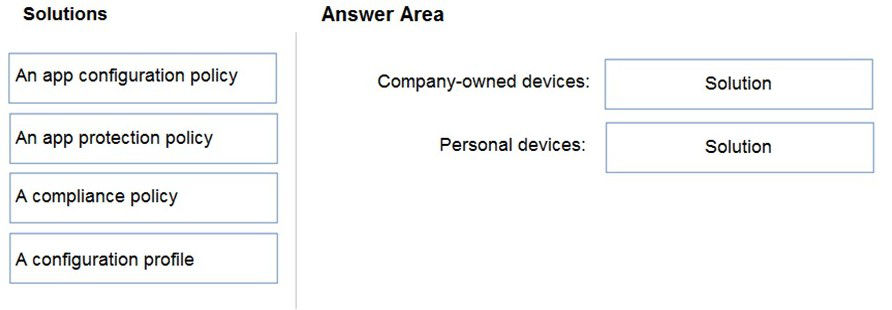
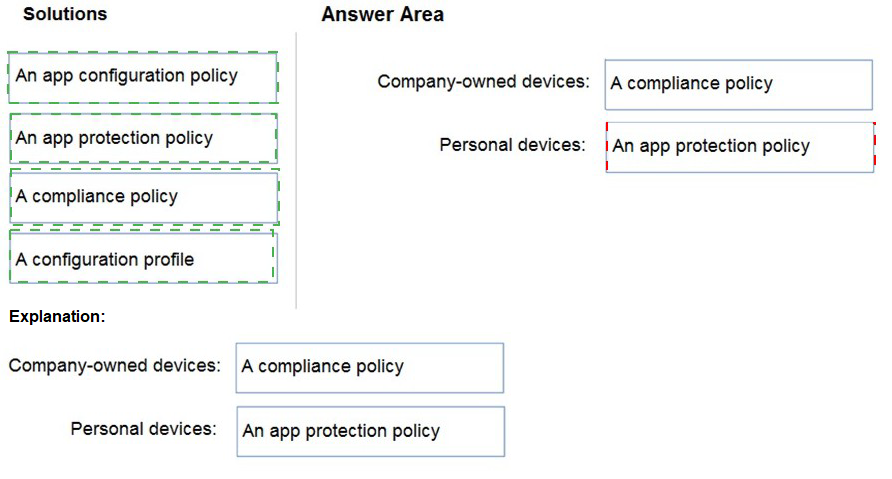
Users access resources in the tenant by using both personal and company-owned Android devices. Company policies requires that the devices have a threat level of medium or lower to access Microsoft Exchange Online mailboxes.
You need to recommend a solution to identify the threat level of the devices and to control access of the devices to the resources.
What should you include in the solution for each device type? To answer, drag the appropriate components to the correct devices. Each component may be used once, more than once, or not at all. You may need to drag the split bar between panes or scroll to view content.
NOTE: Each correct selection is worth one point.
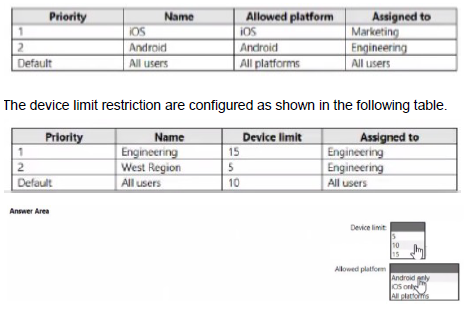
Your company has a Microsoft 365 tenant
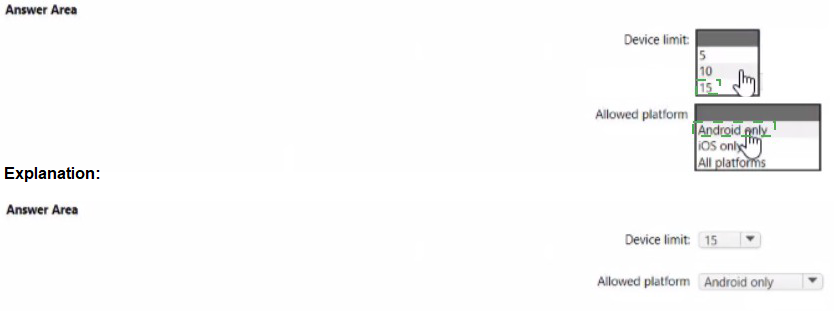
You plan to allow users that are members of a group named Engineering to enroll their mobile device in mobile device management (MDM)
The device type restriction are configured as shown in the following table.
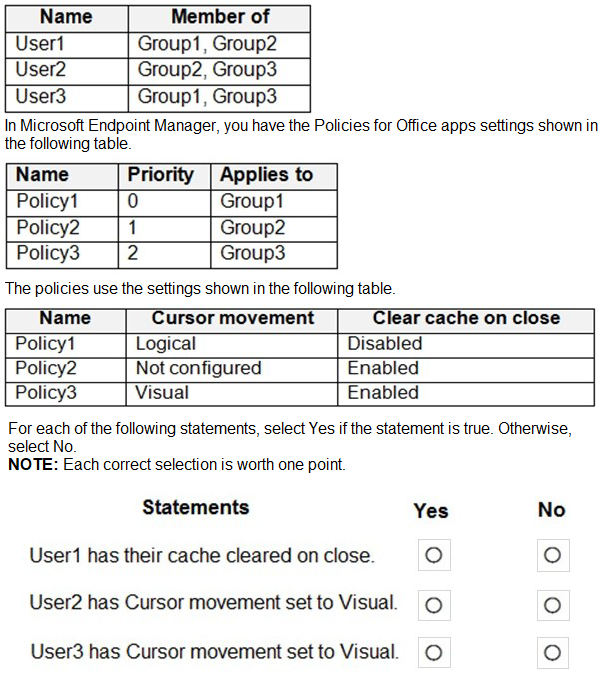
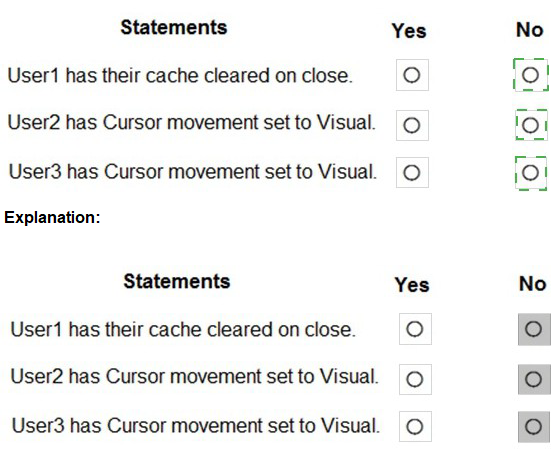
You have a Microsoft 365 E5 subscription that contains the users shown in the following table.
You have a Microsoft 365 E5 subscription.
Al users have Mac computers. ATI the computers are enrolled in Microsoft Endpoint Manager and onboarded to Microsoft Defender for Endpoint.
You need to configure Microsoft Defender for Endpoint on the computers.
What should you create from the Endpoint Management admin center?
A.
a Microsoft Defender for Endpoint baseline profile
B.
an update policy for iOS
C.
a device configuration profile
D.
a mobile device management (MDM) security baseline profile
a mobile device management (MDM) security baseline profile
| Page 2 out of 26 Pages |
| Previous |