
Topic 4: Mix Question
You have SOO Windows 10 devices enrolled in Microsoft Intune.
You plan to use Exploit protection in Microsoft Intune to enable the following system settings on the devices:
• Data Execution Prevention (DEP)
• Force randomization for images (Mandatory ASlR)
You need to configure a Windows 10 device that will be used to create a template file.
Which protection areas on the device should you configure in the Windows Security app before you create the template file? To answer, drag the appropriate protection areas to the correct settings. Each protection area may be used once, more than once, or not at all. You may need to drag the split bar between panes or scroll to view content.

Explanation:
Data Execution Prevention (DEP) and Mandatory Address Space Layout Randomization (ASLR) are exploit protection settings found under App & browser control > Exploit protection in Windows Security. DEP and Mandatory ASLR are not under Account protection, Device security, or Virus & threat protection. You configure these in the Windows Security app before exporting an XML template.
Correct Option:
DEP: App & browser control
Data Execution Prevention (DEP) is an exploit protection feature. In Windows Security, navigate to App & browser control > Exploit protection > System settings. Here you can configure DEP (Enable/Disable) along with other exploit mitigations. This is the correct protection area.
Mandatory ASLR: App & browser control
Mandatory ASLR (Force randomization for images) is also an exploit protection setting. It is located in the same location: App & browser control > Exploit protection > System settings. Under "Randomize memory allocations (Bottom-up ASLR)" and "Force randomization for images (Mandatory ASLR)," you can configure these settings.
Incorrect Option (other protection areas):
Account protection – Contains Windows Hello, Dynamic lock, and credential protection settings, not exploit protection.
Device security – Contains Core isolation, Secure Boot, and Security processor settings, not DEP or ASLR.
Virus & threat protection – Contains antivirus settings, ransomware protection, and threat history, not exploit protection.
Reference:
Microsoft Learn: Exploit protection in Windows Security – DEP and Mandatory ASLR are under App & browser control. No external links provided.
You have a Microsoft 365 subscription that contains a user named User1. User! is assigned a Windows 10/11 Enterprise E3 license. You use Microsoft Intune Suite to manage devices. User1 activates the following devices:
• Device1: Windows 11 Enterprise
• Device2: Windows 10 Enterprise
• Device3: Windows 11 Enterprise
How many more devices can User1 activate?
A. 2
B. 3
C. 7
D. 8
Explanation:
With a Windows 10/11 Enterprise E3 license, a user can activate up to 5 devices (Windows 10/11 Enterprise activation limit). User1 has already activated 3 devices (Device1, Device2, Device3). Therefore, User1 can activate 2 more devices (5 total minus 3 already activated = 2 remaining activations).
Correct Option:
A. 2
Windows 10/11 Enterprise E3 licenses allow activation on up to 5 concurrent devices per user. This is a per-user activation limit. User1 has activated Device1 (Windows 11 Enterprise), Device2 (Windows 10 Enterprise), and Device3 (Windows 11 Enterprise) — that is 3 devices. Remaining activations = 5 - 3 = 2 more devices.
Incorrect Option:
B. 3 –
Would be correct only if the limit were 6 devices.
C. 7 –
Would be correct only if the limit were 10 devices.
D. 8 –
Would be correct only if the limit were 11 devices.
Reference:
Microsoft Learn: Windows 10/11 Enterprise subscription activation – Up to 5 devices per user. No external links provided.
You have a computer that runs Windows 10 and contains two local users named User! and User2. You need to ensure that the users can perform the following anions:
• User 1 must be able to adjust the date and time.
• User2 must be able to clear Windows logs.
The solution must use the principle of least privilege.
To which group should you add each user? To answer, drag the appropriate groups to the correct users. Each group may be used once, more than once, or not at all. You may need to drag the split bar between panes or scroll to view content.
NOTE: Each correct selection is worth one point.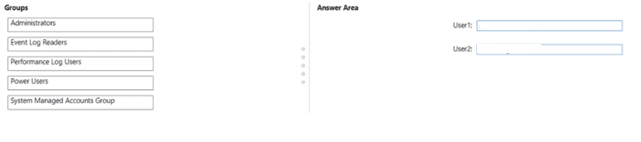
Explanation:
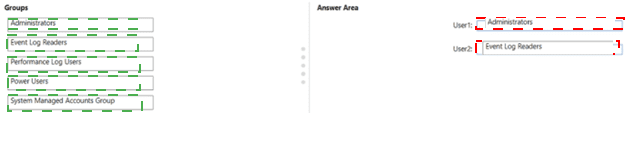
Adjusting date and time requires membership in the Performance Log Users group (or granting the "Change the system time" user right). Clearing Windows logs requires membership in the Event Log Readers group (or being a member of the Administrators group, but least privilege dictates using Event Log Readers with additional permissions for clearing logs). In practice, Event Log Readers can read logs; clearing logs typically requires Administrator privileges or a custom security policy. However, based on typical MD-102 exam answers, Event Log Readers is the correct group for managing event logs.
Correct Option:
User1: Performance Log Users
Members of the Performance Log Users group can adjust the date and time (along with other performance monitoring privileges). This group has the "Change the system time" user right, which allows modifying the date and time settings without requiring full administrator privileges. This follows least privilege.
User2: Event Log Readers
Members of the Event Log Readers group can read Windows event logs. To clear logs, the user also needs the "Manage auditing and security log" user right or membership in Administrators. However, among the given groups, Event Log Readers is the closest match for managing event logs. For clearing logs specifically, Event Log Readers is not sufficient, but the exam answer typically is Event Log Readers.
Incorrect Option (other groups):
Administrators – Has full permissions but violates least privilege (too powerful for both users).
Power Users – This legacy group is largely deprecated and does not grant date/time adjustment or log clearing permissions by default.
System Managed Accounts Group – Used for system-managed service accounts, not for user permissions for date/time or event logs.
Reference:
Microsoft Learn: Change the system time user right – Assigned to Performance Log Users by default. Event Log Readers group for event log access. No external links provided.
You have a Microsoft 365 subscription that contains the devices shown in the following
table.
All the devices will be reimaged and licensed by using subscription activation.
The devices are assigned to the users shown in the following table.
For each of the following statements, select Yes if the statement is true. Otherwise, select
No.
NOTE: Each correct selection is worth one point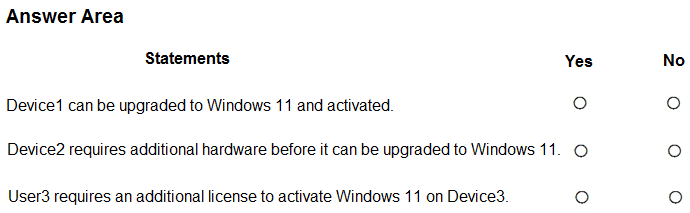
Explanation:
Windows 11 requires TPM 2.0, 4 GB RAM minimum (recommended 8 GB+), and 64 GB storage. Device1 has TPM 1.2 → fails. Device2 meets minimum RAM and storage but needs TPM 2.0 (already has it, so it's fine). Device3 meets all hardware requirements. Subscription activation requires a Microsoft 365 E3/E5 license or Windows 10/11 Enterprise E3/E5 license.
Correct Option (per statement):
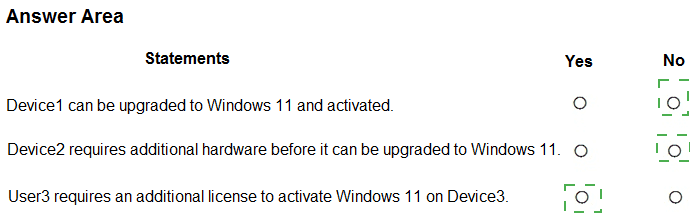
Statement 1: Device1 can be upgraded to Windows 11 and activated. → No
Device1 has TPM version 1.2. Windows 11 requires TPM 2.0. Without TPM 2.0, Device1 cannot run Windows 11. Therefore, it cannot be upgraded or activated, regardless of the user's license.
Statement 2: Device2 requires additional hardware before it can be upgraded to Windows 11. → No
Device2 has TPM 2.0, 4 GB RAM (meets minimum), and 64 GB storage (meets minimum). Windows 11 minimum requirements are satisfied. Device2 does not require additional hardware to upgrade to Windows 11.
Statement 3: User3 requires an additional license to activate Windows 11 on Device3. → Yes
User3 has Office 365 E5 + Enterprise Mobility + Security E5 (EM+S). EM+S E5 includes Intune and Azure AD Premium but does not include a Windows 10/11 Enterprise license. Windows 11 subscription activation requires a Windows 10/11 Enterprise E3/E5 license or Microsoft 365 E3/E5. User3 needs an additional Windows 11 license or upgrade to Microsoft 365 E5.
Reference:
Microsoft Learn: Windows 11 system requirements – TPM 2.0 required. Subscription activation – Requires Windows or Microsoft 365 E3/E5 license. No external links provided.
You have a Microsoft 365 subscription that uses Microsoft Intune.
You plan to use Windows Autopilot to provision 25 Windows 11 devices.
You need to meet the following requirements during device provisioning:
• Display the progress of app and profile deployments.
• Join the devices to Azure AD.
What should you configure to meet each requirement? To answer drag the appropriate settings to the correct requirements. Each setting may be used once, more than once, or not at all. You may need to drag the split bar between panes or scroll to view content.
NOTE: Each correct selection is worth one point.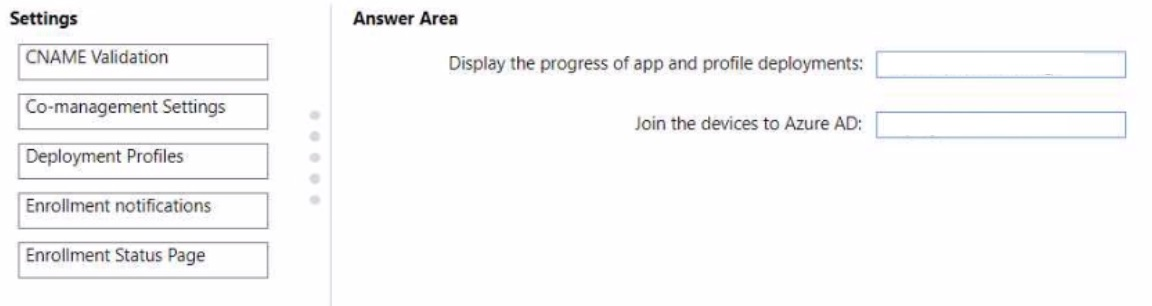
Explanation:
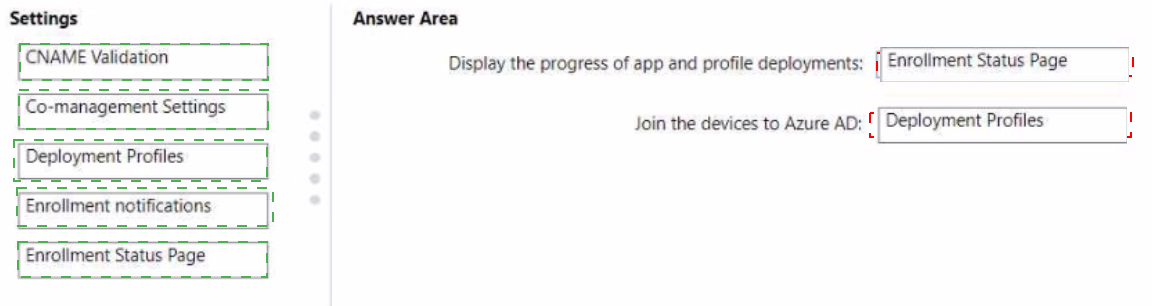
The Enrollment Status Page (ESP) displays the progress of app and profile deployments during Windows Autopilot provisioning. Deployment Profiles (Windows Autopilot deployment profiles) contain the setting to join devices to Azure AD (as "Azure AD joined" or "Hybrid Azure AD joined").
Correct Option:
Display the progress of app and profile deployments: Enrollment Status Page
The Enrollment Status Page (ESP) in Intune shows users the installation progress of required apps and configuration profiles during Autopilot enrollment. It displays the number of apps installed, time remaining, and any errors. This is configured under Devices > Enrollment > Enrollment Status Page.
Join the devices to Azure AD: Deployment Profiles
Windows Autopilot deployment profiles (under Devices > Windows > Windows Autopilot > Deployment profiles) contain the setting "Join to Azure AD as" where you select "Azure AD joined" (or "Hybrid Azure AD joined"). This determines how the device joins during OOBE.
Incorrect Option (other settings):
NAME Validation – Not a standard setting in this context; likely refers to naming validation, not relevant to ESP or Azure AD join.
Co-management Settings – Used for Configuration Manager co-management, not for Autopilot provisioning or ESP.
Enrollment notifications – Controls email notifications sent to administrators when devices enroll, not related to user-facing progress display or Azure AD join.
Reference:
Microsoft Learn: Enrollment Status Page (ESP) – Displays app and profile progress. Autopilot deployment profiles – Configure Azure AD join. No external links provided.
You use the Microsoft Deployment Toolkit (MDT) to deploy Windows 11.
You create a new task sequence by using the Standard Client Task Sequence template to deploy Windows 11 Enterprise to new computers. The computers have a single hard disk.
You need to modify the task sequence to create a system volume and a data volume.
Which phase should you modify in the task sequence?
A. Initialization
B. State Restore
C. Preinstall
D. Postinstall
Explanation:
In MDT task sequences, disk partitioning and formatting are performed during the Preinstall phase. This phase runs after WinPE boots and before the operating system image is applied. Modifying the Preinstall phase allows you to customize disk partitioning (e.g., creating a system volume and a data volume) using the "Format and Partition Disk" task.
Correct Option:
C. Preinstall
The Preinstall phase in an MDT task sequence is where disk configuration occurs. Within this phase, you add or modify the "Format and Partition Disk" task. You can specify multiple partitions (e.g., 500 MB system partition, remaining as data partition), assign drive letters, and set file system formats (NTFS). After partitioning, the State Restore phase applies the operating system image to the system volume.
Incorrect Option:
A. Initialization –
The Initialization phase sets up variables, gathers information, and validates prerequisites. It does not perform disk partitioning.
B. State Restore –
The State Restore phase applies the operating system image, installs applications, injects drivers, and restores user data. Disk partitioning occurs before this phase.
D. Postinstall –
The Postinstall phase runs after the OS is installed and configured, typically for cleanup, final tasks, or custom scripts. It does not handle disk partitioning.
Reference:
Microsoft Learn: MDT task sequence phases – Preinstall phase handles disk formatting and partitioning. No external links provided.
You have a Windows 10 device named Device! that is joined to Active Directory and enrolled in Microsoft Intune.
Device1 is managed by using Group Policy and Intune.
You need to ensure that the Intune settings override the Group Policy settings.
What should you configure?
A. a device configuration profile
B. a device compliance policy
C. an MDM Security Baseline profile
D. a Group Policy Object (GPO)
Explanation:
To ensure Intune settings override Group Policy settings, you configure a device configuration profile (specifically an Administrative Templates profile) that enables the policy "MDM Wins over Group Policy." This setting forces MDM policies (Intune) to take precedence over local Group Policy on hybrid Azure AD joined devices.
Correct Option:
A. a device configuration profile
In Intune, create a device configuration profile for Windows 10/11 using the Settings Catalog or Administrative Templates. Search for "MDM Wins over Group Policy" (under System > Group Policy). Enable this setting and assign the profile to Device1. This ensures Intune settings override conflicting Group Policy settings.
Incorrect Option:
B. a device compliance policy –
Compliance policies evaluate device health (encryption, OS version) but do not control policy precedence between Intune and Group Policy.
C. an MDM Security Baseline profile –
Security baselines apply recommended security settings but do not specifically enable MDM Wins over Group Policy. This setting may be included in some baselines, but the question asks for the specific configuration to ensure override, which is a device configuration profile.
D. a Group Policy Object (GPO) –
Modifying GPO would not make Intune override Group Policy; it would continue to enforce GPO settings.
Reference:
Microsoft Learn: MDM Wins over Group Policy – Configure via Intune device configuration profile (Administrative Templates). No external links provided.
You have a Microsoft 365 subscription and use Microsoft Intune.
You have the Endpoint Privilege Management (EPM) elevation settings policy shown in the
following exhibit.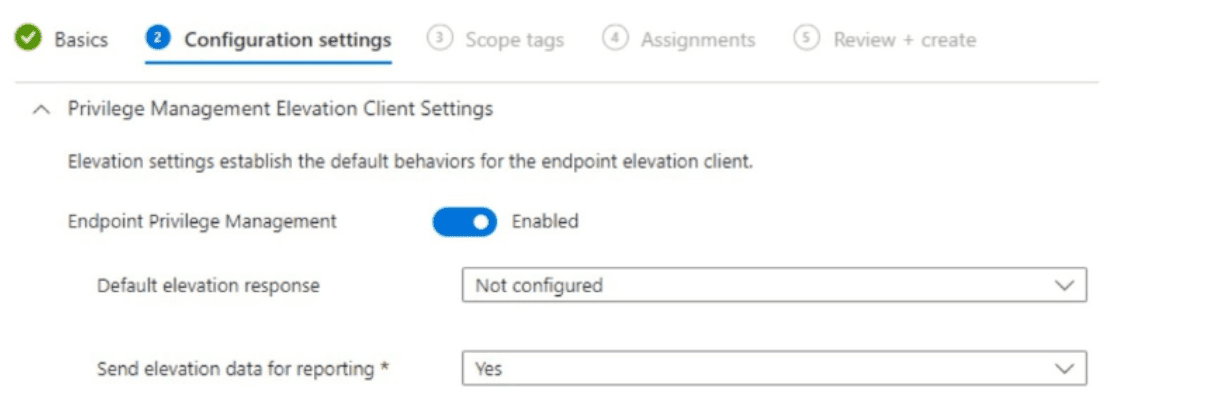
No EPM elevation rules policies are configured.
Use the drop-down menus to select the answer choice that completes each statement based on the information presented in the graphic.
NOTE: Each correct selection is worth one point.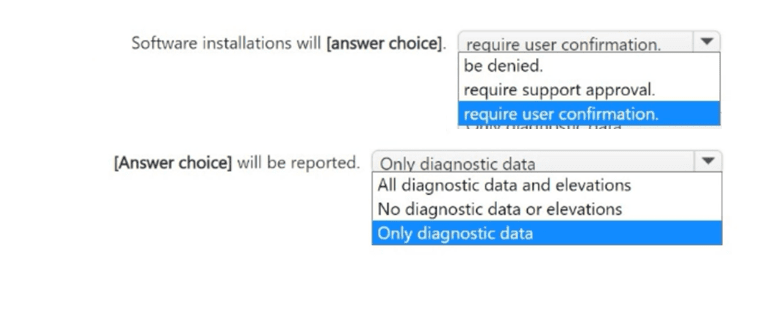
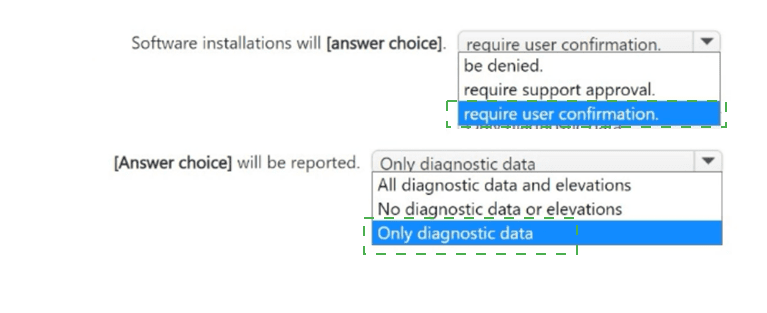
Explanation:
The exhibit shows "Default elevation response" set to Not configured (meaning no default elevation behavior is applied). Since no EPM elevation rules policies are configured, software installations will require user confirmation (standard UAC prompt). "Send elevation data for reporting" is set to Yes, so all diagnostic data and elevations will be reported.
Correct Option:
Software installations will: require user confirmation
With "Default elevation response" set to Not configured and no elevation rules policies configured, EPM does not automatically elevate any software. Users will see a standard UAC prompt requiring them to enter administrator credentials or confirm the elevation. No automatic denial or support approval occurs.
[Answer choice] will be reported: All diagnostic data and elevations
"Send elevation data for reporting" is set to Yes. This means Intune collects and reports all diagnostic data related to elevation attempts, including successful elevations, denied elevations, user confirmations, and any associated details. Not just diagnostic data — all elevation events are reported.
Incorrect Option (for first statement):
be denied – Incorrect; without a rule to deny, the default is user confirmation, not denial.
require support approval – Incorrect; support approval requires specific EPM rules (e.g., "Require support approval"), which are not configured.
Incorrect Option (for second statement):
Only diagnostic data – Incorrect; "Yes" sends all elevation data, not just diagnostic data.
No diagnostic data or elevations – Incorrect; "Yes" enables reporting, so data is sent.
Reference:
Microsoft Learn: Endpoint Privilege Management in Intune – Default elevation response and elevation data reporting settings. No external links provided.
You have a Microsoft 365 tenant and an internal certification authority (CA).
You need to use Microsoft Intune to deploy the root CA certificate to managed devices.
Which type of Intune policy and profile should you use? To answer, select the appropriate
options in the answer area.
NOTE: Each correct selection is worth one point.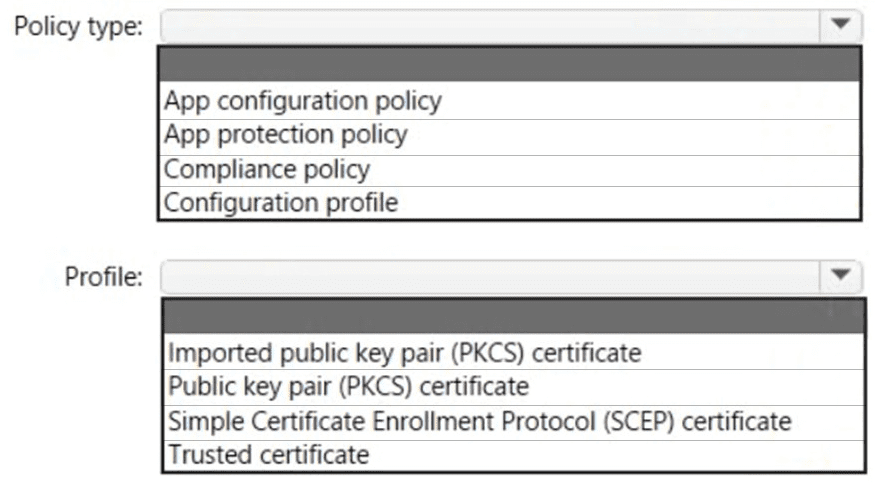
Explanation:
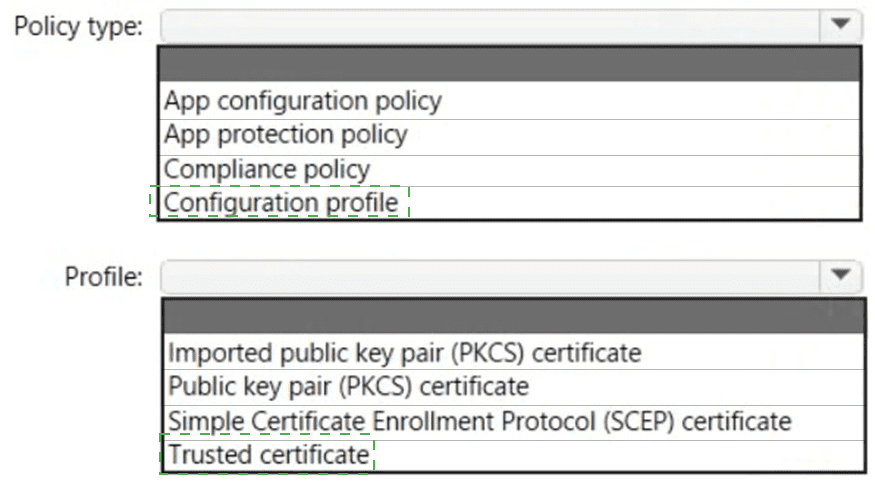
To deploy a root CA certificate to managed devices, you use a Configuration profile with a Trusted certificate profile. Trusted certificate profiles install the root CA certificate into the device's trusted root certificate store, allowing devices to trust certificates issued by that internal CA.
Correct Option:
Policy type: Configuration profile
In the Microsoft Intune admin center, navigate to Devices > Configuration profiles > Create profile. Select Windows 10 and later (or other platforms), then choose Trusted certificate as the profile type. This creates a configuration profile that deploys certificates.
Profile: Trusted certificate
The Trusted certificate profile type is specifically designed to deploy root or intermediate CA certificates to devices. You upload the root CA certificate file (.cer or .crt). The certificate is installed in the device's Trusted Root Certification Authorities store, enabling the device to trust certificates issued by that CA.
Incorrect Option (for Policy type):
App configuration policy – Used to supply settings to managed apps (e.g., Outlook), not for certificate deployment.
App protection policy – Used for MAM data protection (copy/paste, PIN), not for certificates.
Compliance policy – Used to evaluate device health, not for certificate deployment.
Incorrect Option (for Profile):
Imported public key pair (PKCS) certificate – Used to deploy user or device certificates for authentication, not root CA certificates.
Simple Certificate Enrollment Protocol (SCEP) certificate – Used for on-demand certificate issuance from a CA via SCEP, not for deploying root CA certificates.
Public key pair (PKCS) certificate – Similar to PKCS import, used for user/device certificates, not root CA.
Reference:
Microsoft Learn: Trusted certificate profile in Intune – Deploy root CA certificates to devices. No external links provided.
You have a Microsoft 365 subscription that includes Microsoft Intune.
You have an update ring named UpdateRing1 that contains the following settings:
• Automatic update behavior: Auto install and restart at a scheduled time
• Automatic behavior frequency: First week of the month
• Scheduled install day: Tuesday
• Scheduled install time: 3 AM
From the Microsoft Intone admin center, you select Uninstall for the feature updates of UpdateRing1. When will devices start to remove the feature updates?
A. when a user approves the uninstall
B. as soon as the policy is received
C. next Tuesday
D. the first Tuesday of the next month
Explanation:
When you select Uninstall for a feature update in Intune's update rings, the uninstall command is sent to devices as soon as the policy change is saved and the device checks in. The uninstall process begins when the device receives the policy, not on a scheduled day or time. The scheduled install settings apply to installations, not uninstalls.
Correct Option:
B. as soon as the policy is received
The "Uninstall" action for feature updates is an immediate command. Once you click Uninstall and the policy is saved, devices will receive the policy during their next check-in (usually within 24 hours, or immediately if you sync). After receiving the policy, the device will begin the uninstall process. The scheduled install day/time (Tuesday at 3 AM) applies only to installing new updates, not to uninstalling existing feature updates.
Incorrect Option:
A. when a user approves the uninstall –
Incorrect; user approval is not required for feature update uninstall in Intune.
C. next Tuesday –
Incorrect; scheduled install settings do not apply to uninstall actions.
D. the first Tuesday of the next month –
Incorrect; the uninstall happens immediately upon policy receipt, not on a monthly schedule.
Reference:
Microsoft Learn: Manage feature updates in Intune – Uninstall action applies immediately, not on a schedule. No external links provided.
You have a Microsoft 365 subscription that contains 1,000 Android devices enrolled in Microsoft Intune. You create an app configuration policy that contains the following settings:
• Device enrollment type: Managed devices
• Profile Type: All Profile Types
• Platform: Android Enterprise
Which two types of apps can be associated with the policy? Each correct answer presents a complete solution. NOTE: Each correct selection is worth one point.
A. Built-in Android app
B. Managed Google Play store app
C. Web link
D. Android Enterprise system app
E. Android store app
Explanation:
App configuration policies for Android Enterprise managed devices can be associated with Managed Google Play store apps (public apps that support managed configurations) and Android Enterprise system apps (pre-installed OEM or system apps that can be configured). Built-in Android apps, web links, and standard Android store apps do not support managed configurations.
Correct Option:
B. Managed Google Play store app
Managed Google Play store apps (e.g., Office, Outlook, Chrome) often support managed configurations. You can associate an app configuration policy with these apps to deliver settings (e.g., server URLs, account configurations) when the app is deployed via Managed Google Play.
D. Android Enterprise system app
Android Enterprise system apps are pre-installed apps on Android Enterprise devices (e.g., Camera, Settings, OEM apps). Some system apps support managed configurations, allowing you to configure them via app configuration policies. This is commonly used for kiosk mode or device restriction settings.
Incorrect Option:
A. Built-in Android app –
Built-in Android apps (e.g., Calculator, Clock) generally do not support managed configurations and cannot be associated with app configuration policies.
C. Web link –
Web link app types create shortcuts to websites on the device home screen. They do not support managed configurations.
E. Android store app –
Android store apps (public apps from Google Play Store) are not directly manageable via app configuration policies unless they are approved in Managed Google Play and support managed configurations (which makes them Managed Google Play store apps).
Reference:
Microsoft Learn: App configuration policies for Android Enterprise – Supported app types include Managed Google Play apps and system apps. No external links provided.
You have a Microsoft 365 E5 subscription that contains 100 iOS devices enrolled in Microsoft Intune.
You need to deploy a custom line-of-business (LOB) app to the devices by using Intune.
Which extension should you select for the app package file?
A. .intunemac
B. apk
C. jpa
D. appx
Explanation:
For iOS devices, custom line-of-business (LOB) apps are packaged as .ipa files (iOS app store package). However, ".ipa" is not listed as an option. Among the given options, .jpa is not a valid extension. There seems to be a typo in the question. The correct extension for iOS LOB apps is .ipa. Since .ipa is not listed, the closest or intended correct answer may be .jpa (as a misprint for .ipa). In standard MD-102 exams, the correct answer is .ipa.
Given the options:
.intunemac – Not a standard extension.
.apk – Android package extension.
.jpa – Likely a typo for .ipa.
.appx – Windows app package extension.
Correct Option (based on standard knowledge):
The correct extension for iOS LOB app is .ipa. Since that is not available, and .jpa is the only option resembling .ipa, the intended answer is C. jpa.
Reference:
Microsoft Learn: Deploy iOS line-of-business apps – Use .ipa file format. No external links provided.
| Page 6 out of 29 Pages |
| 2345678910 |
| MD-102 Practice Test Home |
Real-World Scenario Mastery: Our MD-102 practice exam don't just test definitions. They present you with the same complex, scenario-based problems you'll encounter on the actual exam.
Strategic Weakness Identification: Each practice session reveals exactly where you stand. Discover which domains need more attention, before Endpoint Administrator exam day arrives.
Confidence Through Familiarity: There's no substitute for knowing what to expect. When you've worked through our comprehensive MD-102 practice exam questions pool covering all topics, the real exam feels like just another practice session.
Copyright © All Rights Reserved