
Topic 4: Mix Question
You have a Microsoft 365 subscription that uses Microsoft Intune.
You have five new Windows 11 Pro devices.
You need to prepare the devices for corporate use. The solution must meet the following
requirements:
• Install Windows 11 Enterprise on each device.
• Install a Windows Installer (MSI) package named App1 on each device.
• Add a certificate named Certificate1 that is required by App1.
• Join each device to Azure AD.
Which three provisioning options can you use? Each correct answer presents a complete solution.
NOTE: Each correct selection is worth one point.
A. subscription activation
B. a custom Windows image
C. an in-place upgrade
D. Windows Autopilot
E. provisioning packages
Explanation:
To meet all requirements (upgrade to Enterprise, install MSI app, add certificate, join Azure AD), you need a solution that can apply multiple configurations during provisioning. Custom Windows image can include the Enterprise edition, App1, and Certificate1. Windows Autopilot with enrollment status page can deploy apps and certificates after Azure AD join. Provisioning packages can apply all settings during OOBE.
Correct Option:
B. a custom Windows image
A custom Windows image (prepared with Sysprep) can have Windows 11 Enterprise already installed, App1 pre-installed, and Certificate1 added to the certificate store. When deployed, the device can be configured to join Azure AD during OOBE or via provisioning package. This provides a complete, ready-to-use image.
D. Windows Autopilot
Windows Autopilot can join devices to Azure AD automatically. Using a deployment profile and required apps, you can deploy App1 (Win32 or MSI) and Certificate1 (via trusted certificate profile) during the enrollment status page (ESP) phase. The device can be upgraded to Enterprise via subscription activation or edition upgrade policy.
E. provisioning packages
Windows Configuration Designer provisioning packages (.ppkg) can join devices to Azure AD, install apps (including MSI), add certificates, and upgrade Windows edition (using a product key). The package can be applied during OOBE via USB or NFC, making it a complete solution.
Incorrect Option:
A. subscription activation –
Subscription activation upgrades Windows 10/11 Pro to Enterprise when a licensed user signs in, but it does not install App1, add Certificate1, or join Azure AD. It only addresses the edition upgrade requirement.
C. an in-place upgrade –
An in-place upgrade (using setup.exe or media) can upgrade Pro to Enterprise but does not install App1, add Certificate1, or join Azure AD. Additional steps would be required, making it incomplete.
Reference:
Microsoft Learn: Windows Autopilot – Deploy apps and certificates. Provisioning packages – Install apps, add certificates, join Azure AD. Custom images – Pre-install apps and certificates. No external links provided.
You create a Windows Autopilot deployment profile.
You need to configure the profile settings to meet the following requirements:
Automatically enroll new devices and provision system apps without requiring end-user
authentication.
Include the hardware serial number in the computer name.
Which two settings should you configure? To answer, select the appropriate settings in the answer area.
NOTE: Each correct selection is worth one point.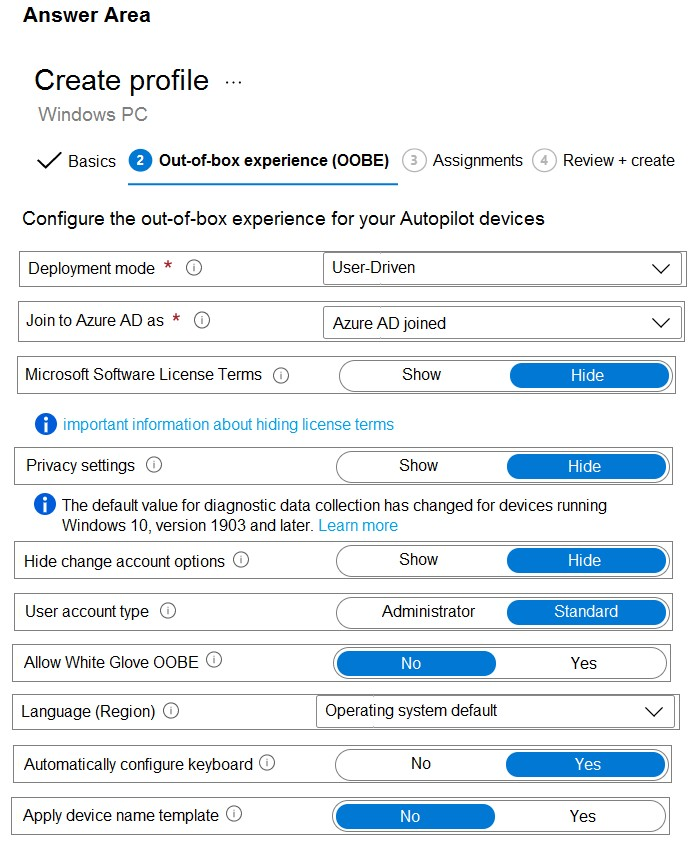
Explanation:
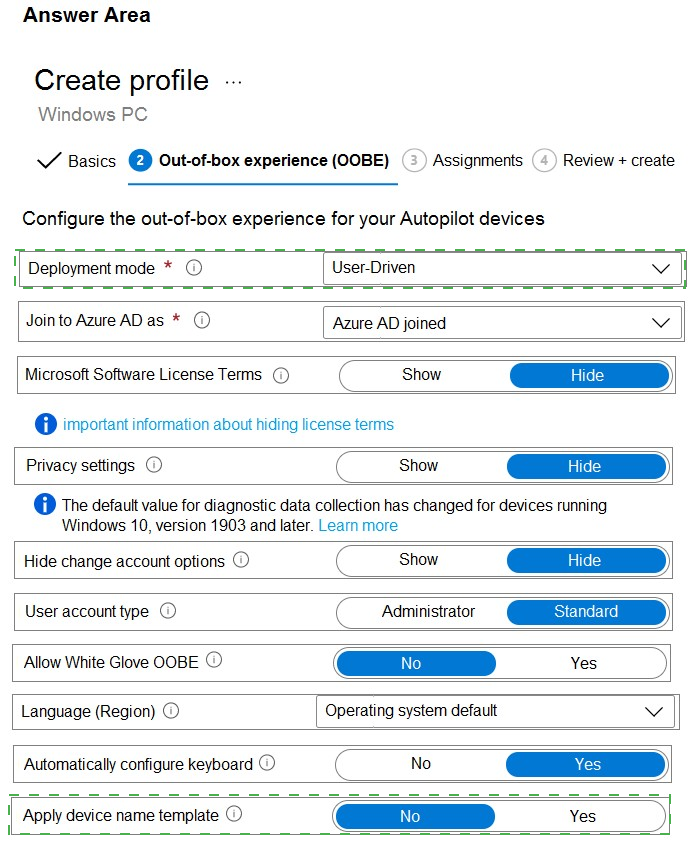
To automatically enroll devices and provision system apps without user authentication, you configure White Glove OOBE (pre-provisioning). To include the hardware serial number in the computer name, you configure Apply device name template and use the %SERIAL% variable in the template.
Correct Option:
Allow White Glove OOBE: Yes
White Glove (pre-provisioning) allows IT or a partner to pre-enroll the device, install system apps, and apply policies before the device reaches the end user. The user only needs to sign in when they receive the device, meeting the requirement of provisioning without end-user authentication during the initial setup.
Apply device name template: Yes
When set to Yes, you can specify a computer name template. To include the hardware serial number, use the variable %SERIAL% in the template (e.g., Contoso-%SERIAL%). This ensures the device name includes the unique serial number automatically.
Incorrect Option (other settings in the exhibit):
Deployment mode – User-Driven mode still requires user authentication; White Glove is the correct setting for no user authentication during provisioning.
Join to Azure AD as – Must be Azure AD joined for Autopilot, but this setting does not affect user authentication requirement or computer name.
Hide change account options – Controls whether users can change their account type during OOBE, unrelated to computer name or pre-provisioning.
User account type – Sets whether the user is Administrator or Standard after enrollment, not related to the requirements.
Language/Keyboard settings – Configure regional settings, not computer name or pre-provisioning.
Reference:
Microsoft Learn: Windows Autopilot White Glove – Pre-provisioning without user authentication. Device name template with %SERIAL% variable. No external links provided.
You have a Microsoft 365 subscription that includes Microsoft Intune.
You need to deploy a custom app to Android devices. The app uses the APK file format.
Which type of app should you select for the deployment?
A. built-in
B. Android store
C. Managed Google Play
D. line-of-business (LOB)
E. web link
Explanation:
To deploy a custom app using an APK file (not from Google Play Store) to Android devices, you select line-of-business (LOB) app type in Intune. This allows you to upload the APK file directly and deploy it to managed Android devices. Managed Google Play apps are for store apps, not custom APKs.
Correct Option:
D. line-of-business (LOB)
In the Microsoft Intune admin center, when adding an app for Android, you select "Android line-of-business app" as the app type. You then upload the APK file, configure the app name, description, and other settings. This app can then be assigned to Android devices (device administrator or Android Enterprise work profile). This is the correct method for deploying a custom APK.
Incorrect Option:
A. built-in –
Built-in apps are standard apps that come with the OS (e.g., Camera, Calculator). You cannot upload custom APKs as built-in apps.
B. Android store –
Android store app type points to an app in the Google Play Store. It does not allow uploading a custom APK file.
C. Managed Google Play –
Managed Google Play is for approving and deploying apps from the Google Play Store (public or private). It does not support uploading a custom APK file directly.
E. web link –
Web link app type creates a shortcut or bookmark to a website on the device's home screen. It does not deploy an APK.
Reference:
Microsoft Learn: Add Android line-of-business app to Intune – Upload APK file for custom app deployment. No external links provided.
Your company has an Azure AD tenant named contoso.com that contains several Windows 10 devices.
When you join new Windows 10 devices to contoso.com, users are prompted to set up a four-digit pin.
You need to ensure that the users are prompted to set up a six-digit pin when they join the Windows 10 devices to contoso.com.
Solution: From the Microsoft Entra admin center, you configure automatic mobile device
management (MDM) enrollment. From the Microsoft Intune admin center, you create and assign a device restrictions profile.
Does this meet the goal?
A. Yes
B. No
Explanation:
Configuring automatic MDM enrollment and a device restrictions profile does not set the Windows Hello PIN length. PIN complexity (including minimum length of six digits) is configured in a Windows Hello for Business policy (under Identity protection or Account protection), not in a device restrictions profile. Therefore, this solution does not meet the goal.
Correct Option:
B. No
A device restrictions profile does not contain settings for Windows Hello PIN length. To require a six-digit PIN, you must configure a Windows Hello for Business policy in Intune (under Device configuration > Identity protection or Endpoint security > Account protection). Specifically, set "Minimum PIN length" to 6. Automatic MDM enrollment is correct for device enrollment but does not affect PIN requirements.
Incorrect Option:
A. Yes –
Incorrect because device restrictions profiles do not control Windows Hello PIN settings. The described solution would not change the PIN prompt from four digits to six digits.
Reference:
Microsoft Learn: Configure Windows Hello for Business in Intune – Set minimum PIN length via Identity protection or Account protection policy, not device restrictions. No external links provided.
You have an Azure AD tenant named contoso.com that contains the devices shown in the
following table.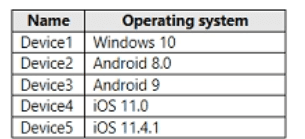
AH devices contain an app named App1 and are enrolled in Microsoft Intune.
You need to prevent users from copying data from App1 and pasting the data into otherapps.
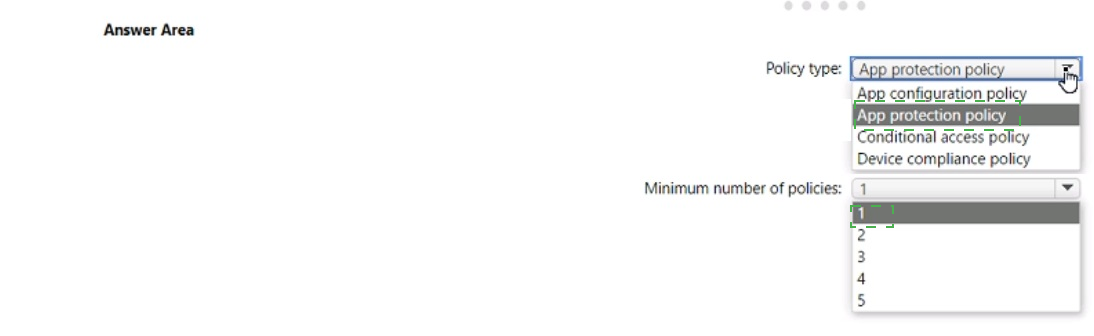
Which type of policy and how many policies should you create in Intune? To answer, select the appropriate options in the answer area.
NOTE: Each correct selection is worth one point.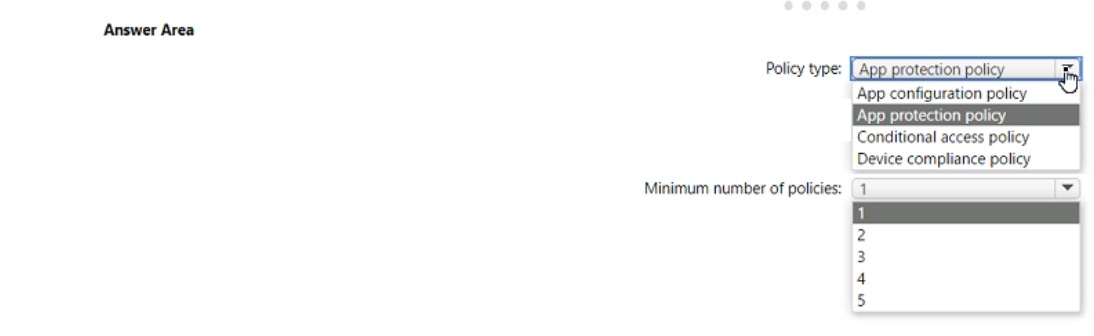
Explanation:
Preventing copy/paste from a managed app is a data protection feature of App protection policies (MAM). Different platforms (Windows, Android, iOS) require separate app protection policies because settings are platform-specific. Therefore, you need one policy per platform: Windows 10, Android, and iOS (3 policies).
Correct Option:
Policy type: App protection policy
App protection policies (MAM) control data movement between apps, including cut/copy/paste restrictions. Under "Data protection" settings, you can set "Restrict cut, copy, and paste" to "Blocked" or "Policy managed apps." This prevents users from copying data from App1 and pasting into other apps.
Minimum number of policies: 3
You need separate app protection policies for each platform because settings differ. Device1 (Windows 10) requires one policy. Device2 and Device3 (Android 8.0 and 9) share an Android app protection policy (one for Android). Device4 and Device5 (iOS 11.0 and 11.4.1) share an iOS app protection policy (one for iOS). Total: 3 policies.
Incorrect Option (for Policy type):
App configuration policy – App configuration policies supply settings to apps (e.g., server URLs), but they do not enforce data protection or copy/paste restrictions.
Conditional access policy – Conditional access controls access to cloud apps based on conditions but does not control copy/paste behavior within an app.
Device compliance policy – Compliance policies evaluate device health (encryption, OS version) but do not restrict copy/paste within apps.
Incorrect Option (for Minimum number of policies):
1 – One policy cannot cover Windows, Android, and iOS because platforms have different settings.
2 – Would not cover all three platforms (Windows, Android, iOS).
4 or 5 – Unnecessary; Android devices share one policy, iOS devices share one policy.
Reference:
Microsoft Learn: App protection policies – Data protection settings for cut/copy/paste restrictions. Platform-specific policies required. No external links provided.
You have a Microsoft 365 E5 subscription.
You use Microsoft Intune to manage Windows 365 Cloud PC devices.
You need to deploy a Windows 365 Security Baseline to the Cloud PC devices. The solution must meet the following requirements:
• Block data execution prevention.
• Enable virtualization-based security (V8S) and Secure Boot.
What should you configure for the Windows 365 Security Baseline profile? To answer,
select the appropriate options in the answer area.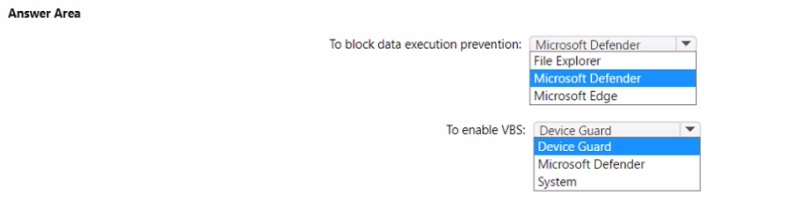
Explanation:
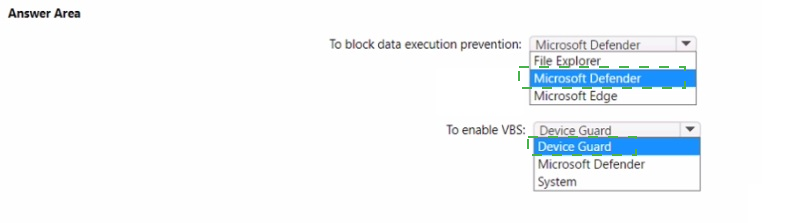
Data Execution Prevention (DEP) is a Windows security feature managed under Microsoft Defender settings in security baselines. Virtualization-Based Security (VBS) and Secure Boot are configured under Device Guard settings (which includes Credential Guard, Hypervisor-protected code integrity, and VBS). These are standard settings in Windows security baselines.
Correct Option:
To block data execution prevention: Microsoft Defender
In the Windows 365 Security Baseline, under Microsoft Defender settings, you can configure "Turn on Data Execution Prevention (DEP)" or related settings. To block DEP (disable it), you set this to Not configured or Disabled, depending on the specific baseline version. Microsoft Defender is the correct category for DEP settings.
To enable VBS: Device Guard
Virtualization-Based Security (VBS) and Secure Boot are configured under Device Guard settings in security baselines. Device Guard includes policies such as "Turn on Virtualization Based Security," "Require UEFI Memory Attributes Table," and "Secure Boot." Enabling these settings turns on VBS and Secure Boot on Cloud PC devices.
Incorrect Option (for first statement):
File Explorer – File Explorer settings manage folder options, file associations, and network discovery, not DEP.
Microsoft Edge – Microsoft Edge settings control browser security (SmartScreen, passwords, extensions), not DEP.
Incorrect Option (for second statement):
Microsoft Defender System – This is not a valid category in Windows security baselines. Device Guard is the correct location for VBS and Secure Boot settings.
Reference:
Microsoft Learn: Windows 365 Security Baseline – Microsoft Defender settings for DEP; Device Guard settings for VBS and Secure Boot. No external links provided.
You have a Microsoft 365 subscription that contains a user named User1 and 500 Windows devices enrolled in Microsoft Intune.
You configure an attack surface reduction {ASR) rule and enable the rule in Warn mode.
User1 downloads a file named file1.exe. When User1 attempts to run file1.exe he receives a prompt that the content has been blocked. The user unblocks the content.
How much time will pass until the user is prompted next to unblock the content?
A. 10 minutes
B. one hour
C. 24 hours
D. one week
Explanation:
When an ASR rule in Warn mode blocks content and the user chooses to unblock it, Microsoft Defender for Endpoint remembers this choice for the current session and for a limited time. The user will not be prompted again for the same content for 24 hours (or until the device restarts). This reduces repeated interruptions while maintaining security.
Correct Option:
C. 24 hours
When an ASR rule is in Warn mode and a user clicks "Unblock" on a blocked file, the system creates a temporary local allow rule for that specific file. This allow rule persists for 24 hours (or until the device is restarted, whichever comes first). After 24 hours, the file will be blocked again, and the user will need to unblock it once more if they attempt to run it.
Incorrect Option:
A. 10 minutes –
Too short; the unblock action is remembered for a much longer period.
B. one hour –
Insufficient; the retention period is 24 hours, not 1 hour.
D. one week –
Too long; the unblock is not remembered for a full week unless the device is never restarted.
Reference:
Microsoft Learn: Attack surface reduction rules warn mode – User unblock choice is remembered for 24 hours. No external links provided.
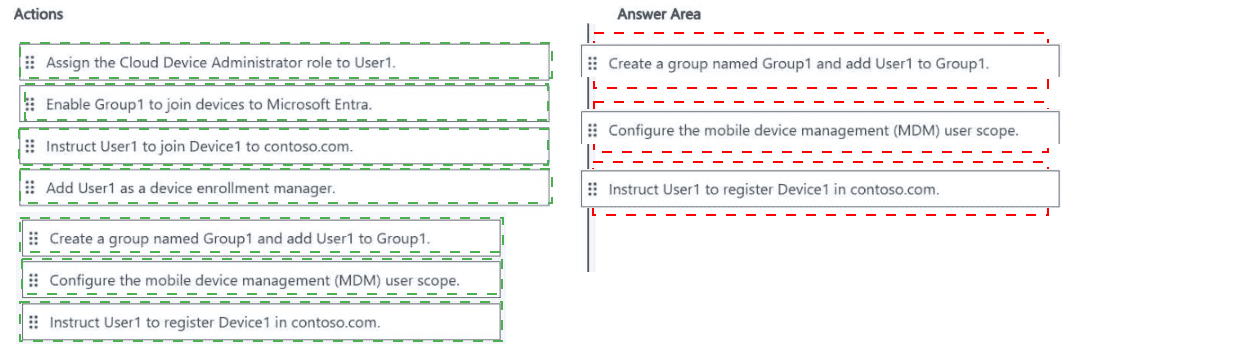
You have a Microsoft 365 E5 subscription that is linked to a Microsoft Entra tenant named contoso.com. The subscription contains a user named User1 and a new Windows 11 device named Device1.
User1 must enroll Device1 in Microsoft Intune automatically.
You need to ensure that all other users cannot use automatic enrollment.
Which three actions should you perform in sequence? To answer, move the appropriate
actions from the list of actions to the answer area and arrange them in the correct order.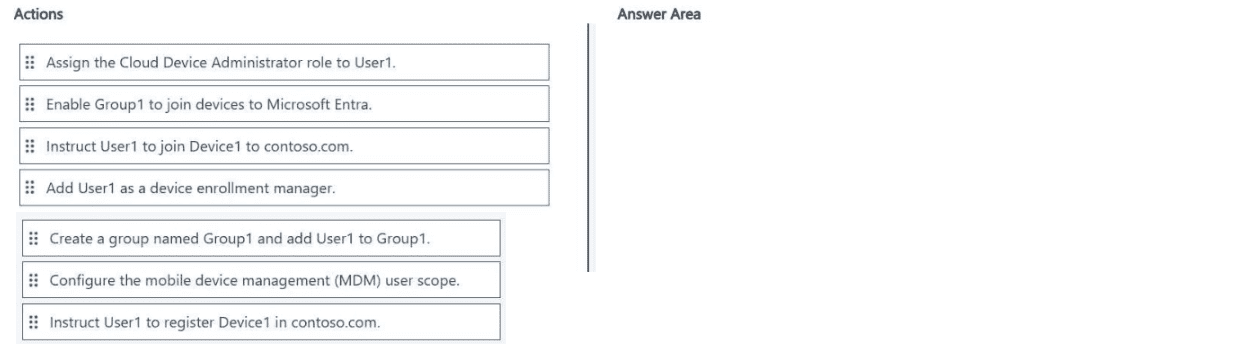
Explanation:
To allow only User1 to automatically enroll devices in Intune, you first create a group containing User1, then configure the MDM user scope to that specific group (not "All" or "None"), and finally instruct User1 to join Device1 to Entra ID (which triggers automatic enrollment). This ensures only members of Group1 (User1) can auto-enroll.
Correct Option (in correct sequence):
1. Create a group named Group1 and add User1 to Group1
First, create an Azure AD group (Group1) and add User1 as a member. This group will be used to scope automatic enrollment permissions. Without this group, you cannot restrict auto-enrollment to only User1.
2. Configure the mobile device management (MDM) user scope
In the Microsoft Entra admin center, under Mobility (MDM and MAM), set the MDM user scope to Selected and choose Group1. This ensures that only users in Group1 (User1) can automatically enroll devices when they join Entra ID. All other users cannot auto-enroll.
3. Instruct User1 to join Device1 to contoso.com
User1 signs into Device1 and goes to Settings > Accounts > Access work or school > Connect, then joins Device1 to contoso.com. Because User1 is in the MDM user scope, the device automatically enrolls in Intune. This completes the process.
Incorrect Option (actions not used):
Assign the Cloud Device Administrator role to User1 – Cloud Device Administrator manages devices in Entra ID but does not control automatic enrollment scope.
Enable Group1 to join devices to Microsoft Entra – Device join permissions are separate from MDM enrollment scope; this would not restrict automatic enrollment.
Add User1 as a device enrollment manager – DEM role allows enrolling up to 1,000 devices but does not restrict other users from auto-enrolling.
Instruct User1 to register Device1 in contoso.com – Registration is different from join; automatic enrollment requires join, not registration.
Reference:
Microsoft Learn: Configure MDM user scope for automatic enrollment – Restrict to specific Azure AD group. No external links provided.
You have a Microsoft 365 subscription that uses Microsoft Intune Suite.
You use Microsoft Intune to manage devices.
You need to ensure that the startup performance of managed Windows 11 devices is captured and available for review in the Intune admin center.
What should you configure?
A. the Azure Monitor agent
B. a device compliance policy
C. a Conditional Access policy
D. an Intune data collection policy
Explanation:
Startup performance data (boot time, login time, etc.) is captured by Endpoint analytics, which requires devices to send diagnostic data. This data is collected via the Azure Monitor agent (or the Log Analytics agent) that forwards Windows performance data to a Log Analytics workspace, which is then displayed in Intune's Endpoint analytics reports.
Correct Option:
A. the Azure Monitor agent
To capture startup performance data for Endpoint analytics, you need to onboard devices to Endpoint analytics, which uses the Azure Monitor Agent (or Log Analytics agent) to collect Windows diagnostic data. Once configured, startup performance metrics (BIOS time, total boot time, login time) appear in Intune admin center under Reports > Endpoint analytics > Startup performance.
Incorrect Option:
B. a device compliance policy –
Compliance policies evaluate device health (encryption, OS version) but do not capture startup performance data.
C. a Conditional Access policy –
Conditional Access controls access to cloud apps based on conditions; it does not collect device performance data.
D. an Intune data collection policy –
There is no specific "Intune data collection policy" for startup performance. Endpoint analytics relies on Azure Monitor agent or Log Analytics agent.
Reference:
Microsoft Learn: Endpoint analytics prerequisites – Configure Azure Monitor agent or Log Analytics agent to collect startup performance data. No external links provided.
You have two computers that run Windows 10. The computers are enrolled in Microsoft Intune as shown in the following table.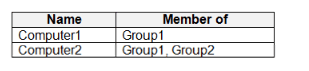
Windows 10 update rings are defined in Intune as shown in the following table.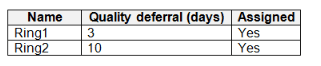
You assign the update rings as shown in the following table.
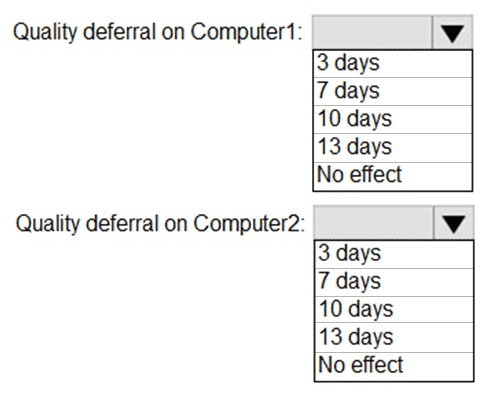
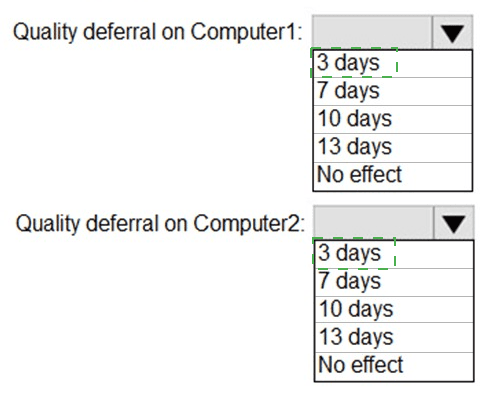
What is the effect of the configurations on Computer1 and Computer2? To answer, select the appropriate options in the answer area.
NOTE: Each correct selection is worth one point.
Explanation:
Computer1 is in Group1 only. Ring1 includes Group1 and excludes Group2. Since Computer1 is not in Group2, Ring1 applies. Ring2 includes Group2 and excludes Group1. Computer1 is not in Group2, so Ring2 does not apply. Therefore, Computer1 gets Ring1 with 3-day quality deferral.
Computer2 is in both Group1 and Group2. Ring1 includes Group1 but excludes Group2 → Computer2 is excluded because it is in Group2. Ring2 includes Group2 and excludes Group1 → Computer2 is in Group2 but also in Group1, and Ring2 excludes Group1. Since Computer2 is in the excluded group (Group1) for Ring2, Ring2 does not apply. Computer2 gets no update ring.
Correct Option:
Quality deferral on Computer1: 3 days
Computer1 is in Group1 only. Ring1 (quality deferral 3 days) includes Group1 and excludes Group2. Since Computer1 is not in Group2, Ring1 applies. Ring2 does not apply because Computer1 is not in Group2. Result: 3-day deferral.
Quality deferral on Computer2: No effect
Computer2 is in both Group1 and Group2. Ring1 excludes Group2 → Computer2 is excluded. Ring2 excludes Group1 → Computer2 is excluded because it is in Group1. Both rings have exclusion rules that apply to Computer2. Therefore, no update ring applies, and there is no effect (deferral not applied).
Incorrect Option (for Computer1):
7 days – Not configured in either ring.
10 days – This is Ring2's deferral, but Ring2 does not apply to Computer1.
13 days – Not configured.
Incorrect Option (for Computer2):
3 days, 7 days, 10 days, 13 days – None apply because Computer2 is excluded from both rings.
Reference:
Microsoft Learn: Update rings assignment logic – Exclusion rules take precedence over inclusion. No external links provided.
You have a Microsoft 365 subscription that uses Microsoft Intune Suite.
You use Microsoft Intune to manage Windows 11 devices.
You need to implement passwordless authentication that requires users to use number
matching.
Which authentication method should you use?
A. Microsoft Authenticator
B. voice calls
C. FI002 security keys
D. text messages
Explanation:
Number matching is a feature of Microsoft Authenticator app that requires users to enter a number displayed on the sign-in screen into the authenticator app, preventing accidental approvals (MFA fatigue attacks). This provides passwordless authentication with enhanced security. FIDO2 security keys support passwordless but not number matching.
Correct Option:
A. Microsoft Authenticator
Microsoft Authenticator app supports passwordless sign-in and number matching. When enabled, users see a number on the sign-in screen and must enter that number into the authenticator app to approve the request. This prevents "MFA fatigue" attacks where users accidentally approve notifications. Number matching is configured via Microsoft Entra admin center under Authentication methods.
Incorrect Option:
B. voice calls –
Voice calls provide MFA via phone call but are not passwordless and do not support number matching.
C. FIDO2 security keys –
FIDO2 keys provide passwordless authentication using biometrics or PIN on a hardware key. However, they do not support number matching; they use a different approval mechanism (touch or PIN entry).
D. text messages –
SMS text messages provide MFA codes but are not passwordless and do not support number matching.
Reference:
Microsoft Learn: Number matching in Microsoft Authenticator – Passwordless authentication with enhanced security. No external links provided.
You use Microsoft Endpoint Manager to manage Windows 10 devices.
You are designing a reporting solution that will provide reports on the following:
Compliance policy trends
Trends in device and user enrolment
App and operating system version breakdowns of mobile devices
You need to recommend a data source and a data visualization tool for the design.
What should you recommend? To answer, select the appropriate options in the answer
area.
NOTE: Each correct selection is worth one point.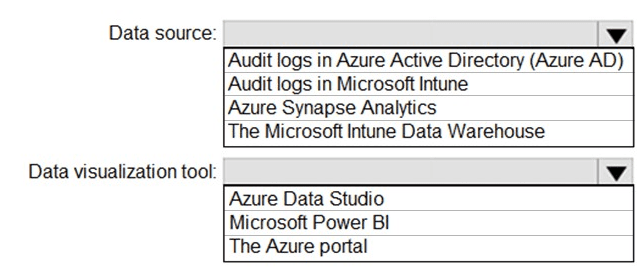
Explanation:
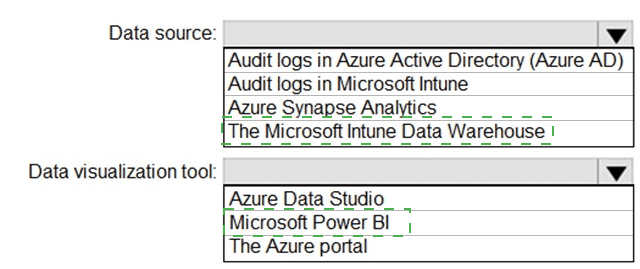
The Microsoft Intune Data Warehouse contains historical data on devices, compliance, enrollment, apps, and OS versions, specifically designed for reporting. Microsoft Power BI connects directly to the Data Warehouse OData feed and provides rich visualizations (trend lines, pie charts, bar graphs) for the required reports.
Correct Option:
Data source: The Microsoft Intune Data Warehouse
Intune Data Warehouse is a reporting database that stores historical data for up to 30 days (or 365 days with additional configuration). It includes tables for devices, compliance policies, enrollment activities, app inventory, and OS versions. This makes it ideal for compliance trends, enrollment trends, and OS version breakdowns.
Data visualization tool: Microsoft Power BI
Power BI Desktop connects directly to the Intune Data Warehouse OData endpoint. It allows you to create custom dashboards with trend lines (compliance over time), breakdowns (app/OS versions), and enrollment history. Power BI is the recommended tool for visualizing Intune Data Warehouse data.
Incorrect Option (for Data source):
Audit logs in Azure AD – Contains authentication and directory audit events, not compliance trends or app/OS breakdowns for enrolled devices.
Audit logs in Microsoft Intune – Contains administrative actions (who created/modified policies), not device enrollment trends or OS version breakdowns.
Azure Synapse Analytics – This is a big data analytics service, but it is not the primary data source for Intune reporting; Intune Data Warehouse is purpose-built.
Incorrect Option (for Data visualization tool):
Azure Data Studio – A database management tool for SQL Server and Azure SQL, not designed for Intune Data Warehouse visualization.
The Azure portal – The Azure portal provides basic Intune reporting but lacks the advanced visualization and trend analysis capabilities of Power BI.
Reference:
Microsoft Learn: Intune Data Warehouse and Power BI – Recommended for compliance trends, enrollment trends, and app/OS breakdowns. No external links provided.
| Page 5 out of 29 Pages |
| 123456789 |
| MD-102 Practice Test Home |
Real-World Scenario Mastery: Our MD-102 practice exam don't just test definitions. They present you with the same complex, scenario-based problems you'll encounter on the actual exam.
Strategic Weakness Identification: Each practice session reveals exactly where you stand. Discover which domains need more attention, before Endpoint Administrator exam day arrives.
Confidence Through Familiarity: There's no substitute for knowing what to expect. When you've worked through our comprehensive MD-102 practice exam questions pool covering all topics, the real exam feels like just another practice session.
Copyright © All Rights Reserved