
Topic 2: Litware inc

You need to resolve the performance issues in the Los Angeles office.
How should you configure the update settings? To answer, select the appropriate options in the answer area.
NOTE: Each correct selection is worth one point.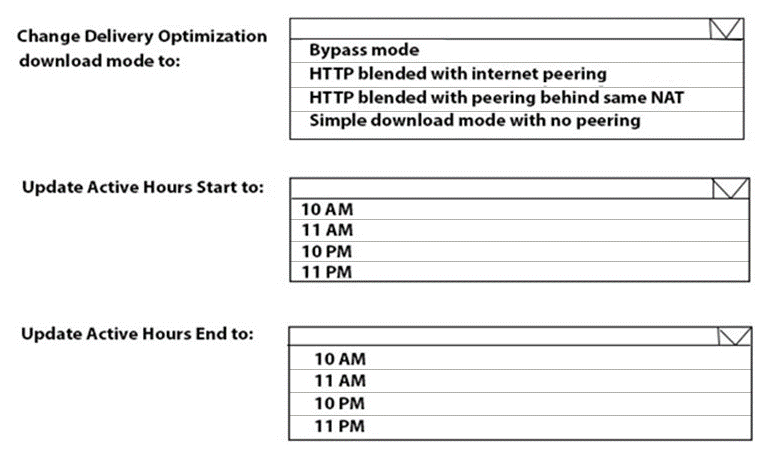
Explanation:
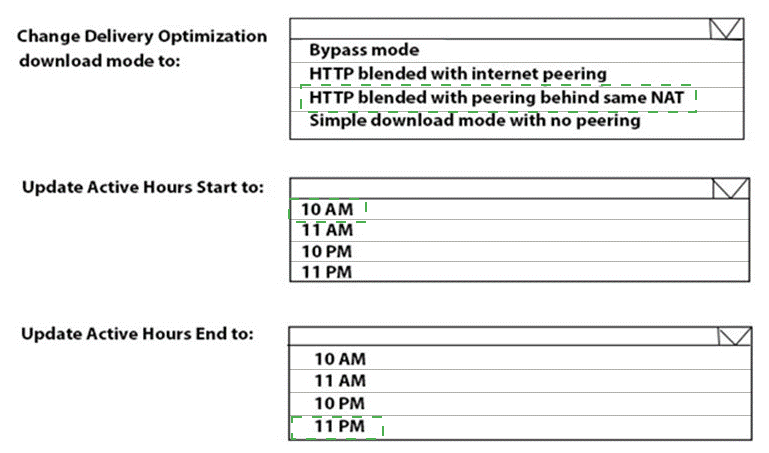
To resolve performance issues in an office (likely caused by many devices downloading updates simultaneously from the internet), you should configure Delivery Optimization to use peering behind the same NAT (local network). Active Hours should be set to the office's working hours (e.g., 10 AM to 10 PM) to prevent updates during work hours.
Correct Option:
Delivery Optimization download mode: HTTP blended with peering behind same NAT
This mode allows devices to download updates from the internet and from other computers on the same local network (behind the same NAT). This reduces internet bandwidth usage and improves performance in the Los Angeles office by enabling peer-to-peer sharing of update content.
Update Active Hours Start: 10 AM
Active hours define the period during which devices do NOT restart for updates. For an office, start at the beginning of the workday (e.g., 10 AM).
Update Active Hours End: 10 PM
Set the end of active hours to after typical office hours (e.g., 10 PM). This allows updates to install outside of working hours, preventing performance issues during the workday.
Incorrect Option (for Delivery Optimization):
Bypass mode – Downloads bypass Delivery Optimization entirely; not helpful for performance.
HTTP blended with internet peering – Allows peering with devices on the internet, which may not improve local office performance.
Simple download mode with no peering – No peer-to-peer; each device downloads from internet independently, worsening bandwidth issues.
Incorrect Option (for Active Hours):
11 AM / 11 PM – Possible but less typical; 10 AM to 10 PM covers a standard workday plus evening.
10 PM to 10 AM – This would block updates during nighttime and allow them during work hours, worsening performance.
Reference:
Microsoft Learn: Delivery Optimization download modes – HTTP blended with peering behind same NAT for local network sharing. No external links provided.
You need to capture the required information for the sales department computers to meet the technical requirements.
Which Windows PowerShell command should you run first?
A. Install-Module WindowsAutoPilotIntune
B. Install-Script Get-WindowsAutoPilotInfo
C. Import-AutoPilotCSV
D. Get-WindowsAutoPilotInfo
Explanation:
To capture hardware information (hardware hash) for Windows Autopilot registration, you first need to install the Get-WindowsAutoPilotInfo script. This script is available from the PowerShell Gallery. After installation, you run the script to export device information to a CSV file. Install-Script is the correct command to download and install the script.
Correct Option:
B. Install-Script Get-WindowsAutoPilotInfo
The Get-WindowsAutoPilotInfo script is not pre-installed on Windows. You must first install it using Install-Script -Name Get-WindowsAutoPilotInfo. This command downloads the script from the PowerShell Gallery and places it in your path. After installation, you run Get-WindowsAutoPilotInfo -OutputFile filename.csv to capture the hardware hash and other required information for Autopilot registration.
Incorrect Option:
A. Install-Module WindowsAutoPilotIntune –
This module is used for managing Autopilot devices in Intune (e.g., importing CSV, assigning profiles), not for capturing hardware information from a local device.
C. Import-AutoPilotCSV –
This command is used to import a CSV file into Intune (admin side), not to capture information from a device.
D. Get-WindowsAutoPilotInfo –
This is the script that captures the hardware information, but it must be installed first using Install-Script. Running this command without prior installation will fail.
Reference:
Microsoft Learn: Collect hardware hash for Autopilot – Install Get-WindowsAutoPilotInfo script using Install-Script. No external links provided.
What should you use to meet the technical requirements for Azure DevOps?
A. An app protection policy
B. Windows Information Protection (WIP)
C. Conditional access
D. A device configuration profile
Explanation:
Technical requirements for Azure DevOps likely include controlling access based on device compliance, location, or user risk. Conditional Access in Microsoft Entra ID enforces policies such as requiring MFA, compliant devices, or approved apps before granting access to Azure DevOps. This is the primary tool for securing access to cloud applications like Azure DevOps.
Correct Option:
C. Conditional access
Conditional Access policies evaluate signals (user, location, device compliance, risk) and enforce access controls (require MFA, block access, require compliant device) for cloud apps including Azure DevOps. To meet technical requirements such as "only allow access from compliant devices" or "require MFA for certain roles," you configure Conditional Access policies in the Entra admin center.
Incorrect Option:
A. An app protection policy –
App protection policies (MAM) protect corporate data within mobile apps (e.g., Outlook, Teams). They do not control access to Azure DevOps from browsers or desktops.
B. Windows Information Protection (WIP) –
WIP is deprecated and was used to separate personal and corporate data on Windows devices. It does not control access to Azure DevOps.
D. A device configuration profile –
Device configuration profiles apply settings (Wi-Fi, VPN, restrictions) to devices but do not enforce access conditions for cloud applications like Azure DevOps.
Reference:
Microsoft Learn: Conditional Access for Azure DevOps – Control access using device compliance, MFA, and location. No external links provided.
You need to meet the OOBE requirements for Windows AutoPilot.
Which two settings should you configure from the Azure Active Directory blade? To answer, select the appropriate settings in the answer area.
NOTE: Each correct selection is worth one point.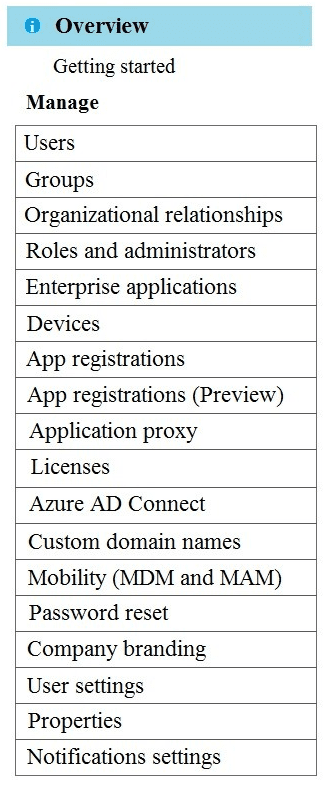

Explanation:
To meet OOBE requirements for Windows Autopilot, you need to configure Mobility (MDM and MAM) to set automatic MDM enrollment (so devices enroll in Intune during OOBE) and Company branding to customize the OOBE sign-in page with company logo and text. These settings are configured from the Azure Active Directory blade.
Correct Option:
Mobility (MDM and MAM)
Under Mobility (MDM and MAM), you configure the MDM user scope to automatically enroll Windows devices in Microsoft Intune during Autopilot OOBE. You also set the MDM authority to Intune. This ensures that when a user signs in, the device is automatically enrolled without manual intervention.
Company branding
Under Company branding, you upload company logo, sign-in page text, and other branding elements. These appear during the Autopilot OOBE sign-in process, providing a customized user experience that meets organizational requirements for branding.
Incorrect Option (other settings in the blade):
Users / Groups – Not directly related to Autopilot OOBE configuration.
Organizational relationships – Manages federation and external identities, not Autopilot.
Roles and administrators – Manages admin roles, not OOBE settings.
Enterprise applications – Manages SaaS app integrations, not Autopilot.
Devices – Contains device settings but not the specific MDM mobility settings needed for Autopilot.
App registrations – For registering applications with Azure AD, not Autopilot.
Licenses – Manages user licenses, not OOBE configuration.
Azure AD Connect – For directory synchronization, not Autopilot.
Custom domain names – For adding custom domains to Azure AD, not OOBE.
Password reset – Configures SSPR, not Autopilot.
User settings – General user preferences, not Autopilot-specific.
Properties – General tenant properties, not Autopilot.
Notifications settings – Configures notification emails, not Autopilot.
Reference:
Microsoft Learn: Windows Autopilot prerequisites – Configure MDM auto-enrollment in Mobility (MDM and MAM). Company branding for OOBE customization. No external links provided.
You need to meet the technical requirements for Windows AutoPilot.
Which two settings should you configure from the Azure Active Directory blade? To answer, select the appropriate settings in the answer area.
NOTE: Each correct selection is worth one point.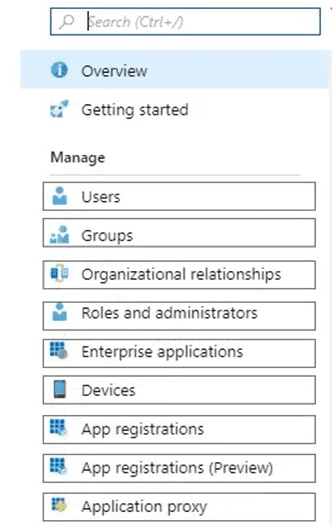
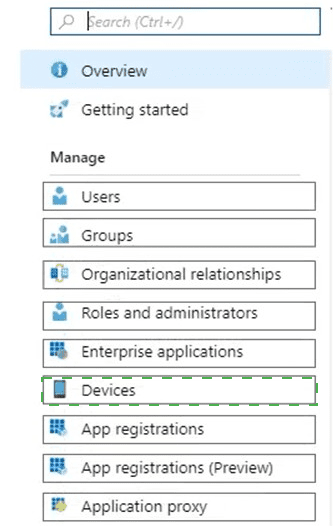
Explanation:
To meet technical requirements for Windows Autopilot, you need to configure Mobility (MDM and MAM) to enable automatic MDM enrollment into Intune, and Company branding to customize the OOBE sign-in experience. These two settings are configured from the Azure Active Directory blade in the Microsoft Entra admin center.
Correct Option:
Mobility (MDM and MAM)
Under Mobility (MDM and MAM), you configure the MDM user scope to automatically enroll Windows devices in Microsoft Intune during Autopilot OOBE. You also set the MDM authority to Intune. This ensures devices are managed without manual enrollment steps.
Company branding
Under Company branding, you upload organization-specific branding (logo, sign-in page text, background image). This branding appears during the Autopilot OOBE sign-in process, providing a customized user experience and meeting organizational technical requirements.
Incorrect Option (other settings in the blade):
Devices – Contains device settings but not the specific MDM mobility settings required for Autopilot automatic enrollment.
User settings – Configures user preferences but not Autopilot OOBE behavior.
Properties – Tenant-wide properties, not Autopilot-specific.
Organizational relationships – Manages federation and external identities, not Autopilot.
Reference:
Microsoft Learn: Windows Autopilot requirements – Configure MDM auto-enrollment in Mobility (MDM and MAM) and Company branding for OOBE. No external links provided.
What should you configure to meet the technical requirements for the Azure AD-joined computers?
A. Windows Hello for Business from the Microsoft Intune blade in the Azure portal.
B. The Accounts options in an endpoint protection profile.
C. The Password Policy settings in a Group Policy object (GPO).
D. A password policy from the Microsoft Office 365 portal.
Explanation:
For Azure AD-joined computers, technical requirements often include strong authentication methods such as PIN, biometric, or facial recognition. Windows Hello for Business replaces passwords with strong two-factor authentication. This is configured from the Microsoft Intune blade (or Endpoint security > Account protection) in the Azure portal (or Intune admin center).
Correct Option:
A. Windows Hello for Business from the Microsoft Intune blade in the Azure portal
Windows Hello for Business is configured in Intune under Device configuration > Identity protection or Endpoint security > Account protection. You can enable Windows Hello, set PIN complexity (minimum length, expiration, etc.), and configure biometric options. This meets authentication requirements for Azure AD-joined computers.
Incorrect Option:
B. The Accounts options in an endpoint protection profile –
Endpoint protection profiles manage Defender, firewall, BitLocker, and attack surface reduction, not Windows Hello for Business authentication policies.
C. The Password Policy settings in a Group Policy object (GPO) –
GPO password policies apply to on-premises Active Directory domain accounts, not to Azure AD-joined computers. Azure AD-joined computers use Windows Hello or cloud-based password policies.
D. A password policy from the Microsoft Office 365 portal –
The Office 365 portal does not contain device authentication policies for Azure AD-joined computers. Password policies for cloud users are configured in Azure AD Password Protection, not Office 365 portal.
Reference:
Microsoft Learn: Configure Windows Hello for Business in Intune – Managed from Intune blade. No external links provided.
You need to recommend a solution to meet the device management requirements.
What should you include in the recommendation? To answer, select the appropriate options in the answer area.
NOTE: Each correct selection is worth one point.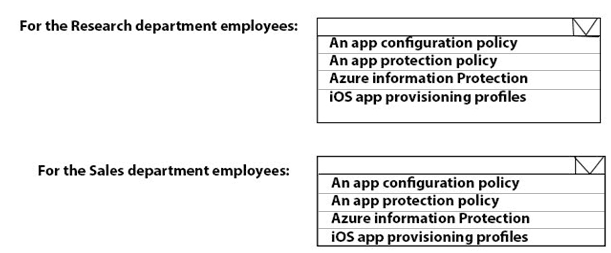
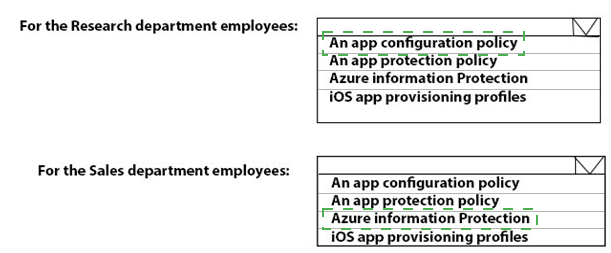
Based on the answer area provided, but without the specific device management requirements for the Research department and Sales department, I can provide general guidance.
To give you accurate answers, I need the device management requirements for each department. For example:
Are they using personal devices (BYOD) or corporate-owned devices?
Is the requirement about protecting corporate data within apps (copy/paste, save as, printing)?
Is the requirement about configuring specific app settings (e.g., server URLs, account configuration)?
Is the requirement about deploying internal iOS apps to corporate devices?
Is the requirement about labeling and protecting sensitive data?
General guidance:
App protection policy (MAM) – Used for protecting corporate data within managed apps on personal (BYOD) or corporate devices. Controls cut/copy/paste, save as, printing, and requires PIN for app access.
App configuration policy – Used to supply configuration settings to managed apps (e.g., setting SharePoint Online URLs, email server addresses). Does not enforce data protection.
Azure Information Protection – Used for classifying, labeling, and protecting sensitive documents and emails based on sensitivity labels.
iOS app provisioning profiles – Used to deploy and trust internal (line-of-business) iOS apps to corporate-owned or supervised devices.
If you provide the device management requirements for both departments, I will give you the correct selections with full explanations.
You need to meet the technical requirements for the LEG department computers.
Which three actions should you perform in sequence? To answer, move the appropriate actions from the list of actions to the answer area and arrange them in the correct order.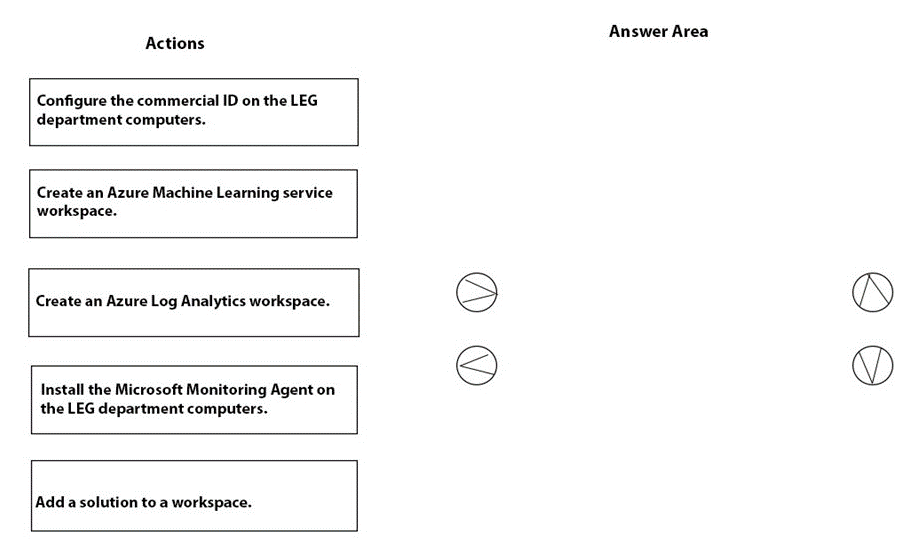
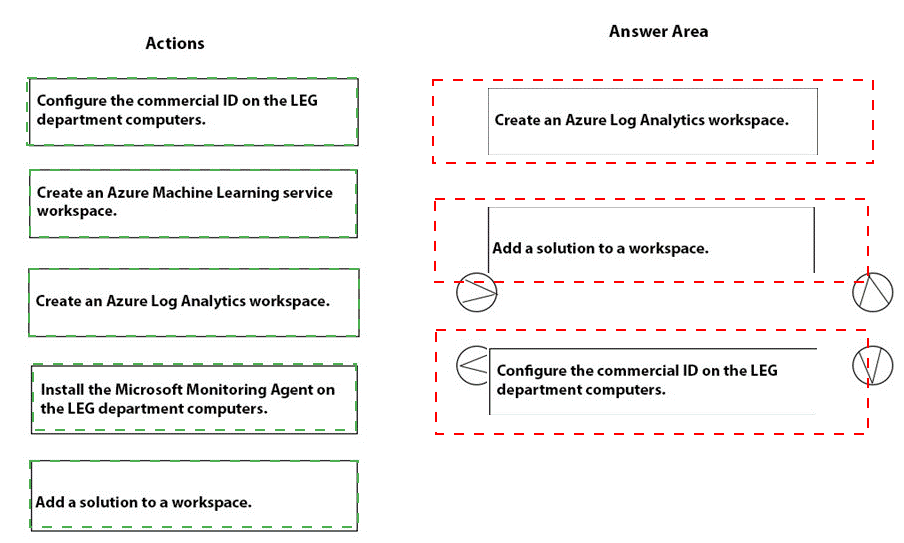
Explanation:
To meet technical requirements for the LEG department computers (likely collecting telemetry or log data), you need to: (1) create a Log Analytics workspace to store data, (2) install the Microsoft Monitoring Agent on computers to forward data, and (3) configure the commercial ID (workspace ID/key) on the computers to authenticate.
Correct Option (in correct sequence):
1. Create an Azure Log Analytics workspace
In the Azure portal, create a Log Analytics workspace. This is the destination where data from the LEG department computers will be stored. The workspace provides a unique workspace ID and primary key required for agent configuration.
2. Install the Microsoft Monitoring Agent on the LEG department computers
Download and install the Microsoft Monitoring Agent (MMA) on each LEG department computer. The agent collects event logs, performance data, and other telemetry and forwards it to the Log Analytics workspace.
3. Configure the commercial ID on the LEG department computers
The "commercial ID" refers to the workspace ID and primary key. During or after agent installation, you configure the agent with the Log Analytics workspace ID and key. This links the computers to the workspace, enabling data collection.
Incorrect Option (actions not used):
Create an Azure Machine Learning service workspace – Used for machine learning experiments and models, not for collecting telemetry from Windows computers.
Add a solution to a workspace – Solutions (e.g., Antimalware Assessment, Update Management) add functionality to a Log Analytics workspace. This is an optional step after the workspace and agent are configured, not one of the three primary actions in sequence.
Reference:
Microsoft Learn: Collect data from Windows computers with Log Analytics – Create workspace, install MMA, configure workspace ID and key. No external links provided.
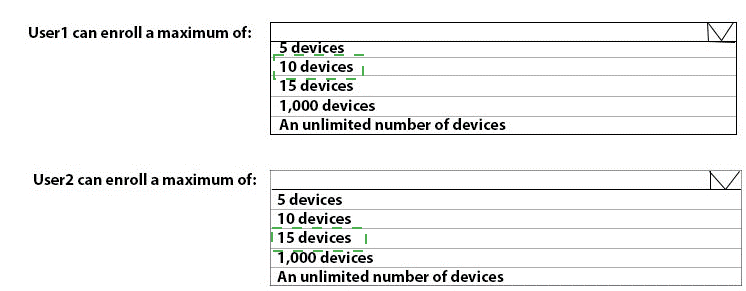
What is the maximum number of devices that User1 and User2 can enroll in Intune? To answer, select the appropriate options in the answer area.
NOTE: Each correct selection is worth one point.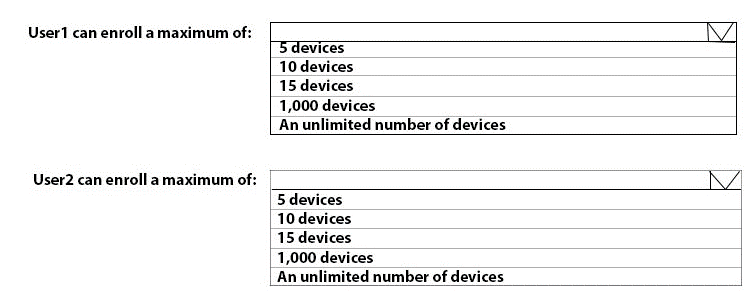
Explanation:
By default, each user in Intune can enroll up to 15 devices (or 5 devices in older tenants). This limit is configurable. Users with the Device Enrollment Manager (DEM) role can enroll up to 1,000 devices. Without the DEM role, the default limit applies. The table likely shows User1 as a standard user and User2 as a DEM.
Correct Option (based on typical MD-102 scenarios):
User1: 15 devices
By default, non-administrative users without the Device Enrollment Manager (DEM) role can enroll up to 15 devices into Intune. This limit applies to both corporate and personal devices. User1 is a standard user (no DEM role), so the maximum is 15 devices.
User2: 1,000 devices
User2 is likely assigned the Device Enrollment Manager (DEM) role. DEM accounts can enroll up to 1,000 devices. This role is designed for scenarios where a single user needs to enroll many devices (e.g., kiosks, shared devices, classroom devices).
Incorrect Option:
5 devices – Older tenants may have a default limit of 5, but modern tenants default to 15. Not the maximum if DEM is used.
10 devices – Not a standard default limit.
An unlimited number of devices – No unlimited enrollment exists; DEM has a 1,000-device cap.
Reference:
Microsoft Learn: Device Enrollment Manager (DEM) – DEM users can enroll up to 1,000 devices. Standard users default to 15 devices. No external links provided.
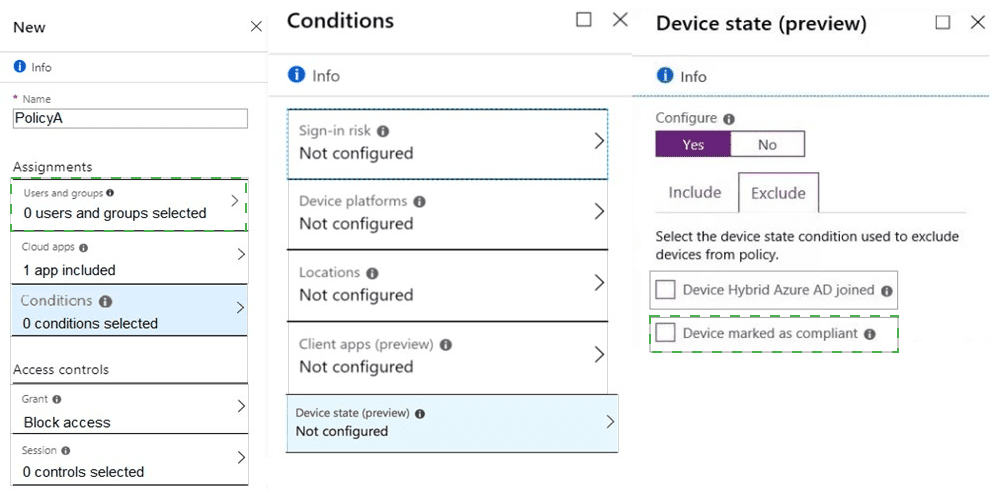
You need a new conditional access policy that has an assignment for Office 365 Exchange Online.
You need to configure the policy to meet the technical requirements for Group4.
Which two settings should you configure in the policy? To answer, select the appropriate settings in the answer area.
NOTE: Each correct selection is worth one point.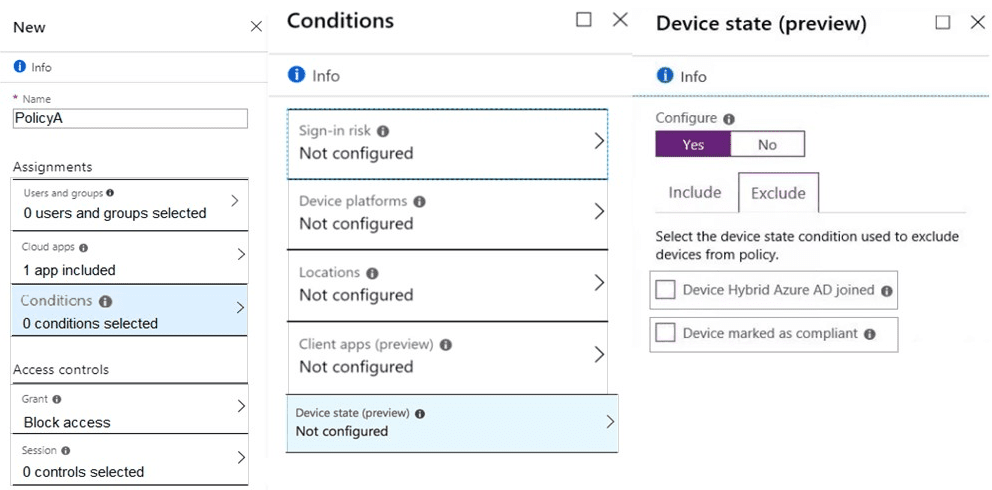
Explanation:
The exhibit shows a Conditional Access policy with "Block access" grant control. To meet technical requirements for Group4 (likely requiring only compliant or hybrid Azure AD joined devices to access Exchange Online), you need to configure Device state condition to exclude devices that are not compliant or not hybrid joined. The two settings are "Device marked as compliant" and "Device Hybrid Azure AD joined" under Device state.
Correct Option:
Device marked as compliant
Under Device state condition, enable "Device marked as compliant." Set to Yes to include or No to exclude. To allow access only from compliant devices, you configure the policy to block access but exclude compliant devices. This ensures noncompliant devices are blocked from accessing Exchange Online.
Device Hybrid Azure AD joined
Under Device state condition, enable "Device Hybrid Azure AD joined." This setting allows you to include or exclude devices that are hybrid Azure AD joined. For Group4, you would exclude hybrid joined devices (or include them) depending on the requirement. Typically, both compliance and hybrid join are used together to enforce access from managed devices.
Incorrect Option (other settings in the exhibit):
Sign-in risk – Not configured in the exhibit; used for detecting risky sign-ins (unusual location, impossible travel). Not directly related to device compliance requirements.
Device platforms – Not configured; used to target specific OS platforms (Windows, iOS, Android). Not shown as required for Group4 in this context.
Locations – Not configured; used to block or allow access from specific IP ranges or named locations.
Client apps (preview) – Not configured; used to differentiate between modern and legacy authentication clients.
Reference:
Microsoft Learn: Conditional Access device state condition – Use "Device marked as compliant" and "Device Hybrid Azure AD joined" to control access based on device management status. No external links provided.
To which devices do Policy1 and Policy2 apply? To answer, select the appropriate options in the answer area.
NOTE: Each correct selection is worth one point.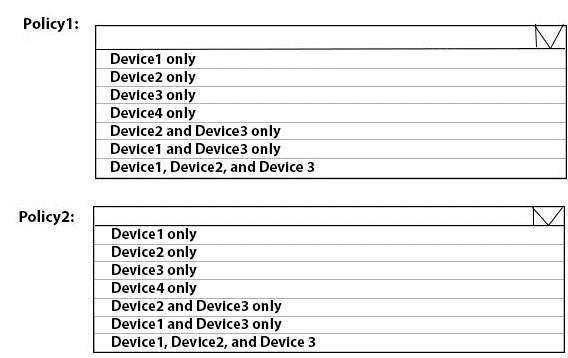
Explanation:
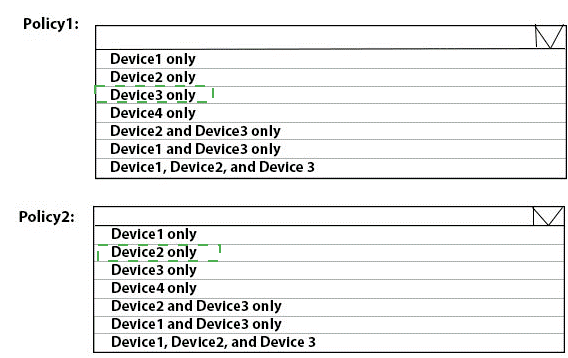
Policy1 is a Device configuration profile (used for Device1 – Windows). These profiles apply only to devices directly assigned or in assigned device groups. They do not apply based on user assignment alone. Policy2 is an App configuration policy (used for Device2 and Device3 – mobile platforms). App configuration policies for managed apps apply based on user assignment and follow the user to any device where the app is installed and managed.
Correct Option:
Policy1: Device1 only –
Device configuration profiles are assigned to device groups or specific devices. They deliver settings at the device level (e.g., Edge policies via Settings Catalog). Therefore, Policy1 applies only to Device1 (the Windows device) and does not follow users to other devices.
Correct Option:
Policy2: Device2 and Device3 only –
App configuration policies are typically assigned to user groups. They deliver settings to the Microsoft Edge app through the managed app channel. On mobile devices (iOS/Android), the policy follows the assigned user and applies wherever the user signs in to Edge on Device2 or Device3. It does not apply to Device1 (Windows) or Device4.
Incorrect Option:
Device2 only / Device3 only / Device4 only –
These are too narrow. Policy1 applies only to the Windows device (Device1), while Policy2 applies to both mobile devices (Device2 and Device3) where the user is signed in. Selecting a single mobile device ignores the fact that the app config follows the user across their mobile devices.
Incorrect Option:
Device2 and Device3 only (for Policy1) –
Incorrect for Policy1. Device configuration profiles do not apply to mobile devices in this context for Edge settings; they are intended for the Windows device only. Policy1 cannot reach Device2 or Device3.
Incorrect Option:
Device1 and Device3 only / Device1, Device2, and Device3 –
These combinations are wrong. Policy1 applies exclusively to Device1. Policy2 applies to Device2 and Device3 but not Device1, as app configuration policies for Edge on mobile do not configure the desktop Edge browser on Windows.
Incorrect Option:
Device1, Device2, and Device3 (for Policy1) –
Device configuration profiles do not apply across platforms like this. They are platform-specific and assigned to devices, so Policy1 stays limited to Device1 only.
Reference:
Microsoft Learn documentation on Intune device configuration profiles and app configuration policies.
You need to prepare for the deployment of the Phoenix office computers.
What should you do first?
A. Generalize the computers and configure the Mobility (MDM and MAM) settings from the Azure Active Directory admin center.
B. Extract the hardware ID information of each computer to a CSV file and upload the file from the Microsoft Intune blade in the Azure portal.
C. Extract the hardware ID information of each computer to an XML file and upload the file from the Devices settings in Microsoft Store for Business.
D. Extract the serial number information of each computer to a CSV file and upload the file from the Microsoft Intune blade in the Azure portal.
Explanation:
Preparing for deployment of new office computers typically involves preparing a reference image (generalizing using Sysprep) and ensuring automatic enrollment is configured. Generalizing removes computer-specific information (SID, drivers) for image deployment. Configuring Mobility (MDM and MAM) settings in Azure AD enables automatic Intune enrollment for devices when users sign in.
Correct Option:
A. Generalize the computers and configure the Mobility (MDM and MAM) settings from the Azure Active Directory admin center
Before deploying multiple computers, you should create a reference image and run Sysprep to generalize it (removing unique identifiers). Then, in the Azure AD admin center, configure Mobility (MDM and MAM) settings to set the MDM user scope. This ensures that when deployed devices are joined to Azure AD, they automatically enroll in Intune without manual intervention.
Incorrect Option:
B. Extract the hardware ID information of each computer to a CSV file and upload the file from the Microsoft Intune blade –
This describes Windows Autopilot registration, which is for registering existing devices, not for preparing an image for deployment.
C. Extract hardware ID to XML and upload from Devices settings in Microsoft Store for Business –
Microsoft Store for Business is deprecated and not used for Autopilot or device preparation.
D. Extract serial number to CSV and upload from Intune blade –
Serial numbers alone are insufficient for Autopilot; hardware hash is required. This is also for Autopilot registration, not for image preparation.
Reference:
Microsoft Learn: Prepare Windows image for deployment – Generalize using Sysprep. Configure MDM auto-enrollment in Azure AD Mobility settings. No external links provided.
| Page 2 out of 29 Pages |
| 123456789 |
| MD-102 Practice Test Home |
Real-World Scenario Mastery: Our MD-102 practice exam don't just test definitions. They present you with the same complex, scenario-based problems you'll encounter on the actual exam.
Strategic Weakness Identification: Each practice session reveals exactly where you stand. Discover which domains need more attention, before Endpoint Administrator exam day arrives.
Confidence Through Familiarity: There's no substitute for knowing what to expect. When you've worked through our comprehensive MD-102 practice exam questions pool covering all topics, the real exam feels like just another practice session.
Copyright © All Rights Reserved