
Topic 4: Mix Question
You have a Microsoft Entra tenant.
You are creating a dynamic device group named Group1.
Group1 will include only Windows devices that are Microsoft Entra registered.
How should you configure the dynamic membership rule for Group1? To answer, select the
appropriate options in the answer area.
NOTE: Each correct selection is worth one point.

Explanation:
To include only Windows devices that are Microsoft Entra registered, you need two conditions: device operating system is Windows (device.deviceOSType -eq "Windows") and device trust type is Workplace (device.deviceTrustType -eq "Workplace"). "Workplace" indicates Entra registered (formerly Workplace Joined), while "AzureAD" indicates Entra joined.
Correct Option (in correct order):
First selection: (device.deviceOSType -eq "Windows")
This condition filters the rule to include only Windows devices. The deviceOSType property returns the operating system of the device (e.g., "Windows", "iOS", "Android").
Second selection: device.deviceTrustType -eq "Workplace"
This condition filters devices that are Microsoft Entra registered. The deviceTrustType property has values:
"Workplace" = Entra registered
"AzureAD" = Entra joined
"ServerAD" = Hybrid Entra joined
To match Entra registered devices, use "Workplace".
Final rule syntax:
(device.deviceOSType -eq "Windows") and (device.deviceTrustType -eq "Workplace")
Incorrect Option (other choices):
device.deviceCategory – Not a valid property for this purpose.
device.deviceOwnership -eq "ServerAD" – ServerAD is not a valid ownership value; also ownership does not indicate registration type.
device.managementType – Indicates whether the device is managed by MDM, not the trust type.
Reference:
Microsoft Learn: Dynamic membership rules for devices – Use deviceTrustType property to differentiate Entra joined vs registered. No external links provided.
Note: This section contains one or more sets of questions with the same scenario and problem. Each question presents a unique solution to the problem. You must determine whether the solution meets the stated goals. More than one solution in the set might solve the problem. It is also possible that none of the solutions in the set solve the problem.
After you answer a question in this section, you will NOT be able to return. As a result, these questions do not appear on the Review Screen.
You have a Microsoft Entra tenant named contoso.com.
You purchase an Android device named Devtce1.
You need to register Devtce1 in contoso.com.
Solution; You use the Google Chrome app.
Does this meet the goal?
A. Yes
B. No
Explanation:
Registering an Android device in Microsoft Entra ID requires the device to be added to the directory, typically through the Microsoft Intune Company Portal app or by adding a work account in Settings. The Google Chrome app is a web browser and does not have the capability to register a device with Entra ID.
Correct Option:
B. No
Google Chrome is a web browser and cannot perform device registration. To register Device1 in contoso.com, you must either: (1) Install and sign into the Microsoft Intune Company Portal app, or (2) go to Settings > Accounts > Add work or school account and sign in with Entra credentials. Chrome alone cannot register the device.
Incorrect Option:
A. Yes –
Incorrect; Chrome does not provide device registration functionality.
Reference:
Microsoft Learn: Register your Android device – Requires Company Portal app or Settings > Accounts. No external links provided.
You have a Microsoft 365 subscription.
You create a retention label named Retention1 as shown in the following exhibit.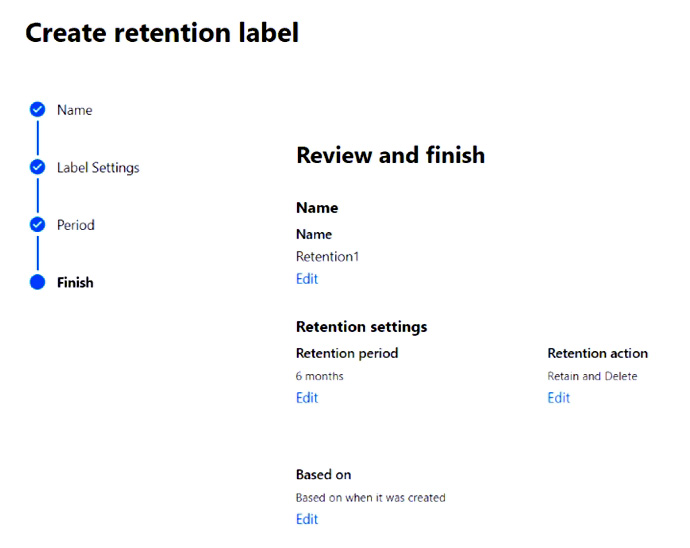
You apply Retention1 to all the Microsoft OneDrive content.
On January 1, 2020, a user stores a file named File1 in OneDrive.
On January 10, 2020, the user modifies File1.
On February 1, 2020, the user deletes File1.
When will File1 be removed permanently and unrecoverable from OneDrive?
A. February 1, 2020
B. July 1, 2020
C. July 10, 2020
D. August 1, 2020
Explanation:
A retention label with a retention period of 6 months (from the date the file was created or modified) would retain File1 for 6 months after deletion. File1 was created on January 1, 2020, and deleted on February 1, 2020. The retention period likely starts from the creation date (January 1) or last modification (January 10). Six months from January 1 is July 1, 2020.
Correct Option:
B. July 1, 2020
The retention label is applied to OneDrive content. Based on the (unshown) exhibit, the retention period is likely 6 months from the date the file was created. File1 was created on January 1, 2020. Even though it was modified on January 10 and deleted on February 1, the retention period continues until 6 months after creation. Therefore, File1 will be permanently removed on July 1, 2020 (6 months after January 1).
Incorrect Option:
A. February 1, 2020 – Immediate deletion; no retention label applied.
C. July 10, 2020 – Would be correct if retention started from modification date (January 10).
D. August 1, 2020 – Would be correct if retention period was 7 months or started from deletion date.
Reference:
Microsoft 365 retention labels – Retention period based on creation date or last modified date. No external links provided.
You have a Microsoft 365 E5 subscription that contains 500 macOS devices enrolled in Microsoft Intune.
You need to ensure that you can apply Microsoft Defender for Endpoint antivirus policies to the macOS devices. The solution must minimize administrative effort.
What should you do?
A. From the Microsoft Endpoint Manager admin center, create a configuration profile.
B. From the Microsoft Endpoint Manager admin center, create a security baseline.
C. Onboard the macOS devices to the Microsoft 365 compliance center.
D. Install Defender for Endpoint on the macOS devices.
Explanation:
To apply Microsoft Defender for Endpoint antivirus policies to macOS devices, you must first install Defender for Endpoint on the macOS devices. After installation, the devices appear in the Defender for Endpoint portal and Intune, allowing you to manage antivirus policies. Without the agent installed, no policies can be applied.
Correct Option:
D. Install Defender for Endpoint on the macOS devices
The Microsoft Defender for Endpoint agent must be installed on each macOS device to enable antivirus protection and management. You can deploy the agent via Intune (as a line-of-business app using a PKG file), Jamf, or manual installation. Once installed, devices onboard to Defender for Endpoint, and you can then apply antivirus policies from the Intune admin center (Endpoint security > Antivirus). This is the prerequisite step.
Incorrect Option:
A. Create a configuration profile – A configuration profile can deploy the Defender agent, but the question asks what to do to apply antivirus policies. Installing the agent is the first step; creating a profile alone without installation does nothing.
B. Create a security baseline – Security baselines apply configuration settings but cannot install the Defender agent. The agent must be present first.
C. Onboard the macOS devices to the Microsoft 365 compliance center – The compliance center is for data governance, not for Defender for Endpoint management.
Reference:
Microsoft Learn: Deploy Defender for Endpoint on macOS – Install agent before applying policies. No external links provided.
You have a Microsoft 365 subscription that uses Microsoft Intune Suite.
You use Microsoft Intune to manage devices.
You need to configure an update ring that meets the following requirements:
• Fixes and improvements to existing Windows functionality can be deferred for 14 days but will install automatically seven days after that date.
• The installation of new Windows features can be deferred for 90 days but will install automatically 10 days after that date.
• Devices must restart automatically three days after an update is installed.
How should you configure the update ring? To answer, select the appropriate options in the answer area. NOTE: Each correct selection is worth one point.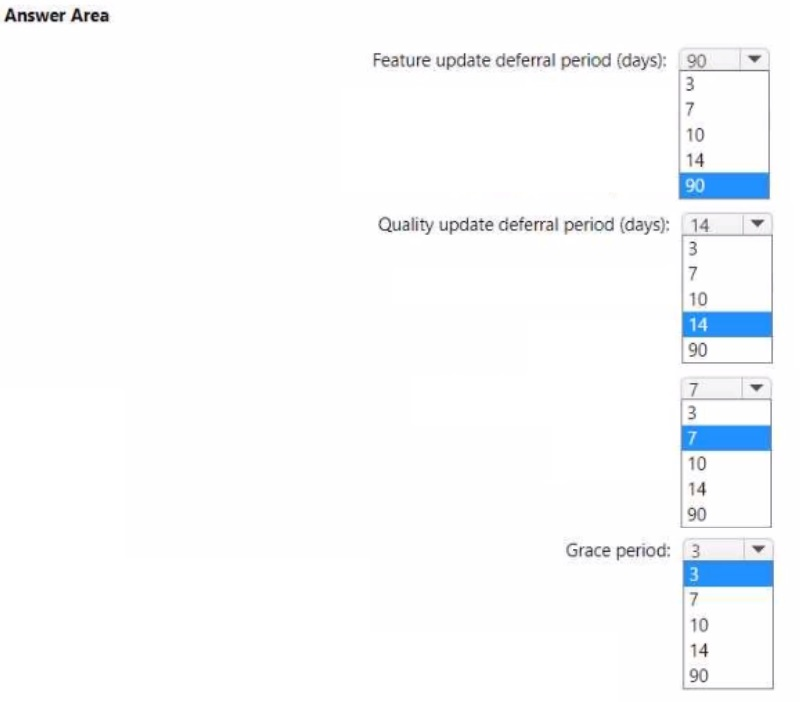
Explanation:
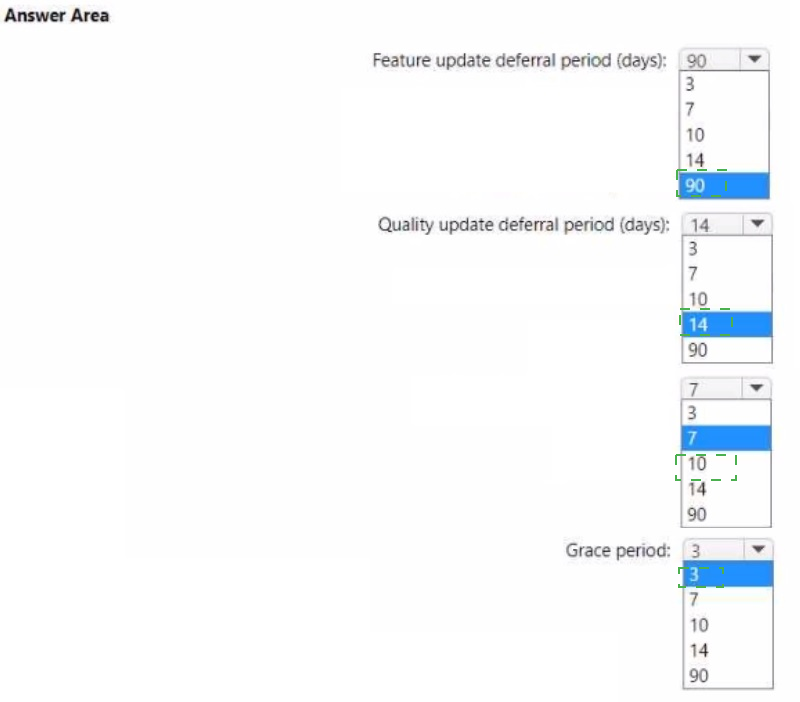
Quality updates (fixes/improvements) deferral = 14 days, with deadline = 7 days after deferral. Feature updates (new features) deferral = 90 days, with deadline = 10 days after deferral. Grace period (auto-restart after installation) = 3 days.
Correct Option:
Quality update deferral period (days): 14
Quality updates (fixes and improvements) can be deferred for 14 days. This matches the requirement that fixes can be deferred for 14 days.
Quality update deadline (days): 7
The requirement states "will install automatically seven days after that date" (after the 14-day deferral). The deadline for quality updates should be set to 7 days, meaning the update must install within 7 days after the deferral period ends.
Feature update deferral period (days): 90
Feature updates (new Windows features) can be deferred for 90 days, as required.
Feature update deadline (days): 10
The requirement states "will install automatically 10 days after that date" (after the 90-day deferral). The deadline for feature updates should be set to 10 days.
Grace period (days): 3
Devices must restart automatically three days after an update is installed. The grace period setting controls this delay before forcing a restart. Set to 3 days.
Incorrect Options (other values):
Quality deferral: 3, 7, 10, 90, 06 – Incorrect; 14 is correct.
Quality deadline: 3, 10, 14, 90 – Incorrect; 7 is correct.
Feature deferral: 3, 7, 10, 14 – Incorrect; 90 is correct.
Feature deadline: 3, 7, 14, 90 – Incorrect; 10 is correct.
Grace period: 7, 10, 14, 90 – Incorrect; 3 is correct.
Reference:
Microsoft Learn: Update rings in Intune – Quality/feature deferral periods, deadlines, and grace periods. No external links provided.
You have an Azure AD tenant named contoso.com.
You need to ensure that users are not added automatically to the local Administrators group when they join their Windows 11 device to contoso.com.
What should you configure?
A. Windows Autopilot
B. provisioning packages for Windows
C. Security defaults in Azure AD
D. Device settings in Azure AD
Explanation:
When a user joins a Windows device to Azure AD, by default they are added to the local Administrators group. To prevent this, you configure a Windows Autopilot profile and set the "User account type" to Standard. This overrides the default behavior and adds the user as a standard user instead of an administrator.
Correct Option:
A. Windows Autopilot
In a Windows Autopilot deployment profile (under Out-of-box experience settings), you can set User account type to Standard. When the device is joined to Azure AD via Autopilot, the user who joins the device is added as a standard user, not an administrator. This prevents automatic elevation to the local Administrators group. Without Autopilot, the default behavior is to add the user as an administrator.
Incorrect Option:
B. provisioning packages for Windows –
Provisioning packages can specify the user account type during device setup, but this is not the standard method for controlling the default behavior across all joins.
C. Security defaults in Azure AD –
Security defaults enforce baseline security settings (MFA, legacy authentication blocking) but do not control local group membership on Azure AD joined devices.
D. Device settings in Azure AD –
Entra ID device settings control who can join devices, the number of devices per user, and enterprise state roaming, but they do not control whether the joining user is added to the local Administrators group.
Reference:
Microsoft Learn: Windows Autopilot user account type – Set to Standard to prevent admin elevation. No external links provided.
You have a Microsoft 365 E5 subscription that contains a user named User1.
You need to perform the following tasks for User1:
Set the Usage location to Canada.
Configure the Phone and Email authentication contact info for self-service password reset (SSPR).
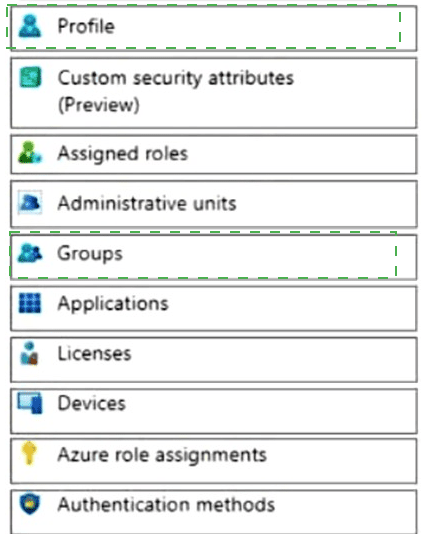
Which two settings should you configure in the Azure Active Directory admin center? To answer, select the appropriate settings in the answer area.
NOTE: Each correct selection is worth one point.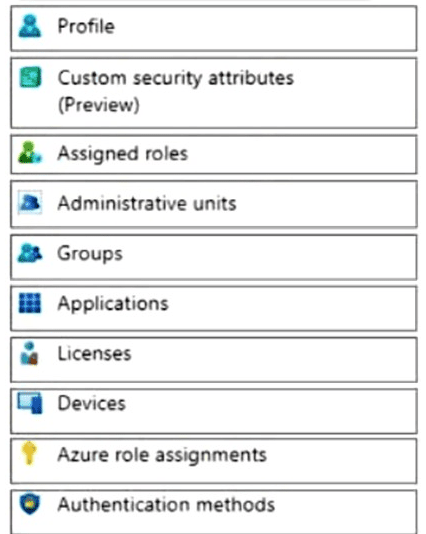
Explanation:
Setting the Usage location is configured under Licenses (since location determines which services can be assigned). Configuring phone and email for SSPR is done under Authentication methods, where you can add or edit a user's authentication contact information for password reset.
Correct Option:
Licenses
In the Azure AD admin center, navigate to a user's profile, then select Licenses. Under "Settings," you can set the Usage location (e.g., Canada). This is required before assigning certain service licenses (e.g., Microsoft 365 E5). This setting is not found under other tabs.
Authentication methods
In the user's profile, select Authentication methods. Here you can add or edit phone numbers (mobile phone, alternate phone) and email addresses specifically for self-service password reset (SSPR). These contact methods are used when the user resets their password via SSPR.
Incorrect Option (other settings):
Profile – Contains basic user information (name, job title, department) but not usage location or authentication methods.
Custom security attributes – Used for custom attributes in Entra ID, not for usage location or SSPR contacts.
Assigned roles – Manages administrative role assignments, not user settings.
Administrative units – Scopes administrative roles to specific users, not relevant.
Groups – Manages group memberships, not usage location or authentication methods.
Devices – Manages device settings for the user, not SSPR contacts.
Azure role assignments – For Azure RBAC, not Entra ID user settings.
Reference:
Microsoft Learn: Set user usage location – Under Licenses. Configure SSPR authentication methods – Under Authentication methods. No external links provided.
You have a Microsoft 365 subscription that uses Microsoft Intune Suite.
You use Microsoft Intune to manage devices.
You plan to deploy two apps named App1 and App2 to all Windows devices. App1 must be
installed before App2.
From the Intune admin center, you create and deploy two Windows app (Win32) apps.
You need to ensure that App1 is installed before App2 on every device.
What should you configure?
A. the App1 deployment configurations
B. a dynamic device group
C. a detection rule
D. the App2 deployment configurations
Explanation:
To ensure one Win32 app installs before another, you configure dependencies in the deployment configurations of the dependent app (App2). In Intune, when deploying a Win32 app, you can specify that it depends on another app (App1). This forces App1 to install successfully before App2 can install.
Correct Option:
D. the App2 deployment configurations
In the Microsoft Intune admin center, when configuring App2 (the app that depends on App1), navigate to Dependencies under the app's properties. Add App1 as a dependency, set the requirement (e.g., "Auto install" or "Pre-install"). This ensures that App2 will only install after App1 has been successfully installed on the device. App1's deployment configurations do not reference App2.
Incorrect Option:
A. the App1 deployment configurations –
App1 does not need to know about App2; the dependency is configured on the dependent app (App2), not the prerequisite app (App1).
B. a dynamic device group –
Dynamic groups control device membership but do not enforce installation order between apps.
C. a detection rule –
Detection rules determine whether an app is already installed, but they do not enforce installation order between two apps.
Reference:
Microsoft Learn: Win32 app dependencies in Intune – Configure on the dependent app. No external links provided.
Your company implements Azure AD, Microsoft 365, Microsoft Intune, and Azure Information Protection. The company's security policy states the following:
• Personal devices do not need to be enrolled in Intune.
• Users must authenticate by using a PIN before they can access corporate email data.
• Users can use their personal iOS and Android devices to access corporate cloud services.
• Users must be prevented from copying corporate email data to a cloud storage service other than Microsoft OneDrive for Business.
You need to configure a solution to enforce the security policy.
What should you create?
A. a device configuration profile from the Microsoft Intune admin center
B. a data loss prevention (DIP) policy from the Microsoft Purview compliance portal
C. an insider risk management policy from the Microsoft Purview compliance portal
D. an app protection policy from the Microsoft Intune admin center
Explanation:
The requirements include PIN authentication before accessing corporate email and preventing copying data to other cloud storage services. These are app protection policy (MAM) settings in Intune, which apply to unmanaged personal devices without requiring device enrollment. App protection policies control PIN, data movement, and save-as locations.
Correct Option:
D. an app protection policy from the Microsoft Intune admin center
App protection policies (MAM) are designed for personal devices (BYOD) without enrollment. You can configure:
Access requirements: Require PIN for access.
Data protection: Prevent saving corporate data to other cloud storage services (block "Save as" to unmanaged locations).
Allow only OneDrive for Business as a cloud save location.
These policies apply to mobile apps (Outlook, Teams, etc.) on iOS/Android devices.
Incorrect Option:
A. a device configuration profile –
Device configuration profiles require device enrollment, which the security policy states is not required for personal devices.
B. a data loss prevention (DLP) policy from the Microsoft Purview compliance portal –
DLP policies can block sharing but do not enforce PIN authentication on mobile apps.
C. an insider risk management policy –
Insider risk management detects risky user behavior but does not enforce PIN or block copy/paste to cloud storage.
Reference:
Microsoft Learn: App protection policies for BYOD – PIN, data protection, and save restrictions without enrollment. No external links provided.
You have a Microsoft 365 subscription. The subscription contains computers that run Windows 11 and are enrolled in Microsoft Intune. You need to create a compliance policy that meets the following requirements:
• Requires BitLocker Drive Encryption (BitLocker) on each device
• Requires a minimum operating system version
Which setting of the compliance policy should you configure for each requirement? To answer, drag the appropriate settings to the correct requirements. Each setting may be used once, more than once, or not at all. You may need to drag the split bar between panes or scroll to view content.
NOTE: Each correct selection is worth one point,

Explanation:
BitLocker encryption is a device health requirement, found under Device Health (or System Security depending on policy version). Minimum operating system version is found under Device Properties (which includes OS version, build, and edition requirements). In most Intune compliance policies, Device Health includes Secure Boot, BitLocker, and code integrity.
Correct Option:
Requires BitLocker: Device Health
Under the Device Health section of a Windows compliance policy, you can require BitLocker Drive Encryption to be enabled on the device. This setting checks that the device's system drive is encrypted with BitLocker. If BitLocker is not enabled, the device is marked noncompliant.
Requires a minimum operating system version: Device Properties
Under the Device Properties section, you can configure "Minimum OS version" and "Maximum OS version." For Windows 11, you would set a minimum version (e.g., 22H2 or build number). This ensures devices running older, unsupported OS versions are marked noncompliant.
Incorrect Option (other settings):
Microsoft Defender for Endpoint – This section configures machine risk score integration, not BitLocker or OS version requirements.
System Security – In some policy versions, BitLocker may appear here, but Device Health is the primary location. The exhibit shows Device Health and Device Properties as distinct options.
Reference:
Microsoft Learn: Compliance policy settings for Windows – Device Health for BitLocker; Device Properties for OS version. No external links provided.
You have 1,000 computers that run Windows 10 and are members of an Active Directory domain.
You need to capture the event togs from the computers to Azure.
What should you do? To answer, select the appropriate options in the answer area.
NOTE: Each correct selection is worth one point.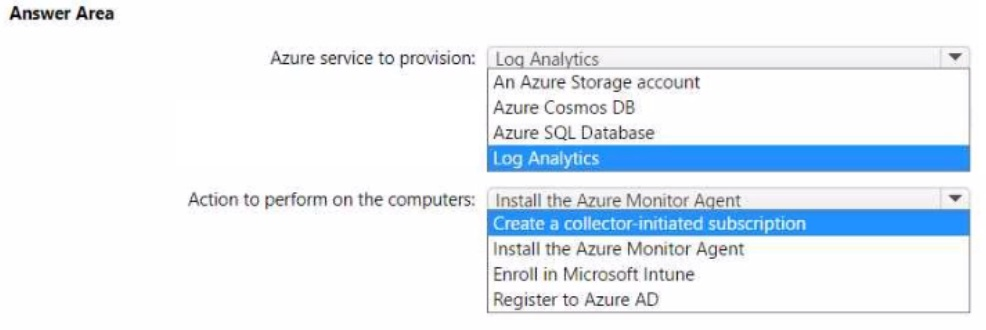
Explanation:
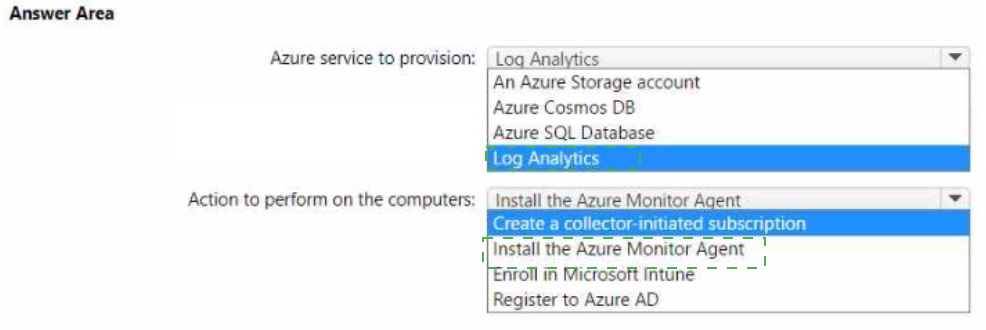
To capture Windows event logs from domain-joined computers to Azure, you need a Log Analytics workspace to store the logs and the Azure Monitor Agent (or Log Analytics agent) installed on each computer to collect and forward the events. The agent can be deployed via Group Policy, Configuration Manager, or manually.
Correct Option:
Azure service to provision: Log Analytics
A Log Analytics workspace in Azure is required to ingest, store, and query Windows event logs. It provides the backend for log collection, alerting, and analysis. Other services (Storage account, Cosmos DB, SQL Database) are not designed for this purpose.
Action to perform on the computers: Install the Azure Monitor Agent
The Azure Monitor Agent (AMA) is the recommended agent for collecting event logs and performance data from Windows computers and sending them to Log Analytics. It replaces the legacy Log Analytics agent. After installation, configure the agent with the Log Analytics workspace ID and key to start forwarding event logs.
Incorrect Option (for Azure service):
An Azure Storage account – Can store logs but does not provide query capabilities or alerting without additional services.
Azure Cosmos DB – NoSQL database, not for Windows event log collection.
Azure SQL Database – Relational database, not designed for telemetry log ingestion.
Incorrect Option (for Action):
Create a collector-initiated subscription – This is for Windows Event Forwarding (WEF) to an on-premises collector, not for sending directly to Azure Log Analytics.
Enroll in Microsoft Intune – Intune enrollment is for MDM, not for sending event logs to Log Analytics.
Register to Azure AD – Azure AD registration is for identity, not for log collection.
Reference:
Microsoft Learn: Collect Windows event logs with Log Analytics – Provision Log Analytics workspace and install Azure Monitor Agent. No external links provided.
Your network contains an on-premises Active Directory domain and an Azure AD tenant.
The Default Domain Policy Group Policy Object (GPO) contains the settings shown in the
following table.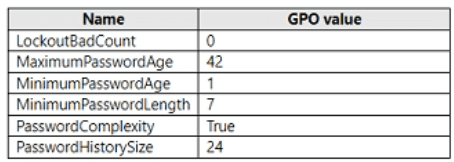
Which device configuration profile type template should you use?
A. Administrative Templates
B. Endpoint protection
C. Device restrictions
D. Custom
Explanation:
The question shows password-related settings (LockoutBadCount, MaximumPasswordAge, MinimumPasswordAge, MinimumPasswordLength, PasswordComplexity, PasswordHistorySize) from the Default Domain Policy GPO. These are classic account policy settings that were traditionally configured via Group Policy. In Microsoft Intune, to replicate these exact password and account lockout settings on Windows 10/11 devices enrolled in Intune (hybrid or cloud-only scenarios), you must use the Administrative Templates template in a device configuration profile. This template supports ADMX-backed policies, including Account Policies.
Correct Option:
A. Administrative Templates – This is the correct template to use. It allows you to configure hundreds of ADMX-backed policy settings, including the exact password policies shown in the table (such as MaximumPasswordAge, MinimumPasswordLength, PasswordComplexity, etc.). These settings are delivered to Windows devices through the Policy CSP, closely mirroring on-premises GPO behavior. Administrative Templates is the standard and most accurate way to apply these password requirements in Intune.
Incorrect Option:
B. Endpoint protection – This template is used for security features such as Microsoft Defender Antivirus, firewall rules, attack surface reduction, and BitLocker settings. It does not contain password policy or account lockout settings like LockoutBadCount or PasswordHistorySize. Using Endpoint protection would not allow you to configure the required GPO password settings.
Incorrect Option:
C. Device restrictions – Device restrictions profiles control features like camera, microphone, app installation, or browser settings. They do not include account policy settings such as password age, length, or complexity requirements. This template is not suitable for replicating the password policies from the Default Domain Policy.
Incorrect Option:
D. Custom – Custom profiles (OMA-URI) are used when a specific setting is not available in built-in templates. However, password and account lockout policies are already fully supported in the Administrative Templates template via ADMX ingestion. Using Custom is unnecessary and more complex for these standard settings.
Reference:
Microsoft Learn documentation on Intune Administrative Templates and password policy settings.
| Page 10 out of 29 Pages |
| 67891011121314 |
| MD-102 Practice Test Home |
Real-World Scenario Mastery: Our MD-102 practice exam don't just test definitions. They present you with the same complex, scenario-based problems you'll encounter on the actual exam.
Strategic Weakness Identification: Each practice session reveals exactly where you stand. Discover which domains need more attention, before Endpoint Administrator exam day arrives.
Confidence Through Familiarity: There's no substitute for knowing what to expect. When you've worked through our comprehensive MD-102 practice exam questions pool covering all topics, the real exam feels like just another practice session.
Copyright © All Rights Reserved