
Topic 5: Misc. Questions
A company uses Business Central.
The finance team at the company plans to enhance reporting capabilities by integrating
Power Bl with data directly sourced from Business Central. You need to expose Business
Central data that can be consumed by Power Bl reports. What should you do?
A. Enable the Power Bl Embedded service.
B. Publish the OData web services for the required entities.
C. Select the Share action in Business Central.
D. Create a user account in Business Central for Power 61 access.
Explanation:
The requirement is to expose Business Central data for consumption by Power BI. The core step is to make the data accessible via a standard API that Power BI can connect to. While setting up a user account is part of the connection process, it is not the primary action for exposing the data itself.
Correct Option:
A. Enable the Power BI Embedded service.
Explanation:
This is the most direct and complete action. Power BI Embedded is a service in the Business Central admin center. Enabling it automatically creates and publishes a set of default OData web services (APIs) optimized for Power BI, making Business Central data directly available for Power BI to connect to and consume.
Incorrect Options:
B. Publish the OData web services for the required entities:
This is technically correct as a method, but it is a manual, developer-focused task. The standard, recommended administrative method to achieve this in the context of Power BI integration is to Enable the Power BI Embedded service (Option A), which handles this publishing automatically.
C. Select the Share action in Business Central:
The Share action in Business Central is used to share links to specific pages or reports within Business Central or via email. It does not expose data APIs for external consumption by Power BI.
D. Create a user account in Business Central for Power BI access:
While Power BI needs authentication (often via a service account), creating a user account is a prerequisite for connecting, not for exposing the data. The data must first be exposed as a service (via OData) before a user account can access it from Power BI.
Reference:
Microsoft Learn documentation "Enable Power BI Integration in Business Central Online." The standard procedure is to enable the Power BI Embedded service in the admin center, which automatically configures the necessary web services and environment settings for Power BI reporting.
You need to undo an incorrectly posted purchase receipt from a related purchase order.
Which four actions should you perform in sequence? To answer, move the appropriate
actions from the list of actions to the answer area and arrange them in the correct order.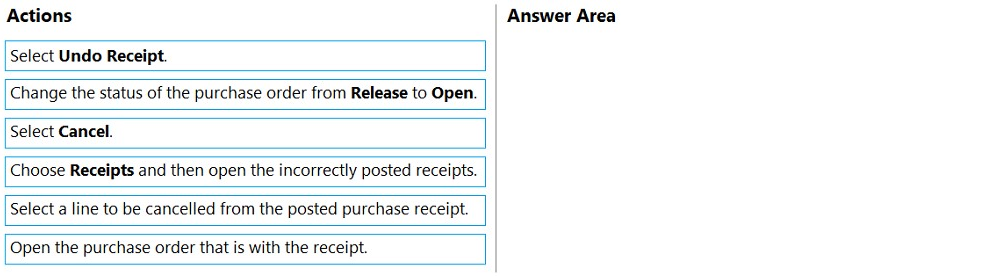
Explanation:
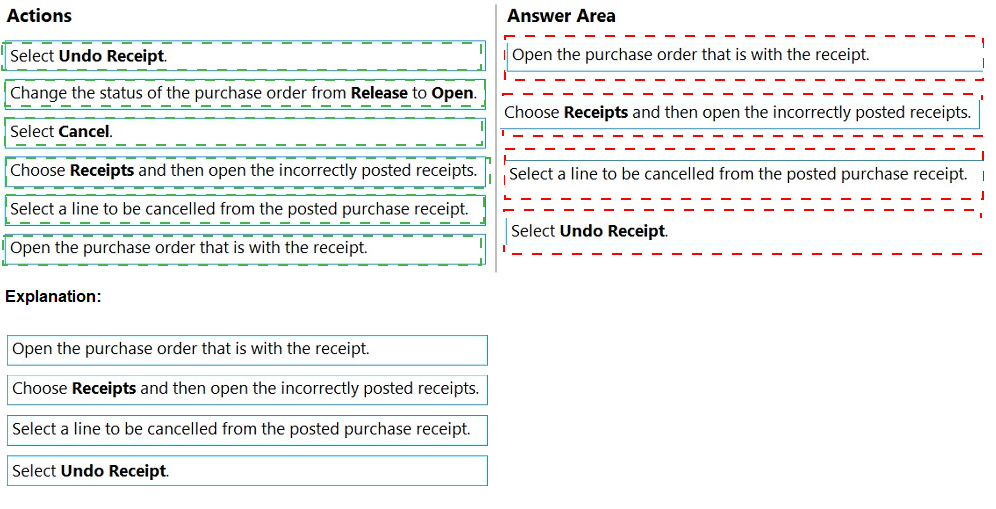
To correct an incorrectly posted purchase receipt while keeping the purchase order open for further processing, you use the Undo Receipt function. The process involves locating the posted receipt from the related order and then performing the undo action. You do not need to change the order's status first.
Correct Option Sequence:
The correct sequence to undo a posted purchase receipt is:
Open the purchase order that is with the receipt. (Navigate to the original purchase order from which the receipt was posted.)
Choose Receipts and then open the incorrectly posted receipts. (From the purchase order, go to Related > Order > Receipts to view the list of posted receipts for that order.)
Select a line to be cancelled from the posted purchase receipt. (Open the specific posted receipt document and select the line(s) you need to undo.)
Select Undo Receipt. (With the receipt line selected, choose the Undo Receipt action. This creates a negative purchase receipt to reverse the original, and the purchase order's Quantity Received is reduced.)
Incorrect Options:
Change the status of the purchase order from Release to Open:
This is not a required step. You can undo a receipt from a released purchase order without changing its status.
Select Cancel:
The Cancel action is for voiding an entire unpaid posted invoice, not for reversing a posted receipt. The correct action for reversing a receipt is Undo Receipt.
Reference:
Microsoft Learn documentation "Undo Purchase Receipts." The documented process is to find the posted receipt from the purchase order and use the Undo Receipt action to reverse it, returning the items to a "not received" status on the order.
Note: This question is part of a series of questions that present the same scenario. Each
question in the series contains a unique solution that might meet the stated goals. Some
question sets might have more than one correct solution, while others might not have a
correct solution.
After you answer a question in this section, you will NOT be able to return to it. As a result,
these questions will not appear in the review screen.
You need to transfer opening balances data into the system.
Solution: Import the data by using comma-separated values (CSV) files.
Does the solution meet the goal?
A. Yes
B. No
Explanation:
Transferring opening balances, such as G/L account balances, customer/vendor ledger entries, and inventory values, is a standard data migration task. Business Central supports importing data through CSV files, typically by using the Configuration Worksheet or RapidStart implementation tools, which allow for data mapping and import of master and transactional data, including opening balances.
Correct Option:
A. Yes
Explanation:
Using CSV files is a valid and common method to transfer opening balances into Business Central. This is typically done via the Configuration Packages feature, where you prepare CSV templates, map fields, and import the data. It is a standard data migration approach for initial setup.
Incorrect Option:
B. No:
This is incorrect because importing via CSV is a supported and documented method for data migration. While other methods exist (like the Copy Company function or manual journals), the CSV import via configuration packages is a flexible and effective solution for transferring opening balance data.
Reference:
Microsoft Learn documentation on using "Configuration Packages" to migrate data. Configuration packages use Excel/CSV files to import data for tables, including the General Ledger Entry and Customer/Vendor Ledger Entry tables, which is how opening balances are brought into the system.
The general ledger account for accounts receivable must match the sum of all balances on
the customer cards.
You need to set up the general ledger account card for accounts receivable to meet this
requirement.
Which configuration should you use?
A. Configure Totaling.
B. Disallow direct posting.
C. Configure the account type.
D. Block the account card.
Explanation:
To ensure a G/L account balance matches the sum of related sub-ledger balances (reconciliation), you must prevent transactions from being posted directly to the G/L account. This forces all entries to flow through the sub-ledger (e.g., Customer Ledger), ensuring the G/L account (Accounts Receivable) is only updated via posting groups from those sub-ledger entries.
Correct Option:
B. Disallow direct posting.
Explanation:
On the G/L Account Card, setting the Direct Posting field to No prevents users from posting journal entries directly to that account (e.g., Account 1200 - Accounts Receivable). All postings to the account must come from sub-ledger transactions (like sales invoices and payments) via the Customer Posting Group. This guarantees the receivables control account always equals the sum of detailed customer ledger balances.
Incorrect Options:
A. Configure Totaling:
The Totaling field is used to create a header account that shows the sum of a range of sub-accounts (e.g., account 1110 totals 1111..1119). It does not enforce reconciliation with sub-ledgers.
C. Configure the account type:
The Account Type (e.g., Posting, Heading, Total) defines the account's purpose but does not control how postings are made or enforce reconciliation.
D. Block the account card:
There is no "Block" action for an account card. Even if an account is marked as Blocked, it prevents any postings (including from sub-ledgers), which would break the accounting system, not reconcile it.
Reference:
Microsoft Learn documentation on "Reconcile the Bank Account" and setting up G/L accounts. To maintain reconciliation between a control account (like Accounts Receivable) and its sub-ledger, a standard practice is to disallow direct posting to the control account in the G/L.
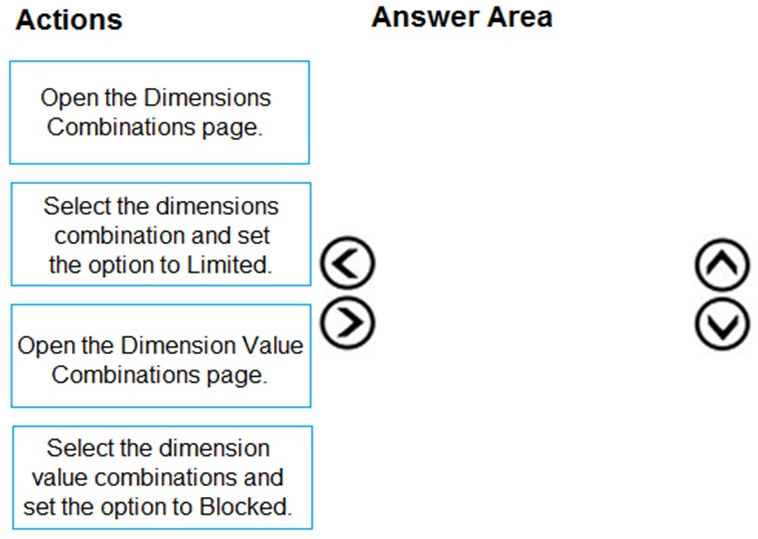
The company uses Dynamics 365 Business Central. You create several dimensions that
will be used to perform cost analyses.
Some dimension value combinations are not allowed when posting purchase transactions.
You need to set up dimension combinations.
In which order should you perform the actions? To answer, move all the actions from the
.list of actions and arrange them in the correct order.
Explanation:
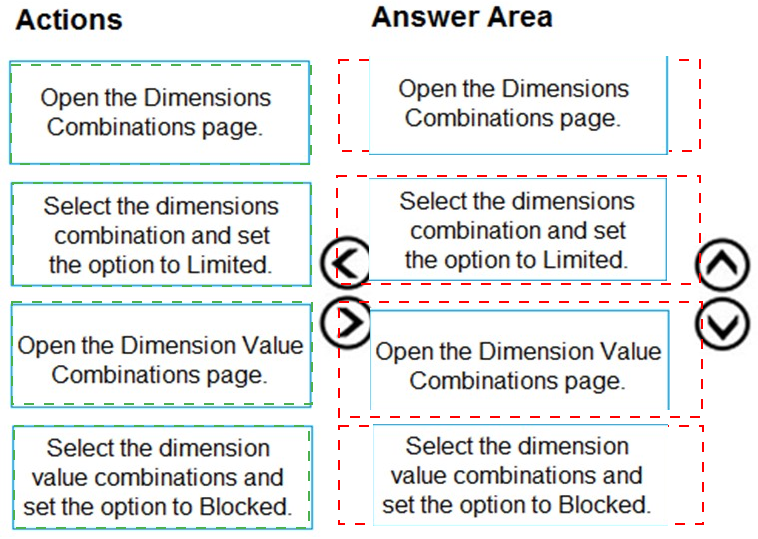
To restrict specific dimension value combinations, you must first define the overall interaction rule between the two dimensions involved. Then, you define the specific allowed or blocked combinations for their respective values. The process flows from general dimension-level rules to specific value-level rules.
Correct Option Sequence:
The correct order to set up restricted dimension combinations is:
Open the Dimensions Combinations page. (Navigate to Dimensions > Dimension Combinations to set the high-level rule between two dimensions, e.g., Department and Project.)
Select the dimensions combination and set the option to Limited. (For the chosen dimension pair, set the Combination field to Limited. This enables the definition of specific allowed value combinations; all others become blocked.)
Open the Dimension Value Combinations page. (With the dimension pair set to Limited, you can now access the Dimension Value Combinations page to define the specific allowed pairings.)
Select the dimension value combinations and set the option to Blocked. (On the Dimension Value Combinations page, you select the specific value pairings (e.g., Department=A, Project=X) and mark them as Blocked to disallow them, or conversely, mark others as Allowed.)
Incorrect Options:
Any sequence that attempts to configure Dimension Value Combinations before setting the parent dimensions' combination to Limited on the Dimensions Combinations page is incorrect. The Limited setting is the prerequisite that unlocks the ability to define specific value-level restrictions.
Reference:
Microsoft Learn documentation "Set Up Dimension Combinations." The process is: 1) On Dimension Combinations, select two dimensions and choose a restriction level (No Limit, Same Code, Limited). 2) If Limited is chosen, proceed to Dimension Value Combinations to define the specific allowed or blocked pairings.
Monetary amounts for local currency must always display three decimal places.
In General Ledger Setup, you need to configure the appropriate setup field with the
appropriate value.
What should you do?
A. Set the value of Amount Decimal Places to 3:3
B. Set the value of Unit-Amount Decimal Places to 3:3
C. Set the value of Inv. Rounding Precision to 0.001
D. Set the value of Unit-Amount Rounding Precision to 0.001
E. Set the value of Amount Rounding Precision to 0.001
Explanation:
The requirement is to control the display of decimal places for monetary amounts in the local currency. This is a formatting rule for how amounts appear in fields and reports, not a rule for rounding calculations during posting.
Correct Option:
A. Set the value of Amount Decimal Places to 3:3
Explanation:
In General Ledger Setup, the Amount Decimal Places field controls the number of decimal places displayed for amounts in the local currency. The format x:y means minimumx and maximumy decimals. Setting it to 3:3 forces amounts to always show exactly three decimal places (e.g., 100.000).
Incorrect Options:
B. Set the value of Unit-Amount Decimal Places to 3:3:
This field controls decimal display for unit amounts (like item prices), not for general monetary amounts in the local currency.
C. Set the value of Inv. Rounding Precision to 0.001:
This field determines the smallest rounding unit for invoice totals (e.g., rounds to the nearest 0.01). It affects calculation rounding, not display formatting.
D. Set the value of Unit-Amount Rounding Precision to 0.001:
This determines the rounding precision for unit prices, not for display formatting of general monetary amounts.
E. Set the value of Amount Rounding Precision to 0.001:
This field sets the rounding precision for individual amounts in journal lines and documents. It affects how figures are rounded during posting, not how they are displayed on screen.
Reference:
Microsoft Learn documentation for "General Ledger Setup." The Amount Decimal Places field is explicitly described as defining how many decimal places to display for amounts in the LCY. The other fields control rounding precision for calculations, not display.
Note: This question is part of a series of questions that present the same scenario.
Each question in the series contains a unique solution that might meet the stated
goals. Some question sets might have more than one correct solution, while others
might not have a correct solution.
After you answer a question in this section, you will NOT be able to return to it. As a
result, these questions will not appear in the review screen.
You are configuring default reports and layouts in Dynamics 365 Business Central.
You must add new data items to the report and change the layout associated with the
default Purchase Order report.
A developer creates and deploys a new report object that includes the new data items and
layout.
You need to configure Business Central to use the new report object as the system default
when printing purchase orders.
Solution: On the Report Selection – Purchase page, set the value of the Usage option to
Order. Update the Report ID shown on the page to reflect the new report object.
Does the solution meet the goal?
A. Yes
B. No
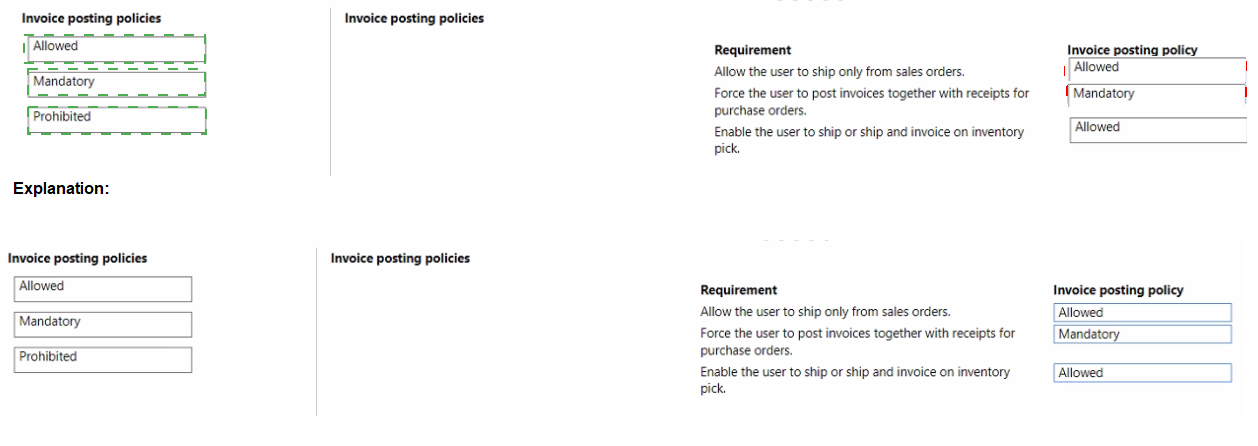
A company uses Dynamics 365 Business Central.
The finance manager requires distinct processes for posting sales, purchase invoices, and
shipments.
You need to configure the restrictions.
Which invoice posting policy should you use? To answer, move the appropriate invoice
posting policies to the correct requirements. You may use each requirement once, more
than once, or not at all. You may need to move the split bar between panes or scroll to view
content
NOTE: Each correct selection is worth one point.

You are creating a filtered view of a Chart of Accounts page.
The page must be filtered to display Net Change values only for transactions between a
specific date range. You must save the filtered view for future use.
You need to filter on transactions occurring between January 1, 2020 and
January 31, 2020.
Which three actions should you perform in sequence? To answer, move the appropriate
actions from the list of actions to the answer area and arrange them in the correct order.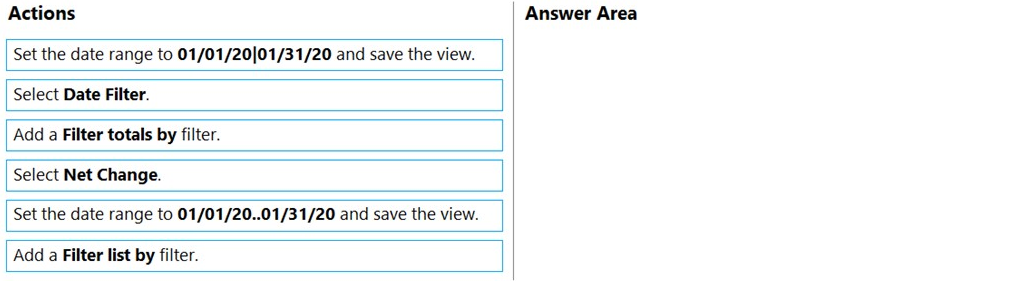
A customer has premium licenses for Dynamics 365 Business Central.
You need to make all actions and fields for the Manufacturing and Service modules
available to users.
What should you do?
A. Assign users to the D365 BUS FULL ACCESS user group.
B. Select the Premium option in the Experience field on the Company Information page.
C. Assign SUPER permission sets to users.
D. Assign users to the D365 BUS PREMIUM user group.
E. Select the Custom option for the Company Badge field on the Company Information page.
A company is implementing Dynamics 365 Business Central. Vendor open balances need to be posted to the general ledger (G/L) account directly by using the general journal. You need to configure the G/L account to allow users to post vendor open balances to payables accounts. Which setting should you use?
A. Account Category
B. Income/Balance
C. Default Deferral template
D. Direct Posting
You create a test instance of Dynamics 365 Business Central and enter transactions for
testing purposes. You create a production company instance in the same Business Central
environment.
You need to copy the setup and master data from the test instance to the production
instance without copying transaction data.
What are two possible ways to achieve the goal? Each correct answer presents a complete
solution.
NOTE: Each correct selection is worth one point.
A. Use the Run Migration Now function from Cloud Migration Management
B. Create and export a configuration package from the source company. Next, import into the destination company
C. Use the Copy Data from Company function from the Configuration Worksheet page
D. Use the Copy function from the Companies page
| Page 3 out of 17 Pages |
| Previous |