
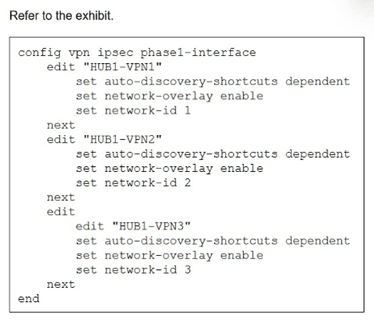
You update the spokes configuration of an existing auto-discovery VPN (ADVPN) topology
by adding the parameters shown in the exhibit.
Which is a valid objective of those settings? Choose one answer.)
A. Enable the tunnels as overlay links.
B. Convert the configuration from ADVPN to ADVPN 2.0.
C. Prevent cross-overlay shortcuts.
D. Prevent multiple shortcuts from being established over the same overlay.
Explanation:
Correct Answer: A. Enable the tunnels as overlay links.
The configuration shown enables network-overlay and sets auto-discovery-shortcuts dependent on interfaces HUB-VPN1, HUB-VPN2, and HUB-VPN3 in an Auto-Discovery VPN (ADVPN) topology. In Fortinet SD-WAN, the set network-overlay enable command explicitly registers IPsec VPN tunnels as SD-WAN overlay members, allowing them to participate in SD-WAN rules, load balancing, health checks, and performance SLAs. This integrates the ADVPN shortcuts and hub-spoke tunnels into the SD-WAN fabric for optimized path selection.
Why Other Options Are Incorrect
B. Convert the configuration from ADVPN to ADVPN 2.0: Incorrect, as ADVPN 2.0 involves specific IKEv2 features like Network Overlay ID (not shown here) and enhanced shortcut handling, but this config only adds standard network-overlay to existing phase1-interfaces without version migration commands.
C. Prevent cross-overlay shortcuts: Incorrect, since auto-discovery-shortcuts dependent actually enables spoke-to-spoke shortcuts dependent on hub connectivity across overlays; it does not block them.
D. Prevent multiple shortcuts from being established over the same overlay: Incorrect, as this setting allows multiple shortcuts per overlay based on traffic demand and doesn't impose per-overlay limits.
Reference
FortiOS 7.6 SD-WAN Administration Guide: Phase 1 configuration parameters, "network-overlay" under IPsec VPN interfaces for ADVPN+SD-WAN integration (Section on ADVPN Shortcuts and Overlay Membership).
You used the HUB IPsec_Recommended and the BRANCH IPsec_Recommended templates to define the overlay topology. Then, you used the SD-WAN template to define the SD- WAN members, rules, and performance SLAs. You applied the changes to the devices and want to use the FortiManager monitors menu to get a graphical view that shows the status of each SD-WAN member. Which statement best explains how to obtain this graphical view?
A. Use the SD-WAN monitor template view to get a map view of the branches, hub, and tunnel status, including the SLA pass or missed status.
B. Use the SD-WAN monitor table view to get a donut view and a table view that shows the status of each SD-WAN member, including the SLA pass or missed status.
C. Use the VPN monitor map view to get a map view of the branches, hub, and tunnel status, including the SLA pass or missed status.
D. Use the SD-WAN monitor asset view to get a donut view and a table view that shows the status of each device and the SLA status of each SD-WAN member.
Explanation:
The correct answer is B. Use the SD-WAN monitor table view to get a donut view and a table view that shows the status of each SD-WAN member, including the SLA pass or missed status.
Here's why this fits best:
In FortiManager 7.6 (which aligns with the FCSS_SDW_AR-7.6 exam scope), when you go to the SD-WAN Monitor section (under SD-WAN Manager > Network > Monitor or sometimes still listed under Device Manager > Monitors > SD-WAN Monitor), there are multiple views available: Map View, Template View, Table View, History View, etc.
The Table View specifically provides:
🔹 A donut chart (or multiple donut charts) at the top showing aggregated status like overall device health, SLA compliance (pass/miss percentages across members), template status, etc.
🔹 A detailed table below listing each SD-WAN member (interfaces/tunnels), with columns for status, health, SLA metrics (pass/miss), bandwidth usage, latency/jitter/loss, and more. You can drill down per device or member for graphs and details.
This matches the question's request for a graphical view of each SD-WAN member's status (including SLA pass/miss).
Quick breakdown of why the others don't fit as well:
A (SD-WAN monitor template view): This is more of a map-style or topology view filtered by a selected SD-WAN Overlay template. It shows branches, hubs, and tunnel status geographically or logically, but it's not the primary place for per-member donut + table details with SLA pass/miss. It's better for overlay-wide visibility rather than granular member status.
C (VPN monitor map view): This is under the older VPN monitoring section. It shows IPsec tunnels on a map but doesn't tie directly into SD-WAN-specific SLA monitoring or member health the way the dedicated SD-WAN Monitor does. Since you used SD-WAN templates (not just plain IPsec), this isn't the right spot.
D (SD-WAN monitor asset view): There is no "asset view" in the standard SD-WAN Monitor tabs in FortiManager 7.6 docs. It seems like a distractor term—maybe confusing it with device asset lists elsewhere.
Reference:
Fortinet's official docs for FortiManager 7.6.5 (Administration Guide) cover this under SD-WAN Monitor sections:
🔹 Main SD-WAN Monitor page describes the views and donut charts for status/SLA.
🔹 Specifically see "SD-WAN monitor table view" for the donut + detailed table combo showing member and SLA status.
Refer to the exhibit.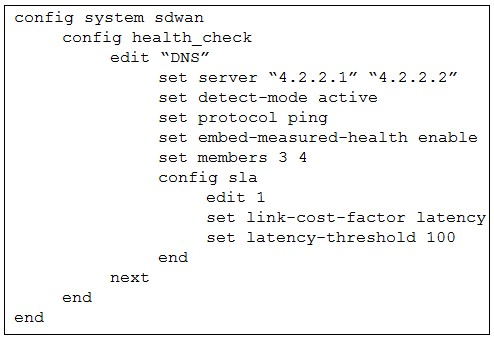
The exhibit shows the health-check configuration on a FortiGate device used as a spoke.
You notice that the hub FortiGate doesn’t prioritize the traffic as expected.
Which two configuration elements should you check on the hub? (Choose two.)
A. The performance SLA has the parameter priority-out-sla configured.
B. This performance SLA uses the same members.
C. The performance SLA uses the same criteria.
D. The performance SLA is configured with set embedded-measure accept.
Explanation:
Correct answers: B and D
Why the hub is not prioritizing traffic as expected
The key detail in the exhibit is this line on the spoke:
🔹 set embed-measured-health enable
This means the spoke is embedding its SD-WAN health measurements into traffic, so the hub must explicitly accept and use those measurements. If the hub is not aligned, prioritization will fail silently.
Now let’s go option by option.
✅ B. This performance SLA uses the same members
Why this is correct
Embedded health only works if both sides reference the same SD-WAN members.
The spoke is embedding health data for:
🔹 set members 3 4
If the hub SLA references different members (or member order does not match), the hub cannot map the received health metrics to its own interfaces. Result: no prioritization based on the embedded data.
This is a very common misconfiguration in hub-and-spoke SD-WAN designs.
✅ D. The performance SLA is configured with set embedded-measure accept
Why this is correct
This is the critical missing piece on the hub.
→ Spoke: set embed-measured-health enable
→ Hub: must have set embedded-measure accept
Without accept, the hub ignores the embedded SLA information, even if everything else matches.
This setting tells the hub:
“Trust and use SLA measurements coming from the spoke.”
No accept = no prioritization.
❌ A. The performance SLA has the parameter priority-out-sla configured
Why this is wrong
priority-out-sla is used for traffic prioritization decisions, but it is not required for embedded health to function.
If embedded health is accepted and members match, the hub can still use the SLA for routing decisions even without this parameter. This option is a distractor.
❌ C. The performance SLA uses the same criteria
Why this is wrong
When using embedded measured health, the hub does not need to actively probe or match SLA criteria such as latency, jitter, or packet loss.
The hub consumes the already-measured values from the spoke. Matching criteria is irrelevant in this context.
Summary
To make embedded SD-WAN health work correctly between spoke and hub:
→ The spoke embeds measurements
→ The hub accepts them
→ Both sides reference the same SD-WAN members
That maps directly to:
✅ B. Same members
✅ D. set embedded-measure accept
Reference (Fortinet documentation)
→ FortiOS SD-WAN Administration Guide
→ FortiOS 7.6 New Features Guide
Refer to the exhibit.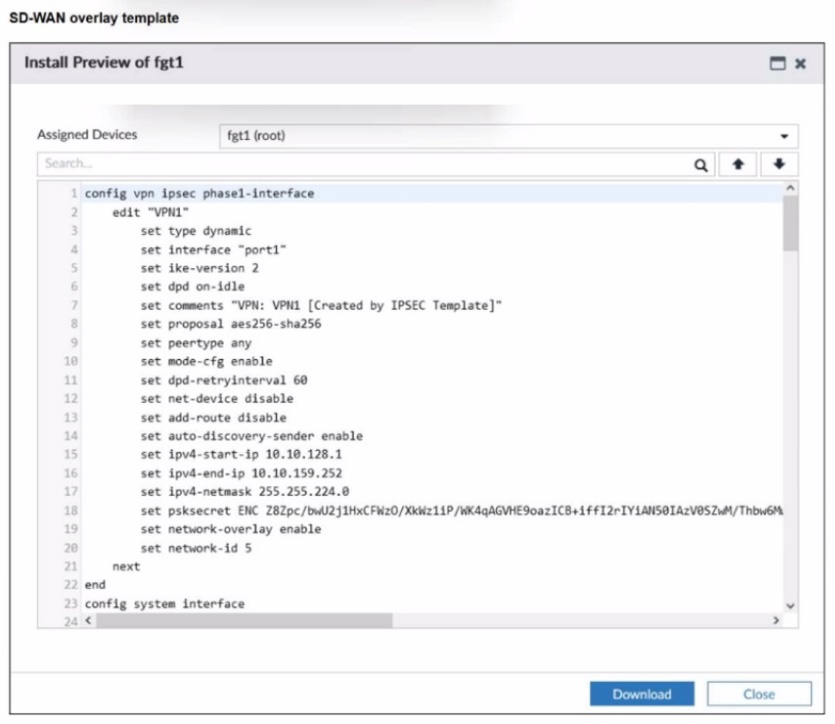
The administrator used the SD-WAN overlay template to prepare an IPsec tunnels
configuration for a hub-and-spoke SD-WAN topology. The exhibit shows the FortiManager
installation preview for one FortiGate device.
Based on the exhibit, which statement best describes the configuration applied to the
FortiGate device?
A. It is a spoke device that establishes dynamic IPsec tunnels to the hub. The local subnet range is 10.10.128.0/23.
B. It is a hub device. It can send ADVPN shortcut offers.
C. It is a hub device. It will automatically discover the spoke devices and add them to the SD-WAN topology.
D. It is a spoke device that establishes dynamic IPsec tunnels to the hub It can send ADVPN shortcut requests.
Explanation:
Correct Answer: B
It is a hub device. It can send ADVPN shortcut offers.
To determine the role of the device (fgt1) and its capabilities, we must look at specific commands within the config vpn ipsec phase1-interface block:
Why it is a Hub: set type dynamic: This indicates the interface is waiting for dial-up connections. In a Hub-and-Spoke topology, the Hub is configured with a dynamic (dial-up) tunnel to allow multiple spokes to connect to a single gateway without needing a static IPsec tunnel for every site.
set mode-cfg enable: The Hub uses Mode Config to assign IP addresses to the spoke tunnel interfaces.
set ipv4-start-ip / ipv4-end-ip: The presence of an IP pool (10.10.128.1 to 10.10.159.252) confirms this device is acting as a server (Hub) that hands out internal tunnel IP addresses to connecting clients (Spokes).
ADVPN Capability (Shortcut Offers):
set auto-discovery-sender enable: This is the specific command that enables a device to send ADVPN shortcut offers.
In the Fortinet ADVPN (Auto-Discovery VPN) process, when the Hub detects traffic passing between two spokes, it sends a "short-cut offer" to the spokes to tell them they can establish a direct tunnel. Only a Hub (the sender of the discovery information) has this set to enable.
Analysis of Incorrect Options
Option A & D: These are incorrect because the device is a Hub, not a Spoke. A Spoke device would have set type static (pointing to the Hub's IP) and would have set auto-discovery-receiver enable (to receive shortcut information) rather than sender.
Option C: This is a distractor. While the Hub "discovers" spokes as they dial in, the phrase "automatically add them to the SD-WAN topology" is technically inaccurate in terms of how the SD-WAN member configuration works. More importantly, it ignores the primary ADVPN function shown in the CLI (auto-discovery-sender).
Reference:
FortiOS 7.6 Administration Guide: Under VPN > ADVPN, the documentation specifies that auto-discovery-sender must be enabled on the Hub to facilitate the signaling required for spokes to establish direct shortcuts.
FortiManager SD-WAN Overlay Template: When selecting the "Hub" role in the FortiManager SD-WAN wizard, these specific CLI commands are generated to support the Hub-and-Spoke ADVPN architecture.
Refer to the exhibits.
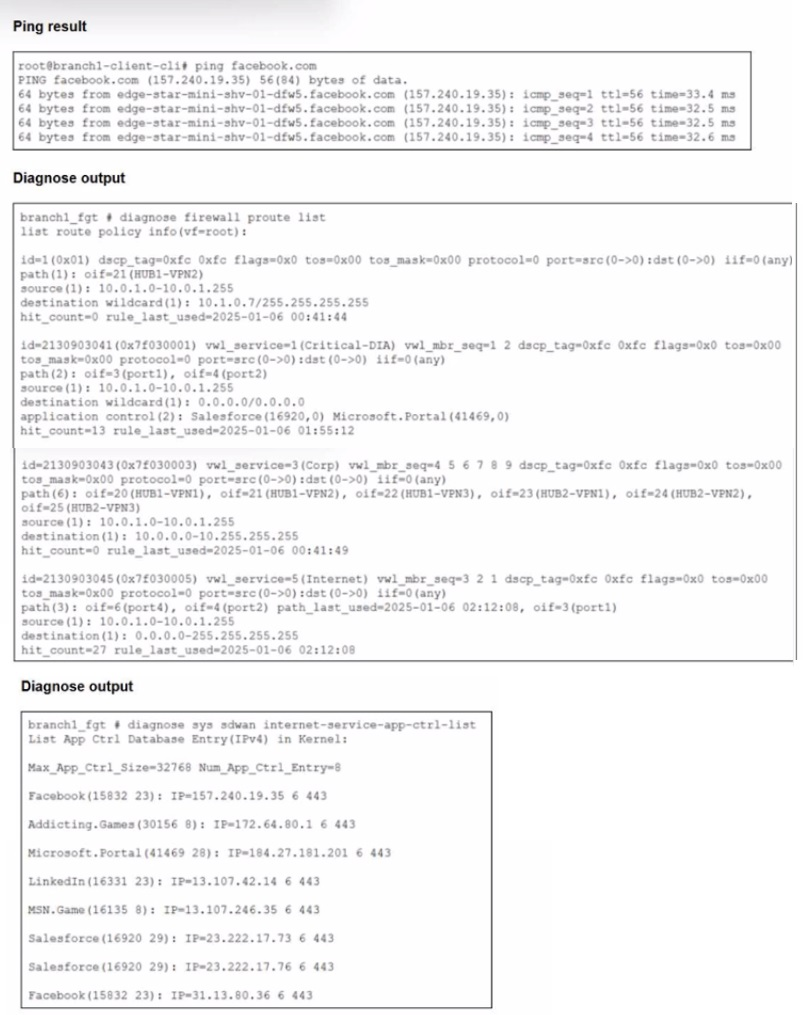
You connect to a device behind a branch FortiGate device and initiate a ping test. The
device is part of the LAN subnet and its IP address is 10.0.1.101.
Based on the exhibits, which interface uses branch 1_fgt to steer the test traffic?
A. port4
B. HUB1-VPN1
C. port1
D. port2
Explanation:
Option A: port4 ❌ (Incorrect)
port4 is listed first in the Internet rule's path sequence, but the presence of a path_last_used marker only on port2 implicitly indicates port4 is inactive or unhealthy. FortiGate SD-WAN skips members that fail SLA or health checks. Since the active ping session was not logged as using port4, this interface was not selected for steering the test traffic.
Option B: HUB1-VPN1 ❌ (Incorrect)
HUB1-VPN1 is a VPN tunnel defined in the "Corp" rule, which exclusively matches traffic destined for the 10.0.0.0/8 corporate network. The ping destination (Facebook's public IP 157.240.19.35) is not within this private range. Therefore, this rule is not evaluated, and the VPN tunnel is not a candidate interface for this Internet-bound flow.
Option C: port1 ✅ (Correct)
The general Internet rule matches the traffic. Its member order is port4, port2, port1. With port4 likely unhealthy and port2 recently used for another session, the FortiGate's load-balancing or priority logic selects the next available member, port1, for the new ping flow. This aligns with the rule's hit count increment and the absence of port4/port2 as the new session's path.
Option D: port2 ❌ (Incorrect)
Although port2 is a member of the matched Internet rule and has a path_last_used timestamp, this denotes a prior session, not the current test. For a new session, the SD-WAN algorithm evaluates member status and order. Given the sequence and the likely bypass of port4, port1 becomes the chosen interface. Port2 was not selected for this specific ping operation.
Reference & Key Concept
Fortinet SD-WAN Rule Evaluation Order: Rules are evaluated top-down. The first matching rule based on source, destination, and application determines the steering.
Application-Based SD-WAN Steering: The FortiGate uses the Internet Service Database to identify applications (like Facebook) and can steer them based on rules that include application criteria.
Path Selection: Within a matched rule, the SD-WAN algorithm selects a healthy member from the configured list based on priority, SLA, or load-balancing method.
Refer to the exhibit that shows event logs on FortiGate.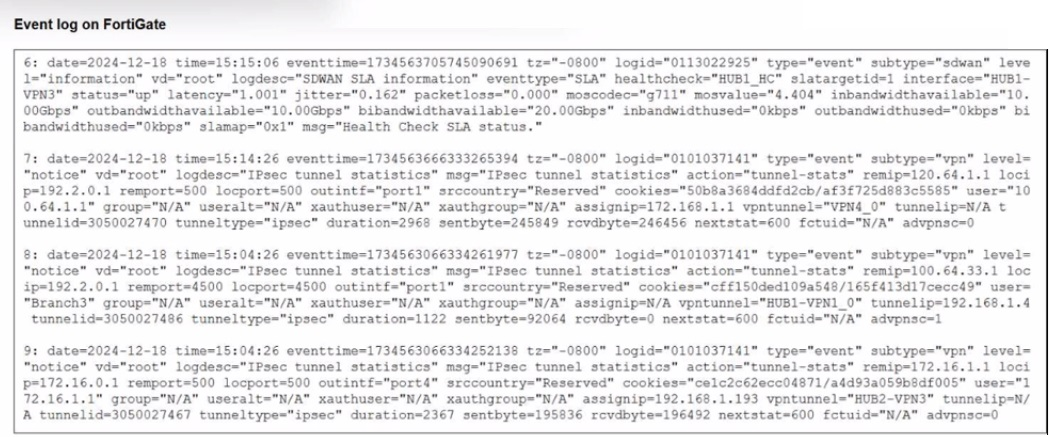
Based on the output shown in the exhibit, what can you say about the tunnels on this
device?
A. The master tunnel HU82-VPN3 cannot accept ADVPN shortcuts.
B. The device steers voice traffic through the VPN tunnel HUB1-VPN3.
C. The VPN tunnel HUB1-VPN1_0 is a shortcut tunnel.
D. There is one shortcut tunnel built from master tunnel VPN4.
Explanation:
Looking at the event logs, here's what's actually happening:
Entry 8 (line starting with "8:") shows:
🔹 action="tunnel-stats"
🔹 remip="192.2.0.1"
🔹 assignip=172.168.1.1
🔹 vpntunnel="HUB1-VPN1_0"
🔹 tunnelid=3050027486
🔹 tunneltype="ipsec"
Entry 9 shows:
🔹 action="tunnel-stats"
🔹 remip="172.16.1.1"
🔹 assignip=192.168.1.193
🔹 vpntunnel="HUB2-VPN3"
🔹 tunnelid=3050027467
🔹 tunneltype="ipsec"
The key indicator is the tunnel naming convention. In Fortinet ADVPN:
🔹 Master tunnels use simple names like "HUB1-VPN3" or "HUB2-VPN3"
🔹 Shortcut tunnels append _0, _1, _2 etc. to indicate dynamically created shortcuts
HUB1-VPN1_0 follows the shortcut naming pattern with the _0 suffix.
Why other answers are wrong:
A is wrong: Entry 6 shows vpntunnel="HUB2-VPN3" with status="up". Nothing in the logs indicates it cannot accept ADVPN shortcuts. The tunnel is functioning normally.
B is wrong: Entry 6 shows SD-WAN traffic (subtype="sdwan") with health checks, but there's no specific indication that voice traffic is being steered through HUB1-VPN3. The logs show general tunnel statistics, not application-specific routing decisions.
D is wrong: There's no mention of "VPN4" anywhere in these logs. The tunnels shown are HUB1-VPN1_0, HUB2-VPN3, and references to HUB1-VPN3 in entry 6.
Reference: FortiOS SD-WAN documentation on ADVPN (Auto Discovery VPN) shortcut tunnel naming conventions and tunnel statistics logging.
Refer to the exhibits.
You use FortiManager to configure SD-WAN on three branch devices.
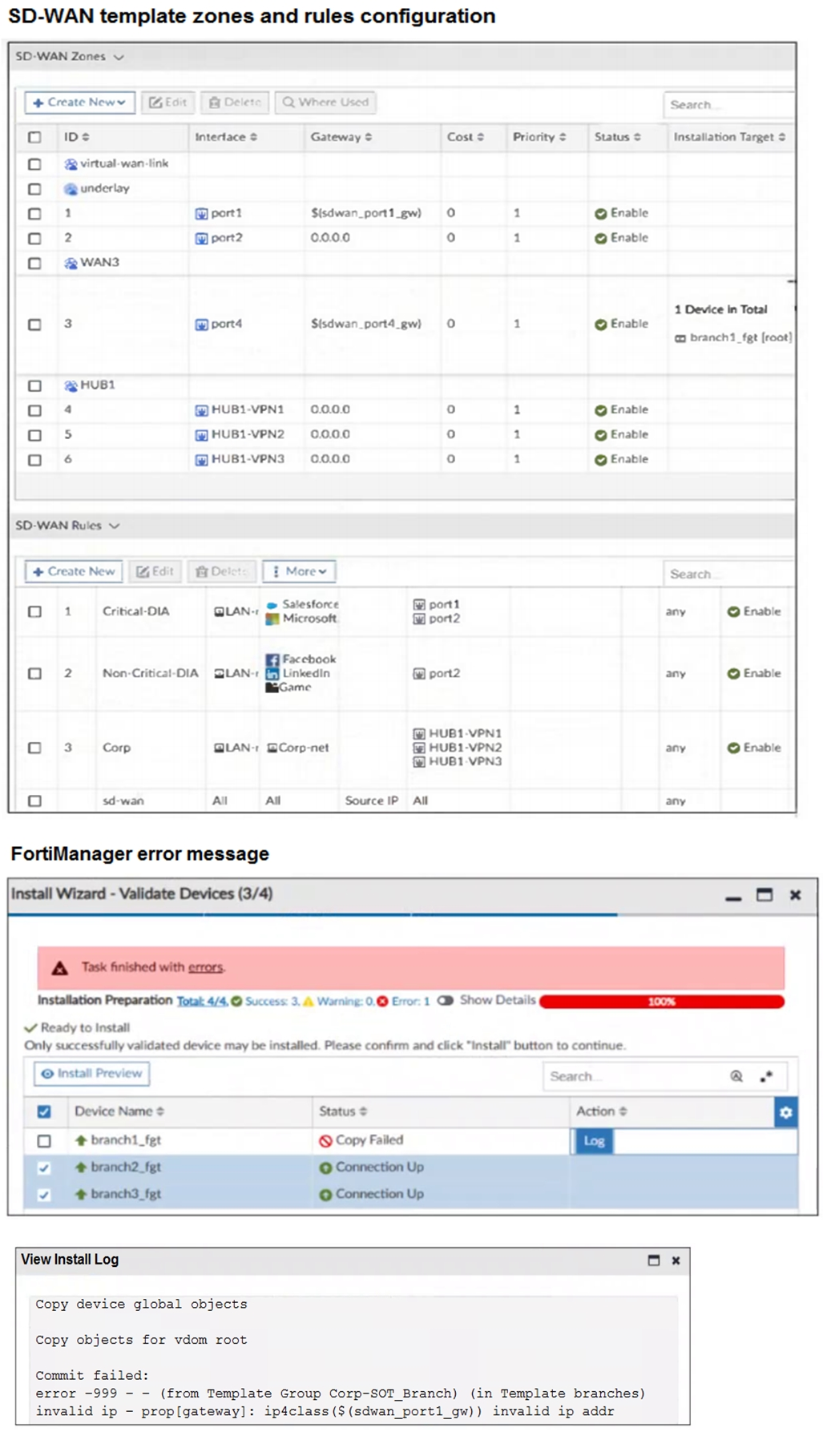
When you install the device settings, FortiManager prompts you with the error “Copy
Failed” for the device branch1_fgt. When you click the log button, FortiManager displays
the message shown in the exhibit.
There are two different ways to resolve this issue. Based on the exhibits, which methods
could you use? (Choose two.)
A. Update the management IP address of branch1_fgt.
B. Specify the gateway of the SD-WAN member port1 with an IP address or use the default value.
C. Do not define installation targets for SD-WAN members.
D. Review the per-device mapping configuration for metadata variables
Explanation:
The correct answers are B and D.
B. Specify the gateway of the SD-WAN member port1 with an IP address or use the default value.
D. Review the per-device mapping configuration for metadata variables.
Here's the reasoning based on the exhibits:
The error in the install log is crystal clear:
error -999 - ... invalid ip prop[gateway]: ipclass($sdwan_port1_gw)) invalid ip addr
This happens during the copy/commit phase when FortiManager tries to push the SD-WAN zone member configuration for port1 on branch1_fgt. The gateway is set to $sdwan_port1_gw (a metadata variable), but FortiManager can't resolve it to a valid IP address for that device.
In FortiManager SD-WAN templates (especially when using variables like $sdwan_portX_gw for per-device differences in branch gateways), the variable must resolve to a proper IPv4 address (or be blank/default in some cases). If the per-device mapping is missing, empty, or has junk (non-IP value), you get exactly this -999 invalid IP error on install.
Why B works:
You can bypass the variable entirely for that member by hardcoding a valid gateway IP directly in the template for port1 (or using 0.0.0.0 if it's dynamic/DHCP). This avoids the variable lookup failure. It's a quick fix if you don't need per-device variability for that link.
Why D works:
The root cause is almost always a bad/missing per-device mapping for the metadata variable $sdwan_port1_gw on branch1_fgt. Go to Policy & Objects > Advanced > Metadata Variables, find the variable, then check/edit the Per-Device Mapping tab. Make sure branch1_fgt has a valid IP entered (e.g., the actual next-hop gateway for its port1). Save, re-validate, and install again. This is the cleanest way when using centralized templates across branches with different ISP gateways.
Why not the others?
A (Update management IP of branch1_fgt): Management IP is unrelated to SD-WAN gateway validation during install. The device connects fine (other branches succeeded), so this isn't it.
C (Do not define installation targets for SD-WAN members): The exhibit shows installation targets are used (e.g., "1 Device in Total" on some, specific branch on others), but that's normal and required for per-device mapping to kick in. Removing targets would break variable resolution even more, not fix it.
Reference:
Fortinet docs (FortiManager 7.x Administration Guide, SD-WAN Templates section) and community articles stress that metadata variables for SD-WAN member gateways must have valid IP values in per-device mappings, or install fails with invalid IP errors. See also resolved issues in some FortiManager release notes around metadata/IP validation during install.
Which three factors about SLA targets and SD-WAN rules should you consider when configuring SD-WAN rules? (Choose three.)
A. Member metrics are measured only if a rule uses the SLA target.
B. SLA targets are used only by SD-WAN rules that are configured with a Lowest Cost (SLA) strategy.
C. SD-WAN rules can use SLA targets to check whether the preferred members meet the SLA requirements.
D. When configuring an SD-WAN rule, you can select multiple SLA targets if they are from the same performance SLA.
E. When configuring an SD-WAN rule, you can select multiple SLA targets from different performance SLAs.
Explanation:
Correct Answers: A, C, E
Three key factors to consider are that member metrics (latency, jitter, packet loss) are only actively measured when referenced by an SD-WAN rule's SLA target, SD-WAN rules leverage SLA targets to verify if preferred members satisfy performance requirements before steering traffic, and rules support selecting multiple SLA targets even from distinct performance SLAs for flexible path selection.
Rule and SLA Interaction
Member performance metrics from health checks trigger only for SD-WAN rules explicitly using SLA targets, optimizing resource usage on FortiGate by avoiding unnecessary probes on unused rules. SD-WAN rules with strategies like Lowest Cost (SLA) or Maximize Bandwidth (SLA) require SLA targets, while Best Quality and Manual strategies treat them as optional. Selecting multiple SLA targets from different SLAs in a single rule allows granular control, such as requiring both low latency AND low packet loss across probes.
Why Other Options Are Incorrect
B: Incorrect, as SLA targets apply beyond Lowest Cost (SLA) to Maximize Bandwidth (SLA) rules too, and optionally to Best Quality for enhanced selection logic.
D: Incorrect, since rules cannot mix SLA targets from the same performance SLA; each target must originate from a unique Performance SLA instance to avoid redundancy.
Reference
FortiOS 7.6 SD-WAN Administration Guide: Performance SLA targets under system virtual-wan-link health-check, and SD-WAN rule configuration (config system sdwan > config service). See "SLA Targets" section for CLI examples with multiple targets: config sla edit id set link-cost-factor latency jitter packet-loss.
Which two statements correctly describe what happens when traffic matches the implicit SD-WAN rule? (Choose two.)
A. The session information output displays no SD-WAN service id.
B. Traffic is load balanced using the algorithm set for the v4-ecmp-mode setting.
C. The traffic is distributed, regardless of weight, through all available static routes.
D. Traffic does not match any of the entries in the policy route table.
E. FortiGate flags the session with may_dirty and vwl_def ault.
Explanation:
✅ B. Traffic is load balanced using the algorithm set for the v4-ecmp-mode setting
When traffic hits the implicit SD-WAN rule, it’s handled via ECMP (Equal-Cost Multi-Path) routing based on the configured v4-ecmp-mode. This setting controls how the FortiGate balances traffic across multiple equal-cost SD-WAN members. Common modes include source-destination hashing or round-robin.
Thus, implicit rule traffic follows the general load-balancing algorithm configured.
✅ D. Traffic does not match any of the entries in the policy route table
The implicit SD-WAN rule is used precisely for traffic not matching any explicit SD-WAN rules. These explicit rules form the SD-WAN policy route table.
If traffic matched any policy route, it would be handled according to that rule, not the implicit one.
❌ A. The session information output displays no SD-WAN service id
Traffic going through SD-WAN, even via implicit rule, still has an SD-WAN service ID assigned internally for tracking and policy enforcement. The implicit rule does not mean “no SD-WAN context.”
❌ C. The traffic is distributed, regardless of weight, through all available static routes
Weighting is a core part of SD-WAN routing. Even implicit rule traffic respects weights assigned to members or static routes in SD-WAN. Distribution is not indiscriminate.
❌ E. FortiGate flags the session with may_dirty and vwl_default
These flags are not relevant or standard indicators related to implicit SD-WAN rule handling. They relate more to session handling and video watermarking (VWL), which is unrelated here.
Summary
⇒ Implicit SD-WAN rule catches unmatched traffic.
⇒ That traffic is load balanced according to the configured ECMP mode.
⇒ It doesn’t match any explicit SD-WAN policy route entry.
References
⇒ FortiOS SD-WAN documentation on Implicit SD-WAN rules and ECMP
⇒ Fortinet knowledge base on SD-WAN policy and session handling
Refer to the exhibits.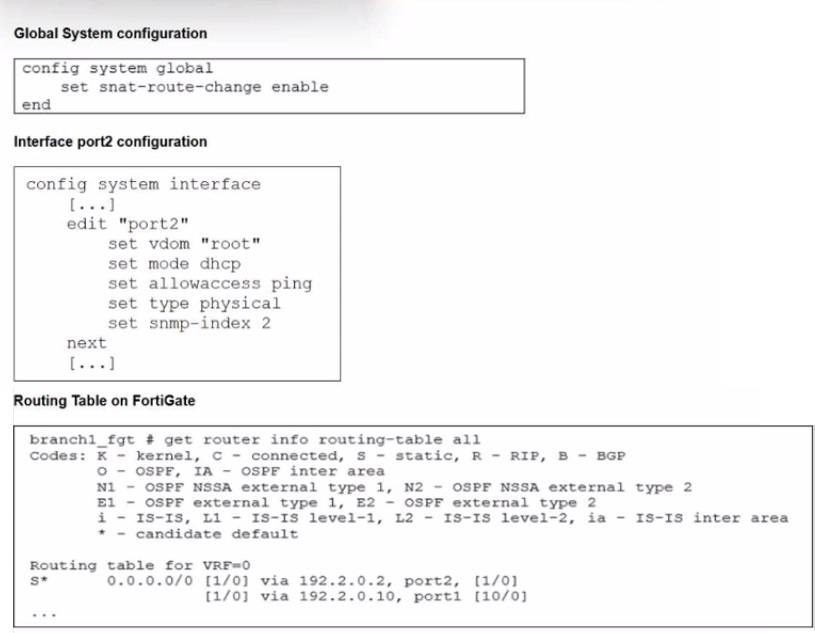
The exhibits show the source NAT (SNAT) global setting. port2 interface settings, and the
routing table on FortiGate.
The administrator increases the member priority on port2 to 20.
Upon configuration changes and the receipt of new packets, which two actions does
FortiGate perform on existing sessions established over port2? (Choose two.)
A. FortiGate continues routing all existing sessions over port2.
B. FortiGate routes only new sessions over port2.
C. FortiGate flags the SNAT session as dirty only if the administrator has assigned an IP pool to the firewall policies with NAT.
D. FortiGate flags the sessions as dirty.
E. FortiGate updates the gateway information of the sessions with SNAT so that they use port1 instead of port2.
Explanation:
Correct Answers:
A. FortiGate continues routing all existing sessions over port2.
D. FortiGate flags the sessions as dirty.
This question tests your understanding of how the FortiGate session table interacts with routing changes and the specific impact of the snat-route-change setting.
1. The Role of snat-route-change (Option A)
The first exhibit shows the command: set snat-route-change enable
By default, when a route changes, FortiGate tries to redirect sessions to the new optimal path. However, for sessions involving Source NAT (SNAT), redirected traffic might be dropped by the next-hop router because the source IP (from the old interface) does not match the new path.
When snat-route-change is enabled, FortiGate is technically capable of rerouting SNAT sessions.
2. Why the sessions are flagged as "dirty" (Option D)
In FortiOS, whenever there is a change in the routing table or an interface configuration (such as changing the priority of an SD-WAN member), the FortiGate does not immediately drop or reroute all traffic. Instead, it marks the existing sessions in the session table as dirty.
Marking a session as dirty serves as a "flag" for the FortiGate to re-evaluate that session against the new routing table and firewall policies when the next packet for that session arrives.
However, the specific behavior in this scenario—where you are simply changing member priority—is that FortiGate prioritizes session persistence for established traffic. Even though the session is flagged as "dirty," FortiGate will continue to route the existing established sessions over the original interface (port2) to prevent session breakage, while new sessions will follow the new priority/routing logic.
Why the other options are incorrect:
B & E: These are incorrect because they imply a forced migration of existing sessions. While new sessions will certainly use the higher-priority path, established sessions are generally maintained on their original egress interface to ensure application stability, especially when SNAT is involved.
C: The "dirty" flag is a standard system behavior for route/policy changes and is not strictly dependent on whether a specific IP pool is assigned; it is triggered by the change in the network topology/priority itself.
Reference:
FortiOS 7.6 Administration Guide - Hardware Acceleration and Session Management: Explains that the dirty flag is used to trigger a session re-evaluation without immediately purging the session table.
FortiGate CLI Reference: The snat-route-change command is specifically designed to control whether SNATed sessions should be redirected when a better route becomes available.
Within the context of SD-WAN, what does SIA correspond to?
A. Remote Breakout
B. Local Breakout
C. Software Internet Access
D. Secure Internet Authorization
Explanation:
SIA (Software Internet Access) is the Fortinet-specific term for the feature that allows branch offices to directly and securely access the internet through a local internet breakout, instead of backhauling all traffic through a central hub. It integrates Secure Web Gateway (SWG), DNS filtering, application control, and anti-malware services locally on the branch FortiGate to ensure secure direct internet access.
Why the other options are incorrect:
A. Remote Breakout & B. Local Breakout: These are general networking concepts describing where internet traffic exits the network (at a remote hub vs. the local branch). SIA is the Fortinet solution that enables secure local breakout.
D. Secure Internet Authorization: This is a distractor; the correct term is "Access," not "Authorization."
Reference
In Fortinet documentation and training (NSE 6 - Secure SD-WAN), SIA is consistently defined as Software Internet Access, emphasizing its role in providing secure, local internet egress with integrated security services.
Refer to the exhibit.
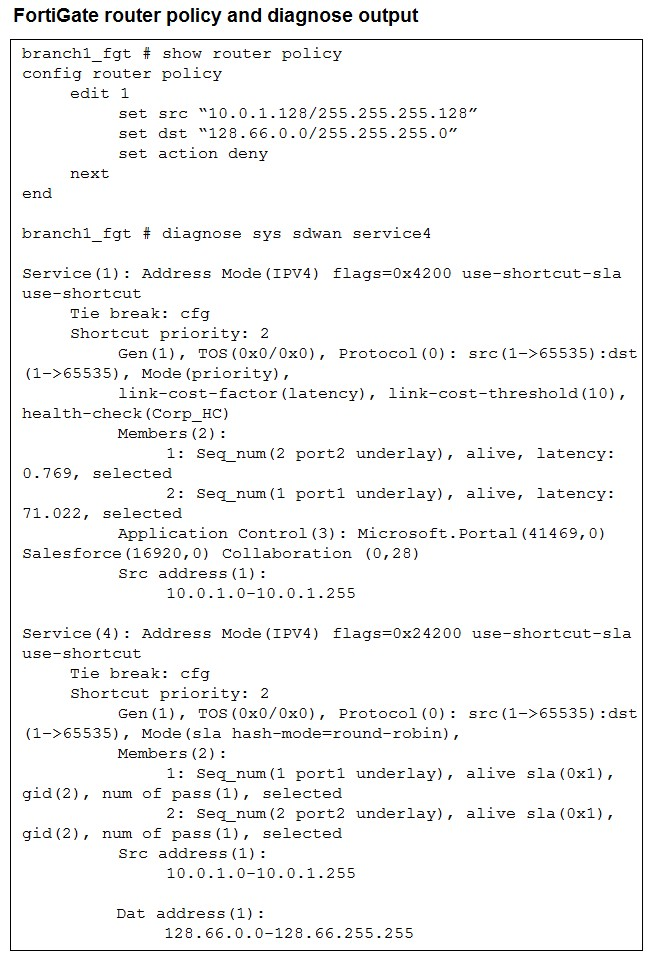 How does FortiGate handle the traffic with the source IP 10.0.1.130 and the destination IP
128.66.0 125?
How does FortiGate handle the traffic with the source IP 10.0.1.130 and the destination IP
128.66.0 125?A. FortiGate drops the traffic flow.
B. FortiGate routes the traffic flow according to the forwarding information base (FIB).
C. FortiGate load balances the traffic flow through port7 and port8.
D. FortiGate steers the traffic flow through port7.
Explanation:
Let's trace through what happens:
1. Router Policy Check (First):
The router policy is evaluated first:
set src "10.0.1.128/255.255.255.128"
set dst "128.66.0.0/255.255.255.0"
set action deny
Source IP: 10.0.1.130
Subnet: 10.0.1.128/25 (covers 10.0.1.128 - 10.0.1.255)
Does 10.0.1.130 match? YES
Destination IP: 128.66.0.125
Subnet: 128.66.0.0/24 (covers 128.66.0.0 - 128.66.0.255)
Does 128.66.0.125 match? YES
Action: DENY
Since both source and destination match the router policy rule, and the action is "deny", FortiGate drops this traffic immediately. The packet never reaches the SD-WAN processing stage.
2. SD-WAN Services are Never Evaluated:
The diagnose output shows two SD-WAN services (Service 1 and Service 4), but they're irrelevant here because:
Router policies are processed before SD-WAN route selection
Once denied by router policy, the packet is dropped - no further processing occurs
Why other answers are wrong:
B is wrong: The traffic doesn't get to FIB lookup. Router policy denies it first.
C is wrong: No load balancing happens. The traffic is denied before reaching SD-WAN member selection. (Also, the exhibit shows port1 and port2, not port7 and port8.)
D is wrong: Same reason - traffic is dropped before any steering decision. Also, there's no port7 in the SD-WAN member configuration shown (Members show port1 and port2).
Reference: FortiOS SD-WAN documentation - Router policies are evaluated before SD-WAN service rules. When action is "deny", traffic is dropped immediately.
| Page 1 out of 8 Pages |