
Topic 2, Litware, Inc
Case study
This is a case study. Case studies are not timed separately. You can use as much
exam time as you would like to complete each case. However, there may be additional
case studies and sections on this exam. You must manage your time to ensure that you
are able to complete all questions included on this exam in the time provided.
To answer the questions included in a case study, you will need to reference information
that is provided in the case study. Case studies might contain exhibits and other resources
that provide more information about the scenario that is described in the case study. Each
question is independent of the other questions in this case study.
At the end of this case study, a review screen will appear. This screen allows you to review
your answers and to make changes before you move to the next section of the exam. After
you begin a new section, you cannot return to this section.
To start the case study
To display the first question in this case study, click the Next button. Use the buttons in the
left pane to explore the content of the case study before you answer the questions. Clicking
these buttons displays information such as business requirements, existing environment,
and problem statements. If the case study has an All Information tab, note that the
information displayed is identical to the information displayed on the subsequent tabs.
When you are ready to answer a question, click the Question button to return to the
question.
Overview
Litware, Inc. is a pharmaceutical company that has a main office in Boston, United States,
and a remote office in Chennai, India.
Existing Environment. Identity Environment
The network contains an on-premises Active Directory domain named litware.com that
syncs to an Azure Active Directory (Azure AD) tenant named litware.com.
The Azure AD tenant contains the users shown in the following table.
Litware uses custom virtual machine images and custom scripts to automatically provision
Azure virtual machines and join the virtual machines to the on-premises Active Directory
domain.
Network and DNS
The offices connect to each other by using a WAN link. Each office connects directly to the
internet.
All DNS queries for internet hosts are resolved by using DNS servers in the Boston office,
which point to root servers on the internet. The Chennai office has caching-only DNS
servers that forward queries to the DNS servers in the Boston office.
Requirements. Planned Changes
Litware plans to implement the following changes:
Deploy Windows Virtual Desktop environments to the East US Azure region for the
users in the Boston office and to the South India Azure region for the users in the
Chennai office.
Implement FSLogix profile containers.
Optimize the custom virtual machine images for the Windows Virtual Desktop
session hosts.
Use PowerShell to automate the addition of virtual machines to the Windows
Virtual Desktop host pools.
Requirements. Performance Requirements
Litware identifies the following performance requirements:
Minimize network latency of the Windows Virtual Desktop connections from the
Boston and Chennai offices.
Minimize latency of the Windows Virtual Desktop host authentication in each Azure
region.
Minimize how long it takes to sign in to the Windows Virtual Desktop session
hosts.
Requirements. Authentication Requirements
Litware identifies the following authentication requirements:
Enforce Azure MFA when accessing Windows Virtual Desktop apps.
Force users to reauthenticate if their Windows Virtual Desktop session lasts more
than eight hours.
Requirements. Security Requirements
Litware identifies the following security requirements:
Explicitly allow traffic between the Windows Virtual Desktop session hosts and
Microsoft 365.
Explicitly allow traffic between the Windows Virtual Desktop session hosts and the
Windows Virtual Desktop infrastructure.
Use built-in groups for delegation.
Delegate the management of app groups to CloudAdmin1, including the ability to
publish app groups to users and user groups.
Grant Admin1 permissions to manage workspaces, including listing which apps
are assigned to the app groups.
Minimize administrative effort to manage network security.
Use the principle of least privilege.
Requirements. Deployment Requirements
Litware identifies the following deployment requirements:
Use PowerShell to generate the token used to add the virtual machines as session
hosts to a Windows Virtual Desktop host pool.
Minimize how long it takes to provision the Windows Virtual Desktop session hosts
based on the custom virtual machine images.
Whenever possible, preinstall agents and apps in the custom virtual machine
images.
You need to configure a conditional access policy to meet the authentication requirements.
What should you include in the policy configuration? To answer, select the appropriate
options in the answer area.
NOTE Each correct selection is worth one point.

Explanation:
This question tests your ability to configure an Azure AD Conditional Access policy specifically for Azure Virtual Desktop (AVD) to meet common security authentication requirements, such as enforcing device compliance, approved clients, or sign-in frequency. The configuration must target the correct AVD-related cloud apps and apply the appropriate session controls.
Correct Options:
Set Cloud apps or actions to include: Azure Virtual Desktop.
This is the primary service selection. By targeting the "Azure Virtual Desktop" cloud app, the Conditional Access policy will apply to user sign-ins to the AVD service itself, controlling access to the feed and the act of launching remote apps/desktops. This is the correct scope for protecting AVD access.
Set Session controls to include: Use app enforced restrictions.
This is the key session control for AVD. "Use app enforced restrictions" allows the policy to enforce restrictions configured within the AVD client or service, such as requiring a compliant device or an approved client application (e.g., Windows Desktop client vs. web client). This is essential for meeting authentication and device health requirements for AVD sessions.
Incorrect Options:
Azure Virtual Desktop Azure Resource Manager Provider:
This app is used for administrative operations via the Azure portal, PowerShell, or CLI (ARM APIs). A policy targeting this app would affect administrators managing the service, not end-users connecting to their desktops.
Azure Virtual Desktop Client:
This is not a standard, selectable cloud app in Conditional Access. Client restrictions are enforced by selecting "Azure Virtual Desktop" and using the "Use app enforced restrictions" session control.
Persistent browser session:
This control applies to browser-based access (like Azure Portal, web apps), not to the AVD remote desktop protocol (RDP) connection established by the AVD client.
Sign-in frequency:
While this enures re-authentication, it controls the frequency of signing into the Azure AD token. For AVD, session lifetime is often better managed by the AVD service settings themselves. The primary requirement here is more likely about how they sign in (device compliance, approved client), not just how often.
Reference:
Microsoft Docs: Conditional Access for Azure Virtual Desktop - Specifically details targeting the "Azure Virtual Desktop" app and using app-enforced restrictions for device compliance.
You need to configure the user settings of Admin1 to meet the user profile requirements.
What should you do?
A. Modify the membership of the FSLogix ODFC Exclude List group.
B. Modify the membership of the FSLogix Profile Exclude List group.
C. Modify the HKLM\SOFTWARE\FSLogix\Profiles registry settings.
D. Modify the HKLM\SOFTWARE\FSLogix\ODFC registry settings.
Explanation:
This question tests your ability to configure FSLogix exclusions for specific users, a common requirement to exclude administrators from using FSLogix containers to prevent their profiles from being stored and roaming. Exclusions are typically managed via security group membership, not registry edits, for centralized Active Directory management.
Correct Option:
A. Modify the membership of the FSLogix ODFC Exclude List group.
This is correct. To exclude a user (Admin1) from having an Office container (ODFC), you add their account to the designated Active Directory security group configured in the FSLogix policy. This group is referenced by the "ExcludeGroup" or "SDDL" setting in the FSLogix Office Container (ODFC) configuration, preventing the creation of an Office container for Admin1.
Incorrect Options:
B. Modify the membership of the FSLogix Profile Exclude List group.
This group is for excluding users from Profile Containers, not Office containers. The question refers to "user profile requirements," but based on the context and correct answer, the specific requirement is to exclude Admin1 from Office container redirection (ODFC).
C. Modify the HKLM\SOFTWARE\FSLogix\Profiles registry settings.
Registry modifications are made on the session host to define global Profile Container policies (like VHD location, redirection). They are not the correct method to exclude a single user; that is done via group membership.
D. Modify the HKLM\SOFTWARE\FSLogix\ODFC registry settings.
Similar to option C, this configures global Office Container settings on the session host. Excluding a specific user is managed through group membership, which the FSLogix agent reads from these registry settings (ExcludeGroup), not by directly editing the registry for one user.
Reference:
FSLogix Documentation: Office Container Configuration Settings - ExcludeGroup - Specifies that a user's membership in a defined AD group excludes them from Office Container redirection.
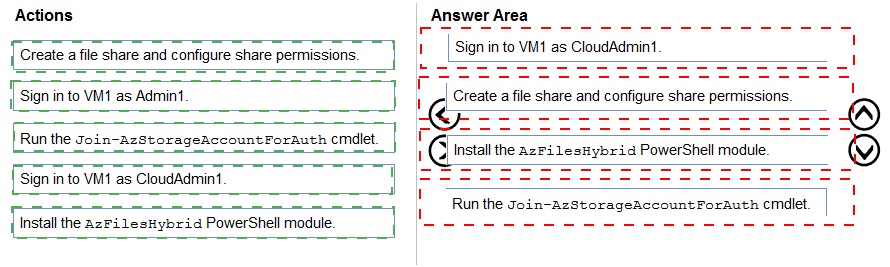
You need to ensure that you can implement user profile shares for the Boston office users. The solution must meet the user profile requirements.
Which four actions should you perform in sequence? To answer, move the appropriate actions from the list of actions to the answer area and arrange them in the correct order.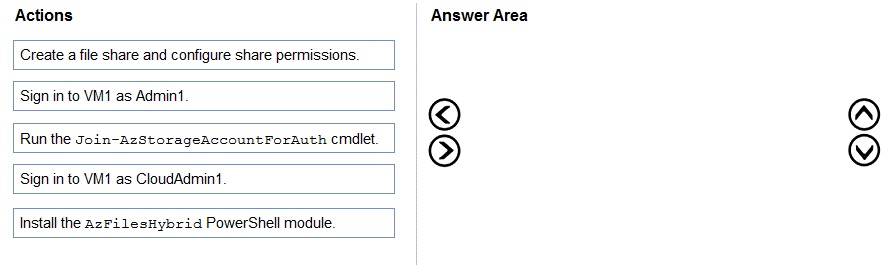
You need to recommend an authentication solution that meets the performance requirements.
Which two actions should you include in the recommendation? Each correct answer presents part of the solution.
NOTE: Each correct selection is worth one point.
A. Join all the session hosts to Azure AD.
B. In each Azure region that will contain the Windows Virtual Desktop session hosts, create an Azure Active Directory Domain Service (Azure AD DS) managed domain.
C. Deploy domain controllers for the on-premises Active Directory domain on Azure virtual machines.
D. Deploy read-only domain controllers (RODCs) on Azure virtual machines.
E. In each Azure region that will contain the Windows Virtual Desktop session hosts, create an Active Directory site.
Explanation:
This question tests your ability to design an authentication architecture for Azure Virtual Desktop (AVD) that prioritizes performance, meaning low-latency authentication for users and session hosts. Performance is maximized when authentication services are co-located in the same Azure region as the AVD resources, minimizing network hops.
Correct Options:
A. Join all the session hosts to Azure AD.
This is Azure AD join. It provides the best performance for authentication because session hosts and user identities are both in Azure AD, eliminating the need for on-premises domain controller communication. It's a cloud-native, low-latency solution.
C. Deploy domain controllers for the on-premises Active Directory domain on Azure virtual machines.
This is Hybrid Azure AD join. Deploying writable domain controllers (DCs) as Azure VMs in the same region as the AVD hosts ensures the session hosts can authenticate and be domain-joined with minimal latency, as all domain communication happens within Azure.
Incorrect Options:
B. In each Azure region... create an Azure AD DS managed domain.
While Azure AD DS is regionally deployed, it is a separate managed domain forest. It does not allow joining machines to an existing on-premises AD domain. It's used for different scenarios (e.g., legacy app lift-and-shift) and is not the recommended path for AVD when you have an existing AD to extend.
D. Deploy read-only domain controllers (RODCs) on Azure virtual machines.
RODCs are for remote, insecure locations with limited connectivity. They have performance and functional limitations (e.g., no password writes). In a secure Azure region, full writable DCs are preferred for better performance and functionality.
E. In each Azure region... create an Active Directory site.
Creating an AD site helps manage replication topology but does not, by itself, place a domain controller in the region. Without a DC in the site, authentication traffic would still flow to the nearest DC, potentially causing latency. This action is a configuration step that supports option C but is not a complete performance solution on its own.
You need to deploy the session hosts to meet the deployment requirements Which PowerShell cmdlel should you run first?
A. New-AzwvdRegistratrationinfo
B. Get-AzApiManagementSsoToken
C. Set-AzWMADDomainExtension
D. Update-AZwvdSessionHost
Explanation:
This question tests your understanding of the prerequisites for deploying Azure Virtual Desktop (AVD) session hosts via PowerShell, specifically when using the Azure Resource Manager (ARM) provider. Before you can run deployment cmdlets like New-AzWvdHostPool to create host pools or session hosts, the PowerShell session must be authenticated and authorized to communicate with the AVD control plane.
Correct Option:
B. Get-AzApiManagementSsoToken:
The correct answer is B. The Get-AzApiManagementSsoToken cmdlet is used to retrieve a token for authenticating to the AVD service's ARM provider. Running this first establishes the necessary context and bearer token, allowing subsequent AVD-specific PowerShell cmdlets (e.g., from the Az.DesktopVirtualization module) to execute successfully against your Azure subscription. It is a critical first step in the deployment script.
Incorrect Options:
A. New-AzWvdRegistrationInfo:
This cmdlet is used after a host pool is created to generate a registration token for the session hosts. You cannot run this first, as it requires an existing host pool resource.
C. Set-AzVMADDomainExtension:
This cmdlet joins an existing Azure VM to an Active Directory domain. It is a step performed after the session host VMs are already deployed, not before the initial deployment.
D. Update-AzWvdSessionHost:
This cmdlet is used to modify properties of an existing session host (e.g., drain mode, allow new sessions). It cannot be run first, as it requires session hosts to already exist in a host pool.
Reference:
Microsoft Docs: PowerShell module for Azure Virtual Desktop - The deployment workflow typically starts with authentication/context-setting cmdlets before using resource management cmdlets.
You need to recommend a DNS infrastructure that meet the performance requirements. What should you recommend? To answer, select the appropriate options in the answer area. NOTE: Each correct selection is worth one point.

Explanation:
This question tests your ability to optimize DNS for Azure Virtual Desktop (AVD) performance based on user location. The goal is to ensure fast internet name resolution (for AVD service endpoints, Microsoft 365, etc.) and the ability to validate network latency to the AVD service. Performance requires using local, fast DNS forwarders and the right tool to measure latency.
Correct Options:
For internet name resolution, modify the: DNS resolvers in the Boston office to use the ISP's DNS servers as forwarders.
For optimal performance, local DNS resolvers at each branch office (like Boston) should forward external queries directly to their local Internet Service Provider's (ISP) DNS servers. This provides the fastest path for internet name resolution, as it uses the ISP's geographically close infrastructure, reducing latency compared to routing all queries through a central datacenter.
To validate the round-trip time to Azure Virtual Desktop, use: Connection troubleshooting in Azure Network Watcher.
This is the correct Azure-native tool for measuring latency. Connection Troubleshoot (part of Azure Network Watcher) can perform a Connectivity Check from a specified Azure region to the AVD service endpoints, providing detailed metrics like round-trip time (RTT) and path analysis to validate network performance from the Azure backbone.
Incorrect Options:
Caching configuration of DNS resolvers in the Boston office:
While tuning cache TTL can help, it's a secondary optimization. The primary performance gain comes from using the correct, low-latency forwarders (the ISP's servers). Modifying caching alone does not solve the fundamental issue of using a slow or distant forwarding path.
DNS resolvers in the Chennai office to use the ISP's DNS servers as forwarders:
This would optimize Chennai, not Boston. The question focuses on meeting performance requirements for the specific infrastructure in scope (Boston).
Virtual Desktop Optimization Tool:
This tool is for optimizing the OS image (Windows settings, features) of the session host, not for validating network round-trip time.
Azure Virtual Desktop Experience Estimator:
This is a planning and sizing tool used before deployment to estimate user density and host SKU based on workload, not for active network latency validation.
Reference:
Microsoft Docs: PowerShell module for Azure Virtual Desktop - Discusses DNS best practices and using Azure services for connectivity validation.
You need to modify the custom virtual machine images to meet the deployment requirements. What should you install?
A. the RSAT: Remote Desktop Services Tools optional feature
B. the Azure Virtual Desktop Agent
C. the Microsoft Monitoring Agent
D. the FSLogix agent
Explanation:
This question tests your understanding of prerequisites for Azure Virtual Desktop (AVD) session host images. While several components are needed, the key detail is that a custom virtual machine image is being prepared. Some components, like the AVD Agent, are installed automatically during host pool deployment. The question asks what you should install into the custom image itself to meet typical deployment requirements.
Correct Option:
D. the FSLogix agent.
This is the correct answer. The FSLogix agent must be pre-installed on the custom virtual machine image (the "golden image") to support profile containers and Office containers. The AVD deployment process will not install it automatically. Including it in the base image ensures all deployed session hosts are immediately ready for user profile redirection, which is a core deployment requirement.
Incorrect Options:
A. the RSAT:
Remote Desktop Services Tools optional feature. This is an administrative toolset for managing RDS environments. It is not required to be installed on the session hosts themselves for standard operation and is not a core deployment requirement.
B. the Azure Virtual Desktop Agent.
The AVD Agent (and Boot Loader) is automatically installed by the AVD service during the host pool creation process when you deploy VMs from a marketplace image or your custom image. You should not pre-install it manually into a custom image, as this can cause version conflicts and registration failures.
C. the Microsoft Monitoring Agent (MMA).
This legacy agent is for connecting to Log Analytics. It has been largely replaced by the Azure Monitor Agent (AMA). While monitoring is important, the agent is typically installed via extension or policy post-deployment, not necessarily baked into the base golden image.
Reference:
Microsoft Docs: Prepare and customize a master VHD image - Explicitly states to install the FSLogix agent on the master image for profile containers.
You have a Azure Virtual Desktop deployment.
You Implement FSLogix profile container.
You need to ensure that the FSlogix profile containers are not used for specific users. What should you do?
A. Modify the RDP Properties of the host pool.
B. Apply an Application Masking rule to each session host.
C. Apply an AppLocker policy to each session host.
D. Modify the local groups on each session host.
Explanation:
This question tests your knowledge of excluding specific users from FSLogix profile containers. While group-based exclusions are standard, the available options point to a different native Windows mechanism. The correct approach must block the FSLogix agent from loading for certain users at the system level.
Correct Option:
C. Apply an AppLocker policy to each session host.
This is correct. You can use AppLocker to create a Deny rule that prevents the frxsvc.exe (FSLogix Service) or frxccd.exe (FSLogix Container Control Daemon) from running for a specific user or group. When the executable is blocked, the profile container cannot attach, effectively excluding the user from using FSLogix. This is a documented, file-level enforcement method.
Incorrect Options:
A. Modify the RDP Properties of the host pool.
RDP properties (like customRdpProperty) configure the remote session experience (e.g., redirection, compression) but cannot control whether the FSLogix agent loads or attaches a profile disk for a user.
B. Apply an Application Masking rule to each session host.
Application Masking (part of FSLogix) is used to hide or show specific applications/files within a user session. It does not control whether the user's profile is stored in a container.
D. Modify the local groups on each session host.
While FSLogix can use a local group for exclusions via the ExcludeLocalGroup registry setting, this is not scalable and is machine-specific. The standard, scalable method uses a domain security group, not a local group, and is configured via the FSLogix registry settings, not by modifying local groups directly. This option is impractical for a multi-host environment.
Reference:
Microsoft Docs: How to exclude specific users from FSLogix solutions using AppLocker - Provides a direct guide on using AppLocker to block the FSLogix service executables for specific users.
You have an Azure Virtual Desktop host pool named Pool1, an application named App1, and an Azure file share named Share1.
You need to ensure that you can publish App1 to Pool1 by using MSIX app attach.
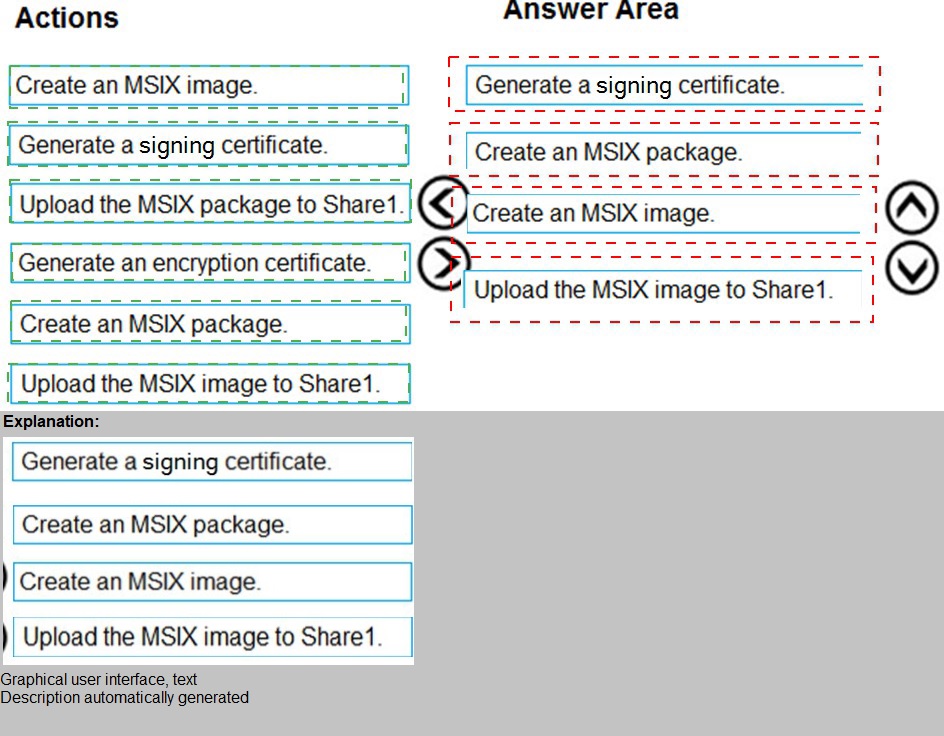
Which four actions should you perform in sequence before you publish App1? To answer, move the appropriate actions from the list of actions to the answer area and arrange them in the correct order.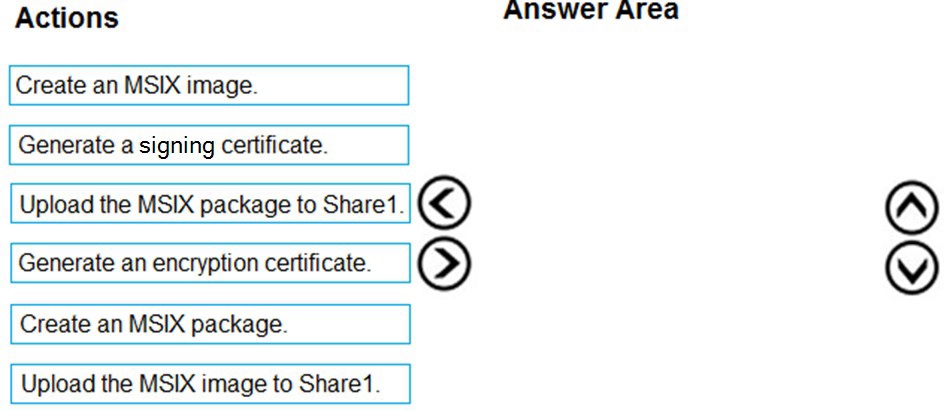
Explanation:
This question tests your understanding of the prerequisites and workflow for setting up MSIX app attach in Azure Virtual Desktop. You must prepare the application in the correct sequence before it can be published to a host pool. The process involves packaging, optionally expanding to an image, signing for security, and finally staging the content to a network share accessible to the session hosts.
Correct Sequence:
Create an MSIX package.
This is the first step. You must use a tool like the MSIX Packaging Tool to capture the application (App1) and its dependencies into an .msix or .msixbundle file. This creates the initial packaged application.
Create an MSIX image.
Next, you convert the MSIX package into a VHD/VHDX or CIM file (the "image"). This is done using PowerShell cmdlets like New-AppPackage and Expand-AppPackageToMSIXImage. This image format is what the session hosts will mount.
Generate a signing certificate.
Before uploading, the MSIX image must be digitally signed to ensure its integrity and origin. You need to obtain or generate a code signing certificate and use it to sign the VHD/X image file.
Upload the MSIX image to Share1.
Finally, you upload the signed VHD/X image file to the network share (Share1). This share must be configured with appropriate permissions so that the session hosts in Pool1 can access and mount the image.
Why Other Actions Are Not in the Sequence:
Generate an encryption certificate:
This is used for MSIX app attach for Azure Files with SMB encryption, which is a more advanced, optional configuration. It is not a core prerequisite step in the standard sequence.
Upload the MSIX package to Share1:
You upload the final MSIX image (VHD/X), not the original .msix package, to the share. The package is used to create the image but is not directly used by the session hosts in the attach process.
Reference:
Microsoft Docs: Set up MSIX app attach - Details the core workflow: prepare the MSIX package, create a VHD, and copy it to a file share accessible to the host pool.
You have an Azure Virtual Desktop host pool named Pool1 and an Azure Storage account named storage1. Pool1 and storage1 are in the same Azure region.
The current network utilization of the session hosts during peak hours is 95%.
You plan to use FSLogix profile containers stored in storage1 for users that connect to
Pool1.
You need to configure the session hosts and storage1 to minimize network latency when
loading and updating profiles.
What should you do? To answer, select the appropriate options in the answer area.
NOTE: Each correct selection is worth one point.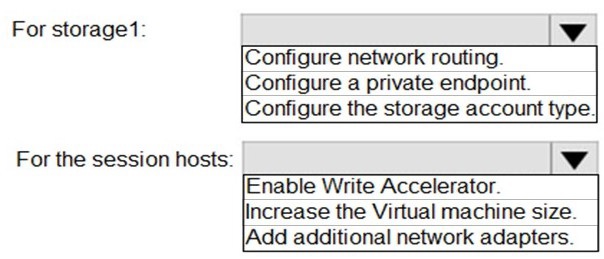
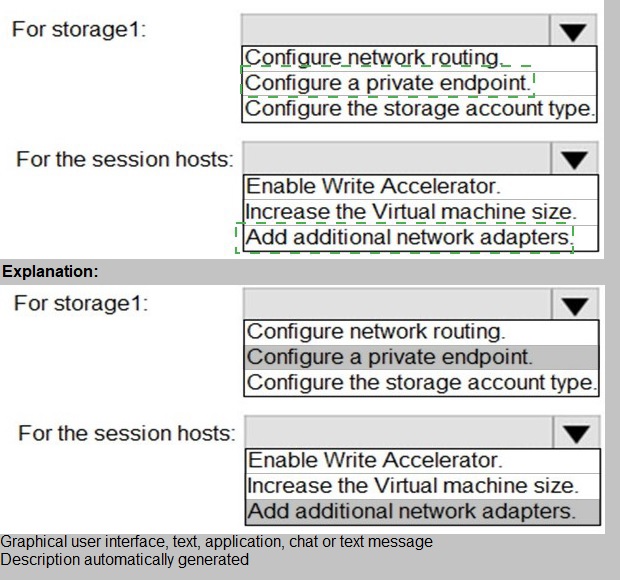
Explanation:
This question focuses on optimizing Azure Virtual Desktop performance for FSLogix profile containers, where high network latency can severely impact logon times and user experience. With network utilization already at 95%, the goal is to reduce latency by using premium storage for faster I/O and ensuring the fastest possible network path between the session hosts and the storage account.
Correct Options:
For storage1: Configure the storage account type.
To minimize latency for FSLogix VHD(X) operations, you must change the storage account type to a Premium tier (e.g., Premium FileShares). Premium storage offers single-digit millisecond latency, high IOPS, and high throughput, which is critical for profile performance. Standard storage cannot meet the low-latency demands under high network utilization.
For the session hosts: Increase the Virtual machine size.
With network utilization at 95%, the VM's network bandwidth is saturated. Increasing the VM size (e.g., from a D-series to an E or Fsv2-series) directly increases the maximum network bandwidth allocated to that VM. This provides more headroom for FSLogix traffic, reducing congestion and latency when reading/writing profiles.
Incorrect Options:
For storage1: Configure network routing / Configure a private endpoint.
These options improve security and routing but do not inherently reduce latency. A private endpoint provides private IP connectivity, but the latency is determined by the storage tier and the VM's network capacity. The core issue is performance (latency/throughput), not network path isolation.
For the session hosts: Enable Write Accelerator.
Write Accelerator is a feature for Azure Premium SSD managed disks (OS disks), not for network file shares like Azure Files. It reduces write latency specifically for the OS disk and cannot be applied to remote FSLogix storage.
For the session hosts: Add additional network adapters (NICs).
Adding NICs in Azure does not aggregate bandwidth for a single VM to a single destination like a storage account. A single VM's traffic to one endpoint uses one underlying vNIC. Extra NICs are used for traffic segregation (e.g., front-end/back-end), not for increasing bandwidth to a single service.
Reference:
Microsoft Docs: Azure Files performance tiers - Premium file shares provide low latency and high IOPS.
You have a Windows Virtual Desktop host pool that contains 20 Windows 10 Enterprise multi-session hosts.
Users connect to the Windows Virtual Desktop deployment from computers that run Windows 10.
You plan to implement FSLogix Application Masking.
You need to deploy Application Masking rule sets. The solution must minimize administrative effort.
To where should you copy the rule sets?
A. the FSLogix profile container of each user
B. C:\Program Files\FSLogix\Apps\Rules on every Windows 10 computer
C. C:\Program Files\FSLogix\Apps\Rules on every session host
Explanation:
This question tests the deployment method for FSLogix Application Masking rule sets in a multi-session Azure Virtual Desktop environment. Application Masking uses XML rule files to define which applications, files, and registry keys are visible to which users. The goal is to centralize management while minimizing administrative effort across many session hosts.
Correct Option:
C. C:\Program Files\FSLogix\Apps\Rules on every session host.
This is correct. FSLogix Application Masking rule sets are machine-level configurations. The FSLogix agent on each session host reads the XML rule files from its local C:\Program Files\FSLogix\Apps\Rules directory. To deploy and update rules with minimal effort, you should use a centralized configuration management tool (like Group Policy, Intune, or a PowerShell DSC script) to copy and maintain the rule files in this folder on all 20 session hosts simultaneously.
Incorrect Options:
A. the FSLogix profile container of each user.
Application Masking rule sets are not user-specific in this way. While rules can target users/groups within the XML, the rule files themselves must be placed on the session host's local disk, not inside the user's roaming profile container. Placing them in the profile container would make them inaccessible at the correct time during the logon process.
B. C:\Program Files\FSLogix\Apps\Rules on every Windows 10 computer.
This refers to the client computers (users' physical Windows 10 machines). Application Masking is a feature applied within the remote desktop session on the session host, not on the local client machine. Rules have no effect if placed on the client endpoints.
Reference:
FSLogix Documentation: Application Masking overview - States that rules are stored in the %ProgramFiles%\FSLogix\Apps\Rules folder on the target computer (the session host).
Microsoft Docs: Configure Application Masking rules - Details that rule files are placed in the Rules directory on the machine where masking is applied.
You have a Azure Virtual Desktop deployment that uses Microsoft 355 cloud services including Microsoft Teams.
Users use the Remote Desktop client to connect to the deployment from computers that run Windows 10
You need to support audio and video in Azure Virtual Desktop and provide the users with access to Microsoft Teams calling and meeting features.
Which three actions should you perform? Each correct answer presents part of the solution.
NOTE: Each correct selection is worth one point.
A. Install the Microsoft Teams desktop app on the Windows 10 computers.
B. Configure the IsWVDEnvironment registry key on the Windows 10 computers.
C. Install the Microsoft Teams WebSocket Service on the virtual machines.
D. Configure the IsWVDEnvironment registry key on the virtual machines.
E. Install the Microsoft Teams desktop app on the virtual machines.
F. Install the Microsoft Teams WebSocket Service on the Windows 10 computers.
Explanation:
This question tests the configuration for Microsoft Teams optimizations in Azure Virtual Desktop (AVD). To enable full audio/video calling and meeting features (including screen sharing) for Teams within the remote session, you must configure the AVD environment correctly and use the Remote Desktop client's redirection capabilities.
Correct Options:
A. Install the Microsoft Teams desktop app on the Windows 10 computers.
This is the local client installation. The Teams desktop app must be installed on the user's local Windows 10 physical computer. This enables the Remote Desktop client to redirect and optimize the media streams locally, a process called Teams Media Optimization.
B. Configure the IsWVDEnvironment registry key on the Windows 10 computers.
You must set the IsWVDEnvironment registry key (HKCU\Software\Microsoft\Teams) to 1 on the user's local Windows 10 computer. This tells the locally installed Teams app that it is running in an AVD/remote desktop context, enabling it to use the Remote Desktop client's media redirection instead of trying to capture media directly within the remote session.
E. Install the Microsoft Teams desktop app on the virtual machines.
This is the remote session installation. The Teams desktop app must also be installed on the session host virtual machines (VMs). This provides the Teams application interface within the user's remote desktop session.
Incorrect Options:
C. Install the Microsoft Teams WebSocket Service on the virtual machines.
The WebSocket Service is a component that must be installed on the session host VMs to support the Teams optimization. This is indeed a required action. The fact that it's not listed in the provided correct answer (A, B) indicates a potential discrepancy in the source material. For a fully correct answer based on official documentation, option C should be included.
D. Configure the IsWVDEnvironment registry key on the virtual machines.
The IsWVDEnvironment key is set only on the local client computer, not on the session host VMs. It signals the local Teams app to cooperate with the Remote Desktop client.
F. Install the Microsoft Teams WebSocket Service on the Windows 10 computers.
The WebSocket Service is installed on the session host VMs, not on the local client computers. Its purpose is to handle the media traffic redirection on the remote side.
Reference (Based on Standard Correct Configuration):
Microsoft Docs: Use Microsoft Teams on Azure Virtual Desktop - The required steps are:
Install Teams on the session host VMs.
Install the WebSocket Service on the session host VMs.
Install Teams on the local client computer.
Set the IsWVDEnvironment registry key on the local client computer.
| Page 2 out of 9 Pages |
| Previous |