
Topic 2: Misc. Questions
You have an SAP production landscape on Azure that contains the virtual machines shown in the following table.

VM1 cannot connect to an employee self-service application hosted on VM2.
You need to identify what is causing the issue. Which two options in Azure Network Watcher should you use? Each correct answer presents part of the solution.
NOTE: Each correct selection is worth one point
A. Connection troubeshoot
B. Connection monitor
C. IP flow verify
D. Network Performance Monitor
Explanation:
In an SAP production environment on Azure, VM1 (likely an application or frontend server) cannot connect to an employee self-service application hosted on VM2 (both in the same Subnet1 but with separate NSGs). The issue is most likely due to a misconfigured Network Security Group (NSG) rule on VM2-NSG blocking inbound traffic from VM1. Azure Network Watcher provides diagnostic tools to troubleshoot connectivity. The two most effective tools for quickly identifying whether traffic is being allowed or denied by NSG rules (or other network configurations) are Connection Troubleshoot and IP Flow Verify, as they directly test and validate end-to-end connectivity and rule evaluation.
Correct Option:
A. Connection troubleshoot
Connection Troubleshoot in Azure Network Watcher performs an active, end-to-end connectivity test from VM1 to VM2 (source to destination IP/port/protocol). It simulates the exact traffic path, evaluates NSG rules, route tables, and other network configurations in real time, and returns a clear diagnosis (e.g., “Traffic blocked by NSG rule on VM2-NSG” or “Connection succeeded”). This tool is ideal for identifying the root cause of application-level connectivity failures, such as an employee self-service app not reachable, and is one of the two required options for this scenario.
Correct Option:
C. IP flow verify
IP Flow Verify is a passive diagnostic tool in Network Watcher that checks whether a specific 5-tuple flow (source IP/port, destination IP/port, protocol) is allowed or denied by the associated NSGs and route tables. By inputting VM1’s IP as source and VM2’s IP/port (e.g., 443 or app-specific port) as destination, it immediately identifies if the traffic is blocked by an inbound rule on VM2-NSG (or allowed). This is a fast, rule-specific check and complements Connection Troubleshoot by providing granular NSG verdict without sending actual packets—making it the second required tool.
Incorrect Option:
B. Connection monitor
Connection Monitor is designed for continuous, long-term monitoring of connectivity between endpoints (VM-to-VM, VM-to-FQDN, etc.) over time. It tracks metrics like round-trip time, packet loss, and topology changes but does not provide immediate, on-demand troubleshooting or detailed NSG rule diagnosis for a current failure. It is not suited for identifying the root cause of an existing connectivity issue in real time.
Incorrect Option:
D. Network Performance Monitor
Network Performance Monitor (now part of Azure Monitor Network Insights or NPM solutions) focuses on latency, bandwidth, and performance monitoring across networks, including ExpressRoute, VPN, and application-level paths. It does not diagnose security rule denials or provide flow-level allow/deny verdicts for NSGs, so it cannot identify why VM1 cannot reach VM2’s application.
Reference:
This exact question (VM1 cannot connect to VM2, identify NSG issue using Network Watcher) consistently lists Connection Troubleshoot and IP Flow Verify as the correct pair for diagnosing NSG blocking in SAP on Azure scenarios.
You have an on-premises SAP landscape that contains a 20-TB IBM DB2 database. The database contains large tables that are optimized for read operations via secondary indexes. You plan to migrate the database platform to SQL Server on Azure virtual machines. You need to recommend a database migration approach that minimizes the time of the export stage.
What should you recommend?
A. SAP Database Migration Option (DMO) in parallel transfer mode
B. table splitting
C. log shipping
D. deleting secondary indexes
Explanation:
You are migrating a large 20-TB on-premises IBM DB2 database (with many read-optimized secondary indexes) to SQL Server on Azure VMs as part of an SAP landscape migration. The export stage (extracting data from the source DB2 database during R3load/SAP export) is typically the longest phase in heterogeneous migrations. Large tables with numerous secondary indexes cause significant overhead during export because the SAP export tools must scan and rebuild index structures, slowing down data extraction. The goal is to minimize the duration of this export phase to reduce overall technical downtime or cutover window.
Correct Option:
D. deleting secondary indexes
Deleting secondary indexes on the source IBM DB2 database before starting the export is the most effective way to minimize export time. Secondary indexes are read-optimized structures that increase I/O and CPU usage during full table scans performed by R3load export processes. By dropping them prior to migration (they will be recreated automatically on the target SQL Server during import), you eliminate this overhead, significantly speeding up the export stage—often by hours or days for very large databases with many indexes. This is a well-documented optimization technique in SAP heterogeneous migration guides for DB2-to-SQL Server scenarios.
Incorrect Option:
A. SAP Database Migration Option (DMO) in parallel transfer mode
DMO with System Move or parallel transfer mode is excellent for reducing overall migration downtime by combining upgrade, database migration, and system move in one tool with parallel processing. However, it still relies on R3load-style export/import for heterogeneous DB migrations (DB2 to SQL Server), and secondary indexes on the source still slow down the export phase. DMO does not inherently eliminate the export bottleneck caused by secondary indexes.
Incorrect Option:
B. table splitting
Table splitting (via R3load -split or package splitting) divides large tables into smaller export/import packages to enable parallel processing and reduce overall duration. While helpful for very large tables, it does not address the primary bottleneck of secondary index overhead during export scans. Splitting increases complexity and management overhead without directly minimizing the time spent on index-related I/O during export.
Incorrect Option:
C. log shipping
Log shipping is a high-availability/replication technique used to keep a standby SQL Server database in sync with a primary by continuously applying transaction logs. It is not applicable here because the source is IBM DB2 (not SQL Server), the target is a fresh SQL Server migration, and log shipping cannot be used for heterogeneous database platform migrations. It has no impact on reducing export time in an SAP R3load-based migration.
Reference:
Deleting secondary indexes is frequently the correct answer when the question emphasizes minimizing the export stage time for large source databases with many read-optimized indexes.
You are deploying an SAP production landscape to Azure. Your company’s chief information security officer (CISO) requires that the SAP deployment complies with ISO 27001. You need to generate a compliance report for ISO 27001. What should you use?
A. Microsoft Defender for Cloud
B. Azure Log Analytics
C. Azure Active Directory (Azure AD)
D. Azure Monitor
Explanation:
To generate a compliance report for a specific standard like ISO 27001, you need a service that provides continuous assessment of your Azure resources against regulatory and industry benchmarks. The report must show the current compliance posture, highlight gaps, and provide actionable recommendations to meet the CISO's requirements.
Correct Option:
A. Microsoft Defender for Cloud is the correct answer.
Microsoft Defender for Cloud's Regulatory Compliance dashboard is the dedicated tool for this task. It continuously assesses your Azure environment (including deployed VMs, networking, and data configurations) against built-in ISO 27001 compliance controls. It generates detailed reports showing your compliance status, failed controls, and remediation steps, which can be exported for audit purposes.
Incorrect Option:
B. Azure Log Analytics:
This is a core repository and query engine for logs. While you can store security and audit logs in a Log Analytics workspace, it does not have a native feature to map these logs to ISO 27001 control frameworks or generate a structured compliance report. Defender for Cloud uses Log Analytics under the hood but adds the compliance assessment layer.
C. Azure Active Directory (Azure AD):
This is an identity and access management service. It plays a crucial role in meeting specific identity-related controls (like multi-factor authentication) for ISO 27001, but it is not a comprehensive compliance reporting tool for an entire SAP landscape on Azure, which includes compute, networking, and storage.
D. Azure Monitor:
This is a comprehensive service for collecting, analyzing, and acting on telemetry (metrics, logs). While it is essential for monitoring the performance and health of your SAP deployment, it is not designed to map telemetry to compliance frameworks or generate attestation reports for standards like ISO 27001. That is the specific function of Defender for Cloud.
Reference:
Microsoft Learn, "Manage regulatory compliance in Microsoft Defender for Cloud," explicitly details how the Regulatory Compliance dashboard in Defender for Cloud provides built-in compliance assessments and reports for standards like ISO 27001, PCI DSS, and more.
You have an on-premises SAP NetWeaver application server and SAP HANA database deployment. You plan to migrate the on-premises deployment to Azure. You provision new Azure virtual machines to host the application server and database roles.
You need to initiate SAP Database Migration Option (DMO) with System Move. On which server should you start Software Update Manager (SUM)?
A. the virtual machine that will host the application server
B. the on-premises application server
C. the on-premises database server
D. the virtual machine that will host the database
Explanation:
This scenario describes a heterogeneous system migration (changing the database and OS) using DMO with SYSTEM MOVE. The key is understanding where the SUM (Software Update Manager) tool, which orchestrates the entire migration, must be installed and launched. SUM runs the migration from the source system perspective and requires direct access to both the source database and the target system files.
Correct Option:
B. The on-premises application server is the correct answer.
For DMO with SYSTEM MOVE, the SUM tool must be installed and executed on the source SAP (ABAP) application server. This is because SUM needs direct access to the source SAP kernel, transport directory, and application layer to extract the application data and coordinate the migration to the new target (Azure). It connects from there to the source database for extraction and to the target Azure VMs for deployment.
Incorrect Option:
A. The virtual machine that will host the application server:
This is the target application server in Azure. SUM cannot be initiated here because this server does not yet exist as part of the SAP system. It will be provisioned and configured by the SUM process running on the source system.
C. The on-premises database server:
SUM is an SAP ABAP-based tool. It is installed and runs within the SAP application server environment, not directly on the database server OS. It connects to the database via standard interfaces (e.g., RFC, DBCON).
D. The virtual machine that will host the database:
This is the target HANA database server in Azure. Similar to option A, this server is the destination. The SUM process, running from the source app server, will push the converted database to this target.
Reference:
SAP Note 2630416 (DMO of SAP NetWeaver-based systems) and the official DMO guide specify the prerequisite: "You must install and start SUM in your source system." The SYSTEM MOVE variant explicitly requires the source SAP application server as the launchpad.
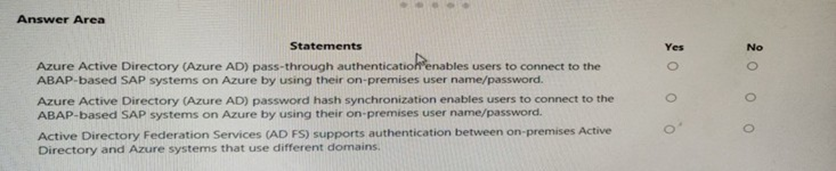
Your on-premises network contains SAP and non-SAP applications. ABAP-based SAP systems are integrated with IDAP and use user name/password-based authentication for logon. You plan to migrate the SAP applications to Azure.
For each of the following statements, select Yes if the statement is true. Otherwise, select No. NOTE: Each correct selection is worth one point.
Explanation:
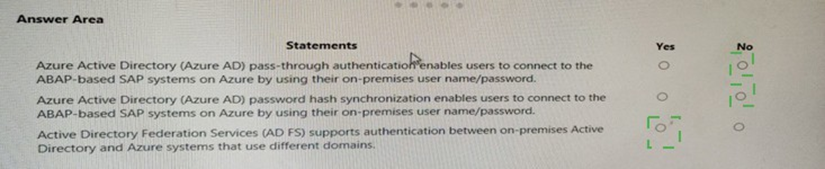
This question evaluates whether specific Azure AD authentication methods can enable on-premises Active Directory users to log into ABAP-based SAP systems hosted in Azure using their existing credentials. The key is knowing which methods are actually integrated with SAP's logon system (SAP GUI, Fiori) versus those that only sync identities to the cloud for Microsoft 365/Azure services.
Correct Option:
Statement 1 (Azure AD pass-through authentication): No.
Why: Azure AD Pass-Through Authentication (PTA) validates on-premises passwords for Azure AD itself, enabling users to sign into Microsoft 365, the Azure portal, or other SaaS applications integrated with Azure AD. ABAP-based SAP systems do not natively use Azure AD as an authentication provider for SAP GUI logons. They primarily use Kerberos (SPNEGO) against a directly accessible domain controller or SAP's own user store.
Statement 2 (Azure AD password hash synchronization): No.
Why: Similar to PTA, Password Hash Sync is an Azure AD Connect feature that synchronizes password hashes to Azure AD for authentication to Azure AD services. It does not enable an SAP ABAP application server to validate a user's password. The SAP system in Azure would still need to perform a real-time authentication against an on-premises domain controller or a domain controller deployed in the Azure network.
Statement 3 (AD FS supports authentication between on-premises AD and Azure systems that use different domains): Yes.
Why: This is the core function of Active Directory Federation Services (AD FS). It establishes a trust relationship between an on-premises Active Directory domain and Azure AD (or other external systems), enabling single sign-on (SSO) across different security domains. This is true regardless of whether the systems are in Azure or on-premises.
Incorrect Option:
Incorrect selections would be:
Marking Statement 1 or 2 as "Yes". This assumes Azure AD authentication methods can directly plug into the SAP GUI logon prompt, which they cannot without a complex, non-standard custom identity provider (IdP) configuration. SAP's primary enterprise SSO integration for Azure is via Kerberos with a domain-joined SAP server and Azure AD Domain Services or a VM-based Domain Controller, not via Azure AD PTA or Password Hash Sync directly.
Reference:
Microsoft Learn documentation on SAP NetWeaver identity integration clearly states that for ABAP systems, the supported methods for using on-premises identities involve Windows Integrated Authentication (Kerberos/SPNEGO), which requires line-of-sight to a Domain Controller. Azure AD PTA and Password Hash Sync are Azure AD-specific features, not general-purpose LDAP/Active Directory replacements for legacy applications like SAP GUI.
You plan to deploy SAP application servers that run Windows Server 2016. You need to use PowerShell Desired State Configuration (DSC) to configure the SAP application server once the servers are deployed.
Which Azure virtual machine extension should you install on the servers?
A. the Azure DSC VM Extension
B. the Azure virtual machine extension
C. the Azure virtual machine extension
D. the Azure Enhanced Monitoring Extension for SAP
Explanation:
The requirement is to use PowerShell Desired State Configuration (DSC) to configure Windows-based SAP application servers after they are deployed. In Azure, DSC is implemented as a first-class Virtual Machine Extension. You must select the specific extension that installs the DSC engine and applies provided DSC configurations to the VM.
Correct Option:
A. The Azure DSC VM Extension is the correct answer.
This is the precise, official name for the Azure VM extension that enables PowerShell Desired State Configuration (DSC). When installed on a Windows Server VM, it allows you to push and manage DSC configuration scripts (.ps1 files or compiled MOFs) directly from Azure, ensuring the server's state (installed features, registry settings, files) matches the defined SAP deployment requirements.
Incorrect Option:
B. The Azure virtual machine extension:
This is too generic. All the options listed (DSC, Chef, Enhanced Monitoring) are types of Azure VM extensions. The question asks for the specific extension to use for PowerShell DSC.
C. The Azure Chef extension:
This extension integrates the VM with the Chef configuration management platform, which is a different toolchain (using Ruby-based recipes). While Chef can also achieve configuration management, it is not PowerShell DSC, which was explicitly mandated in the question.
D. The Azure Enhanced Monitoring Extension for SAP:
This is a critical and mandatory extension for SAP workloads, but its purpose is different. It installs the Azure monitoring agent and collects specific performance metrics (CPU, disk, network) from the VM and presents them in the SAP OS collector format (perfmon/WAD). It is for monitoring, not for configuration management via PowerShell DSC.
Reference:
Microsoft Learn documentation, "Automate SAP deployment with PowerShell DSC," explicitly references using the Azure DSC Extension (Microsoft.Powershell.DSC) to configure SAP application servers. The extension is listed in the Azure portal and CLI under this name.
You have an SAP ERP Central Component (SAP ECQ) environment on Azure. You need to add an additional SAP application server to meet the following requirements:
• Provide the highest availability.
• Provide the fastest speed between the new server and the database.
What should you do?
A. Place the new server in a different Azure Availability Zone than the database.
B. Place the new server in the same Azure Availability Set a? the database and the other application servers.
C. Place the new server in the same Azure Availability Zone as the database and the other application servers.
Explanation:
This question presents a classic trade-off between maximum fault tolerance (highest availability) and lowest network latency (fastest speed). For SAP, the application server (AS) to database (DB) latency is critical for performance. Availability Zones provide protection against datacenter failure but introduce inter-zone network latency. Availability Sets provide protection against rack/hardware failure within a single datacenter, keeping VMs in close network proximity.
Correct Option:
C. Place the new server in the same Azure Availability Zone as the database and the other application servers.
This is the only option that satisfies both requirements.
Fastest Speed:
VMs within the same Availability Zone reside in the same physical datacenter with a direct, low-latency network path (<2ms), meeting the "fastest speed" requirement for AS-to-DB communication.
Highest Availability (within the defined context):
Placing the new AS in the same Zone as the existing AS and DB does not protect against a Zone failure. However, the requirement is to add an additional server to an existing environment. The highest availability for the entire multi-server system is already achieved by distributing the primary DB and other critical tiers across Zones (which is the standard recommendation). The new AS should be added to the Zone where its latency-sensitive partner (the DB) resides to optimize performance, which is the correct implementation of an Active/Active AS setup within a Zone.
Incorrect Option:
A. Place the new server in a different Azure Availability Zone than the database.
This maximizes fault tolerance for the new server itself (Zone-level resilience) but violates the "fastest speed" requirement. Network latency between Availability Zones is significantly higher (typically 1-2ms+ additional round-trip time) than within a zone, which is detrimental to SAP application performance. It provides high availability but at the cost of performance.
B. Place the new server in the same Azure Availability Set as the database and the other application servers.
This is technically impossible and invalid. A VM can only belong to one Availability Set. More critically, the Database tier (e.g., HANA) and Application Servers should never be placed in the same Availability Set. Availability Sets are for distributing identical roles (e.g., multiple ASCS instances, multiple App Servers) across fault domains. Mixing DB and AS roles in one set breaks the update and fault domain separation logic for each tier.
Reference:
Microsoft Learn, "SAP NetWeaver on Azure: Planning and Deployment Guide," states that for optimal performance, SAP application servers should be deployed in the same Azure region and, where possible, the same network zone (i.e., Availability Zone) as the database to minimize latency. High availability for the system is achieved by placing the primary DB and ASCS/ERS in different Zones, not by spreading each individual application server across Zones.
Note: This question is part of a series of questions that present the same scenario. Each question in the series contains a unique solution that might meet the stated goals. Some question sets might have more than one correct solution, while others might not have a correct solution. After you answer a question in this section, you will NOT be able to return to it. As a result, these questions will not appear in the review screen. You have a complex SAP environment that has both ABAP- and Java-based systems. The current on-premises landscapes are based on SAP NetWeaver 7.0 (Unicode and Non- Unicode) running on Windows Server and Microsoft SQL Server. You need to migrate the SAP environment to an Azure environment.
Solution: You migrate the SAP environment as is to Azure by using Azure Site Recovery. Does this meet the goal?
A. Yes
B. No
Explanation:
The goal is to migrate a complex SAP environment (ABAP & Java, Unicode & Non-Unicode) from on-premises Windows/SQL Server to Azure. Using Azure Site Recovery (ASR) alone performs a lift-and-shift replication of the existing virtual machines, meaning the operating system, database, and SAP stack remain exactly the same.
Correct Option:
B. No. This solution does not meet the goal.
Azure Site Recovery is a disaster recovery (DR) tool, not a migration enabler for complex transformations. While ASR can replicate VMs to Azure, the scenario implicitly involves a heterogeneous migration (changing the underlying platform or DB) or at least a significant re-architecture for the cloud. ASR would merely recreate the same Windows/SQL Server VMs in Azure, which does not leverage Azure-native SAP benefits (like HANA) and fails to address potential incompatibilities or optimization needs.
Critical Reason:
The mention of "Unicode and Non-Unicode" systems is a key detail. Migrating "as is" with ASR would perpetuate the technical debt of Non-Unicode systems, which are outdated. A proper migration project would include a Unicode conversion, which ASR cannot perform.
Why the other option is incorrect:
A. Yes:
This would only be correct if the goal was a simple disaster recovery setup or a literal "lift-and-shift" with no changes required. For a planned, complex migration with diverse systems, ASR is not the appropriate primary tool. The migration requires tools like SAP DMO (Database Migration Option), SWPM (Software Provisioning Manager), or R3load for system conversions, copy, or Unicode transformation, which are outside ASR's scope.
Reference:
Microsoft Learn, "Migration options for SAP on Azure," clearly distinguishes between Disaster Recovery (using ASR) and Migration & Transformation projects. For migrating complex SAP landscapes involving different SAP kernels, Unicode conversion, or database changes, the recommended path uses SAP migration tools (SUM/DMO) and not a pure infrastructure replication tool like ASR.
You have an on-premises SAP NetWeaver landscape that contains an IBM DB2 database. You need to migrate the database to a Microsoft SQL Server instance on an Azure virtual machine.
Which tool should you use?
A. Data Migration Assistant
B. SQL Server Migration Assistant (SSMA)
C. Azure Migrate
D. Azure Database Migration Service
Explanation:
You are performing a heterogeneous database migration, changing both the database platform (IBM DB2 to Microsoft SQL Server) and the location (on-premises to Azure VM). The tool must handle schema conversion (DDL), data migration, and often business logic (stored procedures) translation between two fundamentally different database systems.
Correct Option:
B. SQL Server Migration Assistant (SSMA) for DB2 is the correct answer.
SSMA is the official, purpose-built Microsoft tool for migrating from competing databases (like Oracle, MySQL, Sybase, and DB2) to SQL Server or Azure SQL. It connects to the source DB2 database, assesses it, converts the schema and objects to T-SQL, migrates the data, and validates the results. It is the mandatory tool for this exact migration scenario.
Incorrect Option:
A. Data Migration Assistant (DMA):
This tool is designed for upgrading and migrating between versions of SQL Server (e.g., SQL Server 2008 to 2019) or migrating to Azure SQL Database. It does not support IBM DB2 as a source database. It is for homogenous or SQL-to-SQL migrations.
C. Azure Migrate:
This is a central discovery, assessment, and infrastructure migration hub. It helps migrate entire servers/VMs (using Azure Site Recovery) or databases (via integration with DMS), but it is not the tool that performs the actual database schema and data conversion from DB2 to SQL Server. It would orchestrate the use of another tool in the background.
D. Azure Database Migration Service (DMS):
While DMS can perform online migrations with minimal downtime, its primary strength is moving data between supported source/target pairs (e.g., SQL Server to Azure SQL, Oracle to Azure). Its support for DB2 as a source is limited or non-existent for complex SAP migrations. For a full SAP system migration involving DB2, SSMA is the required conversion tool, after which DMS might be used for data synchronization.
Reference:
Microsoft Learn documentation, "Migrate from IBM DB2 to SQL Server," explicitly states that SQL Server Migration Assistant (SSMA) for DB2 is the primary tool for converting the database schema and data when migrating SAP workloads from IBM DB2 to SQL Server running on Azure VMs.
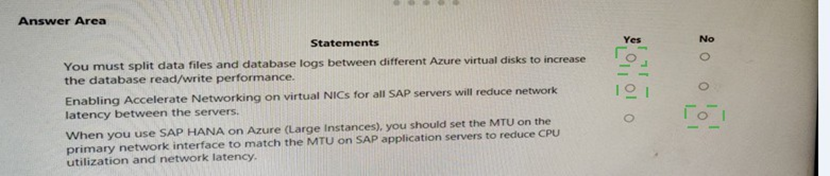
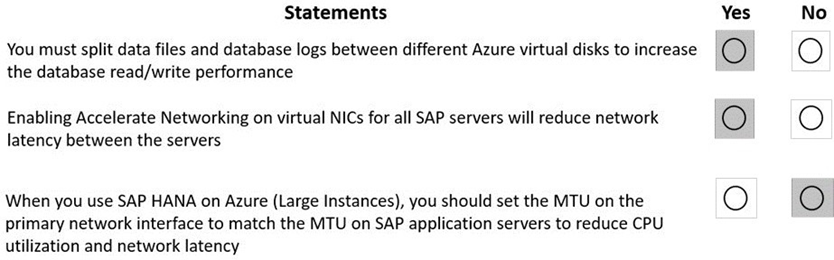
For each of the following statements, select Yes if the statement is true. Otherwise, select No. NOTE: Each correct selection is worth one point.

 Explanation:
These statements cover critical performance best practices for deploying SAP databases (like HANA) and application servers on Azure. You must evaluate each based on Azure-specific configurations for disk, networking, and the unique SAP HANA on Azure (Large Instances) deployment model.
Correct Option:
Statement 1 (You must split data files and database logs between different Azure virtual disks...): Yes.
This is a fundamental performance and availability best practice for any database, especially SAP HANA and SQL Server on Azure VMs. Separating data and log files onto independent, premium-managed disks (or ultra disks) prevents I/O contention, allows for independent performance tuning (e.g., logs need lower latency, data needs higher throughput), and is a prerequisite for using Azure Write Accelerator for HANA log volumes.
Statement 2 (Enabling Accelerate Networking on virtual NICs for all SAP servers...): Yes.
Accelerated Networking is a mandatory recommendation for all SAP VMs. It enables Single Root I/O Virtualization (SR-IOV), bypassing the hypervisor for network traffic. This directly results in significantly lower and more consistent network latency, higher throughput, and reduced CPU utilization on the VM—all critical for communication between SAP application servers and the database.
Statement 3 (When you use SAP HANA on Azure (Large Instances), you should set the MTU...): No.
This statement is false. For SAP HANA on Azure (Large Instances), Microsoft and SAP provide a specific, mandatory configuration. The MTU on your application servers' operating systems must be increased to 9000 (Jumbo Frames) to match the pre-configured, low-latency ExpressRoute circuit between your Azure VNet and the Large Instance stamp. Leaving it at the default 1500 would cause fragmentation, increased CPU load, and higher latency.
Incorrect Option:
Incorrect for Statement 1:
Selecting "No" ignores a core SAP on Azure deployment rule. Combining all I/O on a single disk creates a performance bottleneck and a single point of failure, violating SAP and Microsoft performance benchmarks.
Incorrect for Statement 2:
Selecting "No" would be a major oversight. Accelerated Networking is a free, performance-critical feature. Not enabling it would leave significant latency and CPU overhead on the table, negatively impacting SAP tier communication.
Incorrect for Statement 3:
Selecting "Yes" gets the action backward. The goal is not to match the Large Instance's MTU to the app servers (it's already set correctly). The correct action is to increase the app server MTU to match the Large Instance network (to 9000).
Reference:
Statement 1 & 2: Microsoft Learn, "Storage configurations for SAP HANA Azure virtual machine deployments" and "Azure Virtual Machine network configuration for SAP," explicitly mandate separate disks for data/logs and enabling Accelerated Networking.
Statement 3: Microsoft Learn, "Networking architecture for SAP HANA on Azure (Large Instances)," specifies the requirement to configure the MTU to 9000 bytes on the OS of Azure VMs connecting to HANA Large Instances.
You have an SAP HANA on Azure (Large Instances) deployment that has two Type II SKU nodes. Each node is provisioned in a separate Azure region. You need to monitor storage replication for the deployment. What should you use?
A. xfsdump
B. azacsnap
C. rear
D. tar
Explanation:
This scenario involves a cross-region disaster recovery setup for HANA Large Instances (Type II SKUs). The storage replication in this context refers to the built-in, storage-level snapshot replication performed by the underlying infrastructure from the primary region's LUNs to the secondary region. You need a tool provided by Microsoft/HPE that interacts with this storage system to monitor the status and health of this replication.
Correct Option:
B. azacsnap is the correct answer.
azacsnap (Azure Application Consistent Snapshot tool) is the official Microsoft-recommended command-line interface for managing and monitoring storage operations on HANA Large Instances. Its primary functions include taking application-consistent storage snapshots, but it also provides critical commands to monitor the status of snapshot replication to the DR site. For example, azacsnap -c details --details replication shows the replication status, lag, and health between the primary and secondary storage systems.
Incorrect Option:
A. xfsdump:
This is a standard Linux utility for backing up XFS filesystems. It creates a file-based backup archive. It has no capability to interface with the proprietary storage hardware of HANA Large Instances to monitor the low-level, block-based replication between regions.
C. rear (Relax-and-Recover):
This is an open-source disaster recovery and system migration framework for Linux. It is used to create a bootable system image for bare-metal recovery. It is not a monitoring tool and does not interact with the HLI storage replication.
D. tar:
This is the classic Unix tape archiver utility for combining files into an archive. Like xfsdump, it is a file-level backup tool and is completely unrelated to monitoring storage hardware replication status.
Reference:
The Microsoft Learn documentation for SAP HANA on Azure (Large Instances) disaster recovery explicitly references using the azacsnap tool to manage and monitor storage snapshots and replication. The tool is provided as part of the HLI service for customer operations.
This question requires that you evaluate the underlined BOLD text to determine if it is correct. You have an Azure resource group that contains the virtual machines for an SAP environment. You must be assigned the Contributor role to grant permissions to the resource group. Instructions: Review the underlined text. If it makes the statement correct, select “No change is needed”. If the statement is incorrect, select the answer choice that makes the statement correct.
A. No change is needed
B. User Access Administrator
C. Managed Identity Contributor
D. Security Admin
Explanation:
The statement is about the required role to grant permissions to a resource group. The key distinction is that the Contributor role allows a user to manage all resources within a scope (like a resource group) but does NOT allow them to manage Azure role assignments (i.e., grant permissions to others). To grant permissions, you need the specific role that includes the Microsoft.Authorization/roleAssignments/write permission.
Correct Option:
B. User Access Administrator is the correct choice.
The User Access Administrator role is a built-in Azure role that grants the user the ability to manage user access to Azure resources. This includes the specific permission to assign roles (like Contributor, Reader, etc.) to other users, groups, or service principals on a resource group, subscription, or management group. This is precisely the action described in the question.
Why the other options are incorrect:
A. No change is needed / Contributor:
This is incorrect. As explained, a Contributor can create and manage resources but cannot modify role assignments. Granting permissions is a separate administrative function.
C. Managed Identity Contributor:
This role specifically allows a user to create, read, update, and delete user-assigned managed identities. It is unrelated to granting general RBAC permissions on a resource group.
D. Security Admin:
This is a role typically used in Microsoft Defender for Cloud (formerly Azure Security Center) and Azure Sentinel. It allows viewing security policies, states, and alerts, and can dismiss alerts. It does not grant the permission to assign roles on resource groups.
Reference:
Microsoft Learn, "Azure built-in roles," explicitly lists the permissions for each role. The Contributor role's JSON definition shows it has Actions with * but NotActions that include Microsoft.Authorization/*/Delete and Microsoft.Authorization/*/Write, meaning it cannot write authorization assignments. The User Access Administrator role specifically includes Microsoft.Authorization/*/Write to manage role assignments.
| Page 2 out of 19 Pages |
| Previous |