
Topic 6: Misc. Questions
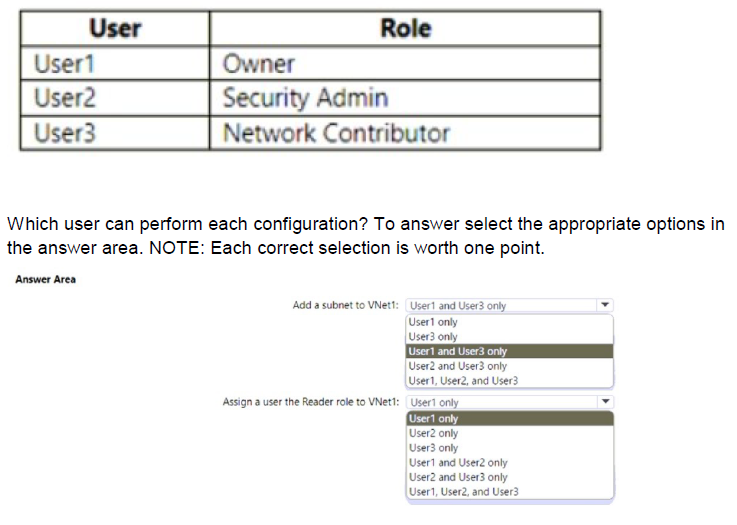
You have an Azure subscription named Subscription1 that contains a virtual network named VNet1. You add the users in the following table.
Explanation:
This question assesses Azure RBAC permissions for two configurations on VNet1 in Subscription1. The first task is adding a subnet to VNet1, which requires write permissions on virtual networks and subnets (Microsoft.Network/virtualNetworks/subnets/write). The second task is assigning the Reader role to a user on VNet1, which requires Microsoft.Authorization/roleAssignments/write permission at the resource scope (or inherited). Roles are assigned at the subscription scope (Owner, Security Admin, Network Contributor), affecting VNet1.
Correct Option:
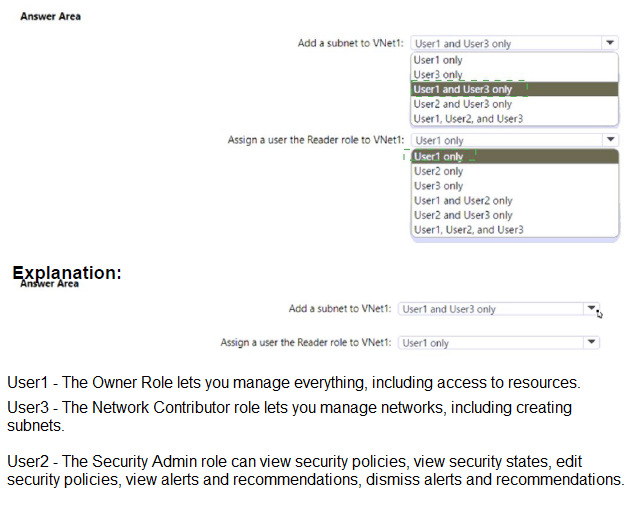
Add a subnet to VNet1: User1 and User3 only
User1 (Owner) has full access, including managing all resources and performing write operations on virtual networks/subnets. User3 (Network Contributor) has specific permissions to manage networks (including creating/updating subnets in VNets) but not deploy VMs. User2 (Security Admin) lacks network management permissions and focuses on Defender for Cloud security policies/alerts, so cannot add subnets.
Assign a user the Reader role to VNet1: User1 only
User1 (Owner) can assign roles in Azure RBAC at any scope, including the VNet1 resource scope. User2 (Security Admin) and User3 (Network Contributor) do not have Microsoft.Authorization/roleAssignments/write permission, so they cannot create role assignments (even though Network Contributor manages networks and Security Admin handles security configurations).
Incorrect Option:
Add a subnet to VNet1: User1 only / User3 only / User2 and User3 only / etc. — These exclude either User1 (who can) or include User2 (who cannot). Only User1 and User3 have the required network write permissions.
Assign a user the Reader role to VNet1: User1 only and User3 / User2 and User3 only / User1, User2, and User3 / etc. — These incorrectly include User2 and/or User3, who lack role assignment write permissions. Only Owner has the broad privilege to assign roles.
Reference:
Azure built-in roles
Azure RBAC permissions for Networking
Add, change, or delete a virtual network subnet
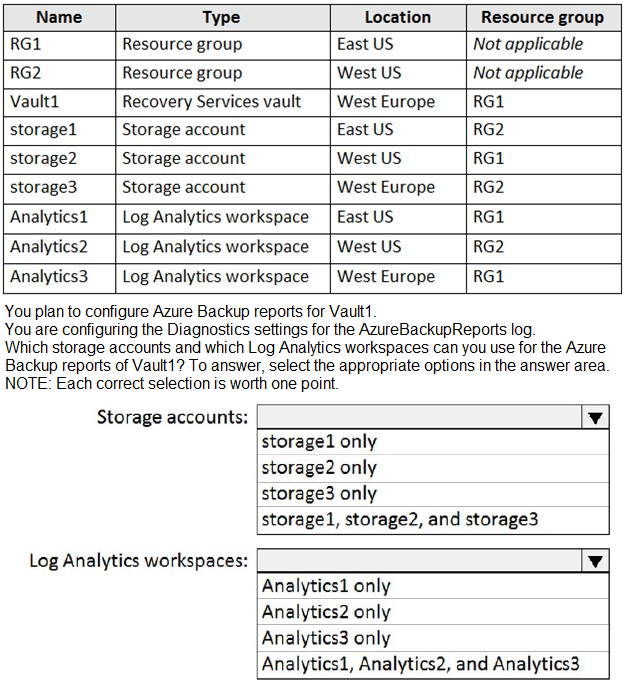
You have an Azure subscription named Subscription1 that contains the resources shown in the following table.
Explanation:
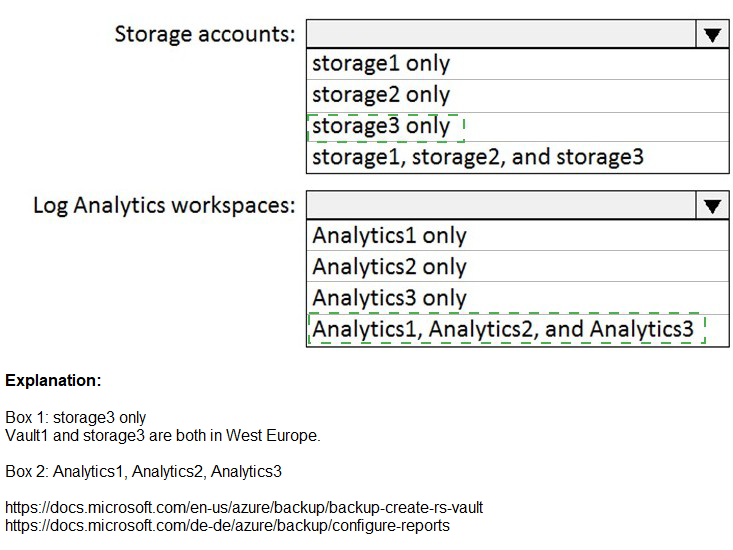
Azure Backup reports rely on diagnostic settings configured on the Recovery Services vault (Vault1) to send the AzureBackupReports log category to destinations. For storage accounts used as a diagnostic destination, the storage account must be in the same Azure region as the vault due to regional restrictions on diagnostic log archiving for regional resources like Recovery Services vaults. For Log Analytics workspaces, there is no such regional restriction—the workspace can be in any region (same or different) and still receive diagnostic data from the vault.
Correct Option:
Storage accounts: storage2 only
Vault1 is located in West Europe. Among the listed storage accounts, only storage2 is in West Europe (RG1). storage1 is in East US and storage3 does not exist in the table. Therefore, only storage2 can be selected as a valid destination for diagnostic logs from Vault1.
Log Analytics workspaces: Analytics1, Analytics2, and Analytics3
Log Analytics workspaces have no region restriction for receiving diagnostic data from Recovery Services vaults. All three workspaces (Analytics1 in East US, Analytics2 in West US, Analytics3 in West Europe) can be used as destinations for AzureBackupReports logs from Vault1, regardless of their locations.
Incorrect Option:
Storage accounts: storage1 only / storage2 only (if misinterpreted) / storage3 only / storage1, storage2, and storage3 — storage1 is in East US (different region), so invalid. storage3 is not listed in the table. Including multiple or wrong ones fails because only same-region storage accounts are allowed for diagnostic settings from the vault.
Log Analytics workspaces: Analytics1 only / Analytics2 only / Analytics3 only / Analytics1, Analytics2, and Analytics3 (partial) — Restricting to one or two is incorrect; all three are valid since Log Analytics supports cross-region ingestion for vault diagnostics.
Reference:
Diagnostic Events for Azure Backup users
Configure Azure Backup reports
You have an Azure subscription.
You need to deploy a virtual machine by using an Azure Resource Manager (ARM) template.
How should you complete the template? To answer, select the appropriate options in the answer area.
NOTE: Each correct selection is worth one point.
Explanation:
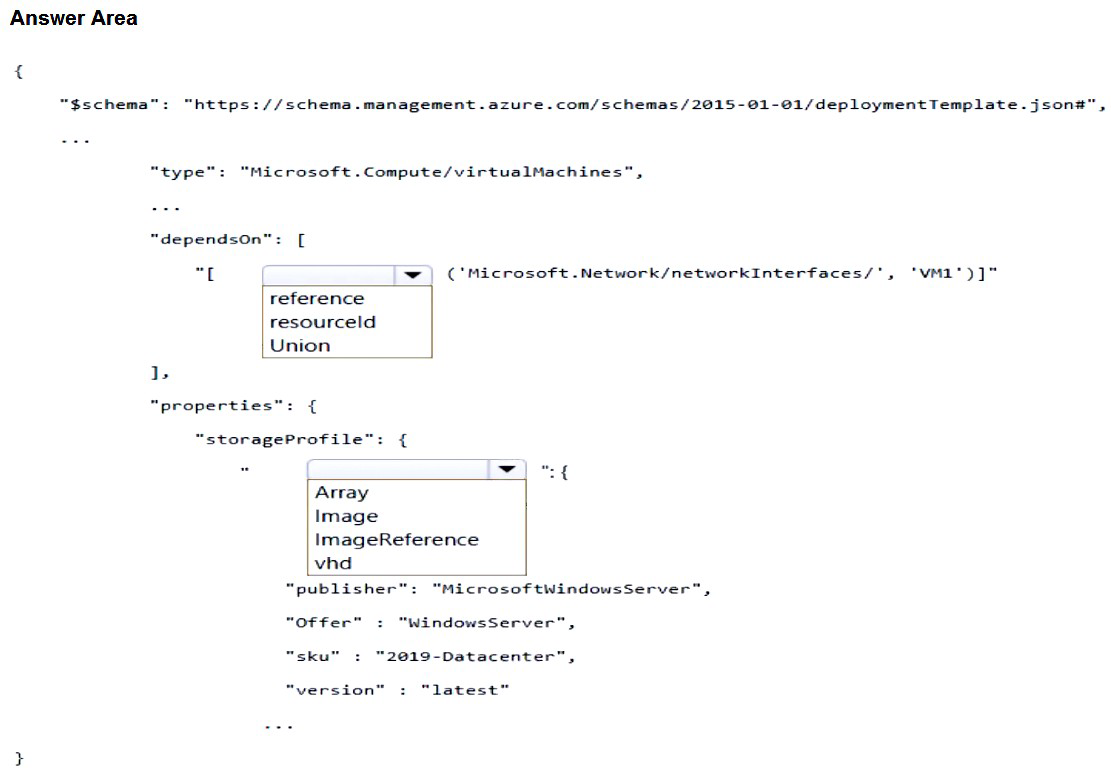
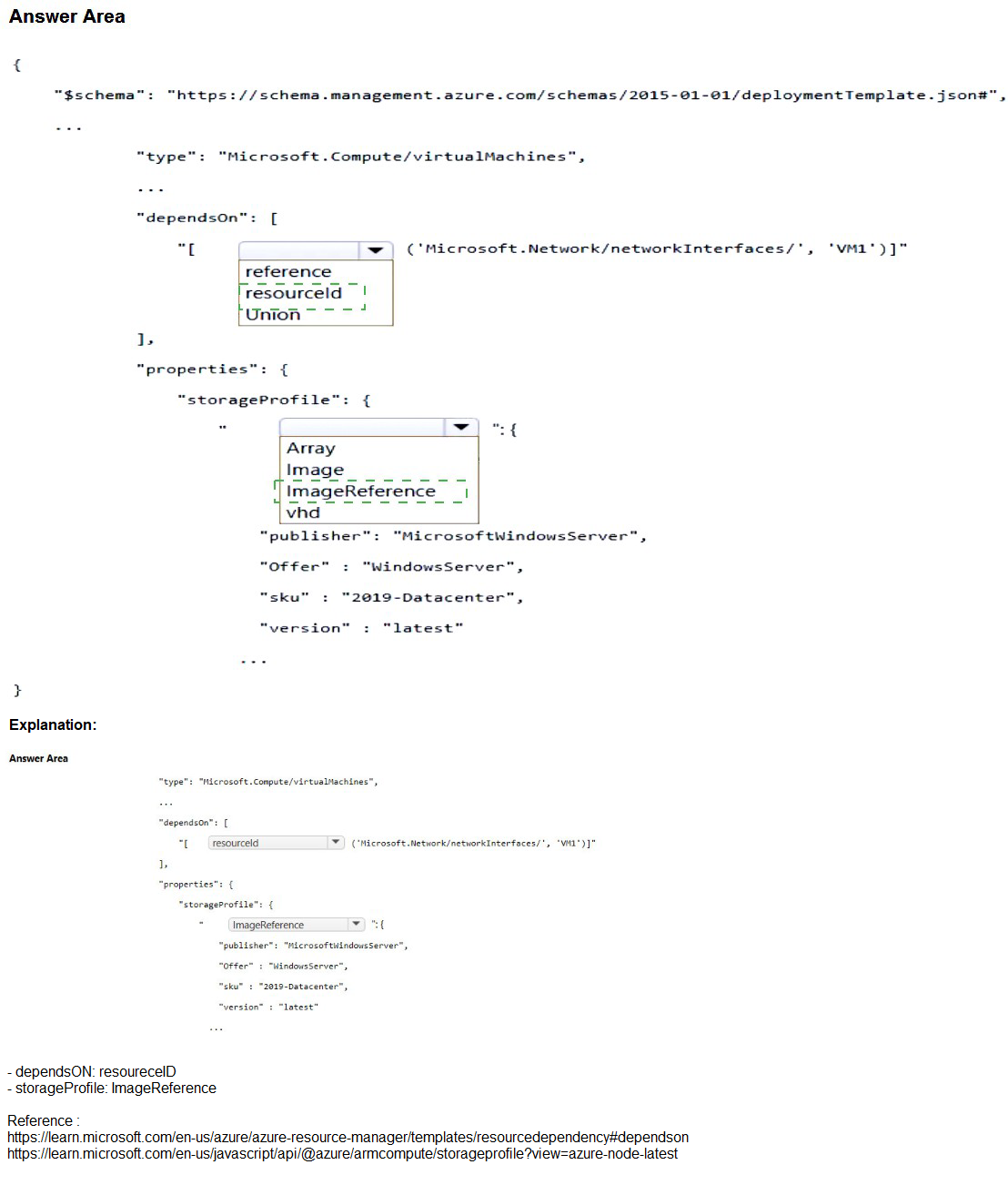
This question tests key elements of an Azure Resource Manager (ARM) template for deploying a virtual machine (VM). The VM resource must explicitly depend on its associated network interface (NIC) to ensure the NIC is created first, as the VM requires it for networking. The syntax uses the reference function or resourceId within dependsOn. For the OS disk configuration in storageProfile, when deploying from a Marketplace image (like Windows Server 2019 Datacenter), you specify imageReference with publisher, offer, sku, and version details. The dropdown shows choices between Array, Image, ImageReference, etc., where imageReference is the correct object for Marketplace images.
Correct Option:
dependsOn: reference
The correct syntax for dependsOn to reference the NIC (named 'VM1' in the snippet) is:
"dependsOn": [ "[reference('Microsoft.Network/networkInterfaces/VM1')]" ]
or more commonly: "[resourceId('Microsoft.Network/networkInterfaces', 'VM1')]".
The reference function (or resourceId) is used inside the array to point to the NIC resource, establishing the explicit dependency so the VM deploys only after the NIC exists. This is standard for VM-to-NIC dependency in ARM templates.
storageProfile: ImageReference
Under properties.storageProfile, the property to define the source Marketplace image is imageReference (not image or others).
It is an object containing: "publisher": "MicrosoftWindowsServer", "offer": "WindowsServer", "sku": "2019-Datacenter", "version": "latest".
This tells Azure to provision the VM from the specified Windows Server 2019 image in the Marketplace. Image would be incorrect here, as it's used differently (e.g., for custom managed images via ID).
Incorrect Option:
dependsOn: Union / Array / resourceId (if not selected as reference context) — Union is not a valid option for dependsOn syntax; it's unrelated. Array might seem plausible but the function inside (reference or resourceId) is key; the question highlights choosing reference over alternatives like direct string or Union.
storageProfile: Array / Image / vhd / Image — Array is invalid for this property (perhaps confusing with dataDisks array). Image is not the correct sub-property name; image might appear in data disks or older unmanaged scenarios but not for OS imageReference. vhd is part of osDisk for unmanaged disks URI, not the image source. These would cause template validation failure when deploying from Marketplace image.
Reference:
Azure Resource Manager template reference for virtual machines
Define resource dependencies in ARM templates
You have an Azure subscription that contains the resources in the following table.
Explanation:
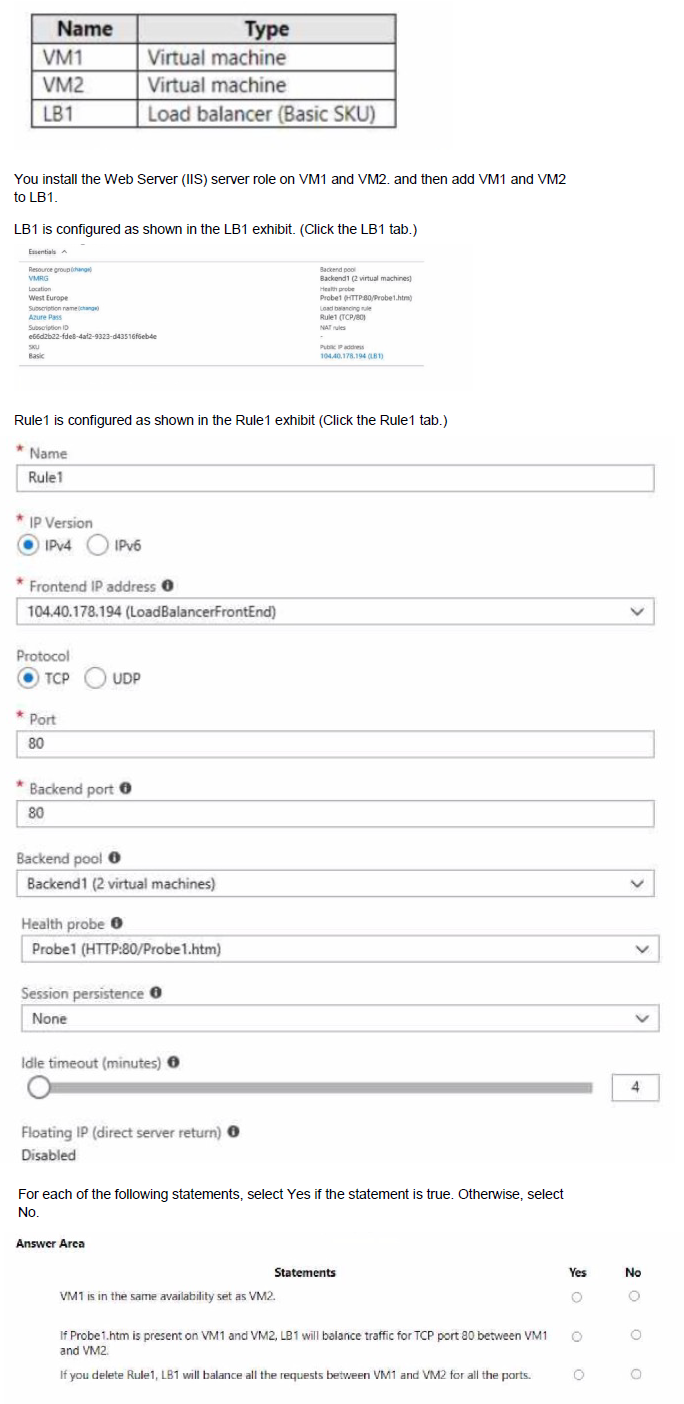
This question evaluates understanding of Azure Basic Load Balancer (retired SKU) configuration behavior with two VMs (VM1, VM2) added to the backend pool, using IIS on port 80, a health probe (Probe1: HTTP on port 80, path Probe1.htm), one load-balancing rule (Rule1: TCP 80 → 80, no session persistence), and Basic SKU properties. Key points include: Basic LB requires backend VMs to be in the same availability set (or VMSS) for NIC-based backend pools; health probes require the specified path (Probe1.htm) to return HTTP 200 for the instance to be considered healthy and receive traffic; deleting a rule removes that specific load-balancing configuration, but other rules (if any) would continue—here, with only one rule, no load balancing occurs across ports after deletion.
Correct Option:
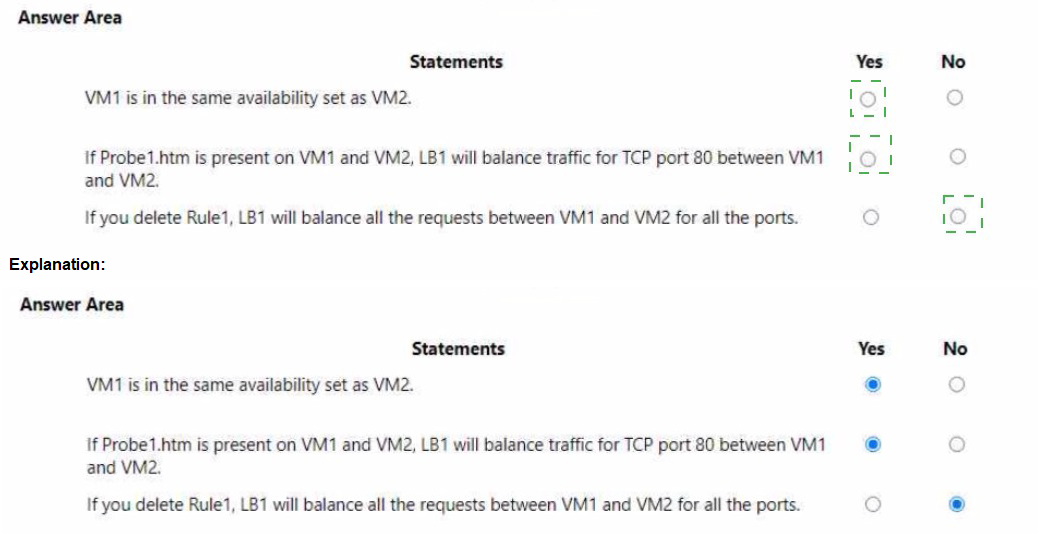
If Probe1.htm is present on VM1 and VM2, LB1 will balance traffic TCP port 80 between VM1 and VM2: Yes
The health probe (Probe1) is HTTP on port 80 with path /Probe1.htm. For Basic LB to mark backend instances healthy, the VMs must respond with HTTP 200 OK to GET requests on that path/port from the probe source (168.63.129.16). Since IIS is installed and the probe path is specified, if Probe1.htm exists and is accessible (default IIS behavior or custom file returning 200), both VMs are healthy. With no session persistence and hash-based distribution, LB1 balances incoming TCP/80 traffic across VM1 and VM2.
If you delete Rule1, LB1 will balance all requests between VM1 and VM2 for all ports: No
Rule1 is the only load-balancing rule, mapping frontend TCP/80 to backend TCP/80 on the pool. Deleting it removes the inbound load-balancing configuration for port 80 (and effectively all, since no other rules exist). Basic LB does not have a default "balance all ports" behavior; without rules, no inbound traffic is distributed to the backend pool. Other features (e.g., outbound) may persist, but inbound balancing stops.
Incorrect Option:
VM1 is in the same availability set as VM2: No
The table shows VM1 and VM2 as individual virtual machines without mentioning an availability set. For Basic SKU Load Balancer (NIC-based backend), backend pool endpoints must be VMs within a single availability set (or VMSS). Standalone VMs (not in an availability set) cannot be added to a Basic LB backend pool. Since no availability set is indicated, they are not in the same one (or any), making this statement false.
Reference:
Azure Load Balancer SKUs
Azure Load Balancer health probes
Manage rules for Azure Load Balancer
You have an Azure subscription that contains a storage account named storage 1. The storage1 account contains a container named container1.
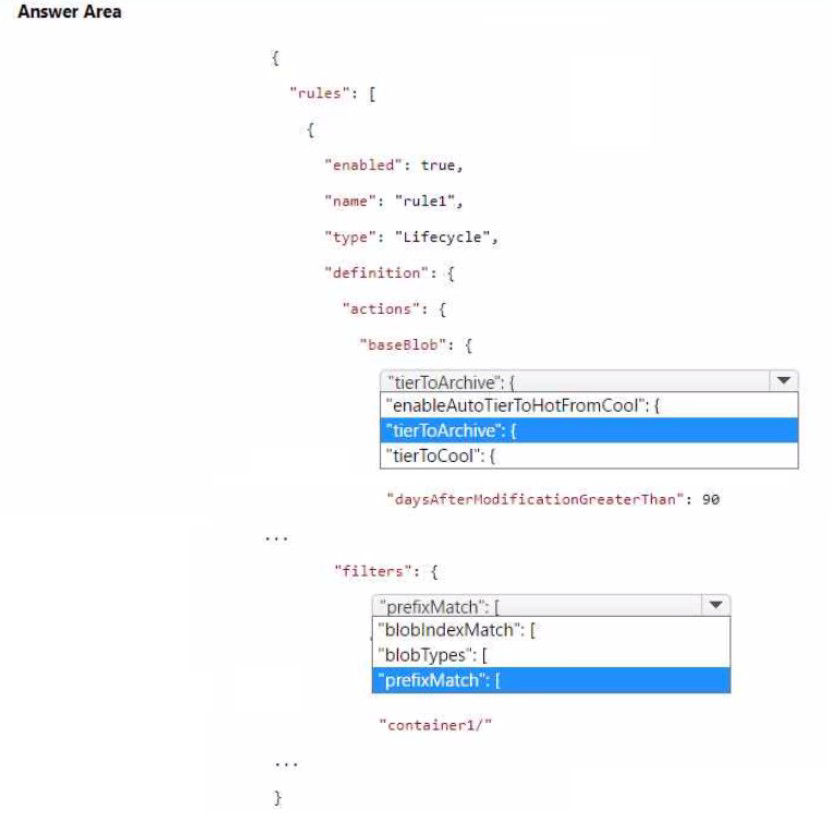
You need to create a lifecycle management rule for storage1 that will automatically move the blobs in contained to the lowest-cost tier after 90 days.
How should you complete the rule? To answer, select the appropriate options in the answer area.
NOTE Each correct selection is worth one point.
Explanation:
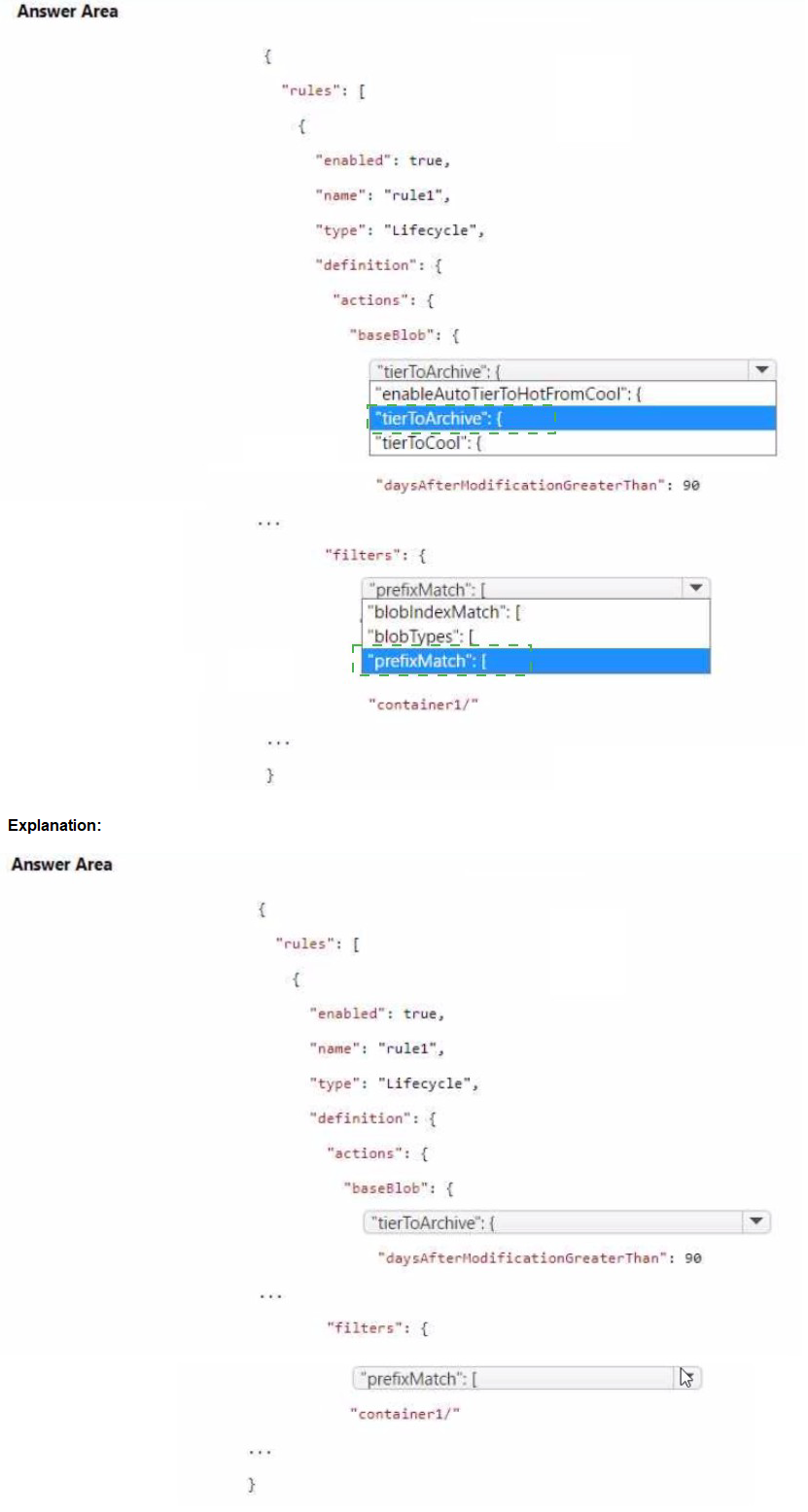
Azure Blob Storage lifecycle management policies automate tier transitions to optimize costs by moving blobs to lower-cost tiers (Cool or Archive) based on age since last modification. The goal is to move all blobs in container1 to the Archive tier (lowest-cost) after 90 days of no modification. In the JSON policy structure, this is configured under baseBlob actions using tierToArchive with daysAfterModificationGreaterThan set to 90. Filters specify which blobs apply (here, prefixMatch for container1/). The rule type is Lifecycle, and actions focus on base blobs (current versions).
Correct Option:
tierToArchive (in the actions.baseBlob section) — This is the correct action to move blobs directly to the Archive tier. It is used when the objective is the lowest-cost storage after the specified period.
daysAfterModificationGreaterThan: 90 — This condition triggers the tierToArchive action precisely after 90 days since the blob was last modified. It matches the requirement for automatic movement after 90 days.
prefixMatch: ["container1/"] (in filters) — This filter targets all blobs inside container1 by matching the container prefix (including the trailing slash), ensuring the rule applies only to blobs in that container.
Incorrect Option:
enableAutoTierToHotFromCool — This enables automatic rehydration from Cool to Hot on access but is unrelated to moving to Archive or the 90-day condition; it would be used in policies with tierToCool for read-back optimization.
tierToCool — This moves blobs to the Cool tier (mid-cost), not the Archive tier (lowest-cost). The question specifies the lowest-cost tier, so tierToArchive is required instead.
blobTypes / blobIndexMatch (if selected instead of prefixMatch) — blobTypes specifies blockBlob/appendBlob/pageBlob (usually ["blockBlob"]), but prefixMatch is the appropriate filter here to scope to container1/. blobIndexMatch is for blob index tags, which isn't mentioned or needed.
Reference:
Azure Blob Storage lifecycle management overview
Lifecycle management policies that transition blobs between tiers
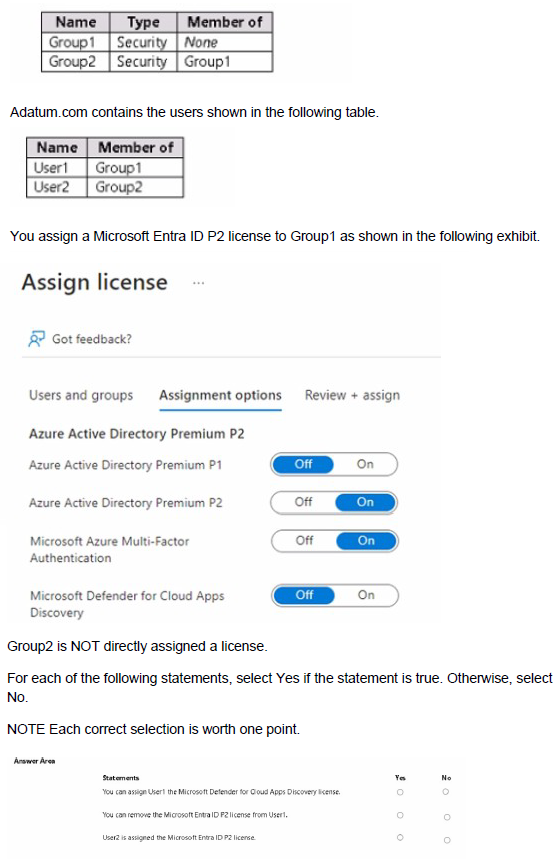
You have a Microsoft Entra tenant named adatum.com that contains the groups shown in the following table.
Explanation:
This question tests inheritance and assignment behavior of Microsoft Entra ID (Azure AD) group-based licensing in a tenant (adatum.com). Group1 is a security group with no parent membership. Group2 is a security group nested inside Group1 (i.e., Group2 is a member of Group1). User1 is a direct member of Group1, and User2 is a direct member of Group2. A Microsoft Entra ID P2 license is assigned directly to Group1 (not to Group2) with the “On” toggle for Entra ID P2 and other features (including Microsoft Defender for Cloud Apps Discovery). Group-based licensing supports transitive/nested membership: users in nested groups inherit licenses assigned to the parent group. Licenses can be removed from users even if inherited via group assignment.
Correct Option:
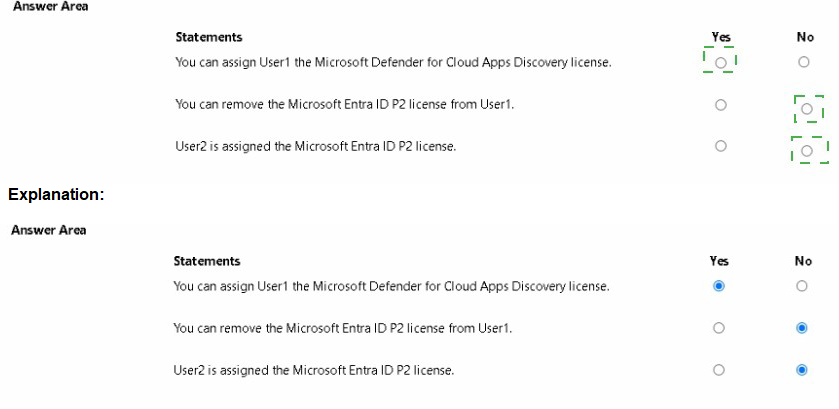
You can assign User1 the Microsoft Defender for Cloud Apps Discovery license: Yes
The license assignment to Group1 includes “Microsoft Defender for Cloud Apps Discovery” (toggled On). User1 is a direct member of Group1, so User1 automatically inherits the full Entra ID P2 license package assigned to Group1, including the Defender for Cloud Apps Discovery feature. No direct assignment to User1 is needed.
You can remove the Microsoft Entra ID P2 license from User1: Yes
Inherited licenses (from group-based assignment) can be removed from an individual user via direct license removal in the Microsoft Entra admin center. Removing the inherited P2 license from User1 overrides the group inheritance for that user only; other group members remain unaffected. This is a supported operation.
User2 is assigned the Microsoft Entra ID P2 license: Yes
User2 is a direct member of Group2, and Group2 is nested inside Group1 (Group2 is a member of Group1). Group-based licensing in Entra ID supports transitive membership, so users in nested groups inherit licenses assigned to the parent group. Therefore, User2 inherits the Entra ID P2 license (and included features) from Group1.
Incorrect Option:
There are no “No” selections in this scenario—all three statements are true based on group nesting, transitive inheritance, and the ability to override inherited licenses for individual users. Any selection of “No” for any statement would be incorrect.
Reference:
Group-based licensing in Microsoft Entra ID
Manage group-based licensing for users
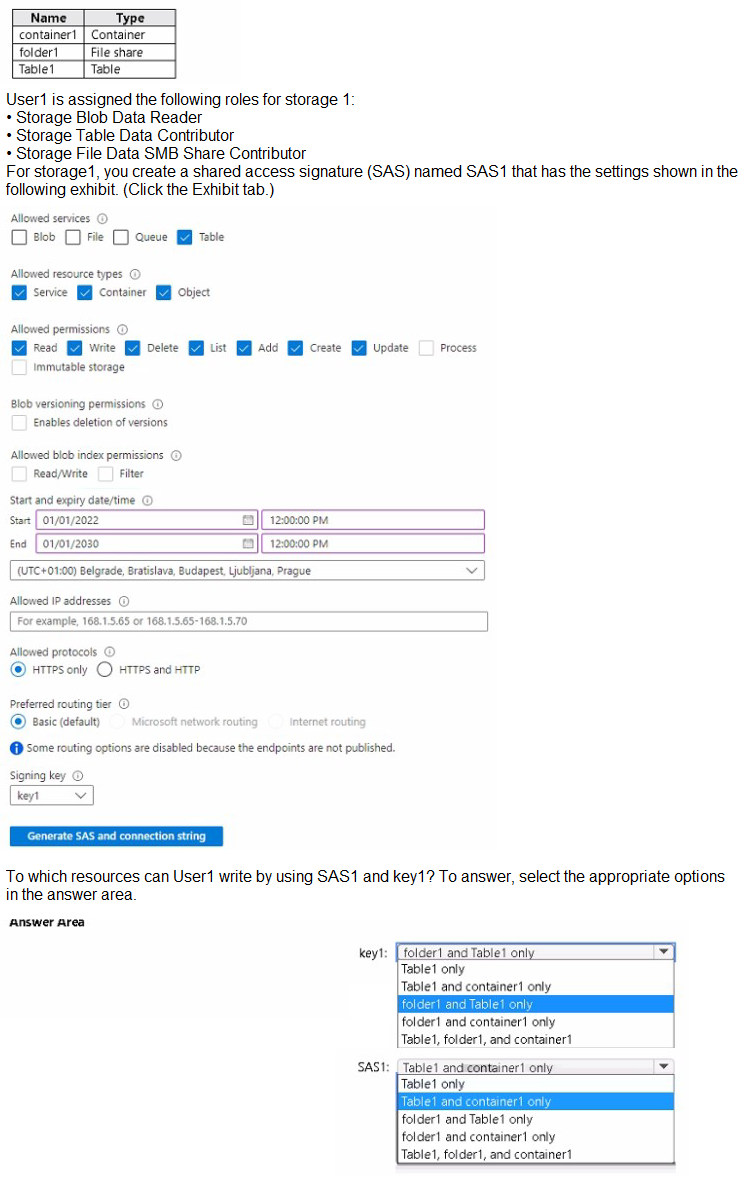
You have an Azure subscription that contains a user named User1 and a storage account named storage 1. The storage1 account contains the resources shown in the following table.
Explanation:
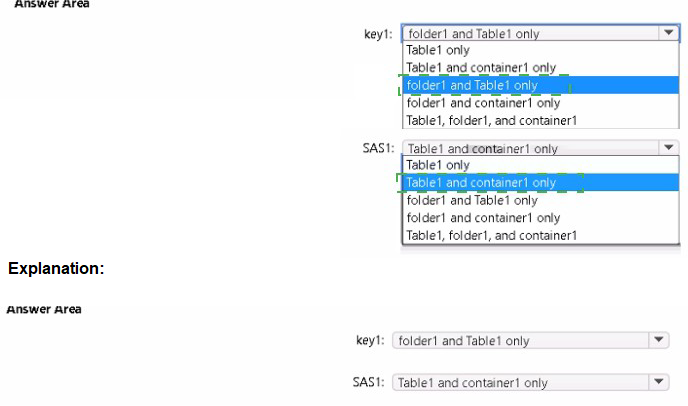
This question tests the effective write permissions User1 has when combining Azure RBAC roles assigned at the storage account level with a Shared Access Signature (SAS) token (SAS1) generated with specific settings. User1 has Storage Blob Data Reader (read-only on blobs), Storage File Data SMB Share Contributor (write on file shares via SMB), and Storage Table Data Contributor (full CRUD on tables). The SAS1 token is restricted to Allowed services: Table only, with full permissions (Read, Write, Delete, List, Add, Create, Update) on Service, Container, and Object resource types. The SAS applies only to the Table service, so it grants write access only to tables (regardless of RBAC). RBAC roles determine access to other services (blobs/containers, file shares/folders) when no SAS is used or when using account key1. Since the question asks for resources User1 can write to using SAS1 and key1, both must be considered together for different services.
Correct Option:
key1: folder1 and Table1
When using the storage account key (key1), User1’s RBAC roles apply: Storage File Data SMB Share Contributor allows write operations (create/delete/update files, create/delete directories) on file shares, including folder1 inside a file share. Storage Table Data Contributor allows write (insert/update/delete entities) on Table1. User1 has only read access to blobs (no write to container1), so container1 is excluded for key1.
SAS1: Table1 only
SAS1 is explicitly configured for Table service only (Blob, File, Queue are unchecked). It grants full write permissions (Add, Create, Update, Delete, Write) at Service/Container/Object levels for tables. Therefore, User1 can write to Table1 using SAS1. SAS1 provides no access to blobs (container1), file shares (folder1), or other services, so only Table1 is writable via SAS1.
Incorrect Option:
key1 options including container1 (e.g., folder1 and container1 only, Table1 and container1 only, Table1, folder1, and container1) — Incorrect because User1 has Storage Blob Data Reader (read-only) on blobs/containers, so User1 cannot write to container1 using key1 or any key.
key1: Table1 only — Incorrect because it omits folder1; Storage File Data SMB Share Contributor explicitly allows write access to file shares and folders within them via SMB protocol when using account keys.
SAS1 options including folder1 or container1 (e.g., folder1 and container1 only, folder1 and Table1 only, Table1 and container1 only, Table1, folder1, and container1) — Incorrect because SAS1 is limited to Table service only; no permissions are granted for File or Blob services, so User1 cannot write to folder1 (file share) or container1 (blob container) using SAS1, regardless of RBAC.
Reference:
Azure Storage shared access signatures (SAS) overview
Assign an Azure role for access to blob and queue data
Storage File Data SMB Share Contributor role permissions6.8sFast
You need to configure an Azure web app named contoso.azurewebsites.net to host www.contoso.com.
What should you do first?
A. Create a CNAME record named asuid that contains the domain verification ID.
B. Create a CNAME record named asuid that contains the domain verification ID.
C. Create a TXT record named asuid that contains the domain verification ID.
D. Create a TXT record named www.contoso.com that has a value of contoso.azurewebsites.net.
Explanation:
To configure a custom domain (like www.contoso.com) for an Azure Web App (like contoso.azurewebsites.net), you must first prove to Microsoft that you own the custom domain. This is done by adding a specific verification ID to your DNS zone. The first step in this process is always to create this verification record, which prevents domain hijacking and confirms your ownership before you attempt to map the domain to the Azure service.
Correct Option:
C. Create a TXT record named asuid that contains the domain verification ID.
To verify domain ownership for an Azure Web App, you must create a TXT record in your domain's DNS zone. The record must be named "asuid", and its value must be set to the domain verification ID provided by your specific Web App in the Azure portal. This is the prerequisite step before you can successfully add either a CNAME or A record to route traffic to your azurewebsites.net domain.
Incorrect Options:
A. Create a CNAME record named asuid that contains the domain verification ID.
This is incorrect because the verification record must be a TXT record, not a CNAME record. While CNAME records are used later for the actual domain mapping (e.g., mapping www to the Azure app), the initial ownership proof requires a TXT record with the specific "asuid" name and the verification ID as its value.
B. Create A records named www.contoso.com and asuid.contoso.com.
This is incorrect for two reasons. First, the verification record must be a TXT record, not an A record. Second, while you might eventually use an A record for the custom domain (if you have a static IP), the first step is still to create the "asuid" TXT record for verification, not the production A record for www.
D. Create a TXT record named www.contoso.com that has a value of contoso.azurewebsites.net.
This is incorrect. The TXT record used for verification must be named "asuid", not "www". Furthermore, its value must be the unique domain verification ID from the Azure portal, not the target Azure Web App hostname (contoso.azurewebsites.net). The actual mapping of "www" to the Azure hostname is done later with a CNAME or A record.
Reference:
Microsoft Learn: Map an existing custom domain to Azure App Service
Microsoft Learn: Domain verification record
You have an Azure subscription that contains multiple virtual machines in the West US Azure region.
You need to use Traffic Analytics in Azure Network Watcher to monitor virtual machine traffic.
Which two resources should you create? Each correct answer presents part of the solution.
NOTE: Each correct selection is worth one point.
A. a Data Collection Rule (OCR) in Azure Monitor
B. a Log Analytics workspace
C. an Azure Monitor workbook
D. a storage account
E. a Microsoft Sentinel workspace
Explanation:
To use Traffic Analytics in Azure Network Watcher, you need to monitor and log network traffic flow data from your virtual machines. Traffic Analytics processes raw flow logs and provides insights into traffic patterns. Before enabling it, you must create the necessary resources to store the raw flow logs and the processed analytics data.
Correct Options:
B. a Log Analytics workspace
A Log Analytics workspace is required to store the processed data from Traffic Analytics. Once Network Security Group (NSG) flow logs are enabled and sent to a storage account, Traffic Analytics retrieves the raw logs, processes them, and populates the Log Analytics workspace with enriched information for querying, visualization, and analysis.
D. a storage account
A storage account is required to store the raw NSG flow logs. When you enable flow logs for a network security group, the logs are written to a blob container in a storage account. Traffic Analytics then accesses these raw logs from the storage account to process and analyze the data before sending the insights to the Log Analytics workspace.
Incorrect Options:
A. a Data Collection Rule (DCR) in Azure Monitor
Data Collection Rules are used to define how data is ingested into Azure Monitor, primarily for monitoring agents and custom data sources. They are not required for Traffic Analytics, which relies on NSG flow logs stored in a storage account and processed into a Log Analytics workspace.
C. an Azure Monitor workbook
Azure Monitor workbooks provide flexible canvases for data analysis and visualization. While you can use workbooks to visualize Traffic Analytics data from a Log Analytics workspace, they are not a prerequisite resource that must be created first to enable Traffic Analytics functionality.
E. a Microsoft Sentinel workspace
Microsoft Sentinel is a SIEM solution that uses Log Analytics workspaces as its underlying data store. Although Traffic Analytics data can be used within Sentinel, creating a dedicated Sentinel workspace is not required for Traffic Analytics. A standard Log Analytics workspace is sufficient.
Reference:
Microsoft Learn: Traffic Analytics overview
Microsoft Learn: Tutorial - Log network traffic flow to and from a virtual machine using the Azure portal
You have an Azure subscription that contains an Azure Storage account.
You plan to create an Azure container instance named container1 that will use a Docker image namedImage1. Image1 contains a Microsoft SQL Server instance that requires persistent storage.
You need to configure a storage service for Container1.
What should you use?
A. Azure Files
B. Azure Blob storage
C. Azure Queue storage
D. Azure Table storage
Explanation:
When running stateful containers like SQL Server in Azure Container Instances (ACI), you need persistent storage that can survive container restarts or crashes. Azure Container Instances support mounting external storage volumes to provide persistence. Among the storage options, Azure Files is specifically designed to be mounted as a file share within containers.
Correct Option:
A. Azure Files
Azure Files provides fully managed file shares in the cloud that can be mounted via the Server Message Block (SMB) protocol. SQL Server requires file-based persistent storage for database files (MDF and LDF). Azure Container Instances natively support mounting an Azure Files share as a volume, making it the ideal choice for stateful workloads like SQL Server containers.
Incorrect Options:
B. Azure Blob storage
Azure Blob storage is an object storage solution optimized for storing massive amounts of unstructured data, such as images, videos, or backups. It cannot be directly mounted as a file system within a container because it does not support the SMB protocol or file system semantics required by SQL Server for database operations.
C. Azure Queue storage
Azure Queue storage is a messaging service for storing large numbers of messages that can be accessed from anywhere. It is designed for asynchronous communication between application components and cannot be used for persistent file storage required by database systems like SQL Server.
D. Azure Table storage
Azure Table storage is a NoSQL key-value store for structured semi-structured data. It is optimized for querying tabular data but does not provide file system capabilities. SQL Server requires block-level access to files, which Table storage cannot provide.
Reference:
Microsoft Learn: Mount an Azure file share in Azure Container Instances
Microsoft Learn: Deploy a container instance in Azure using the Azure CLI
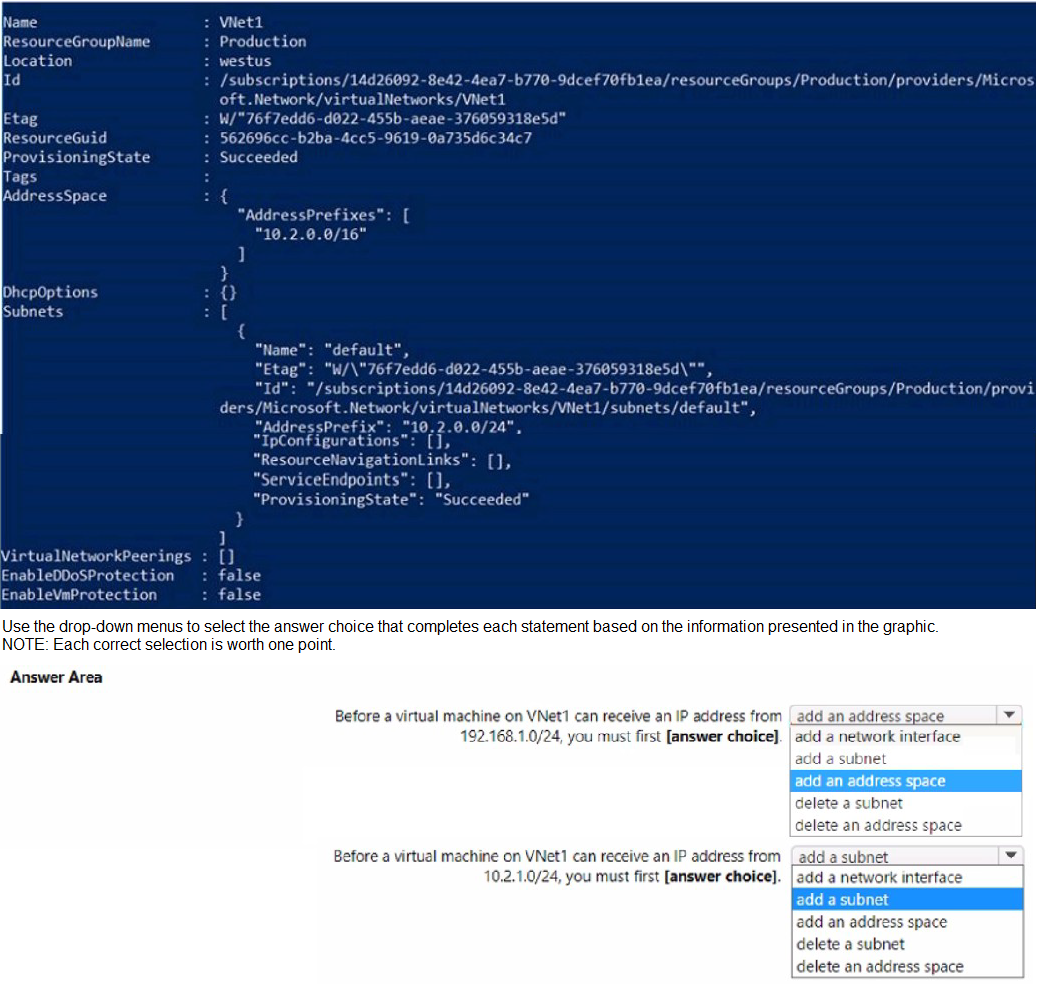
You have a virtual network named VNet1 that has the configuration shown in the following exhibit.
Explanation:
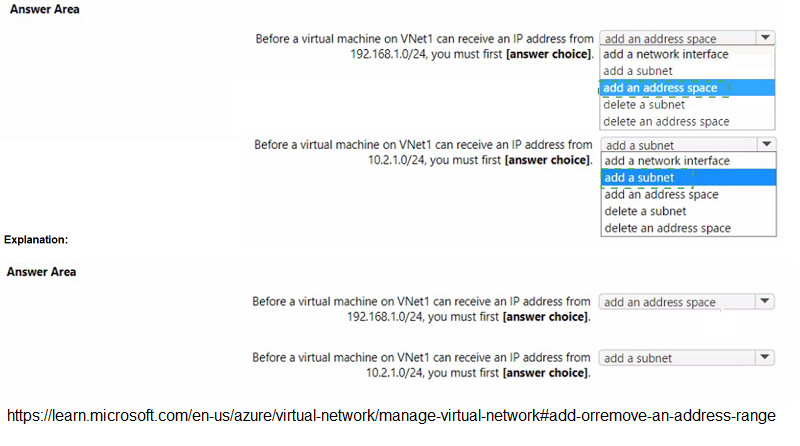
The exhibit shows VNet1 has an address space of 10.2.0.0/16 and currently contains one subnet named "default" with an address prefix of 10.2.0.0/24. IP addresses assigned to virtual machines come from subnets within the virtual network's address space. To assign an IP from a specific range, that range must first exist as either part of the address space or as a defined subnet.
Correct Option:
First Statement: add an address space
The IP range 192.168.1.0/24 is not part of VNet1's current address space (10.2.0.0/16). Before any VM can receive an IP from this range, you must first add 192.168.1.0/24 as a new address space to VNet1. Only after adding the address space can you create a subnet within that range and assign IPs to VMs.
Second Statement: add a subnet
The IP range 10.2.1.0/24 is within VNet1's existing address space (10.2.0.0/16). However, VNet1 currently only has a subnet named "default" with the range 10.2.0.0/24. To assign an IP from 10.2.1.0/24 to a VM, you must first add a new subnet with that specific address prefix to VNet1.
Incorrect Options:
add a network interface (both statements)
A network interface is attached to a VM and receives its IP configuration from a subnet. It cannot be created before the subnet exists because the subnet association is required during IP configuration. Therefore, adding a network interface is not the first step.
delete a subnet / delete an address space (both statements)
Deleting existing resources is not required and would disrupt existing configurations. The goal is to expand addressing capabilities, not remove existing ones.
Reference:
Microsoft Learn: Create, change, or delete a virtual network
Microsoft Learn: Add or remove a subnet in a virtual network
Note: This question is part of a series of questions that present the same scenario. Each question in the series contains a unique solution that might meet the stated goals. Some question sets might have more than one correct solution, while others might not have a correct solution.
After you answer a question in this section, you will NOT be able to return to it. As a result, these questions will not appear in the review screen.
You have an Azure subscription that contains the virtual machines shown in the following table.
You deploy a load balancer that has the following configurations:
•Name: LB1
•Type: Internal
•SKU: Standard
•Virtual network: VNET1
You need to ensure that you can add VM1 and VM2 to the backend pool of LB1.
Solution: You create a Standard SKU public IP address, associate the address to the network interface of VM1, and then stop VM2.
Does this meet the goal?
A. Yes
B. No
Explanation:
The question requires adding VM1 and VM2 to the backend pool of an internal Standard SKU load balancer (LB1) in VNET1. Standard Load Balancers require backend pool VMs to have Standard SKU IP configurations. VM1 currently has a Basic SKU public IP, which is incompatible with Standard Load Balancers.
Correct Option:
B. No
This solution does not meet the goal. While upgrading VM1's network interface to a Standard SKU public IP address addresses the compatibility issue for VM1, stopping VM2 does not resolve its problem. VM2 has a Basic SKU public IP address, which is incompatible with Standard Load Balancers regardless of its power state. Stopping a VM does not change its IP address SKU. Both VMs must have Standard SKU IP addresses to join a Standard Load Balancer backend pool.
Incorrect Options:
A. Yes
This option is incorrect because stopping VM2 does not convert its Basic SKU public IP to Standard SKU. The load balancer will still reject VM2 due to the SKU mismatch. The solution only partially addresses VM1 while completely ignoring the requirement to fix VM2's IP configuration.
Reference:
Microsoft Learn: Azure Load Balancer SKU comparison
Microsoft Learn: Create a public Standard Load Balancer
| Page 7 out of 38 Pages |
| 123456789101112 |
| AZ-104 Practice Test Home |
Real-World Scenario Mastery: Our AZ-104 practice exam don't just test definitions. They present you with the same complex, scenario-based problems you'll encounter on the actual exam.
Strategic Weakness Identification: Each practice session reveals exactly where you stand. Discover which domains need more attention, before Microsoft Azure Administrator exam day arrives.
Confidence Through Familiarity: There's no substitute for knowing what to expect. When you've worked through our comprehensive AZ-104 practice exam questions pool covering all topics, the real exam feels like just another practice session.
Copyright © All Rights Reserved