
Topic 5: Mix Questions
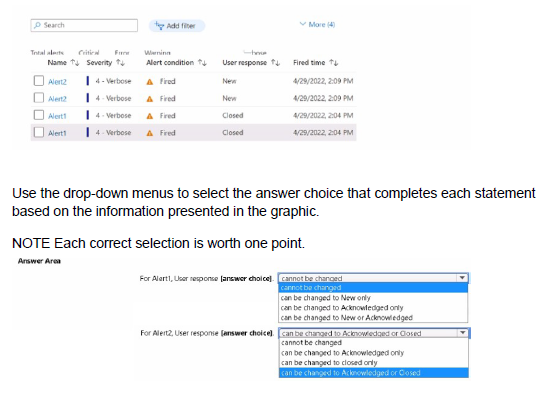
You have an Azure subscription that contains the alerts shown in the following exhibit
Explanation:
Azure Monitor alerts utilize a "User Response" (state) to help administrators track the progress of an incident. There are three primary states: New, Acknowledged, and Closed. The "Alert Condition" (Fired or Resolved) is managed by the system, but the "User Response" is managed manually by the user. An administrator can transition an alert between any of these three states at any time to reflect the current status of the troubleshooting or resolution process.
Correct Options:
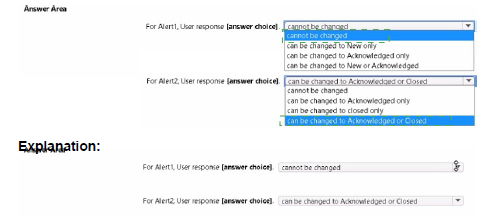
For Alert1, User response: can be changed to New or Acknowledged
For Alert2, User response: can be changed to Acknowledged or Closed
The "User response" field is a metadata state that allows for manual transitions. Since Alert1 is currently in the "Closed" state, it can be moved back to "New" if the issue recurs or "Acknowledged" if it needs further investigation. Since Alert2 is currently in the "New" state, it can be transitioned to "Acknowledged" once a technician starts working on it, or "Closed" once the issue is verified as resolved.
Incorrect Options:
Cannot be changed:
This is incorrect because alert states are designed to be interactive. They are not permanent records and must be adjustable to facilitate incident management workflows.
Can be changed to [Specific State] only:
These options are incorrect because Azure does not restrict the directional flow of alert states. You are not forced into a linear progression (New -> Acknowledged -> Closed); you can move from Closed back to New or skip Acknowledged entirely depending on the administrative requirement.
Reference:
Manage your alert instances - Azure Monitor | Microsoft Learn
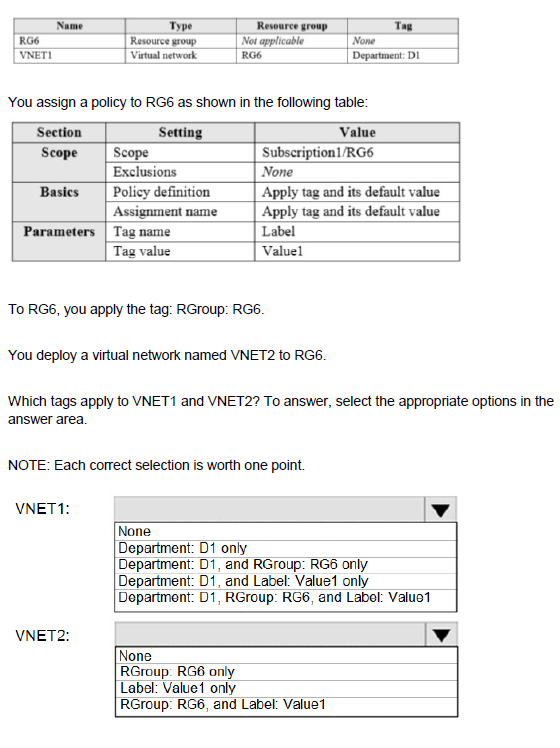
You have an Azure subscription that contains the resources shown in the following table:
Explanation:
This tests understanding of Azure Policy inheritance and the "Apply tag and its default value" effect. This policy assigns the specified tag (Label:Value1) to all resources in the scope (RG6), overriding any existing value for that same tag name. Tags applied directly to the resource group are not inherited by resources by default.
Most Likely Correct Options (assuming VNET1 is in a different RG):
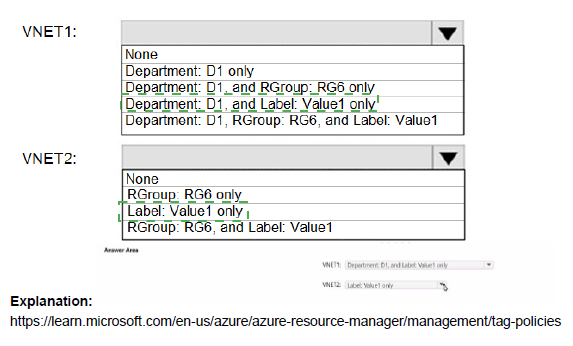
VNET1: Department: D1 only.
(Assuming the initial table shows VNET1 is in a different resource group, e.g., RG1, which has the tag Department: D1 applied directly to the VNET or its RG, and is not in the scope of the policy assigned to RG6).
VNET2: Label: Value1 only.
VNET2 is deployed to RG6, which has the "Apply tag" policy assigned. The policy forcibly applies Label:Value1. The RGroup:RG6 tag applied to the resource group does not automatically propagate to resources within it. Therefore, VNET2 only gets the policy-mandated tag.
Incorrect Options for VNET2:
RGroup: RG6 only or RGroup: RG6, and Label: Value1 are incorrect because resource group tags are metadata for the container, not inherited properties.
None is incorrect because the policy explicitly applies a tag.
Reference:
Microsoft Learn: Understand how effects work - Modify (The "Apply tag and its default value" definition uses a modify effect).
You have an Azure subscription.
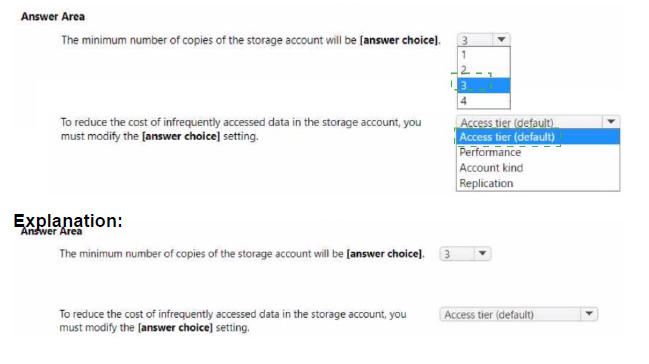
You plan to create the Azure Storage account as shown in the following exhibit.

Explanation:
This question focuses on understanding Azure Storage replication and data lifecycle management. Azure ensures high availability by maintaining multiple copies of data. The number of copies is determined by the Replication strategy selected (LRS, GRS, ZRS, etc.). Additionally, Azure Storage accounts support different Access Tiers (Hot, Cool, Cold, Archive) to optimize costs based on how frequently data is accessed. Modifying these settings post-deployment or during creation allows administrators to balance data durability requirements with budget constraints.
Correct Option:
The minimum number of copies of the storage account will be: 3
To reduce the cost of infrequently accessed data in the storage account, you must modify the: Access tier (default)
The exhibit shows Locally-redundant storage (LRS) selected. LRS replicates your data three times within a single data center in the primary region. For cost optimization, the Access tier is currently set to Hot, which is ideal for frequent access but has higher storage costs. Changing this to Cool or Archive is the standard method for reducing costs for data that is not accessed regularly.
Incorrect Option:
Replication (for cost reduction):
While changing replication (e.g., from GRS to LRS) can reduce costs, the specific question asks about "infrequently accessed data," which is a use case specifically addressed by Access Tiers, not replication levels.
Performance:
Changing Performance from "Standard" to "Premium" would increase costs and is used for low-latency requirements, not for managing infrequently accessed data.
Copies (1, 2, or 4):
In Azure, LRS always maintains 3 copies. There is no standard replication tier that maintains only 1 or 2 copies; even the most basic redundancy (LRS) starts at 3.
Reference:
Azure Storage redundancy - Azure Storage | Microsoft Learn Access tiers for Azure Blob Storage - Azure Storage | Microsoft Learn
You have an Azure subscription that contains a storage account named storage1.
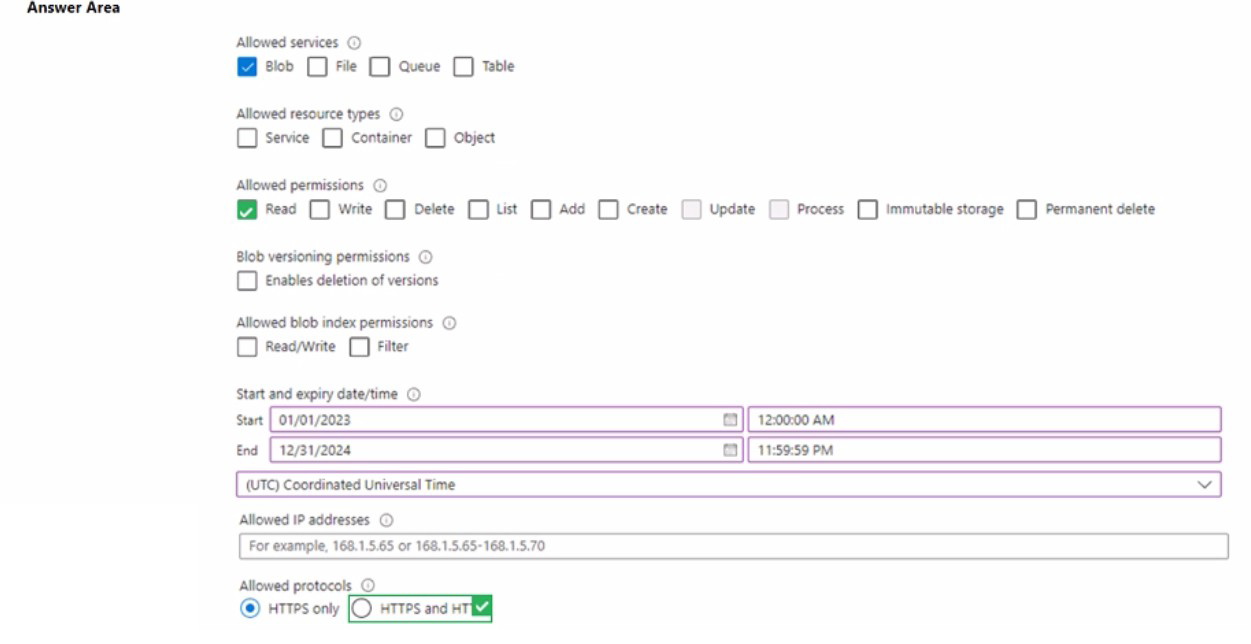
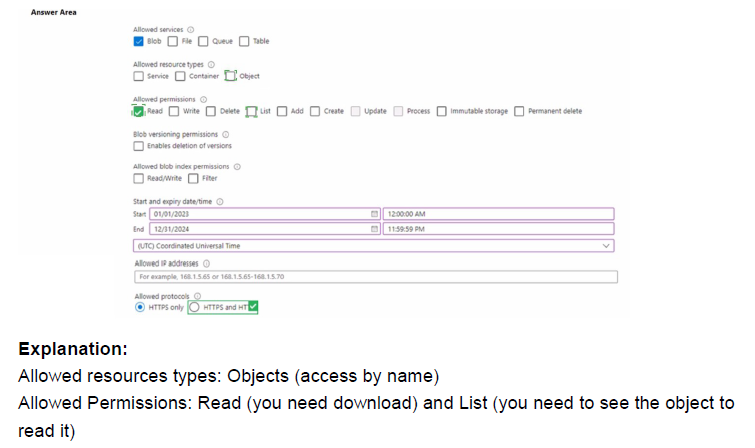
You need to configure a shared access signature (SAS) to ensure that users can only download blobs securely by name.
Which two settings should you configure? To answer, select the appropriate settings in the answer area.
NOTE: Each correct answer is worth one point.
Explanation:
A Shared Access Signature (SAS) provides secure, delegated access to resources in your storage account without exposing your account keys. To ensure users can only download specific blobs by name, you must configure the SAS to target the correct level of the storage hierarchy and limit the actions allowed. Restricting access to "by name" specifically implies that users should not be able to list all contents of a container, but rather must know the exact URI of the blob they wish to retrieve.
Correct Options:
Allowed resource types: Object
Allowed permissions: Read
The Object resource type restricts the SAS to specific blobs (objects) rather than the entire service or container. By selecting Read permissions, you enable the "download" functionality while adhering to the principle of least privilege, as it prevents users from deleting, modifying, or even listing other files. This combination ensures that as long as a user has the blob's name/URL and the SAS token, they can securely download that specific file.
Incorrect Options:
Allowed resource types:
Service or Container: These options are incorrect because "Service" grants access to account-level APIs, and "Container" allows operations on the entire container, such as listing all blobs within it.
Allowed permissions:
List, Write, or Delete: "List" would allow a user to see all blobs in a container, which violates the requirement to access blobs only "by name". "Write" and "Delete" would grant unnecessary administrative-level control over the data.
Allowed services:
File, Queue, or Table: The question specifically mentions "blobs," so the "Blob" service must be selected; adding other services would grant unnecessary access to different storage types.
Reference:
Grant limited access to Azure Storage resources using shared access signatures (SAS) - Microsoft Learn
You have an Azure subscription that contains a resource group named RG1.
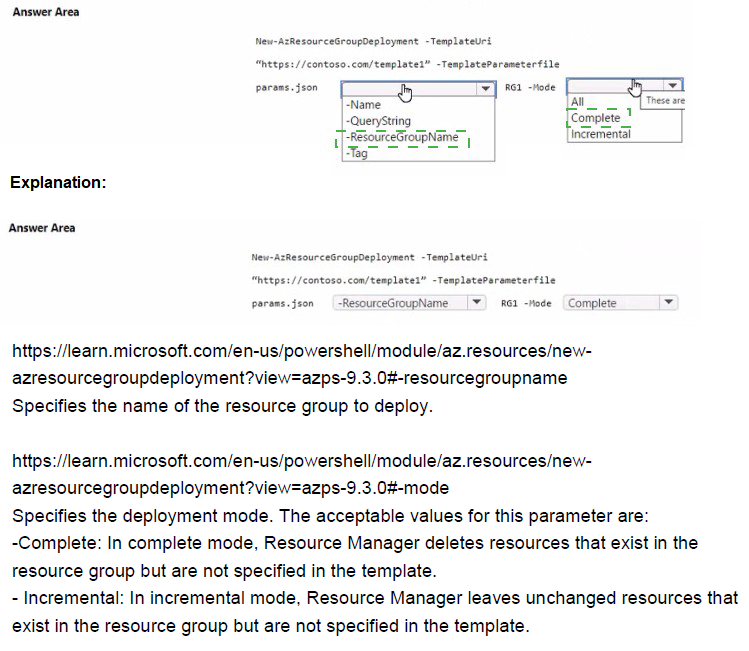
You plan to use an Azure Resource Manager (ARM) template named template1 to deploy resources. The solution must meet the following requirements:
• Deploy new resources to RG1.
• Remove all the existing resources from RG1 before deploying the new resources.
How should you complete the command? To answer, select the appropriate options in the answer area.
NOTE: Each correct selection is worth one point.

Explanation:
The question requires a deployment command that removes all existing resources in RG1 before deploying the new ones from template1. In Azure Resource Manager (ARM) deployments, the -Mode parameter controls this behavior. Using Complete mode ensures the resource group's state matches the template exactly, deleting any resources in the resource group not specified in the template.
Correct Options:
-ResourceGroupName RG1
This parameter specifies the target resource group for the deployment, which is a required piece of information for the New-AzResourceGroupDeployment cmdlet. It directs the deployment to the correct container (RG1) as per the first requirement.
-Mode Complete
This is the critical parameter that meets the second requirement. When -Mode is set to Complete, the deployment engine deletes any resources that exist in the resource group (RG1) but are not defined in the current template (template1). This achieves the goal of removing all existing resources before the new deployment.
Incorrect Options:
-Name / -QueryString / -Tag: These are not valid parameters for the New-AzResourceGroupDeployment cmdlet in this context. -Name is for the deployment name (optional, often auto-generated). -QueryString and -Tag are not standard parameters for this deployment command.
-Mode Incremental: This is the default mode. It leaves unchanged any resources that already exist in the resource group but are not specified in the template. This does not meet the requirement to remove all existing resources.
-Mode All: This is not a valid value for the -Mode parameter. The only valid options are Incremental and Complete.
Reference:
Microsoft Learn: Azure Resource Manager deployment modes - Specifically documents that Complete mode deletes resources that exist in the resource group but are not in the template.
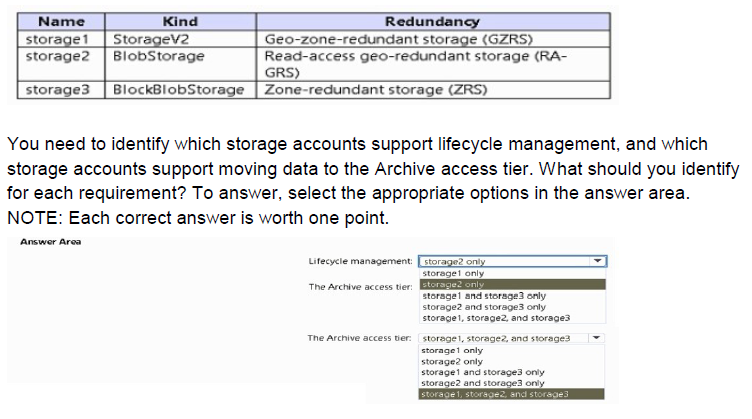
You have an Azure subscription that contains the storage accounts shown in the following table.
Explanation:
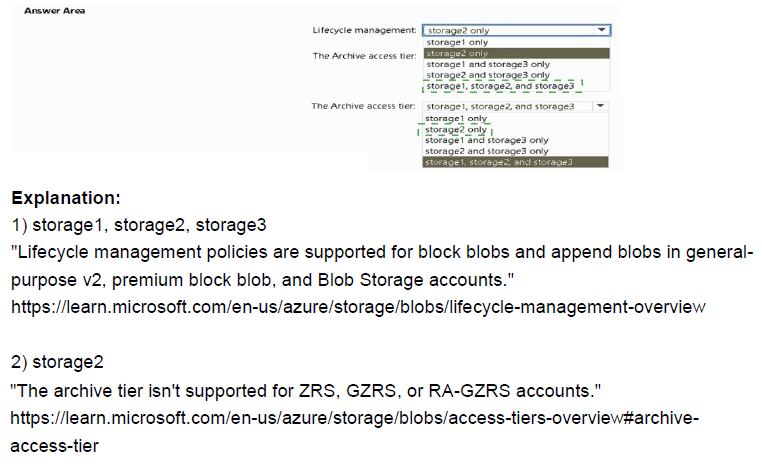
Azure Storage Lifecycle Management allows you to automate the transition of data to cooler storage tiers or delete it based on age to optimize costs. This feature is supported by General Purpose v2 (GPv2), Premium BlockBlobStorage, and BlobStorage account types. However, the Archive access tier has stricter limitations; it is only available at the blob level for GPv2 and BlobStorage accounts. Premium storage accounts (BlockBlobStorage) do not currently support the Archive tier as they are designed for high-performance scenarios that conflict with the high latency of the Archive tier.
Correct Option:
Lifecycle management: storage1, storage2, and storage3
The Archive access tier: storage1 and storage2 only
All three accounts (storage1: GPv2, storage2:
BlobStorage, and storage3: BlockBlobStorage) support Lifecycle Management policies to automate data movement or deletion. Regarding the Archive tier, it is supported by storage1 (GPv2) and storage2 (BlobStorage) which allow for tiering blobs to the lowest-cost storage. Storage3 is a BlockBlobStorage account, which is a "Premium" performance tier; these accounts do not support the Archive access tier because they are optimized for low-latency, high-throughput workloads.
Incorrect Option:
Lifecycle management (storage1 only / storage2 only):
These are incorrect because lifecycle policies are broadly supported across all modern storage account kinds including GPv2 and Premium BlockBlob.
Archive tier (storage3 / storage1, storage2, and storage3):
Including storage3 in the Archive tier selection is incorrect because Premium BlockBlobStorage accounts do not support the Archive tier. Only Standard performance tiers (GPv2 and legacy BlobStorage) provide the Archive option for long-term data retention at a lower cost.
Reference:
Optimize costs by automating Azure Blob Storage access tiers - Microsoft Learn
You have an Azure Active Directory (Azure AD) tenant named contoso.com.
You have a CSV file that contains the names and email addresses of 500 external users.
You need to create a quest user account in contoso.com for each of the 500 external users.
Solution: from Azure AD in the Azure portal, you use the Bulk create user operation.
Does this meet the goal?
A. Yes
B. No
Explanation:
The question asks about creating guest user accounts for 500 external users in an Azure AD tenant. Guest users are external collaborators who need access to resources, while regular users are members of your organization. The distinction between creating standard users versus guest users is crucial for meeting this requirement correctly.
Correct Option:
B. No
The Bulk create user operation in Azure AD is specifically designed to create regular internal member users, not guest users. This operation requires attributes like user principal name and cannot accept external email addresses for guest accounts. To create guest users in bulk, you should use the Bulk invite users operation, which is specifically designed for inviting external users as guests to your Azure AD tenant.
Incorrect Option:
A. Yes
This option is incorrect because it confuses two different bulk operations in Azure AD. While the Bulk create user operation does allow creating multiple users simultaneously, it only creates internal member users within your tenant. Guest users have different properties, licensing requirements, and invitation processes. Using the wrong bulk operation would result in creating internal users with external email addresses, which is not supported and wouldn't grant the intended external users access to your resources.
Reference:
Bulk invite users for B2B collaboration in Azure Active Directory
Bulk create users in Azure Active Directory
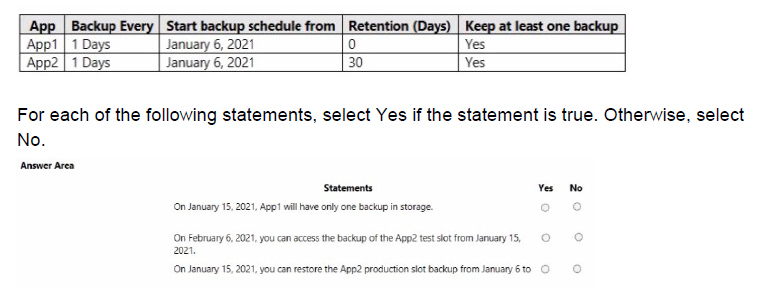
You have two Azure App Service apps named App1 and App2. Each app has a production deployment slot and a test deployment slot. The Backup Configuration settings for the production slots are shown in the following table.
Explanation:
This question tests understanding of Azure App Service backup configurations, including backup frequency, retention policies, and the "Keep at least one backup" setting. The table shows two apps with different retention settings - App1 has 0 days retention but "Keep at least one backup" enabled, while App2 has 30 days retention with the same setting. Understanding how these settings interact is key to determining backup availability on specific dates.
Correct Option Analysis:
Statement 1: "On January 15, 2021, App1 will have only one backup in storage."
Answer: Yes
App1 has backup frequency of 1 day starting from January 6, 2021, with retention set to 0 days but "Keep at least one backup" enabled. This means backups are taken daily, but normally they would be deleted immediately (0 days retention). However, the "Keep at least one backup" setting ensures that the most recent backup is always retained. By January 15, daily backups have been taken for 10 days, but only the most recent backup (from January 14 or 15) is kept in storage.
Statement 2: "On February 6, 2021, you can access the backup of the App2 test slot from January 15, 2021."
Answer: No
The backup configuration shown in the table applies only to the production slots of each app, not to the test slots. The question specifies that the Backup Configuration settings are for the production slots only. Therefore, test slots are not automatically backed up unless explicitly configured separately. Since no backup configuration is mentioned for test slots, there would be no backup of the App2 test slot from January 15 available on February 6.
Statement 3: "On January 15, 2021, you can restore the App2 production slot backup from January 6 to"
Answer: Yes
App2 has backup frequency of 1 day starting from January 6, 2021, with retention set to 30 days and "Keep at least one backup" enabled. The backup from January 6 is within the 30-day retention period on January 15 (only 9 days old). Therefore, this backup is still available in storage and can be used to restore the App2 production slot. The retention policy ensures all backups from the last 30 days are preserved.
Reference:
Configure automatic backups for Azure App Service
Azure App Service backup retention and scheduling options
Deployment slots and backup considerations in Azure App Service
You create an Azure Storage account named Contoso storage.
You plan to create a file share named data.
Users need to map a drive to the data file share from home computers that run Windows 10.
Which outbound port should be open between the home computers and the data file share?
A. 80
B. 443
C. 445
D. 3389
Explanation:
This question tests knowledge of the network ports required for accessing Azure file shares using the Server Message Block (SMB) protocol. When mapping a network drive to an Azure file share from Windows computers, specific ports must be open for the SMB protocol to function properly. Understanding which ports are used by different Azure storage access methods is essential for configuring connectivity.
Correct Option:
C. 445
Port 445 is the standard port used by the Server Message Block (SMB) protocol for direct TCP/IP communication. Azure file shares use SMB 3.0 or later, which requires port 445 to be open for clients to map drives and access files. When users map a drive to an Azure file share from Windows 10 computers, the connection uses SMB protocol over TCP port 445 to establish communication with the Azure storage account.
Incorrect Options:
A. 80
Port 80 is used for HTTP protocol. While Azure Storage supports HTTP access, drive mapping using SMB protocol does not use port 80. HTTP access to Azure files would be through REST APIs or Azure portal, not through traditional drive mapping functionality in Windows Explorer.
B. 443
Port 443 is used for HTTPS protocol. Although Azure Files can be accessed via HTTPS using REST APIs, the traditional drive mapping feature in Windows uses SMB protocol which requires port 445. Port 443 is used for secure web-based access, not for SMB drive mapping.
D. 3389
Port 3389 is used for Remote Desktop Protocol (RDP) to access remote desktops. This port has no relation to file sharing or Azure Storage access. It is used exclusively for remote desktop connections to Windows-based systems.
Reference:
Azure file share access requirements and networking considerations
SMB protocol and port requirements for Azure Files
Configure Azure Files network connectivity
You have an Azure subscription that contains The storage accounts shown in the following table.
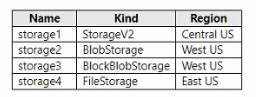
You deploy a web app named Appl to the West US Azure region.
You need to back up Appl. The solution must minimize costs.
Which storage account should you use as the target for the backup?
A. storage1
B. storage2
C. storage3
D. storage4
Explanation:
This question tests understanding of Azure storage account types and their specific use cases. When backing up Azure App Services, you need to consider both regional proximity to minimize data transfer costs and storage account compatibility. App Service backup requires a storage account that supports page blobs, which is a critical factor in selecting the appropriate storage account type.
Correct Option:
D. storage4
FileStorage accounts are designed for Azure file shares but also support page blobs, which are required for App Service backups. While storage4 is in East US (not the same region as App1 in West US), FileStorage accounts can still be used for backup. However, note that using a storage account in a different region will incur data transfer costs. The key factor is that FileStorage supports page blobs, which App Service backup requires.
Incorrect Options:
A. storage1
StorageV2 accounts support all blob types including page blobs, and storage1 is in Central US. While technically it could work, it would incur data transfer costs as it's not in the same region as App1 (West US). Additionally, there are other storage accounts in West US that would minimize costs better.
B. storage2
BlobStorage accounts are optimized for storing block blobs and append blobs only. They do not support page blobs, which are required for App Service backups. Even though storage2 is in West US (same region as App1), it cannot be used for App Service backup due to this limitation.
C. storage3
BlockBlobStorage accounts are specialized for block blobs and append blobs with high performance. Like BlobStorage, they do not support page blobs. Despite being in West US, storage3 cannot be used for App Service backup because it lacks page blob support.
Reference:
Supported storage account types for Azure App Service backup
Page blobs requirements for App Service backup functionality
Azure storage account types and their capabilities
You plan to use Azure Network Watcher to perform the following tasks:
Task1: Identify a security rule that prevents a network packet from reaching an Azure virtual machine
Task2: Validate outbound connectivity from an Azure virtual machine to an external host
Which feature should you use for each task? To answer, select the appropriate options in the answer area.
NOTE: Each correct selection is worth one point.
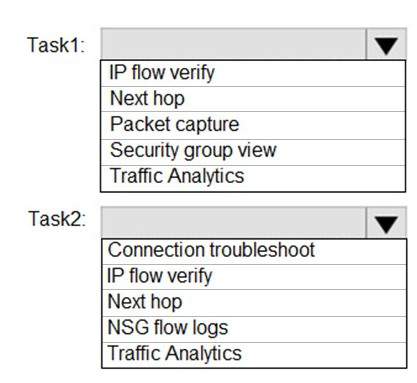
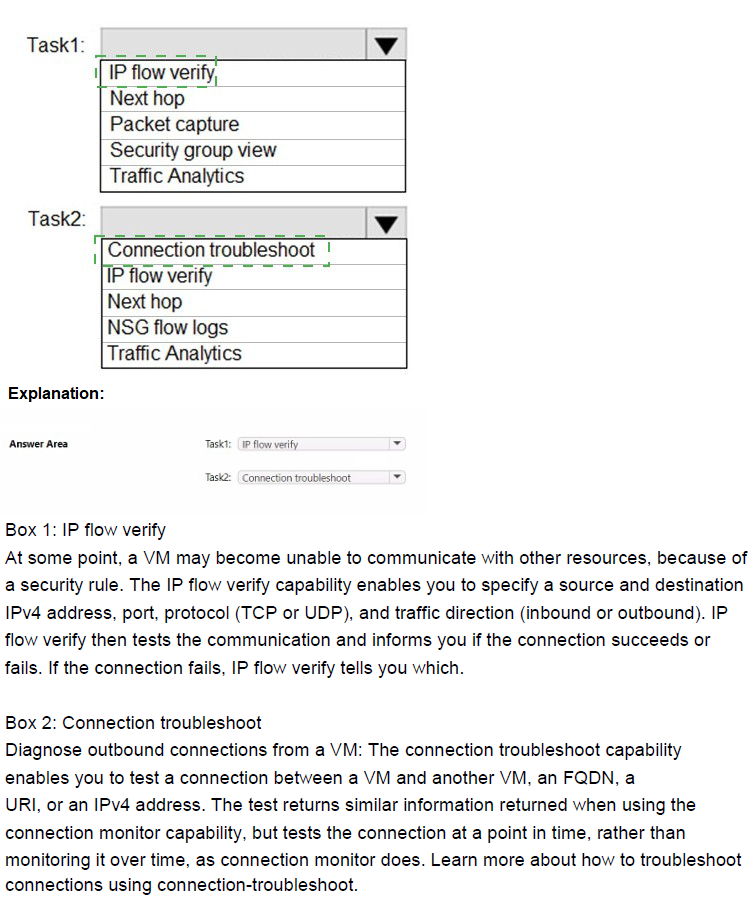
Explanation:
This question tests knowledge of Azure Network Watcher diagnostic tools. Task1 requires identifying the specific NSG security rule blocking a packet to an Azure VM, which needs a tool that simulates a packet and returns the denying/allowing rule name. Task2 requires validating actual outbound connectivity from a VM to an external host (reachability, not just rule simulation), which involves testing real connectivity including routing and firewall behavior.
Correct Option:
Task1: IP flow verify — This tool simulates a specific packet (source/destination IP, port, protocol) to/from a VM and checks against applied NSG rules (and admin rules). If denied, it explicitly returns the name of the security rule blocking the traffic and the associated NSG, directly fulfilling the requirement to identify the preventing security rule.
Task2: Connection troubleshoot — This feature performs an actual connectivity test (simulates TCP handshake or similar) from the VM to an external host/FQDN/IP, reporting success/failure, latency, next hops, and any blocking issues. It validates real outbound reachability beyond just NSG rules, making it ideal for this task.
Incorrect Option:
Next hop — Determines the routing path/next device for traffic from a VM to a destination but does not evaluate NSG/security rules or perform actual connectivity tests; unsuitable for identifying blocking security rules or validating full outbound connectivity.
Packet capture — Captures live network traffic on a VM for deep packet inspection but does not simulate/test hypothetical packets or directly identify blocking rules/connectivity status proactively.
Security group view (Effective security rules) — Displays consolidated applied NSG rules for a NIC/subnet but does not simulate/test a specific packet flow or indicate which rule blocks a particular connection; manual analysis is required.
NSG flow logs — Logs actual historical traffic (allowed/denied) passing through NSGs for analysis but does not simulate/test a new packet or provide immediate validation of outbound connectivity to an external host.
Traffic Analytics — Provides aggregated insights/visualizations from flow logs (top talkers, maps) but is not for real-time packet simulation, rule identification, or direct connectivity validation.
Reference:
IP flow verify: https://learn.microsoft.com/en-us/azure/network-watcher/ip-flow-verify-overview
Connection troubleshoot: https://learn.microsoft.com/en-us/azure/network-watcher/connection-troubleshoot-overview
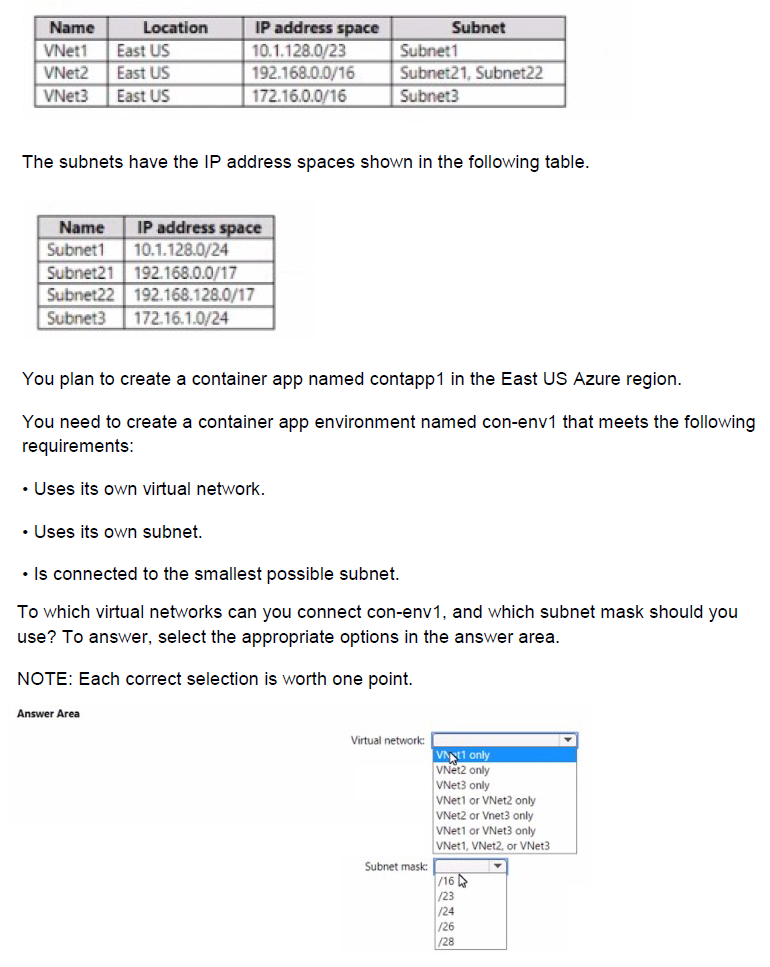
You have an Azure subscription that contains the virtual networks shown in the following table.
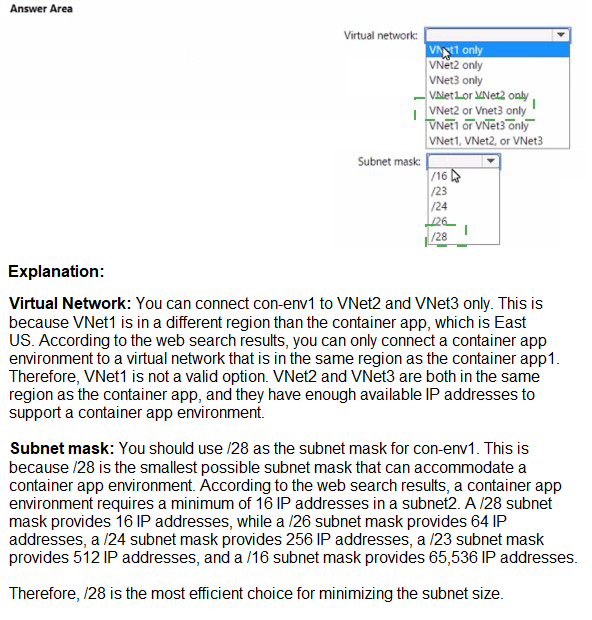
Explanation:
This question tests knowledge of Azure Container Apps environment networking requirements, specifically the subnet size needed when using a custom virtual network. When creating a container app environment with its own virtual network and subnet, there are specific CIDR range requirements that must be met, including minimum subnet size and address space compatibility.
Correct Option:
Virtual network: VNet2 only
Subnet mask: /23
For Azure Container Apps environments, when using a custom virtual network, the subnet must be delegated to Microsoft.App/environments and requires a minimum subnet size of /23. Among the three virtual networks, only VNet2 (192.168.0.0/16) has subnets that can accommodate a /23 subnet without overlapping issues. Subnet21 and Subnet22 are /17 each, which are large enough, and a new /23 subnet could be created within VNet2's address space.
Incorrect Options:
Virtual network analysis:
VNet1 only / VNet3 only / VNet1 or VNet3 only / VNet2 or VNet3 only / VNet1, VNet2, or VNet3
VNet1 uses 10.1.128.0/23 with Subnet1 using 10.1.128.0/24. This leaves only 10.1.129.0/24 available, which is /24, smaller than the required /23. You cannot create a /23 subnet within the remaining space.
VNet3 uses 172.16.0.0/16 with Subnet3 using 172.16.1.0/24. While the overall VNet is large, the specific subnet configuration shown doesn't prevent creating a new /23 subnet elsewhere in the 172.16.0.0/16 range. However, the question implies the existing subnets are already defined, and VNet3 only shows Subnet3. The requirement is to use its own subnet (likely one of the existing ones), and none of the existing subnets are /23 or larger except in VNet2.
Subnet mask analysis:
/16, /24, /28
/16 is larger than necessary and would waste IP addresses
/24 is too small - container apps environment requires at least /23
/28 is far too small for container apps environment requirements
The correct subnet mask is /23 as this is the minimum size required for Azure Container Apps environments when using a custom virtual network.
Reference:
Azure Container Apps virtual network requirements
Subnet size requirements for container app environments
Delegating subnets to Microsoft.App/environments
| Page 3 out of 38 Pages |
| 123456789101112 |
| AZ-104 Practice Test Home |
Real-World Scenario Mastery: Our AZ-104 practice exam don't just test definitions. They present you with the same complex, scenario-based problems you'll encounter on the actual exam.
Strategic Weakness Identification: Each practice session reveals exactly where you stand. Discover which domains need more attention, before Microsoft Azure Administrator exam day arrives.
Confidence Through Familiarity: There's no substitute for knowing what to expect. When you've worked through our comprehensive AZ-104 practice exam questions pool covering all topics, the real exam feels like just another practice session.
Copyright © All Rights Reserved