
Topic 6: Misc. Questions
You have an Azure subscription that contains an Azure Storage account.
You plan to copy an on-premises virtual machine image to a container named vmimages.
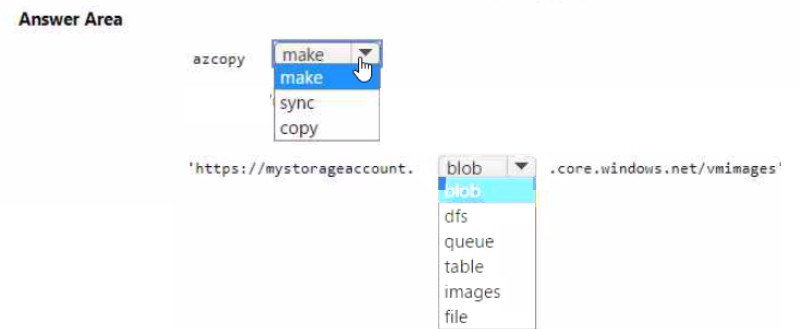
You need to create the container for the planned image.
Which command should you run? To answer, select the appropriate options in the answer area.
NOTE Each correct selection is worth one point.
Summary:
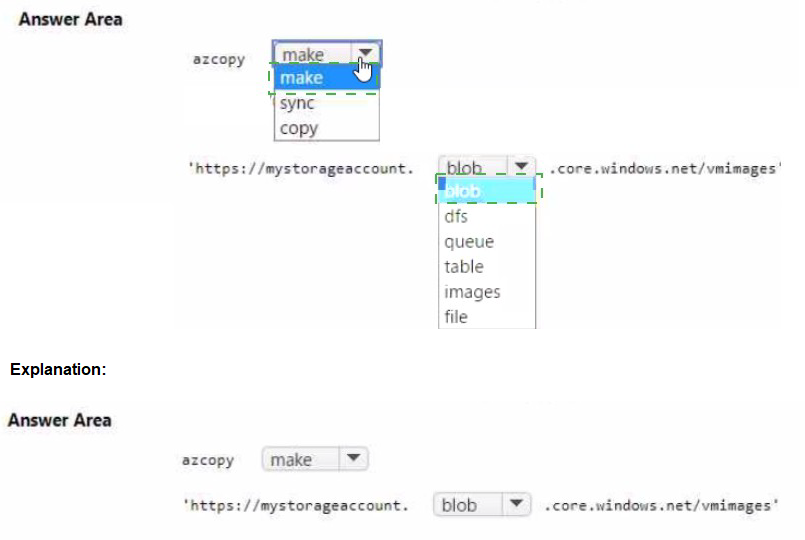
To copy a virtual machine image to an Azure Blob container named vmimages, the container must first be created in the storage account. AzCopy does not create containers automatically. The correct command is azcopy make followed by the blob container URL (using blob.core.windows.net). The make command creates the container if it does not exist.
Correct Option:
azcopy make:
The azcopy make command is specifically designed to create a new container, file share, or directory in Azure Storage. It is required to pre-create the vmimages container before uploading the VHD image using azcopy copy.
https://mystorageaccount.blob.core.windows.net/vmimages
The full blob endpoint URL must include the storage account name (mystorageaccount), the blob service (blob.core.windows.net), and the target container (vmimages). This URL format is mandatory for the make command to identify and create the container.
Incorrect Option:
azcopy syncp:
The sync command synchronizes two locations (source and destination) by comparing contents and copying differences. It does not create containers and would fail if the destination container does not exist.
azcopy copy:
The copy command uploads or downloads blobs but does not create containers. Attempting to copy to a non-existent container results in an error. Container creation must be done separately.
dfs:
The Data Lake Storage Gen2 endpoint (dfs.core.windows.net) is used for hierarchical namespaces, not standard blob containers. The vmimages container is a blob container, so blob.core.windows.net is required.
queue:
The queue service is for Azure Queue storage, used for messaging. It is unrelated to blob containers or VM image storage.
table:
The table service is for NoSQL structured data storage. It is not used for storing VM images or blob containers.
images:
This is an incorrect container name. The planned container is explicitly named vmimages, not images. Using a different name would create the wrong container.
file:
The file service endpoint (file.core.windows.net) is for Azure Files (SMB shares), not blob storage. VM images must be stored in blob containers.
Reference:
https://learn.microsoft.com/en-us/azure/storage/common/storage-ref-azcopy-make
You have a Microsoft Entra user named User1 and a read-access geo-redundant storage (RA-GRS) account named contoso2023. You need to meet the following requirements:
• User1 must be able to write blob data to contoso2023.
• The contoso2023 account must fail over to its secondary endpoint.
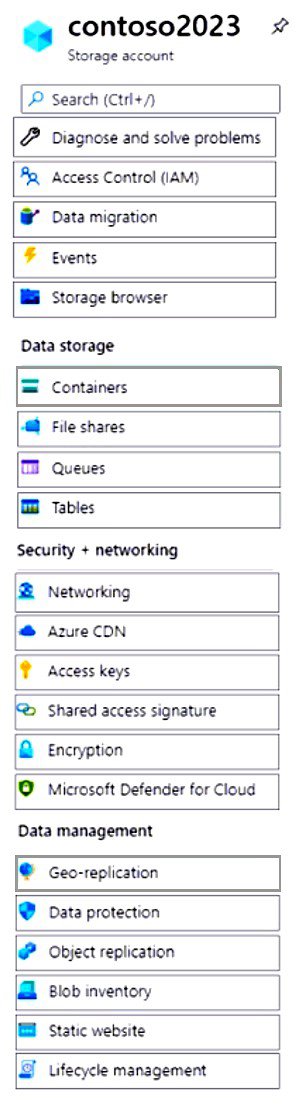
Which two settings should you configure? To answer, select the appropriate settings in the answer area. NOTE Each correct selection is worth one point.

Summary
To meet the requirements, you must grant User1 write permissions to the storage account and configure the account to allow a failover. The "Access Control (IAM)" blade is used to assign the Storage Blob Data Contributor role to User1, granting write access. The "Data management / Geo-replication" blade is where you initiate a failover, which is the process that promotes the secondary endpoint to be the new primary.
Correct Settings
1. Access Control (IAM)
Explanation:
This is the blade where you assign Azure RBAC roles to users, groups, or service principals. To grant User1 the ability to write blob data, you must assign them a role like Storage Blob Data Contributor at the scope of the storage account or a specific container. This fulfills the requirement for User1 to write blob data.
2. Geo-replication
Explanation:
For a read-access geo-redundant storage (RA-GRS) account, the "Geo-replication" section under "Data management" is where you manage the failover process. This blade shows the replication status and provides the option to initiate a customer-initiated failover, which promotes the secondary endpoint to primary. This action fulfills the requirement for the account to fail over to its secondary endpoint.
Explanation of Other Key Settings
Networking:
Configures firewall and virtual network rules, not user permissions or failover.
Access keys:
Used for shared key authentication, not for granting specific user permissions via Microsoft Entra ID.
Encryption & Microsoft Defender for Cloud:
These are security features and do not relate to user data permissions or account failover.
Data protection:
Manages blob versioning, soft delete, and change feed, not geo-replication failover.
Reference:
Microsoft Learn: Assign an Azure role for access to blob data
Microsoft Learn: Perform a customer-initiated storage account failover
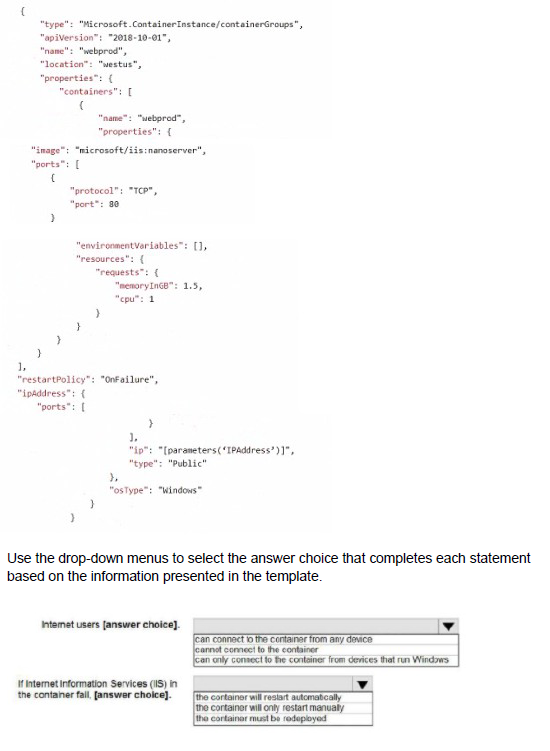
You plan to deploy an Azure container instance by using the following Azure Resource Manager template.

Summary
The template defines an Azure Container Instance (ACI) named "webprod" using a Windows Nano Server IIS image. The configuration of the ipAddress and restartPolicy properties directly determines the connectivity and recovery behavior. The public IP address allows external access, and the "Always" restart policy ensures the container restarts automatically if its process fails.
Answers and Explanations
Statement 1: Internet users...
can connect to the container from any device
Explanation:
The ipAddress section is configured with "type": "Public". This provisions a public IP address for the container group, making it accessible from the internet. The ports array forwards port 80 on this public IP to port 80 inside the container. Therefore, any device with internet connectivity can access the IIS web server running in the container.
Statement 2: If Internet Information Services (IIS) in the container fail,...
The container will restart automatically
Explanation:
The restartPolicy for the container group is set to "Always". This policy dictates that the container instance will automatically restart whenever it terminates, regardless of the exit code. If the IIS process inside the container crashes, the container will terminate, and this policy will cause the ACI service to restart it automatically without any manual intervention.
Reference:
Microsoft Learn: Container group properties for Azure Container Instances - This documentation details the restartPolicy and ipAddress properties, confirming that "Always" will restart the container and "Public" provides an externally accessible IP.
You have an Azure subscription named Subscription1 that contains the following resource group:
Name: RG1
Region: West US
Tag: “tag1”: “value1”
You assign an Azure policy named Policy1 to Subscription1 by using the following configurations:
Exclusions: None
Policy definition: Append tag and its default value
Assignment name: Policy1
Parameters:
- Tag name: Tag2
- Tag value: Value2
After Policy1 is assigned, you create a storage account that has the following configurations:
Name: storage1
Location: West US
Resource group: RG1
Tags: “tag3”: “value3”
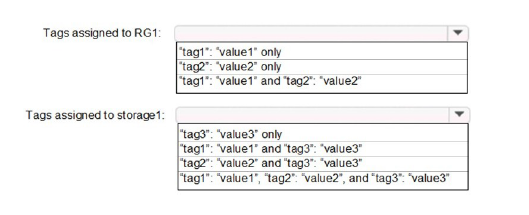
You need to identify which tags are assigned to each resource.
What should you identify? To answer, select the appropriate options in the answer area.
NOTE: Each correct selection is worth one point.
Summary
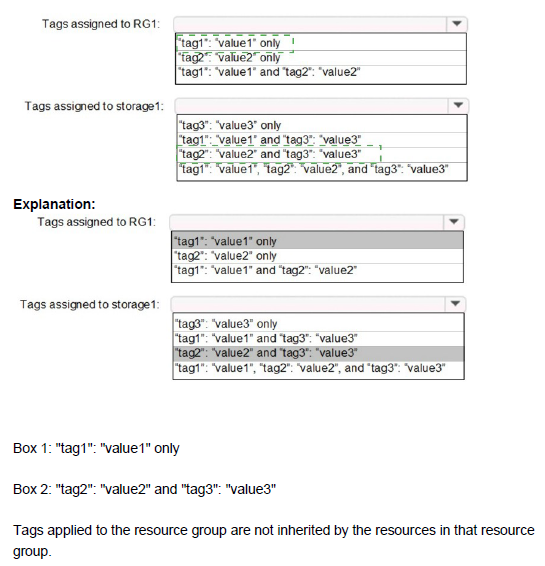
An Azure Policy with the "Append" effect modifies resource properties during creation or updates. Policy1 is configured to append the tag "tag2": "value2" to any resource it applies to. Since the policy is assigned to the entire subscription with no exclusions, it applies to the resource group RG1 and any new resources created within it, like the storage account storage1. The policy will add the tag2 tag without overwriting any existing tags.
Correct Tags
Tags assigned to RG1:
'tag1': 'value1' and 'tag2': 'value2'
Explanation:
RG1 originally had only tag1. The "Append" policy (Policy1) is assigned to the subscription and applies to the resource group RG1 because resource groups are scopeable resources. When the policy is evaluated, it appends the required tag2: value2 to the resource group. The existing tag1 remains, resulting in both tags being present.
Tags assigned to storage1:
'tag1': 'value1', 'tag2': 'value2', and 'tag3': 'value3'
Explanation:
The storage account storage1 was created in RG1 with an initial tag tag3. As a new resource within the policy's scope, the "Append" policy takes effect during its creation. The policy appends tag2: value2. Furthermore, a key behavior of the "Append" effect is that it can inherit tags from the parent resource group if the tag does not already exist on the resource. Since storage1 did not have a tag1, it inherits tag1: value1 from its parent resource group RG1. The final result is all three tags.
Reference:
Microsoft Learn: Append effect for Azure Policy - This documentation explains that the Append effect adds fields to a resource during creation or update and that it can inherit values from the parent resource if the field is not set.
You have an Azure subscription.
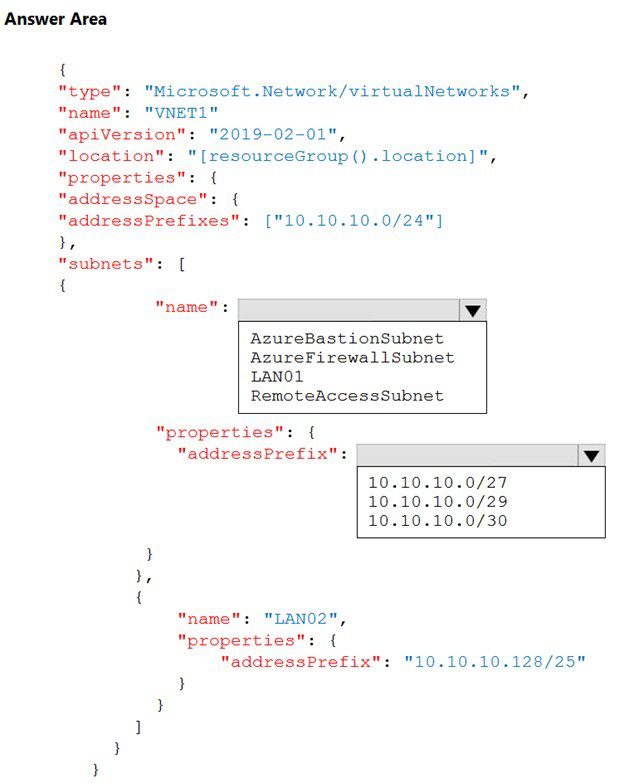
You plan to use an Azure Resource Manager template to deploy a virtual network named VNET1 that will use Azure Bastion.
How should you complete the template? To answer, select the appropriate options in the answer area.
NOTE: Each correct selection is worth one point.
Summary
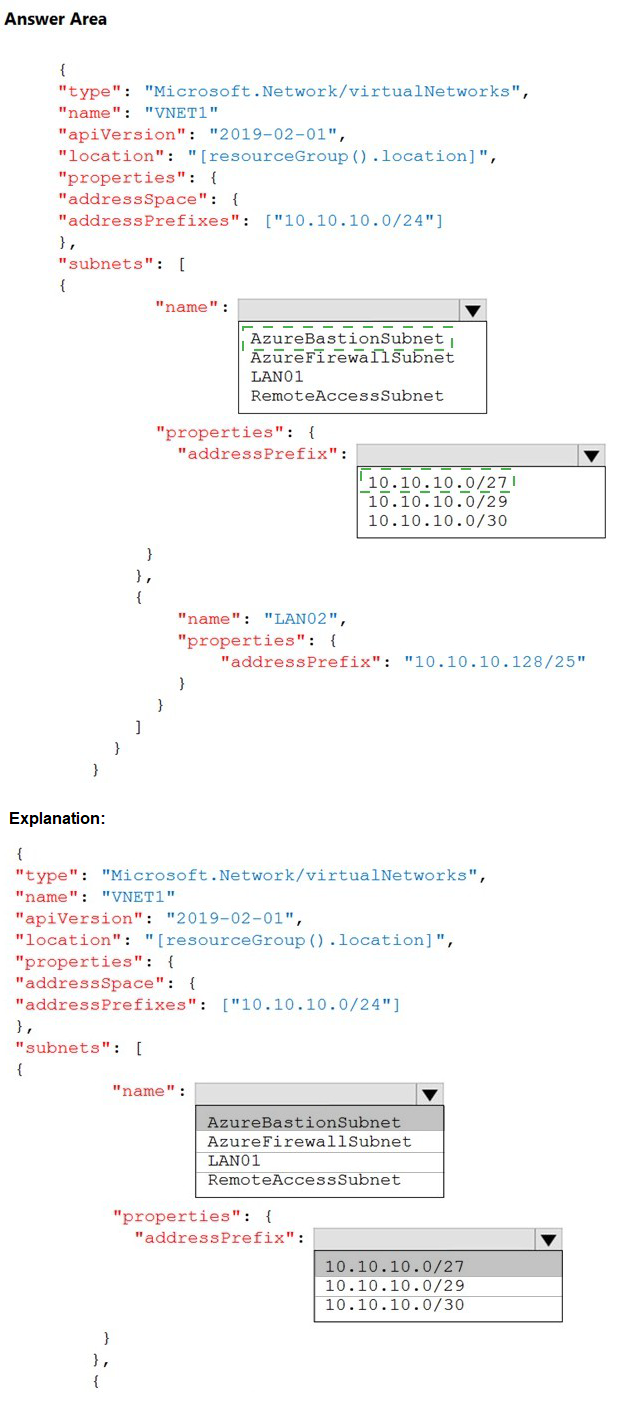
To deploy a virtual network that will use Azure Bastion, the template must include a dedicated subnet with the specific name AzureBastionSubnet. This is a mandatory requirement. Furthermore, this subnet must have a minimum address prefix size of /26 or larger (/25, /24, etc.), with /27 being the smallest recommended size that meets the minimum requirement.
Correct Template Configuration
Subnet Name:
AzureBastionSubnet
Address Prefix:
10.10.10.0/27
Explanation of Selections
AzureBastionSubnet:
This is a reserved name for the subnet that hosts the Azure Bastion resource. You cannot use a custom name like "RemoteAccessSubnet" or "LAN01". The Azure platform requires this exact name to recognize the subnet's purpose.
10.10.10.0/27:
The AzureBastionSubnet requires a minimum size of /26 or larger. A /27 prefix (which provides 32 IP addresses) is the smallest common recommendation that meets the minimum functional requirement and is explicitly called out in the documentation. The other options, /29 (8 addresses) and /30 (4 addresses), are too small and would cause a deployment failure.
Explanation of Incorrect Options
AzureFirewallSubnet:
This is the reserved name for an Azure Firewall deployment, not Azure Bastion.
LAN01 / RemoteAccessSubnet:
These are custom names and are not recognized by the Azure platform for hosting the Bastion service.
10.10.10.0/29 & 10.10.10.0/30:
These subnet prefixes are too small. The deployment would fail with an error stating that the AzureBastionSubnet must be at least /26 in size.
Reference:
Microsoft Learn: Configure Bastion Subnet - This documentation explicitly states the requirement for the subnet name to be AzureBastionSubnet and that it must be /26 or larger.
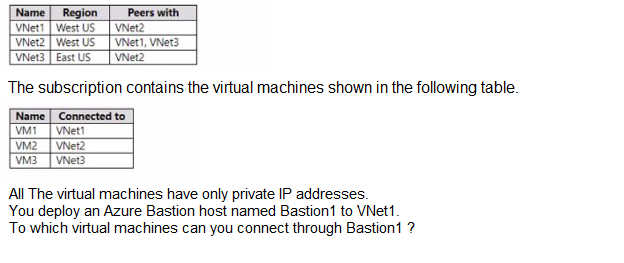
You have an Azure subscription that contains the virtual networks shown in the following table.
A.
VM1 only
B.
VM1 and VM2 only
C.
VM1 and VM3 only
D.
VM1, VM2, and VM3
VM1 only
Summary
Azure Bastion provides secure RDP/SSH connectivity to virtual machines directly through the Azure portal. A key operational characteristic is that a Bastion host is deployed to a specific virtual network (its host VNet) and can only be used to connect to VMs that are located within that same virtual network. It does not provide transitive routing to VMs in peered networks.
Correct Option
A. VM1 only
Explanation
Bastion1 is deployed to VNet1.
According to its design, it can only establish connections to virtual machines that are also connected to VNet1.
VM1 is connected to VNet1.
Therefore, you can connect to VM1 through Bastion1.
VM2 is connected to VNet2.
Even though VNet2 is peered with VNet1, Bastion1 cannot be used to connect to VMs in a peered virtual network. The connectivity scope is strictly limited to the host VNet.
VM3 is connected to VNet3.
This VNet is peered with VNet2 but not directly with VNet1. Furthermore, it is in a different region (East US), and Bastion is a regional service. Therefore, Bastion1 in VNet1 (West US) cannot connect to VM3.
Why the Other Options are Incorrect
B. VM1 and VM2 only:
Incorrect. Bastion does not support connecting to VMs in peered virtual networks.
C. VM1 and VM3 only:
Incorrect. VNet3 is not peered with VNet1, and it's in a different region.
D. VM1, VM2, and VM3:
Incorrect. Bastion's scope is limited to its own VNet.
Reference:
Microsoft Learn: What is Azure Bastion? - This documentation explains that Azure Bastion provides connectivity to VMs within the same virtual network where it is deployed.
You have an app named App1 that runs on two Azure virtual machines named VM1 and VM2.
You plan to implement an Azure Availability Set for Appl. The solution must ensure that App1 is available during planned maintenance of the hardware hosting VM1 and VM2.
What should you include in the Availability Set?
A. one update domain
B. two update domains
C. one fault domain
D. two fault domains
Summary:
Azure uses Update Domains (UDs) and Fault Domains (FDs) within an Availability Set to manage availability. Update Domains group VMs that can be rebooted simultaneously during planned Azure host OS maintenance. To ensure at least one VM remains available during this planned maintenance, you need multiple update domains. Fault Domains protect against unplanned hardware failures, not planned maintenance.
Correct Option:
B. two update domains
Explanation:
An Update Domain (UD) is a logical group of VMs and the underlying physical hardware that can be rebooted at the same time during a planned maintenance event. By placing VM1 and VM2 in two separate update domains, Azure ensures that when the platform performs planned maintenance, it reboots one update domain at a time. This guarantees that at least one VM (the one in the other update domain) remains running and available to serve App1 during the process.
Incorrect Options:
A. one update domain:
If both VMs are in a single update domain, they will both be rebooted simultaneously during planned maintenance, causing a complete outage for App1.
C. one fault domain & D. two fault domains:
A Fault Domain (FD) is a logical group representing separate racks of servers and power supplies to protect against unplanned physical hardware failures. While having two fault domains is a standard and recommended part of an Availability Set, the question specifically asks about ensuring availability during planned maintenance, which is the function of Update Domains, not Fault Domains.
Reference:
Microsoft Learn: Manage the availability of Windows virtual machines in Azure - This documentation explains that update domains allow you to ensure availability during planned maintenance, and that VMs are assigned to different update domains to allow some VMs to remain running.
You have an on-premises server that contains a folder named D:\Folder1.
You need to copy the contents of D:\Folder1 to the public container in an Azure Storage account named contoso data.
Which command should you run?
A.
https://contosodata.blob.core.windows.net/public
B.
azcopy sync D:\folder1 https://contosodata.blob.core.windows.net/public --snapshot
C.
azcopy sync D:\folder1 https://contosodata.blob.core.windows.net/public-snapshot
D.
az storage blob copy start-batch D:\Folder1 https://contosodata.blob.core.windows.net/public
azcopy sync D:\folder1 https://contosodata.blob.core.windows.net/public --snapshot
Summary:
The requirement is to copy the contents of a local folder to an Azure Blob Storage container. The correct tool for this high-performance, scriptable operation is AzCopy. The azcopy sync command is ideal as it replicates the source directory to the destination, copying only files that are new or have been changed, which is efficient for both initial and ongoing synchronization. The destination must be the URL of the target container.
Correct Option:
B. azcopy sync D:\folder1 https://contosodata.blob.core.windows.net/public
Explanation:
azcopy sync:
This is the correct command for synchronizing the contents of a local directory with an Azure Blob container. It will copy new and changed files from D:\folder1 to the public container.
Destination URL:
The format https://contosodata.blob.core.windows.net/public correctly points to the public container within the contosodata storage account.
Incorrect Options:
A. https://contosodata.blob.core.windows.net/public:
This is just a URL, not a command. It cannot be run to perform a copy operation.
C. azcopy sync D:\folder1 https://contosodata.blob.core.windows.net/public-snapshot:
This is incorrect because it uses public-snapshot as the container name. The question specifies the target container is named public. The --snapshot flag is invalid for the sync command in this context.
D. az storage blob copy start-batch D:\Folder1 https://contosodata.blob.core.windows.net/public:
This Azure CLI command is used for copying blobs between Azure Storage accounts, not from a local on-premises directory to Azure.
Reference:
Microsoft Learn: Synchronize with Azure Blob storage by using AzCopy v10 - This documentation explains the azcopy sync command for synchronizing local files with an Azure Blob container.
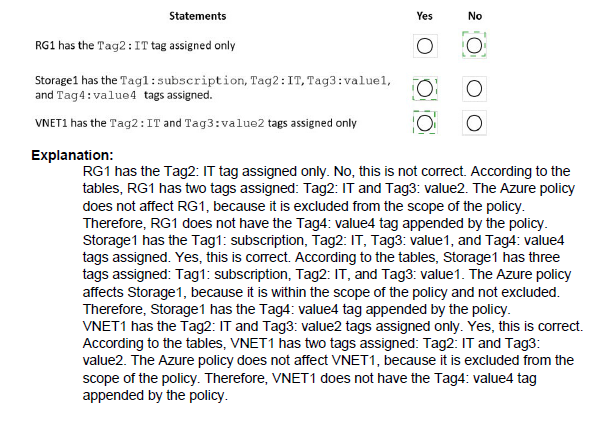
You have an Azure subscription named Sub1 that contains the Azure resources shown in the following table.

Note: This question is part of a series of questions that present the same scenario. Each question in the series contains a unique solution that might meet the stated goals. Some question sets might have more than one correct solution, while others might not have a correct solution.
After you answer a question in this section, you will NOT be able to return to it. As a result, these questions will not appear in the review screen.
You have an Azure Active Directory (Azure AD) tenant named Adatum and an Azure Subscription named Subscription1. Adatum contains a group named Developers.
Subscription1 contains a resource group named Dev.
You need to provide the Developers group with the ability to create Azure logic apps in the Dev resource group.
Solution: On Subscription1, you assign the Logic App Operator role to the Developers group.
Does this meet the goal?
A. Yes
B. No
Explanation:
The goal is to grant the Developers group the ability to create Azure Logic Apps within the Dev resource group. This is an authorization scenario requiring a role with appropriate permissions. The solution assigns the Logic App Operator role at the subscription scope.
Correct Option:
B. No.
The Logic App Operator role is a management/operator role, not a creation role. It allows a user to read, enable, and disable existing logic apps, but it does not grant permissions to create new logic apps. The action Microsoft.Logic/workflows/write (needed for creation) is not included in this role's permissions.
Incorrect Option:
A. Yes.
This is incorrect because the assigned role does not have the necessary permissions to meet the stated goal of creating resources. Assigning a role that only allows management of existing resources does not solve the requirement for creation/deployment rights.
Reference:
Microsoft Learn: Azure built-in roles - Logic App Operator - The documentation lists the allowed actions (Microsoft.Logic/*/read and Microsoft.Logic/workflows/disable/action, etc.) and notably does not include write/create permissions.
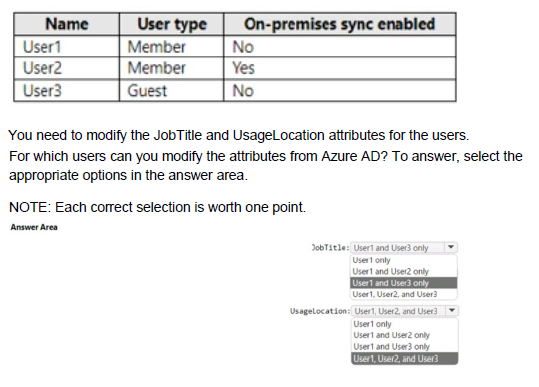
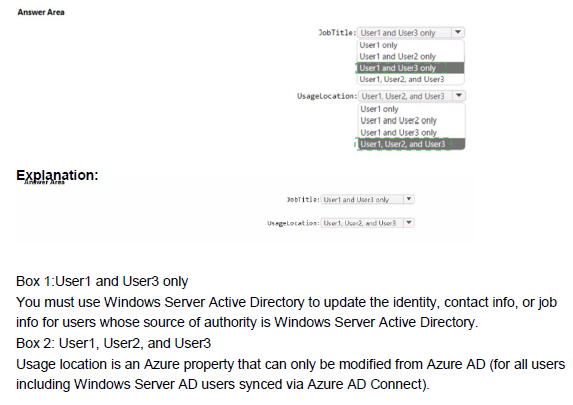
You have a hybrid deployment of Azure AD that contains the users shown in the following table.
You have a Recovery Service vault that you use to test backups. The test backups contain two protected virtual machines.
You need to delete the Recovery Services vault.
What should you do first?
A. From the Recovery Service vault, stop the backup of each backup item.
B. From the Recovery Service vault, delete the backup data.
C. Modify the disaster recovery properties of each virtual machine.
D. Modify the locks of each virtual machine.
Explanation:
To delete an Azure Recovery Services vault, you must first remove all dependencies. The primary dependency is any active backup configuration (protected items). You cannot delete a vault that is protecting any resources, as it contains backup data. The process requires stopping the backup protection and deleting the associated backup data before the vault itself can be deleted.
Correct Option:
A. From the Recovery Service vault, stop the backup of each backup item.
This is the necessary first step. You must "Stop backup" (which means "Delete backup data" in the subsequent confirmation pane) for each protected VM. This action disassociates the items from the vault's protection and deletes the recovery points, removing the core dependency that prevents vault deletion.
Incorrect Option:
B. From the Recovery Service vault, delete the backup data.
While deleting backup data is part of the process, the specific UI action to initiate this is "Stop backup" on the backup item. Option B is not a direct, standalone action in the vault menu; it is the result of correctly executing Option A.
C. Modify the disaster recovery properties of each virtual machine.
This is irrelevant for deleting a backup vault. Disaster Recovery (Site Recovery) is a separate service that may use the same vault type but has its own configuration to remove first.
D. Modify the locks of each virtual machine.
Resource locks on VMs do not prevent the deletion of the separate Recovery Services vault resource. Locks on the vault itself would need to be removed, but this is not mentioned as a pre-existing condition.
Reference:
Microsoft Learn: Delete a Recovery Services vault - The documented steps are: 1. Stop backup and delete data for all protected items. 2. Delete the vault.
| Page 2 out of 38 Pages |
| 123456789101112 |
| AZ-104 Practice Test Home |
Real-World Scenario Mastery: Our AZ-104 practice exam don't just test definitions. They present you with the same complex, scenario-based problems you'll encounter on the actual exam.
Strategic Weakness Identification: Each practice session reveals exactly where you stand. Discover which domains need more attention, before Microsoft Azure Administrator exam day arrives.
Confidence Through Familiarity: There's no substitute for knowing what to expect. When you've worked through our comprehensive AZ-104 practice exam questions pool covering all topics, the real exam feels like just another practice session.
Copyright © All Rights Reserved