
What is a prerequisite step to adding additional users to a Google Cloud VMware Engine's vCenter (GCVE)?
A. Change the default administrator password.
B. Add a user in Google Cloud Platform Identity and Access Management.
C. Open a support ticket to escalate VMware vSphere privileges.
D. Escalate VMware vSphere privileges In the GCVE portal.
Explanation:
In Google Cloud VMware Engine (GCVE), adding users to vCenter requires first creating the user in Google Cloud Identity and Access Management (IAM) . This is because GCVE integrates directly with Google Cloud's IAM system for identity management and access control.
Why other options are incorrect
A. Change the default administrator password – Incorrect.
While it is a security best practice, changing the default password is not a prerequisite for adding new users to vCenter. This is an independent security action that does not enable user creation .
C. Open a support ticket to escalate VMware vSphere privileges – Incorrect.
Google Cloud VMware Engine provides Cloud-Owner-Role privileges by default to the CloudOwner user and members of Cloud-Owner-Group. No support ticket is required for standard user management privileges .
D. Escalate VMware vSphere privileges in the GCVE portal – Incorrect.
Privilege elevation in GCVE is a temporary action required for certain advanced administrative functions (e.g., configuring identity sources, deleting distributed port groups), but it is not a prerequisite for adding users to vCenter. Standard user management tasks can be performed with default Cloud-Owner-Role privileges .
Reference
Google Cloud Documentation – "Private cloud vSphere permission model": Pre-created vCenter user groups and CloudOwner account explained
Google Cloud Documentation – "Manage vSphere permissions": Adding users to pre-created groups for access control
A cloud administrator is notified by VMware that their VMware Cloud on AWS Instance will be updated in seven days. Which action does the cloud administrator need to take to allow the update?
A. Add capacity.
B. Select a date for the upgrade.
C. Respond to the notification.
D. Nothing needs to be done.
Explanation:
In VMware Cloud on AWS, the cloud administrator does not need to take any action to allow the update because VMware Cloud on AWS is a fully managed service.
Why D is correct:
When VMware notifies you that your VMware Cloud on AWS instance will be updated in seven days, this notification is typically for informational purposes only. VMware handles all updates and patches to the underlying infrastructure (SDDC, ESXi hosts, NSX, vCenter, etc.) as part of the managed service model. Unless the notification specifically includes an explicit action item (which is unusual for a 7-day advance notice), no action is required from the customer's end.
Why other options are incorrect:
A. Add capacity – Incorrect.
Adding capacity (adding hosts to a cluster) is related to workload scaling or Elastic DRS, not to receiving an upgrade notification. Upgrades and capacity management are separate operational processes.
B. Select a date for the upgrade – Incorrect.
The 7-day notification is too close to the upgrade start date. The scheduling request window typically occurs 30-60 days before the upgrade begins. By the time a 7-day notification is sent, the schedule has already been finalized.
C. Respond to the notification – Incorrect.
While you may have had the opportunity to respond to earlier scheduling requests (30-60 days prior), a standard 7-day maintenance notification does not require a response. These notifications are informational only.
Reference
Broadcom TechDocs – Service Notifications and Activity Log: Notifications are sent to keep you informed of upcoming maintenance
ExamTopics 2V0-33.22 discussion – Peer consensus confirms D as correct; VMware Cloud on AWS is a managed service where VMware handles updates
VMware Engine cloud administrator is tasked with ensuring that a dedicated, secure, highspeed, and low-latency connection exists between an on-premises VMware Engine. Which two options are available for Google Cloud VMware Engine? (Choose two.)
A. Partner Interconnect
B. Global Reach
C. Dedicated Interconnect
D. ExpressRoute
E. Direct Connect
Explanation:
In Google Cloud VMware Engine, establishing a dedicated, secure, high-speed, and low-latency connection from an on-premises data center requires the use of Cloud Interconnect options. These services bypass the public internet entirely, providing a private, reliable, and high-bandwidth path for hybrid workloads .
Google Cloud offers two specific types of Cloud Interconnect to meet this requirement:
A. Partner Interconnect:
This option provides connectivity between your on-premises network and Google Cloud through a supported service provider . It is ideal for situations where your data center cannot accommodate a direct physical connection due to distance or facility constraints, as it leverages an existing provider's infrastructure. Traffic does not traverse the public internet, ensuring a fast, secure, and reliable connection .
C. Dedicated Interconnect:
This option provides a direct physical connection between your on-premises network and Google Cloud's network . It is typically the most cost-effective solution for organizations requiring very high bandwidth (e.g., multiple 10 Gbps or 100 Gbps circuits) and offers the lowest latency possible, as it eliminates third-party provider overhead .
Why other options are incorrect
B. Global Reach – Incorrect.
Global Reach is an AWS service used to simplify connectivity between AWS Direct Connect and AWS regions . It is not a connectivity option for Google Cloud VMware Engine.
D. ExpressRoute – Incorrect.
ExpressRoute is the dedicated private connection service for Microsoft Azure . It is exclusive to the Azure ecosystem and not available for Google Cloud.
E. Direct Connect – Incorrect.
Direct Connect is the dedicated private connection service for Amazon Web Services (AWS) . It is not a valid connectivity method for Google Cloud services.
Reference
Google Cloud Documentation – Connecting from an on-premises network to VMware Engine: Lists Cloud Interconnect (Dedicated and Partner) as hybrid connectivity options
Google Cloud Blog – Google Cloud VMware Engine cheat sheet: Mentions high-speed, low-latency access via interconnect
What is the purpose of the VMware Cloud on AWS Compute Gateway (CGW)?
A. A Tier-1 router that handles routing and firewalling for the VMware vCenter Server and other management appliances running in the software-defined data center (SDDC)
B. A Tier-1 router that handles workload traffic that is connected to routed compute network segments
C. A Tier-0 router that handles routing and firewalling for the VMware vCenter Server and other management appliances running in the software-defined data center (SDDC)
D. A Tier-0 router that handles workload traffic that is connected to routed compute network segments
Explanation:
The VMware Cloud on AWS Compute Gateway (CGW) is a Tier-1 router specifically designed to manage north-south traffic for customer workload virtual machines .
Why other options are incorrect
A. A Tier-1 router that handles routing and firewalling for management appliances – Incorrect.
Management appliances (vCenter Server, NSX Manager, HCX, etc.) are handled by the Management Gateway (MGW) , not the Compute Gateway. The MGW is a Tier-0 router, not Tier-1.
C. A Tier-0 router that handles routing and firewalling for management appliances – Incorrect.
This describes the Management Gateway (MGW) , not the Compute Gateway. The MGW is a Tier-0 router, but the CGW is Tier-1.
D. A Tier-0 router that handles workload traffic – Incorrect.
While workload traffic could theoretically traverse a Tier-0 router, the Compute Gateway is explicitly a Tier-1 router . The Tier-0 routers in the SDDC are the Management Gateway and Internet Gateway.
Reference
Broadcom TechDocs – "Add a Custom Tier-1 Gateway": *"Every VMware Cloud on AWS SDDC is created with a default Tier-1 gateway named the Compute Gateway (CGW)."*
VMware Cloud Provider Blog – "VMware Cloud Director service brings multi-tenancy to VMware Cloud on AWS": Details the three gateway types – Internet Gateway (Tier-0), Management Gateway (Tier-0), and Compute Gateway (Tier-1)
Which solution would an administrator use to manage the lifecycle operations of Tanzu Kubernetes clusters?
A. VMware Tanzu Service Mesh
B. VMware vSphere Lifecycle Manager
C. VMware Tanzu Observability by Wavefront
D. VMware Tanzu Kubernetes Grid
Explanation:
The correct solution for managing the lifecycle operations of Tanzu Kubernetes clusters is VMware Tanzu Kubernetes Grid (TKG). TKG is VMware's enterprise-grade Kubernetes offering that provides multi-tenant, multi-cloud Kubernetes clusters with built-in lifecycle management capabilities .
Why other options are incorrect
A. VMware Tanzu Service Mesh – Incorrect.
Tanzu Service Mesh is a service mesh platform that provides end-to-end connectivity, security, and insights for microservices running on Kubernetes clusters . While it can work with existing clusters, it does not provide cluster lifecycle management functions such as deployment, scaling, or upgrades. Its focus is on network traffic management, observability, and security policies across clusters, not on managing the clusters themselves .
B. VMware vSphere Lifecycle Manager – Incorrect.
vSphere Lifecycle Manager is designed for managing ESXi host lifecycle operations (updates, patches, images) in vSphere environments . While it can manage the underlying infrastructure for vSphere with Tanzu clusters, it does not directly manage Tanzu Kubernetes cluster lifecycle operations. As VMware documentation states, you use kubectl for lifecycle management of a Tanzu Kubernetes Grid cluster, not vSphere Lifecycle Manager .
C. VMware Tanzu Observability by Wavefront – Incorrect. This is a monitoring and observability platform that provides metrics, traces, and logs for distributed applications . It helps administrators monitor performance and troubleshoot issues but does not perform lifecycle operations like deployment, scaling, or upgrades of Kubernetes clusters.
Reference
Broadcom TechDocs – Overview of Tanzu Kubernetes Grid Integrated Edition Architecture: TKGI Control Plane manages cluster lifecycle including create, scale, upgrade, and delete operations
VMware Cloud Provider Blog – Tanzu Service Mesh announcement: TKG provides multi-tenant, multi-cloud Kubernetes clusters
Exhibit:
NEW FOLDER UPLOAD FILES UPLOAD FOLDERS REGISTERED VM DOWNLOAD
DATE COPY to MOVE TO RENAME TO DELETE
Name Size Modified Type Path
dvsData 05/03/2022, 9.10.21 AM Folder [vsandatastore]
.sdd.sf 05/03/2022, 9.10.21 AM Folder [vsandatastore]
app02-000002.vmdk 05/03/2022, 9.10.21 AM Folder [vsandatastore]
app02-000003.vmdk 05/03/2022, 9.10.21 AM Folder [vsandatastore]
app02-000002.hlog 05/03/2022, 9.10.21 AM Folder [vsandatastore]
app02-000002.vswap 05/03/2022, 9.10.21 AM Folder [vsandatastore]
app02-000002.vswap.lck 05/03/2022, 9.10.21 AM Folder [vsandatastore]
A cloud administrator is asked to troubleshoot a virtual machine (app02) that is performing slowly. The cloud Administrator noticed that app02 is con expected amount of disk space.
As a first step, the cloud administrator uses VMware vCenter to check the snapshot
manager for app02 and no snapshot -- cloud administrator then navigates to the app02
files on the datastore, and is presented with the information provided in the exhibits. Given
the information provided, which task should the cloud administrator perform to resolve this
issue?
A. Migrate the virtual machine to a new datastore.
B. Perform a snapshot consolidation.
C. Power cycle the virtual machine.
D. Execute a Delete All Snapshots task.
Explanation:
The exhibit shows delta disk files (app02-000002.vmdk and app02-000003.vmdk), which are definitive evidence that snapshots exist for the virtual machine app02, even though the Snapshot Manager in vCenter shows none. This discrepancy typically occurs due to orphaned snapshot metadata or stale snapshot structures.
Key evidence from the exhibit:
Files with naming pattern vmname-XXXXXX.vmdk where XXXXXX is a sequential number (e.g., -000002, -000003) are snapshot delta files
Each snapshot creates a child delta disk; multiple delta files indicate multiple snapshot layers
Delta files are read-only while the base VMDK remains read-write for the active VM
The issue with slow performance:
Snapshots degrade VM performance because:
Each read I/O may need to traverse multiple delta files to locate current data
Write I/O goes to the active delta file, adding overhead compared to writing directly to the base disk
Deep snapshot chains create significant I/O latency
Why "Delete All Snapshots" resolves the issue:
Executing Delete All Snapshots in vCenter:
Commits all delta disk changes back to the base VMDK
Consolidates the snapshot chain into a single, flat disk
Removes all delta files (including -000002.vmdk and -000003.vmdk)
Restores original performance by eliminating delta file I/O overhead
Why other options are incorrect
A. Migrate the virtual machine to a new datastore – Incorrect.
Storage vMotion (migration) preserves the snapshot chain; delta files remain delta files after migration. This does not resolve the root cause (snapshots) or improve performance.
B. Perform a snapshot consolidation – Incorrect.
Consolidation is part of the Delete All Snapshots operation, but consolidation alone typically addresses disk space discrepancies, not active snapshot chains. If Snapshot Manager shows no snapshots, a consolidation may not proceed correctly. VMware recommends Delete All Snapshots as the primary action.
C. Power cycle the virtual machine – Incorrect.
Rebooting the guest OS does not delete or consolidate snapshots. Snapshot files remain and performance degradation persists after reboot.
Critical distinction from previous similar questions
In a previous question where Snapshot Manager showed no snapshots but delta files existed, the answer was Delete All Snapshots. This scenario matches that pattern exactly:
Snapshot Manager → No snapshots displayed
Datastore files → Delta VMDK files present
Correct action → Execute a Delete All Snapshots task
VMware KB 1015187 specifically addresses this: when Snapshot Manager does not show snapshots but delta disks exist, run Delete All Snapshots to resolve.
Reference
Broadcom KB 1015187 – "Consolidating Snapshots Fails": Deleting all snapshots consolidates changes back into base disk
Broadcom KB 2003638 – "Virtual machine performance degrades when snapshots exist": Snapshots cause I/O overhead
A cloud administrator successfully configures a policy-based VPN between an on-premises data center and an instance of VMware Cloud Software-defined data center (SDDC). Although the workloads are reachable from both locations over the IP network, the cloud virtual machines cannot access an on-premises web service. What should the cloud administrator check first to resolve this issue?
A. On-premises DNS settings
B. VMware Cloud DNS settings
C. On-premises gateway settings
D. VMware Cloud gateway settings
Explanation:
The cloud administrator should first check the VMware Cloud gateway settings (firewall rules) because even though the VPN tunnel is established (workloads are reachable over the IP network), the Compute Gateway firewall likely blocks the specific traffic to the on-premises web service.
Why D is correct:
When you configure a policy-based VPN, the tunnel establishes Layer 3 connectivity, which explains why basic IP reachability works. However, accessing a specific web service requires the Compute Gateway firewall to explicitly permit traffic on the service's port (e.g., TCP 443 for HTTPS).
Why other options are incorrect
A. On-premises DNS settings
– While DNS resolution could cause name resolution failures, the scenario states the cloud VMs are reaching workloads over the IP network, indicating DNS is likely functional. Also, VMware documentation specifically addresses a similar issue where DNS over policy-based VPN requires explicit gateway configuration .
B. VMware Cloud DNS settings
– This is not the primary cause. The cloud DNS settings affect name resolution, not direct IP-based connectivity to an on-premises web service when the IP is known or resolved correctly.
C. On-premises gateway settings
– Since the on-premises web service is reachable from other locations, the on-premises gateway is likely configured correctly. The issue is specific to traffic originating from the cloud SDDC, pointing to the cloud-side gateway firewall as the first check.
Reference
Broadcom TechDocs – "Compute Workloads Are Unable to Reach an On-Premises DNS Servers Over a Policy-Based VPN": Explains that DNS requests require explicit gateway firewall configuration when using policy-based VPN
Broadcom TechDocs
– "Add or Modify Management Gateway Firewall Rules": Documents the default deny behavior and the need for explicit allow rules
A cloud Administrator is receiving complaints about an application experiencing intermittent network connectivity. Which VMware Cloud tools can help the administrator check if packets are being dropped?
A. VRealize Log Insight
B. Port mirroring
C. IPFIX
D. Traceflow
Explanation:
Traceflow is the VMware Cloud tool specifically designed for path verification and packet-level troubleshooting. When diagnosing intermittent connectivity or packet drops, Traceflow sends synthetic probe packets that mimic the traffic of an application along a specified path. By analyzing the result, you can pinpoint exactly where a packet is being dropped or denied (e.g., by a specific firewall rule or misconfigured router) and identify the root cause of the connectivity complaint .
Why the other options are less suitable for the "first check" in this scenario:
C. IPFIX (and VMware Aria Operations for Networks):
While IPFIX collects flow data (metadata about who talked to whom and how many bytes were transferred) and can help identify packet loss, it is best suited for broad traffic pattern analysis, capacity planning, and long-term monitoring. It is not designed for sending a test packet to determine the exact point of failure in the network path .
B. Port mirroring:
This tool copies network traffic to a monitoring device (like Wireshark) for deep packet inspection. While effective, it requires setting up a destination collector and analyzing a live traffic stream, making it a heavier and more complex tool for initial troubleshooting compared to Traceflow .
A. vRealize Log Insight:
This is a log aggregation and management tool. It would show you the logs of a drop event after it happens, but it does not proactively inject test packets or perform path tracing to validate connectivity .
References:
VMware Blogs: vRealize Network Insight 4.0 support for VMware Cloud on AWS includes path tracing to show where problems might exist .
Broadcom TechDocs: Traceflow is the recommended tool for sending test packets to verify paths and inspect dropped packets in VMware Cloud on AWS .
Refer to the exhibit.
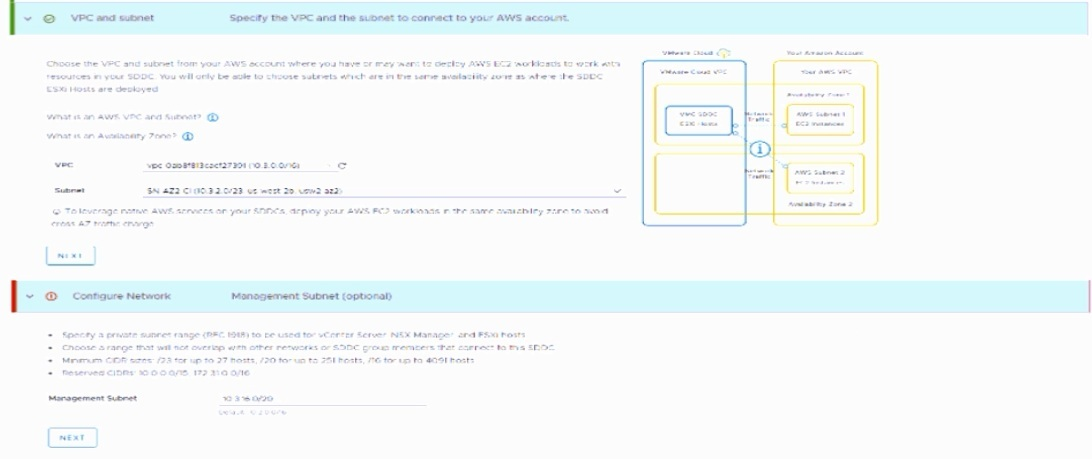
A cloud administrator is deploying a new VMware Cloud on AWS virtual private cloud
(VPC). After clicking on deploy, the screen refreshes and displays the information that is
provided in the exhibit.
What is the issue with the management CIDR that is causing the deployment to fall?
A. It overlaps with the AWS subnet.
B. It overlaps with the AWS VPC CIDR.
C. It is part of the reserved CIDRs.
D. It is an invalid size.
Explanation:
The exhibit explicitly shows a section labeled "Reserved CIDRs: 10.0.0.0/16 172.31.0.0/16" . The administrator entered 10.3.0.0/20 for the Management Subnet. This CIDR block (10.3.0.0/20) falls within the reserved range 10.0.0.0/16 (which covers 10.0.0.0 to 10.255.255.255). VMware Cloud on AWS reserves these specific CIDR blocks for internal use, and customer management subnets cannot overlap with these reserved ranges. Because the chosen subnet overlaps with a reserved block, the deployment fails.
Why other options are incorrect
A. It overlaps with the AWS subnet
– The exhibit shows the AWS subnet as 10.1.2.0/23. The management CIDR 10.3.0.0/20 does not overlap with this subnet.
B. It overlaps with the AWS VPC CIDR – The exhibit shows the AWS VPC CIDR as 10.1.0.0/24. The management CIDR 10.3.0.0/20 does not overlap with this VPC CIDR.
D. It is an invalid size
– The exhibit notes that /20 is a valid size (supports up to 251 hosts). Therefore, the CIDR size is not the issue.
Reference
Broadcom TechDocs – "VMware Cloud on AWS Networking and Security": Reserved CIDR blocks are documented as unavailable for customer use in SDDC deployment
ExamTopics 2V0-33.22 discussion – Confirms that reserved CIDRs (10.0.0.0/16 and 172.31.0.0/16) cannot be used for management subnets
A cloud administrator Is tasked with creating a new network segment In the softwaredefined data center that utilizes the corporate DHCP server to provide IP addresses. What is the proper sequence to create the required network segments?
A. 1- Create a new segment attached to the Tler-0 gateway
2. Configure the segment DHCP Ip-helper
B. 1. Create a DHCP server profile
2. Create a new segment attached to the Tler-0 gateway
3. Configure the segment DHCP config to utilize the new DHCP server profile
C. 1. Create a new segment attached to the Tier-1 gateway
2. Configure the segment DHCP ip-helper
D. 1. Create a DHCP relay profile
2. Create a new segment attached to the Tler-1 gateway
3. Configure the segment DHCP config to utilize the new DHCP relay profile
Explanation:
When you require a corporate DHCP server (located on-premises) to provide IP addresses to VMs in a VMware Cloud on AWS SDDC, you must configure DHCP relay. This is because the corporate DHCP server exists outside the SDDC's network boundaries. DHCP relay forwards broadcast requests from the SDDC segment to the specified remote DHCP server.
Why other options are incorrect
A. Create a new segment attached to the Tier-0 gateway + Configure segment DHCP ip-helper – Incorrect.
Segments cannot be directly attached to Tier-0 gateways; they must attach to Tier-1 gateways (Compute Gateway) . Additionally, "ip-helper" is a Cisco term, not the VMware NSX terminology for DHCP relay.
B. Create a DHCP server profile + Create segment attached to Tier-0 gateway + Configure segment DHCP config to utilize the new DHCP server profile – Incorrect.
A DHCP server profile is used when the SDDC's local DHCP server should provide IP addresses . The question specifies using the corporate DHCP server, which requires a DHCP relay profile, not a server profile. Also, segments cannot attach directly to Tier-0 gateways.
C. Create a new segment attached to theTier-1 gateway + Configure segment DHCP ip-helper
– Partially correct on the gateway attachment, but incomplete. You must create the DHCP relay profile before configuring the segment. The DHCP configuration step on the segment references the pre-created relay profile; "ip-helper" is not the correct VMware terminology.
Reference
Broadcom TechDocs – "Create or Modify a DHCP Profile": DHCP relay profile configuration requires specifying the on-premises server IP address
Broadcom TechDocs – "Create or Modify a Network Segment": Routed segments attach to the Compute Gateway (Tier-1); DHCP configuration (including relay) is set during segment creation
A cloud administrator is managing a VMware Cloud on AWS environment containing of a single cluster with three hosts. Which acts recovery site for the on-premises environment. The on-premises environment consists of eight hosts. what should the cloud administrator configure to optimize scaling for full disaster recovery?
A. Configure an Elastic DRS policy and set the maximum cluster Size to 8.
B. No Additional configuration is required Default Elastic DRS will fulfill the requirement
C. Configure an Elastic DRS policy and select 'Optimize for Rapid scale-out'.
D. Configure an Elastic DRS policy and set minimum cluster size to 8.
Explanation:
The on-premises environment has eight hosts, but the cloud DR site currently has only a single three-host cluster . The requirement is to optimize scaling for full disaster recovery (i.e., when a disaster occurs and all eight hosts must fail over to the cloud). The VMware Cloud on AWS cluster will need to scale up rapidly from 3 to at least 8 hosts within minutes to accommodate the full production load.
Why other options are incorrect
A. Set maximum cluster size to 8 – Incorrect.
While limiting the max size prevents unnecessary costs, setting the maximum alone does not affect the speed of scaling. Without the Rapid Scaling policy, hosts would still be added one at a time, which is too slow for a full DR failover.
B. Default Elastic DRS – Incorrect.
The default "Baseline" policy only scales out for storage utilization (at 80%), not for CPU or memory demands . Since the DR requirement involves processing power (not just storage) for eight hosts, the default policy will not trigger host additions for compute resources.
D. Set minimum cluster size to 8 – Incorrect.
Setting the minimum to 8 forces the cluster to always run 8 hosts even during normal (non-DR) operations. This is not optimizing for disaster recovery; it is eliminating the "elastic" cost-saving benefit entirely and would be extremely expensive when disaster is not occurring.
Reference
Broadcom TechDocs – "Rapid Scaling policy adds multiple hosts at a time when needed... faster scaling for disaster recovery"
Which three factors should a cloud administrator consider when sizing a new VMware Cloud software-defined data center (SDDC) to support the migration of workloads from an on-premises SDDC? (Choose three.)
A. Total number of 10Gb network ports required
B. Host hardware type in the target VMware Cloud
C. Total number of on-premises hosts
D. Total number of workloads
E. Total amount of available storage across all on-premises datastores
F. Average size of workload resources (CPU & RAM)
Explanation:
Sizing a VMware Cloud SDDC for migration requires analyzing three foundational resource inputs to determine the appropriate target host type, count, and configuration. The VMware Cloud Sizer tool, along with migration planning features in VMware Aria Operations, are specifically designed to take these inputs and produce a recommended SDDC configuration.
When planning a migration, the administrator must first translate the resource footprint of the on-premises environment into the consumption model of the target VMware Cloud SDDC. The three critical factors for this analysis are:
D. Total number of workloads
– The total count of virtual machines (VMs) or containers that will be migrated is the starting point. This provides the baseline scale of the environment.
F. Average size of workload resources (CPU & RAM)
– You must evaluate the average consumption of vCPU and vRAM per workload. This, combined with the total number of VMs, allows for the calculation of the total compute and memory capacity required from the target SDDC.
B. Host hardware type in the target VMware Cloud
– VMware Cloud on AWS offers different bare-metal host types, each designed for specific resource consumption profiles, such as i3.metal (general-purpose), i3en.metal (storage-optimized), and i4i.metal (higher performance). The analysis of your total workloads and their average resource sizes helps you determine which host hardware type will run your workloads most efficiently. For example, large databases or big data analytics would be better suited for the i3en.metal host type with its high storage capacity.
Why other options are incorrect
A. Total number of 10Gb network ports required – Incorrect.
This is an on-premises physical networking detail that does not directly translate to capacity planning in VMware Cloud on AWS. The service uses a fixed network architecture where a single Elastic Network Adapter (ENA) is provisioned per host.
C. Total number of on-premises hosts – Incorrect.
The number of physical servers in your on-premises data center is not a useful metric for cloud sizing, as on-premises hardware is generally older and hosts far fewer VMs per server compared to the dense, modern bare-metal instances used in VMware Cloud on AWS.
E. Total amount of available storage across all on-premises datastores – Incorrect.
Only the storage actively consumed by the workloads being migrated should be considered, not the total capacity of your on-premises datastores. This prevents over-sizing the target cloud environment.
References
Broadcom TechDocs – Resource Planning:"Understanding the needs of your SDDC workloads can help you design and deploy an SDDC that meets those needs in a scalable, cost-effective way".
ExamTopics 2V0-33.22 Discussion: Peer consensus indicates B, D, and F as the correct answers.
| Page 4 out of 11 Pages |
| 2345 |
| 2V0-33.22PSE Practice Test Home |
Real-World Scenario Mastery: Our 2V0-33.22PSE practice exam don't just test definitions. They present you with the same complex, scenario-based problems you'll encounter on the actual exam.
Strategic Weakness Identification: Each practice session reveals exactly where you stand. Discover which domains need more attention, before VMware Cloud Professional exam day arrives.
Confidence Through Familiarity: There's no substitute for knowing what to expect. When you've worked through our comprehensive 2V0-33.22PSE practice exam questions pool covering all topics, the real exam feels like just another practice session.
Copyright © All Rights Reserved